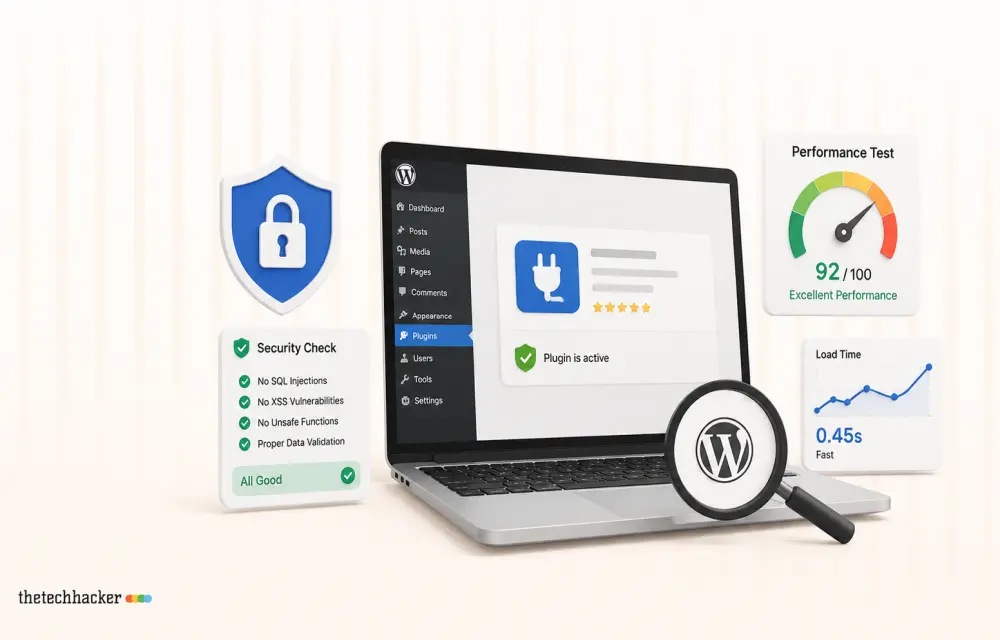
WordPress plugins enhance website functionality, offering a multitude of features from various sources. However, integrating plugins without proper evaluation can introduce security vulnerabilities and degrade site performance. In this comprehensive guide, we’ll show you how to test WordPress plugin security and performance to maintain your site’s integrity.
Why Testing WordPress Plugins Is Essential
Before deploying a plugin on your main site, test it on an alternate or staging site. This preliminary step, which we always perform, helps in identifying potential risks and performance issues without compromising your live site.
Evaluating Plugin Security
Using Online Security Tools
In our testing, WPSec proved to be a robust tool that scans for vulnerabilities. Navigate to their site, input your site URL, and commence the scan. Post-scan, review the results to identify any threats. For ongoing monitoring, consider registering for a free WPSec account. Consult the official documentation at wpsec.com for more detailed information.
Leveraging Security Plugins
- Wordfence Security: A popular choice that we have found effective for identifying and removing malicious codes. Install and activate it from your dashboard, then proceed to start a new scan from the Wordfence menu.
- Log HTTP Requests: This plugin logs all data requests. After installation, check Tools > Log HTTP Requests to evaluate data exchanged by your plugins.
Detecting Malicious Code
To check for unusual coding, the RIPS Scanner is a valuable resource. Download, extract, and initiate the scan to uncover any irregularities. For detailed guidance, visit ripsscanner.com.
Assessing Plugin Performance
Using Performance Analysis Tools
- GTmetrix: In our hands-on tests, entering your site’s URL into GTmetrix quickly uncovers speed issues. Refer to gtmetrix.com for more insights.
- Pingdom: Similar to GTmetrix, Pingdom evaluates performance speed and highlights areas of improvement. Use pingdom.com for detailed guidelines.
Identifying Unused CSS/JS Files
Utilize Chrome’s Dev Tools to detect and eliminate unused CSS/JS files. Navigate to More Tools > Coverage and review the resources. The official Chrome DevTools documentation provides comprehensive instructions.
Additional Methodologies for Assessment
If a plugin is custom-developed, submitting it to wordpress.org for review can ensure adherence to standards. Engaging with communities for peer reviews can also provide insights from seasoned developers, as referenced on the WordPress support forums.
Best Practices for Plugin Testing
Opt for plugins from reputable developers and maintain regular updates. Leveraging community input and professional tools will enhance testing accuracy.
Common Mistakes in Plugin Evaluation
Avoid testing plugins directly on your live site, and steer clear of ignoring update notifications. Utilize comprehensive scans regularly instead of sporadic checks.
Conclusion
Thoroughly evaluating plugins before integration protects your site’s security and performance. Consistently apply best practices and choose trusted plugin developers to ensure your WordPress site runs optimally.
Frequently Asked Questions About Plugin Testing
Why should I test plugins before using them?
Testing prevents introducing security risks and performance issues to your live site.
What tools can I use to check a plugin’s security?
Tools like WPSec and Wordfence Security can identify and mitigate potential security threats.
How can I determine if a plugin affects site performance?
Use performance analysis tools like GTmetrix and Pingdom to evaluate speed impacts.
What should I do with unused CSS/JS files?
Remove them to enhance site performance using Chrome Dev Tools for identification.
Can community input help with plugin testing?
Yes, input from experienced developers in forums can provide additional perspectives.
Edited by: Thetechhacker WordPress Team
Last updated: July, 2026
Leave a Reply