

How To Delete Your Windows 8 Personal Settings From The Cloud
Windows 8 has an awesome feature to save and sync your personal settings & preferences over multiple PCs. To use this service, you need to log in with your Microsoft Account. It is a very good feature to sync settings across all your Windows systems. If you don’t want sync your settings, you can disable it.…

Windows 8 has an awesome feature to save and sync your personal settings & preferences over multiple PCs. To use this service, you need to log in with your Microsoft Account. It is a very good feature to sync settings across all your Windows systems. If you don’t want sync your settings, you can disable it. Here’s how to delete your Windows 8 personal settings from the cloud.
Steps To Delete Your Windows 8 Personal Settings From The Cloud
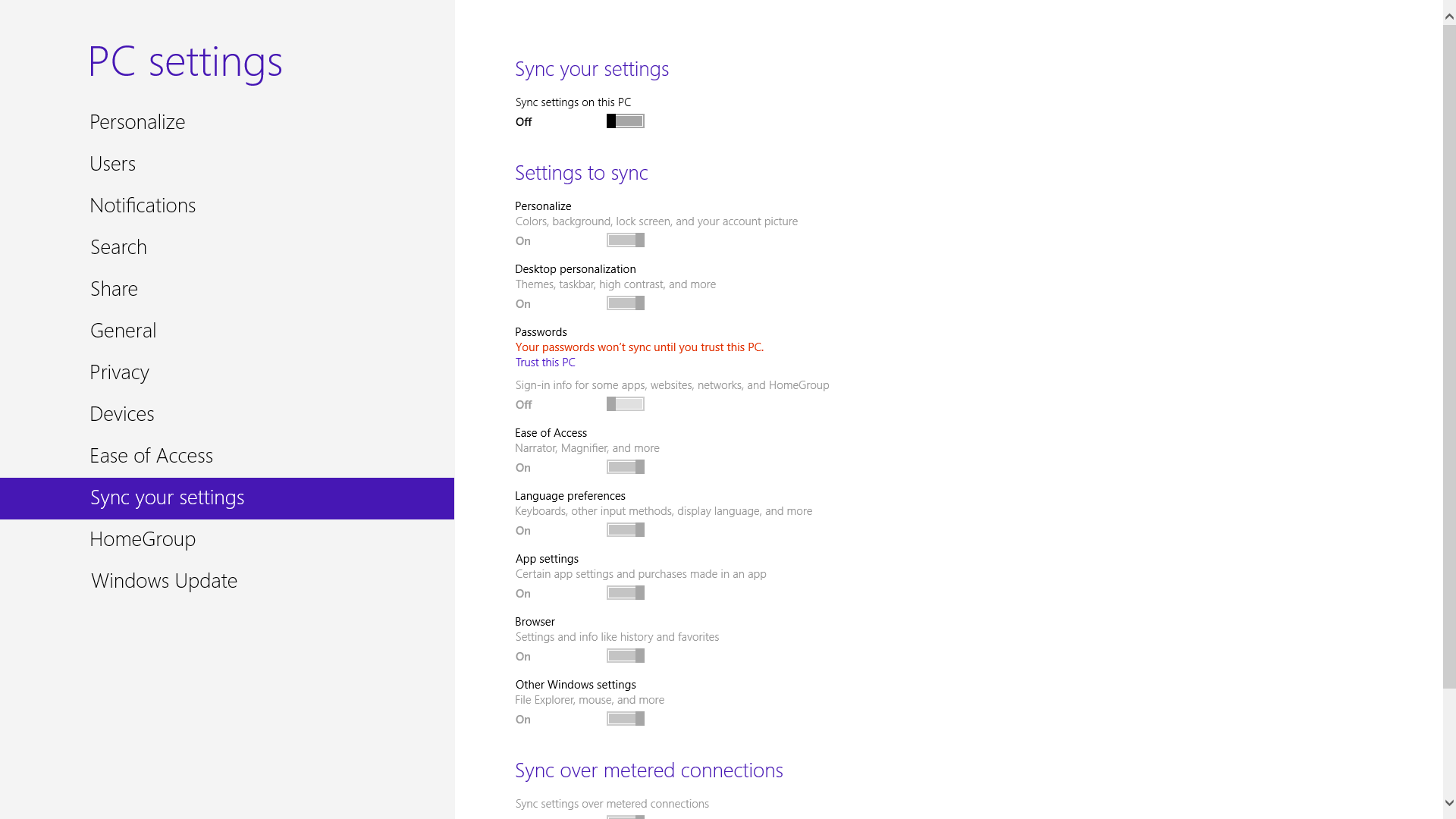
- Open settings by pressing Win+C or swipe in from the right edge on touch screens. Then, go to Settings > Change PC settings > Sync your settings. Move the slider for “Sync settings on this PC” to Off.
- Now log in to your Microsoft Account, and go to Windows 8 Personal Settings page.
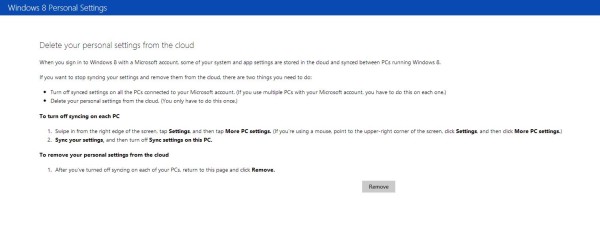
- Click on the “Remove” button to delete sync settings.
- At the confirmation prompt, click “Yes”.
Updated…
Seamless connectivity across many platforms with just one login detail is apparently becoming a standard feature for most of our devices. Windows 8 users will agree that the ability to import their settings and customizations from one computer to another without the use of any cables or storage drives is one of the coolest things they can do with Windows.
Obviously, it is, but there are some people who wouldn’t like to import their data from one PC to the other. Perhaps, they had a problem on one of their devices and wouldn’t like to carry the problem over to the new device, or maybe they reset their PC because of a virus attack and are so scared of importing the virus that they decided to start afresh with a clean slate.
Well, this step by step guide shows you how to delete your Windows 8 personal settings from the Cloud.
- You need to disable syncing on all of your devices that are running on Windows 8. To quickly do that, press the “Windows Key” + “C” to bring up the Windows 8 charm.
- Navigate to and click “Settings” > “PC settings” > then “Sync your settings”. Toggle the slider off and all the other settings will turn gray.
After doing that, you need to log into your Microsoft Account on the internet. Visit the special Windows 8 Personal Settings Page created by Microsoft for this purpose.
Navigate to and click the “Remove” button and follow the on-screen prompt (which are basically steps 1 and 2 listed above.)
You have successfully removed your details from Microsoft’s SkyDrive servers. Make sure that the auto sync feature is turned off on all of the devices you intend not to sync your data to.
That was as easy as ABC, wasn’t it? Hit the share button and let your friends know about it too. You wouldn’t like to be seen as selfish, would you?
More in Windows

Easiest ways to Add/Delete Fonts in Windows 10
Are you tired of using the same set of fonts repeatedly and looking for something new? Windows 10 computers come with tons of pre-installed fonts, so you can choose the font that suits your taste right away. However, using the same fonts over and over can get excessively boring. And it might affect your productivity.…

Inky is a Cloud Based Email Client For Windows
Inky Is A Cloud-Based Email Client For Windows: Generally, Windows has a very limited number of Email clients. People normally use Outlook or Thunderbird. Outlook is an enterprise office suite bundled with other apps. Inky is an email client app which offers a very simple user interface with best features. No need to configure email setting…

How to Fix Windows 10 1809 Deleting User Files on Update
We know Windows sends updates to every genuine version. These updates bring the latest security patches and performance upgrades. Unfortunately, one of the Windows 10 updates is causing the user files deleting issue upon the installation. The Windows 10 1809 update is causing user data deletion. It is affection both the Windows 10 Home and…
The week in tech, minus the noise.
New reviews, fixes and the stories that matter — once a week, straight to your inbox.
We only use your email to send the newsletter. Unsubscribe any time. See our privacy policy.
Comments