

Easiest ways to Add/Delete Fonts in Windows 10
Are you tired of using the same set of fonts repeatedly and looking for something new? Windows 10 computers come with tons of pre-installed fonts, so you can choose the font that suits your taste right away. However, using the same fonts over and over can get excessively boring. And it might affect your productivity.…

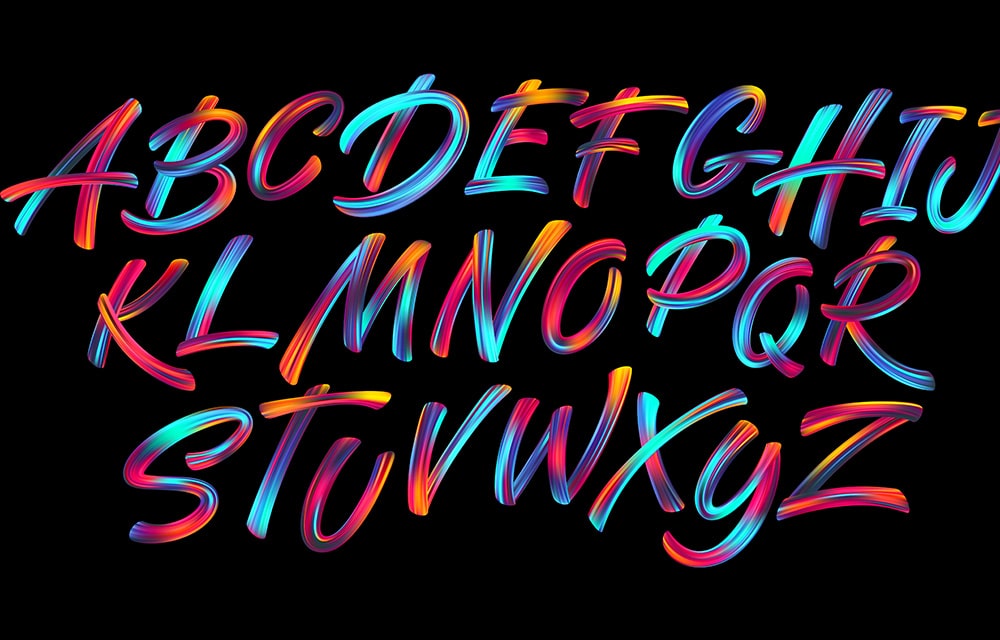
Add Fonts to Windows 10
Are you tired of using the same set of fonts repeatedly and looking for something new? Windows 10 computers come with tons of pre-installed fonts, so you can choose the font that suits your taste right away. However, using the same fonts over and over can get excessively boring. And it might affect your productivity. But it doesn’t have to end this way. Because you can always install additional fonts of your choice on your Windows 10 PC and add some fun and flair to your writing process.
In this guide, you will learn two easy step-by-step methods to install fonts in Windows 10 and delete the unnecessary ones. Let’s begin.
How to Install Fonts in Windows 10
There are two major ways you can download and install new fonts on your Windows 10 device with zero mess. Follow the methods below to install your favorite fonts in an instant.
Use Microsoft Store
The fastest and easiest way to install any new font is to do it via the Microsoft store. Microsoft Store comes pre-installed on most Windows 10 computers. And you can use it to download different apps, games, and even your favorite fonts.
To do it:
- Press the “Windows + I” keys on your keyboard and open the “Settings” app.
- Next, click on the “Personalization” option.
- Once the “Personalization” menu comes up, click on “Fonts” on the left panel.
- After you get into the “Fonts” menu, click on the blue-colored text, “Get more fonts in Microsoft Store,” which is just underneath the “Add fonts” text.
- Now, find a font you like and click on it to start the download process.
- Next, once the font is installed, it will appear in the “Available fonts” section, so you can start using it.
Try Drag and Drop to Install Fonts in Windows 10
If no font from the Microsoft Store catches your eye, you can always download and install it from somewhere else. In this case, you can use this “drag and drop” method to install your favorite fonts on your PC.
Remember, if you want to make this method work, you need to download the fonts from somewhere else first. Please note that every font file that works in Windows 10 computers comes either in .tff or .otf format. You can download these font files for free from multiple trusted websites such as Google Fonts, Urban Fonts, Font Squirrel, or any other site of your choice.
Once you’re done with it, follow these steps below to install your downloaded fonts in Windows 10:
- Go to the “Search Bar” and type “File Explorer.” Now, click on the top result and the “File Explorer” app will open.
- Next, on the left panel, click on “Download” and find your downloaded fonts.
- Now, extract the font files that are in .tff or .otf format. Keep the window open and head to the next step.
- Next, type “Control Panel” in the “Search Bar” and click on the top result to pop the “Control Panel” window open.
- After that, click on “Appearance and personalization.”
- Next, click on the “Fonts” option.
- Now, go to the “Downloads” window, drag your selected font, and drop it in the “Fonts” window of the Control Panel.
Now, wait for a few moments and the font will be automatically installed and become available for your use.
Deleting Unnecessary Fonts
Sometimes, you might end up downloading and installing too many fonts, only to realize that you don’t like most of them later on. But don’t worry. Because, in Windows 10, deleting a font is actually easier than installing it.
To delete a font:
- Press on the “Windows + I” keys on your keyboard and open the “Settings” app.
- Next, click on “Personalization” and then select “Fonts” on the left panel.
- Now, find the font you want to delete from your device.
- After that, click on the font.
- Once a new menu opens, click on the “Uninstall” option,
Congratulations! You have successfully deleted a font.
More in Windows
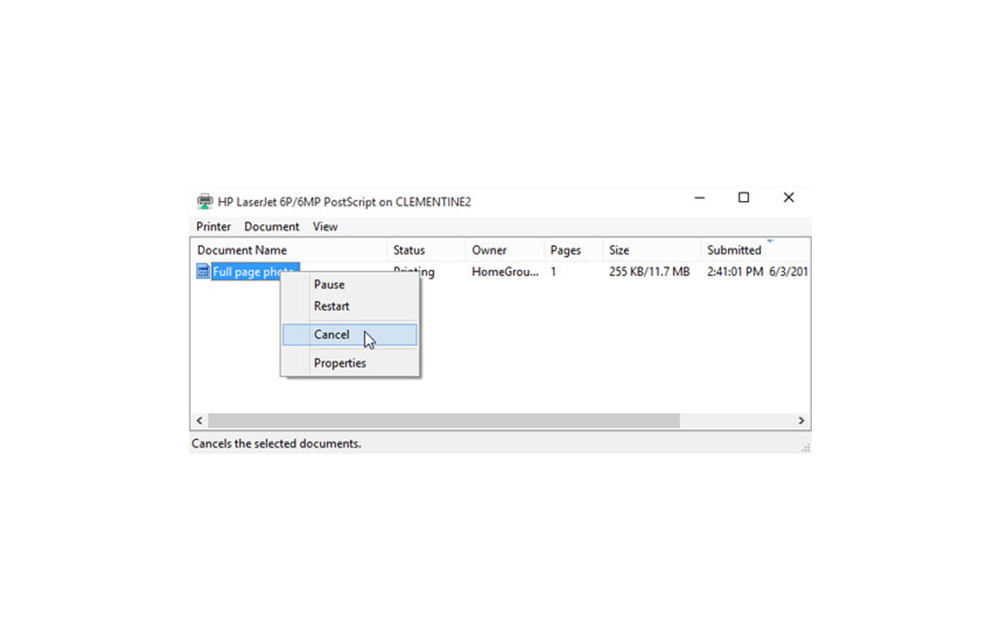
How to Delete Pending Print Jobs
Pending print jobs can create problems sometimes. If you have a long list of files to print and some of them run into errors, the pending print jobs quickly become an irritation. In many offices, this problem is most common when there is a long print queue. If you don’t clear it in time, it…
How to Clear Temp Files in Windows 10
Windows 10 stores a lot of temporary files in order to make sure that the operating system and its features work flawlessly. In addition to the operating system itself, applications installed on it also make use of temporary files that will no longer be needed after a certain period of time. So once in a…
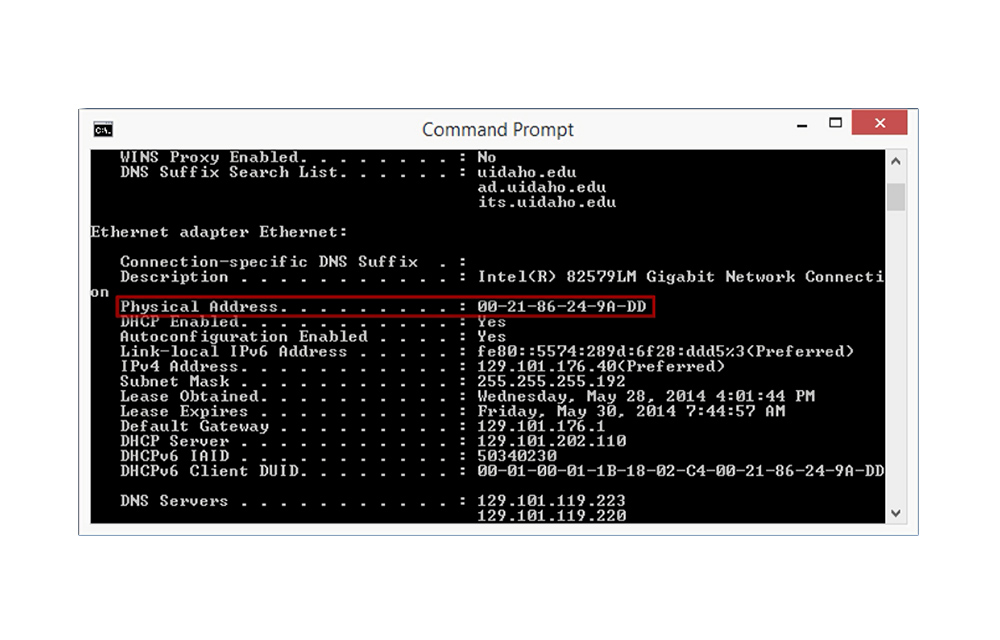
How to Get MAC Address in Windows
The MAC Address stands for “Media Access Control.” This address is a unique identifier that is assigned to network devices. It is mostly referred to as the physical address. The MAC addresses are 48-bits or 6-byte when it comes to length. They are written in the format of MM:MM:MM:SS:SS:SS. Here, the manufacturer’s ID number are the…
The week in tech, minus the noise.
New reviews, fixes and the stories that matter — once a week, straight to your inbox.
We only use your email to send the newsletter. Unsubscribe any time. See our privacy policy.
Comments