

How To Enable USB Storage On Android Devices
Android devices are well known for their features. The popularity of Android has surged over the past few years, and its dead simple interface makes every task quite user-friendly. Android phones come with all the latest sharing technologies like Bluetooth, Wi-Fi and NFC. Along with these, you can also connect your Android device to a…

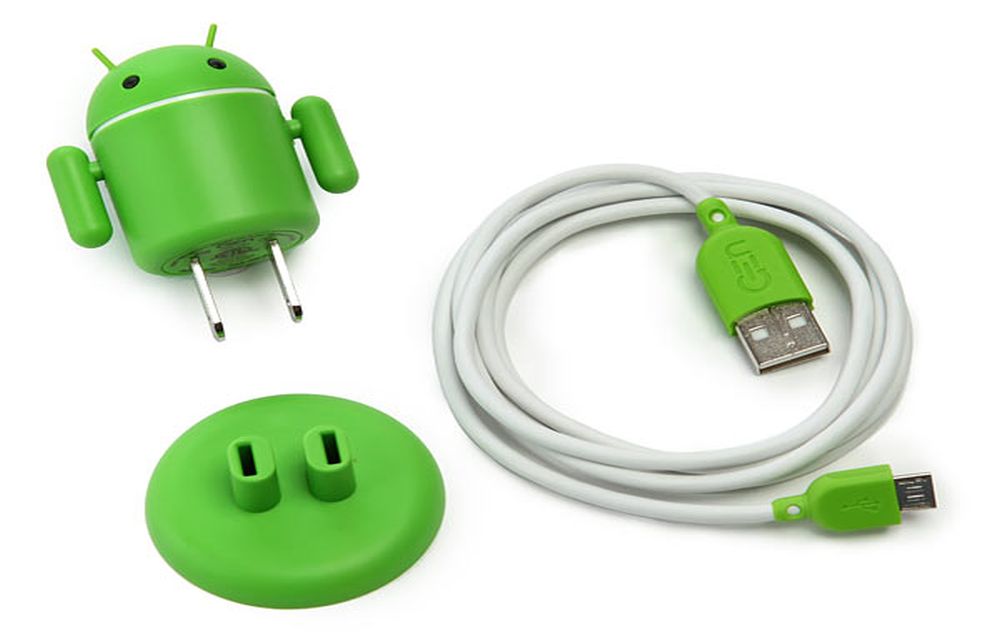
Android devices are well known for their features. The popularity of Android has surged over the past few years, and its dead simple interface makes every task quite user-friendly. Android phones come with all the latest sharing technologies like Bluetooth, Wi-Fi and NFC. Along with these, you can also connect your Android device to a computer over USB and use it to move files back and forth.
Connecting your Android phone as storage is a pretty simple and straightforward process and requires no rooting or coding.
One important thing has changed since this guide was first written, though. Very old Android phones had a “USB mass storage” mode, where the phone showed up on the computer just like a pen drive. Google replaced that mode years ago, starting around Android 3.0 and 4.0, with MTP (Media Transfer Protocol), which appears on your phone as File transfer. Modern phones no longer have a “USB Utilities” or “Connect storage to PC” option. Below we cover the current way to do it, and the old method for anyone still using a very old device.
How to enable USB file transfer on Android (current method)
These steps work on most phones running Android 6.0 and later, including Google Pixel, Samsung Galaxy, OnePlus, Motorola and Xiaomi devices. The exact wording can differ a little between brands.
- Unlock your phone and connect it to your computer with a USB cable.
- Swipe down from the top of the screen to open the notification panel.
- Tap the USB notification. It usually says something like Charging this device via USB or USB for file transfer.
- Tap it again if needed to open the USB options, then select File transfer (on some phones it is called Transferring files or Transfer files / Android Auto).
- Your phone will now appear on the computer, and you can copy files to and from it.
If you only want to move photos and videos, you can choose PTP (sometimes shown as Transfer photos) instead. It makes the phone look like a digital camera to the computer.
Open your phone on Windows 10 and 11
- Open File Explorer.
- Click This PC in the left panel.
- Your phone will be listed under devices by its model name. Double-click it, then open Internal storage (or your SD card).
- Drag and drop files just like you would with any other folder.
Open your phone on a Mac
macOS does not support MTP out of the box, so a phone set to File transfer will not show up in Finder on its own. You need an MTP file transfer app on the Mac. Google’s own Android File Transfer app was the usual choice for years, but it is no longer actively supported, so many Mac users now use a third-party MTP app or send files wirelessly instead.
Set File transfer as the default (optional)
Android goes back to charge-only mode every time you unplug the cable. If you connect your phone often, you can change the default:
- Enable Developer options by going to Settings > About phone and tapping Build number seven times (on Samsung it is under About phone > Software information).
- Go back to Settings and open Developer options (usually under System).
- Tap Default USB configuration and choose File transfer.
The old method (very old Android versions only)
On some phones from the Android 2.x days, you could turn on USB mass storage like this:
- Launch the Settings app on your Android device.
- In the Settings, you will find options like Wi-Fi Direct settings, Bluetooth settings, Tethering, VPN settings and USB Utilities.
- Tap USB Utilities, then tap Connect storage to PC. It will prompt you to connect the USB cable to the computer.
- After a successful connection, the green Android logo appears on the screen.
If your phone does not have these options, it simply uses the newer File transfer method above.
Phone not showing up? Try these fixes
- Use a data cable: Some USB cables can only charge and cannot carry data. Try the cable that came with your phone or another cable you know supports data.
- Unlock the phone: Android hides your files from the computer while the screen is locked.
- Check the USB mode: Make sure you selected File transfer and not charging only.
- Try another port: Plug into a different USB port, preferably one directly on the computer rather than a hub.
- Restart both devices: Both the device and the computer must be running properly, and a quick restart fixes many connection glitches.
- Update drivers on Windows: Open Device Manager, look for your phone or an unknown device, right-click it and choose Update driver.
Tips
- For large transfers, keep your screen on and avoid unplugging the cable until copying is finished, or files may get corrupted.
- If you do not have a cable handy, you can share files wirelessly using Quick Share, cloud storage like Google Drive, or email.
Frequently asked questions
Why can’t I find USB mass storage on my Android phone?
Because modern Android no longer offers it. MTP (File transfer) replaced it, so the computer can access your files while the phone keeps using its storage at the same time.
Is USB file transfer safe?
Yes, on your own computer. Avoid choosing File transfer on public charging stations or unknown computers; leave the phone in charging-only mode there.
Do I need to root my phone?
No. File transfer is built into Android and works without rooting or any extra apps on the phone.
We hope this guide helped you connect your Android device to your computer. Please feel free to comment if you have any issues while connecting your device to the computer. We are here to help you.
More in Android
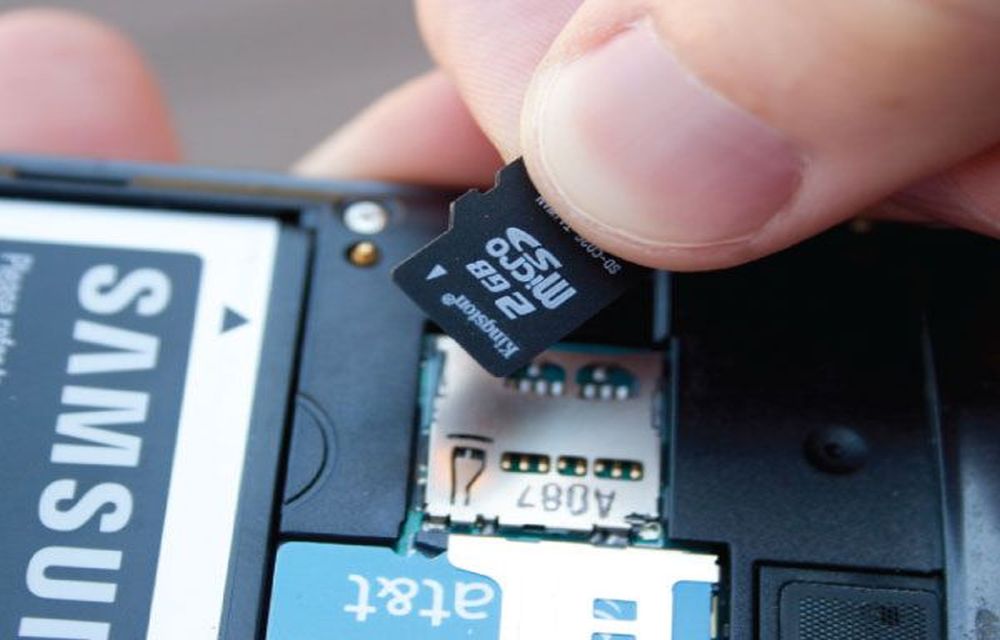
Android SD Card File Categories Explained
We see Android devices with various types of internal memory options. Some devices come with large internal memory capacities and some are very low with 8GB options. If you are an entertainment lover the low memory option is not sufficient to maintain data. Ultimately external SD card is the only option to expand the memory.…
How to Check Battery Percentage in Android Phones
Battery capacity of the modern day devices is just like a flaming paper which burns down within no time. We should focus on the battery capacity each and every time we decide to do some tasks with our devices. The battery storage icon on the topmost of the display is the key to knowing the fuel…
How To Backup An Android Device – Ultimate Guide
Let’s face it. We have always argued upon which mobile operating system dominates, and it turned out as – Android. It may not be the best one expects but the variety of smartphones powered by Android OS simply dominates over the other factors. While we know that there is a wide range of devices but…
The week in tech, minus the noise.
New reviews, fixes and the stories that matter — once a week, straight to your inbox.
We only use your email to send the newsletter. Unsubscribe any time. See our privacy policy.
Comments