

How to Enable multi-window mode in Android 6.0 Marshmallow
Android 6.0 Marshmallow is the latest member in the android line up. Google has introduced so many features on the new OS but, some of them are hidden till now and the users are not aware of them. Multi-Window is such a feature which google was introduced in their latest OS. Without any doubt, multi windows…

enable-multi-window-mode-in-android-6-0-marshmallow
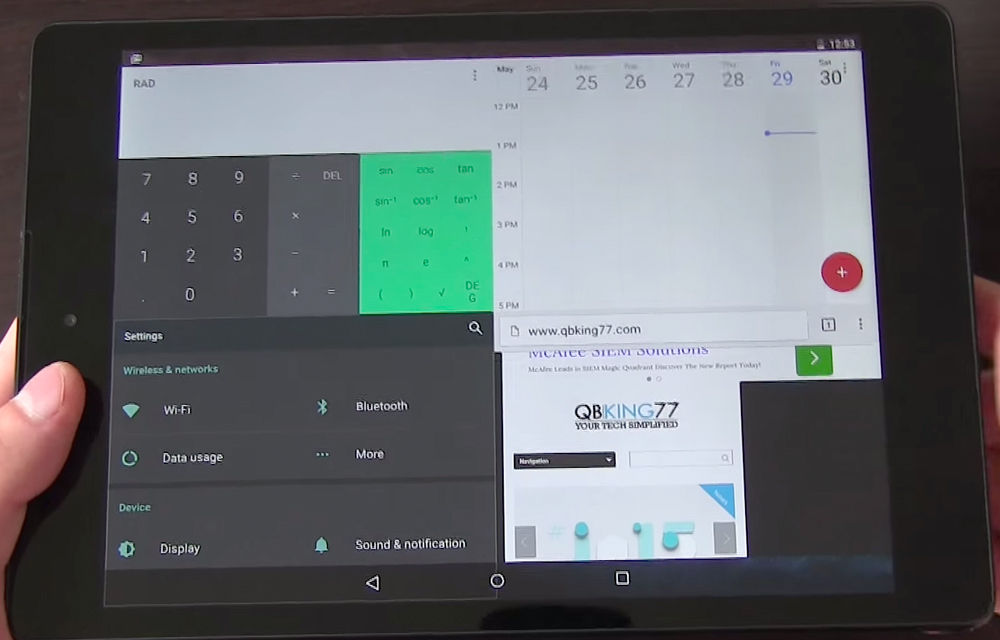
Android 6.0 Marshmallow is the latest member in the android line up. Google has introduced so many features on the new OS but, some of them are hidden till now and the users are not aware of them. Multi-Window is such a feature which google was introduced in their latest OS. Without any doubt, multi windows are always helpful to you to do various tasks within the same screen. Being an android user, I can always say that the OS is just incredible. Then, why don’t you have another feature added to that?
In this guide on ‘How to enable multi-window mode in Android 6.0 Marshmallow’, we are guiding you through the steps to activate the multi-window mode in your android marshmallow OS.
Prerequisites
- A rooted smartphone which have the Android 6.0 Marshmallow installed.
- A root file manager with a text editor like ES File Explorer or Build Prop Editor.
- A Normal device which can handle multi-windows.
How to enable multi-window mode on Android 6.0 Marshmallow
- Install and Open Build Prop Editor.
- Then, scroll down to ro.build.type.
- Tap it and change the Property Value from user to userdebug.
- Now, Tap Save.
- Confirm the action by tapping Yes to reboot your phone.
- After the Reboot, go to Settings > Developer options > Multi-window mode.
- Turn on the multi-window mode by tapping the button on the right side.
Note: Cant’ see the Developer options. It seems your developer options are not enabled. To enable it simply, go to Settings > About phone and tap Build number seven times. If you want more help, read our guide on How to enable Developer option or USB debugging.
Using multi-window mode on Android 6.0 Marshmallow
- You will see a square bracket icon in the upper right of each app card.
- Tap the right window mode to choose the split-screen view you want. There are options namely: upper half, lower half and full screen.
- Choose the right one you want and enjoy multi-tasking with the new multi-window mode.
Note: The top and bottom windows will switch to left and right respectively in landscape mode and once you’ve chosen any split screen preference, the app will always appear in that view in future. If you want to get back to the normal view, you should change the view again by tapping on the switch view icon.
The multi-window mode may create some bugs like window overlapping, dancing screen, rarely. But, generally speaking, it is good to have that and it helps to do multi-tasking without the need of switching the windows frequently.
You might also like
Android N – The Next Android OS Update with New Features
Most awaited Android 6.0 Marshmallow is rolling worldwide. Before the Marshmallow gets rolling on all Android devices, the News about next Android software update rolling in the industry. The next Android update is code named as “Android N”.

How To Install Android N on a Nexus Device
Google recently launched Android N, the upcoming version of Android specially developed for Nexus devices. The Android N is dedicated for only Nexus range devices include Nexus 6, Nexus 5X, Nexus 6P, Nexus Player, Nexus 9, and Pixel C devices.
Android SD Card File Categories Explained
We see Android devices with various types of internal memory options. Some devices come with large internal memory capacities and some are very low with 8GB options. If you are an entertainment lover the low memory option is not sufficient to maintain data. Ultimately external SD card is the only option to expand the memory.…
The week in tech, minus the noise.
New reviews, fixes and the stories that matter — once a week, straight to your inbox.
We only use your email to send the newsletter. Unsubscribe any time. See our privacy policy.
Comments