

How to Fix “process com.google.process.gapps has stopped” Error
Hello guys, today we are going to fix the “process com.google.process.gapps has stopped” Error in your Android smartphones. You may have also seen a variation of this error message as ‘Unfortunately, the process com.google.process.gapps has stopped.’ Both are same. So, today we are going to fix this error by following some simple steps given below. Clear…

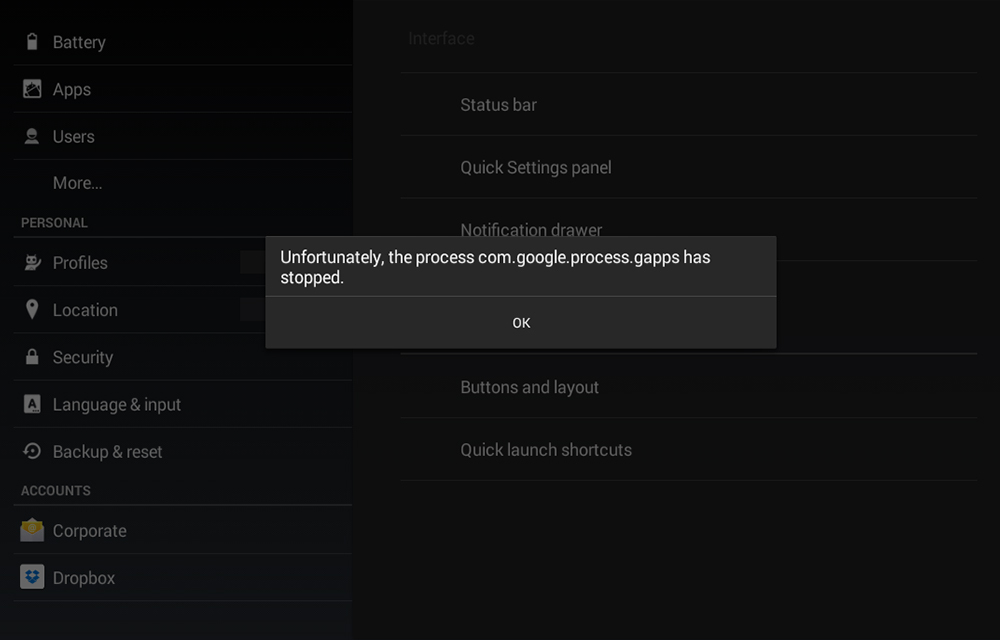
Hello guys, today we are going to fix the “process com.google.process.gapps has stopped” Error in your Android smartphones. You may have also seen a variation of this error message as ‘Unfortunately, the process com.google.process.gapps has stopped.’ Both are same. So, today we are going to fix this error by following some simple steps given below.
Clear cache for the Problematic App
If you found that the ‘process com.google.process.gapps has stopped’ error is occurring when you try to access a particular app, the chances are high for that app causing the problem. So, clearing it’s cache may help you to get rid of this. To clear the cache, go to Settings > Apps > The Particular app and tap on the Clear Cache button there.
In common cases, it might fix the problem. If not, clearing the data of the app by hitting on the Clear Data button may pay off. Clearing your data means, you will lose all the saved data of the particular app. For example, if you’ve played a game and has a good progress, clearing the data will reset it, and you might need to start playing from beginning.
If both of the above steps didn’t work, your next hope is on uninstalling and reinstalling the application on your Android device. You can uninstall the app from the same screen where you cleared the cache or data.
Clear Google Play Services data
Still seems like the ‘Unfortunately, the process com.google.process.gapps has stopped.’ Error is there. Our next method is to try clearing the Google Play Services data which may be also creating the problem. It sounds scary that it will wipe all your Google Play Services preferences and settings. But, it’s comparatively easy to configure them again. So, no worries. To do this follow the steps given below.
- Go to Settings > Apps > Google Play Services.
- Tap on the Manage Space button on the app info screen.
- On the following screen, tap Clear all data.
- You will receive a warning. Just tap on OK.
- Now your Google Play Services data is reset.
Resetting app preferences
If you are still in search of the fix for ‘process com.google.process.gapps has stopped’ error in your Android device, you can also try resetting app preferences in your smartphone. To do this
- Go to the Settings > Apps > All.
- Tap on the Hamburger icon (The three dots).
- Tap on Reset app preferences option and Confirm the action.
This will reset your app preferences without affecting your save data. In other words, you won’t lose your Angry Birds or Temple Run progress 😛 .
We hope this guide helped you to fix the ‘process com.google.process.gapps has stopped’ error in your android device. If so don’t forget to thank us through your comments.
You might also like
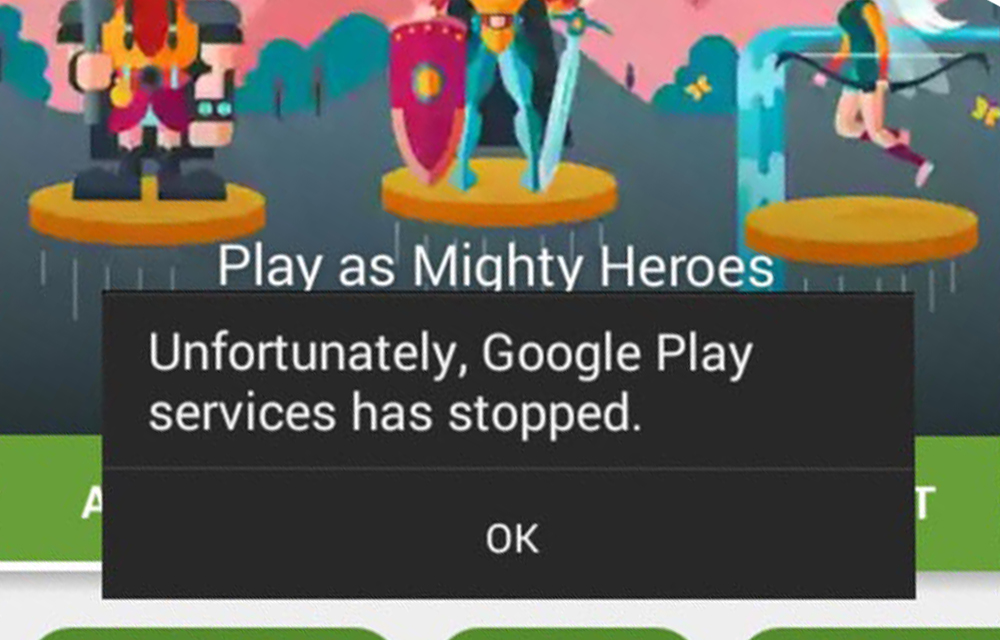
How to Fix “Google Play Services has stopped” Error
The error message “Google play services has stopped” reported by many of our readers is popping up in Android 5.0 or Android 5.1 Lollipop based phones and tablet. So, we are going to provide some of the effective methods to fix this issue. The error may happen due to many problems like a very old…
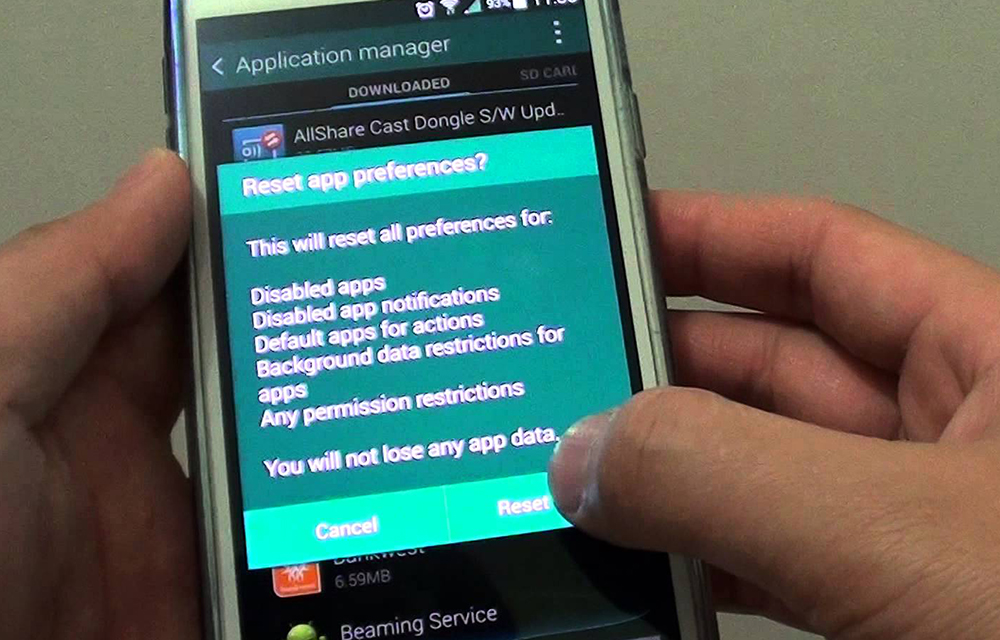
How to Reset App Preferences in Android Smartphones
There are several situations when you need to reset app preferences in your Android smartphone. If you got an error like the “process com.google.process.gapps has stopped”, or any other android errors when trying to access particular applications, the app preference reset is a good solution which is suggested by many pros. So, in this article, I…
How to Fix Download Pending Error in Google Play Store
Have you ever faced “download pending error” message while installing an app from Google Play Store? It is a kind of annoying error when you really in a hurry to install an app. For example, if this error occurs to book a flight ticket urgent on an app and this error can be really frustrating.…
The week in tech, minus the noise.
New reviews, fixes and the stories that matter — once a week, straight to your inbox.
We only use your email to send the newsletter. Unsubscribe any time. See our privacy policy.
Comments