

Typeeto Mac App Review – Turn Your Mac as Universal Keyboard for Any Device
Typing on small screen tablets and smartphones is a painful task. For heavy messenger apps, users typing is like hell using a small keyboard layout. Thinking of physical keyboard for a mobile device? Just read this article and plan for the buy. If you own a Macbook or iMac, you can use their keyboard for…
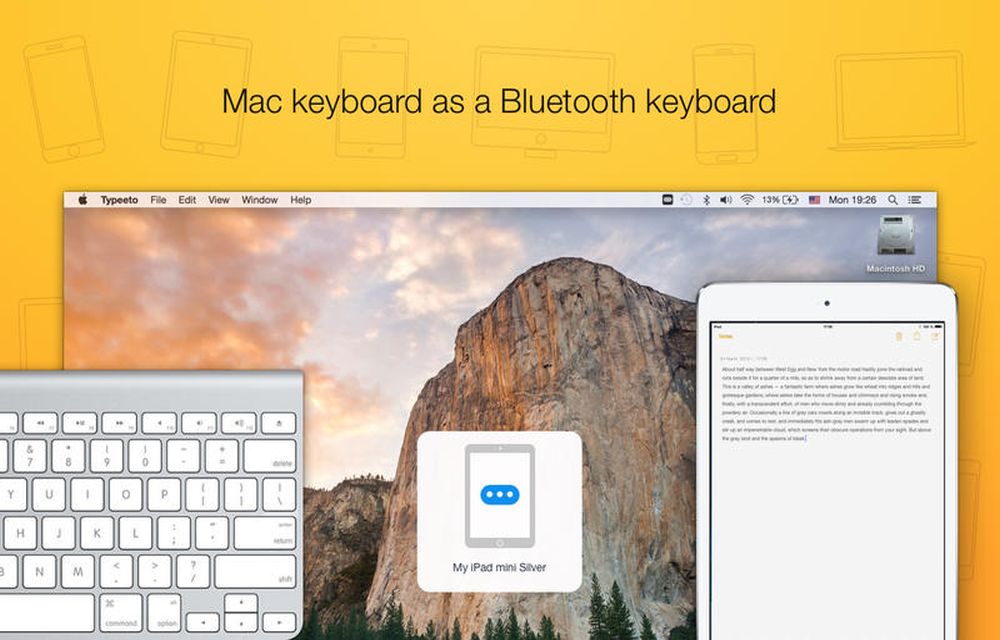
Typeeto Mac App Review
Typing on small screen tablets and smartphones is a painful task. For heavy messenger apps, users typing is like hell using a small keyboard layout. Thinking of physical keyboard for a mobile device? Just read this article and plan for the buy. If you own a Macbook or iMac, you can use their keyboard for another mobile device too. Sounds interesting? Yes, meet Typeeto. Typeeto is a Mac app which turns your Mac keyboard into a universal keyboard. The app interestingly pairs up with devices like smartphones, tablets, and consoles.
Coming to the usability of the app it is pretty simple to use. The app lets you change from device to device from the Mac Menu bar. Let’s get into details of the app.
Installation of Typeeto
- Download the Typeeto app from Mac App Store.
- Drag and drop the app into your Mac Application folder.
- Next launch the app and you can access it from Mac Menu bar.
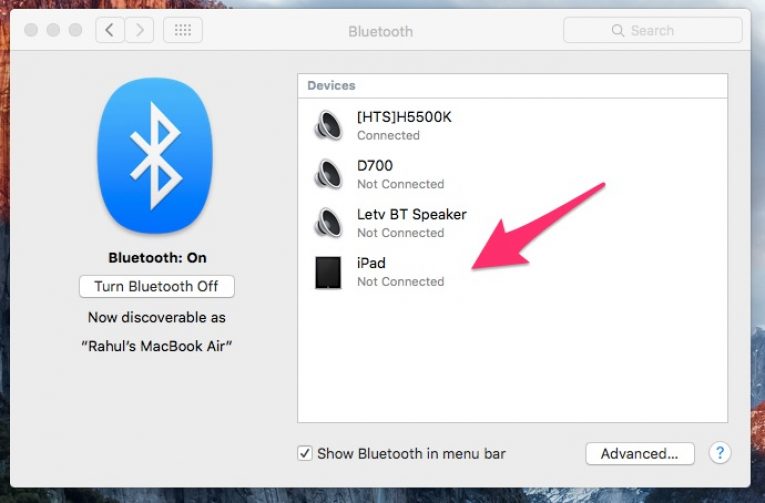
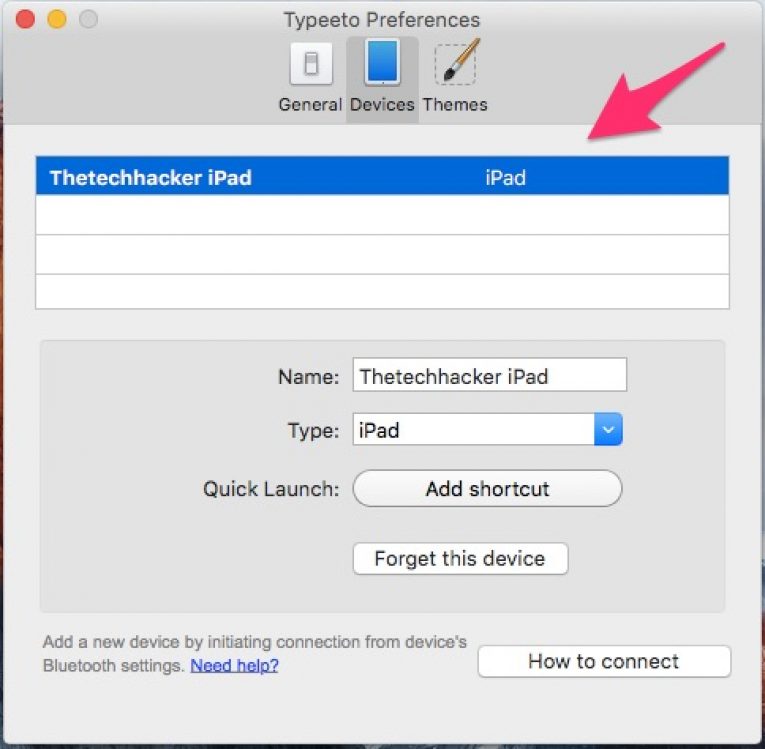
Connecting Devices
- Now turn on your Mac Bluetooth connection and search for the device you want to connect.
- After full success connection, you can access the device from Typeeto app in Menu bar.
That’s it; now whatever you type on Mac keyboard it will type on your connected device.
Coming to interface it has three tabs. General tab allows you to change the enable and disable sound effects, remove Typeeto icon from dock and user stats options. From Devices tab you can manage connected devices and shortcuts options. Typeeto allows Theme options to tweak according to your choice.
Conclusion
The best part of the app is it support multiple devices at once. To switch between devices, you can use a hotkey or a single click on the app UI. The setup is very quick, and usage is pretty simple. The app is perfect for multiple device users; it manages all from Mac. Personally, I tested the app on my Mac to manage to type on iPad. The result is pretty good, and I’m totally satisfied with the Typeeto performance.

You might also like
How to take screenshot on Mac
Taking Screenshot of the Mac screen won’t be familiar to you if you are new to Apple products. So, we are sharing some of the methods to take screenshots or snapshots on mac. Follow the simple steps given below to do this effectively. There are several ways available to take a screenshot on Mac. These…

How to Text or Message from your Mac using iOS Devices (iPhone, iPad, etc.)
Even the domination of the touch screen had already happened, the 2 fingers can never beat the power of the 10 members in your hand. So, texting will be easier from your traditional Mac keyboard than the iPhone, iPad or iPod touch screens. If you ever wanted to find an easy solution for sending texts…
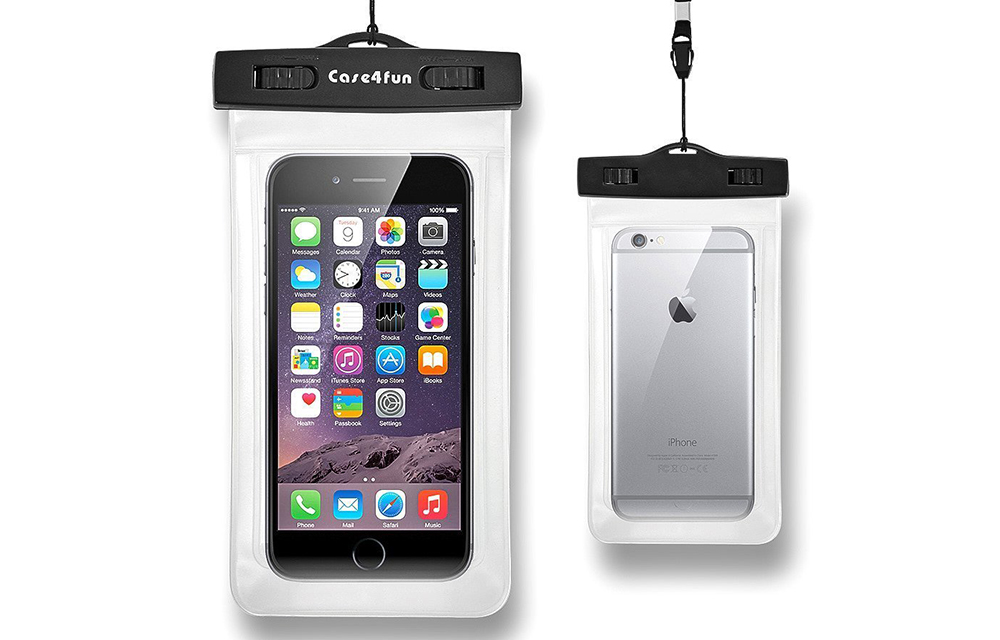
Case4fun Universal IPX8 Waterproof Bag: A New way to Protect your Devices
If you are an adventure lover and frequently keep diving to the deeper world inside the sea, you might take a camera with you for capturing those amazing moments in your life. But, it’s very rare to find a reliable waterproof camera, and it is costly as well. Why go for an extra expense when…
The week in tech, minus the noise.
New reviews, fixes and the stories that matter — once a week, straight to your inbox.
We only use your email to send the newsletter. Unsubscribe any time. See our privacy policy.
Comments