

How to Buy Songs from iTunes
Read this article to know How to buy songs from iTunes. iTunes is one of the best music sources available for the Apple devices. With the collection of thousands of songs, iTunes is a big competitor to any other music services like SoundCloud and Google Play Music. Being one of the best in the field,…

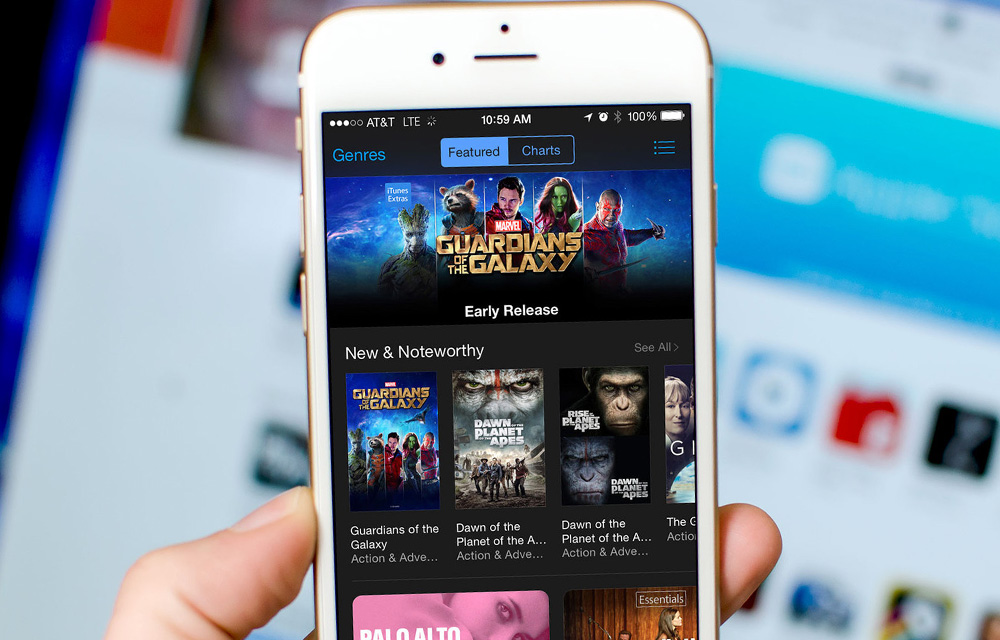
Here are the complete steps to buy songs from iTunes store.
Read this article to know How to buy songs from iTunes.
iTunes is one of the best music sources available for the Apple devices. With the collection of thousands of songs, iTunes is a big competitor to any other music services like SoundCloud and Google Play Music. Being one of the best in the field, the iTunes store serving millions of music lovers each day. That doesn’t sound like a small number. But, like any other popular music stores, iTunes also set some charges for the songs which could be downloaded from the store. So, it is necessary to pay something for your favorite music files.
If you are a beginner to the Apple devices or to the iTunes store, it is common to have some questions about getting songs from iTunes. So, we wrote an article on How to buy songs from iTunes to guide you through the process. Simply follow these steps to own the iTunes songs.
How to Buy Songs from iTunes on iPhone, iPad, or iPod touch
- Search for the song you want to buy from the iTunes store. You can use the search box as well as the categorization to find the exact match.
- Tap the More (•••) button next to the song or album that you have found from the store.
- Tap Show in iTunes Store in the drop-down list.
- Follow the onscreen instructions to buy the song.
- After completing the purchase, the song will be available in your library.
How to Buy Songs from iTunes on Mac
The steps to buy songs from iTunes on Mac is almost same as in other devices. But for your reference, we listed them below.
- Search for the song or album in the store.
- Then, tap More (•••) button next to the song or album.
- Tap Show in iTunes Store option in the drop-down list.
- Follow the onscreen instructions to purchase the song.
- After completing the purchase, the song will be available in your library.
You just bought your favorite songs from the iTunes library, and you will be able to listen to them anytime you like on any of your devices (As per the terms and conditions by Apple.) You could buy any number of songs from the iTunes store and add them to your library for the future listening.
Read: How To Download Music Straight To Your iPhone
Note: There are numerous free songs in iTunes store which will be updated at least once in a week. If you need some random songs for free, we recommend waiting for the freebies.
Note 2: If you have multiple Apple devices like iPhone, iPad, iPod, iMac, MacBook, etc., you don’t have to buy separate music files for all of them. Instead, Apple can share it throughout your devices using the Apple ID. So, don’t waste your money buying duplicates of the same song.
More in How-to
How to Download Music from iTunes
Download Music from iTunes using the methods in this article. iTunes is one of the best music sources dedicated for the Apple devices. If you ever owned one, you might be familiar with this awesome service where thousands of songs and MP3 files stacked together. Are you new to the Apple devices? Or to the…

How To Download Music Straight To Your iPhone
Downloading or transferring a song to iPhone is restricted with the iTunes library. Almost all the Apple users face this unwanted restriction when they want to add songs to iPhone. Though there are some options, like adding songs to iTunes app in PC and then synchronizing it to iPhone. It is an irritating process for…
Locate iTunes Library File, Change Backup Location & Delete iTunes Duplicates in Windows 10
iTunes usually gets installed in the C drive, unless the user chooses otherwise. However, there are some disadvantages of installing iTunes in the default installation location as the backup itself is stored in the same location. A Windows corruption can cause irreversible damage and loss of iTunes data in this case. So it is wise…
The week in tech, minus the noise.
New reviews, fixes and the stories that matter — once a week, straight to your inbox.
We only use your email to send the newsletter. Unsubscribe any time. See our privacy policy.
Comments