

How to Fix Outlook Not Syncing Email in Microsoft 365 (Windows, Mac, iPhone and Android)
Outlook stuck on old mail? Here’s how I’d fix Microsoft 365 sync problems in new and classic Outlook on Windows, Outlook for Mac, and the Outlook app on iPhone and Android.


Photo by QingYu on Unsplash
Honestly, few things bug me more than an inbox that just won’t update. You know the email went out. Maybe your phone even pinged you about it. But Outlook on your computer just sits there showing old mail like nothing happened.
When Outlook won’t sync in Microsoft 365, it’s usually one of a handful of things. Microsoft could be having an outage, Outlook could be stuck offline, your sign-in might have gone stale, or the local copy of your mail on your machine might be corrupted. I’m going to walk through the fixes for new Outlook and classic Outlook on Windows, Outlook for Mac, and the Outlook app on iPhone and Android.
Quick heads-up first. Microsoft shuffles its menus around a lot (new Outlook especially, that thing changes constantly). Where I’ve confirmed a menu path on Microsoft’s own pages, I’ll give it to you exactly. Where I haven’t, I’ll just tell you what to look for. I’m not going to pretend I know the exact button when I don’t.
Quick answer: First check that Microsoft 365 isn’t having a service problem, then make sure Outlook isn’t set to work offline and restart the app. If mail still won’t sync, sign out and back in, update Outlook, and then repair Office on Windows or empty the cache on Mac. On a phone, remove the account and add it again. If a work or school account still won’t sync after that, contact your IT admin.
First, figure out where the problem is
Don’t start clicking through settings just yet. Spend a minute narrowing it down first, it’ll save you a bunch of wasted effort.
Open your mailbox on another device, or in a web browser, and check if the missing mail is there. New messages showing up everywhere except one app on one device? Then it’s almost certainly that app or that device. Mail missing everywhere? That points more toward your account or the service itself.
Microsoft actually makes a good point about this. Say your account works fine on a computer but not in some other email app on your phone, like Apple’s built-in Mail app on iPhone. Then the problem is probably that app. In that case Microsoft says to contact whoever makes the app (Apple Support, for example) instead of troubleshooting Outlook.
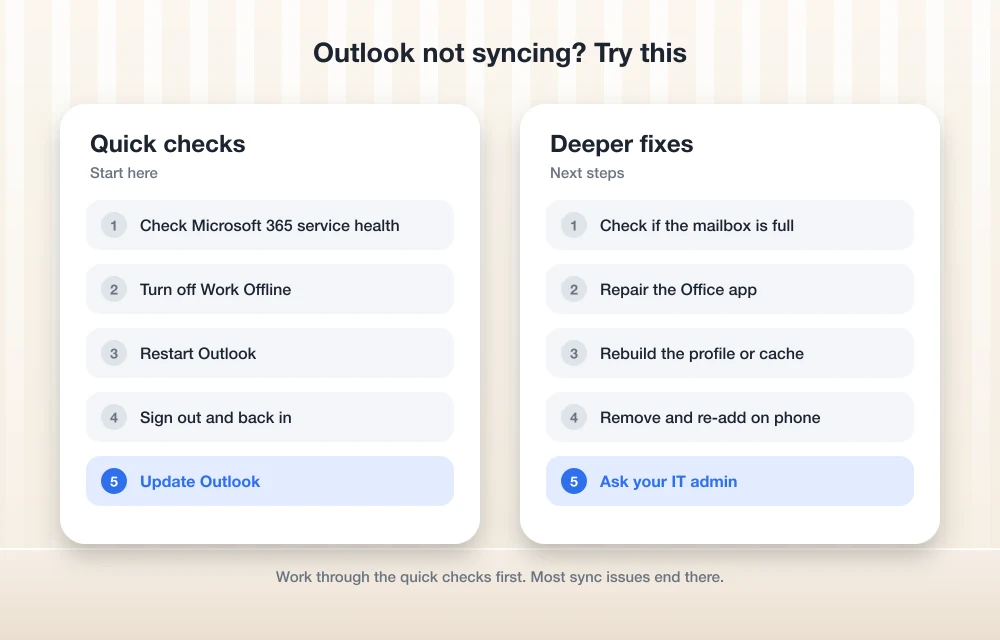
Fixes that work on every platform
1. Check Microsoft 365 service health
I always do this one first. Why? Because if Microsoft is down, nothing you fiddle with on your end is going to fix it.
If you’re an admin, sign in to the Microsoft 365 admin center and go to Health > Service health, or just select the Service health card on the Home dashboard. You’ll see the state of each service, including Exchange Online (that’s the service behind Microsoft 365 email), along with advisories and incidents from the past 30 days. Microsoft lays it all out on its Microsoft 365 service health page.
Here’s the thing though. Only certain admin roles can actually see service health. If you’re a regular user, you’ll probably have to ask your admin. And if you can’t get into the admin center at all, Microsoft says to check its public service status page for known issues instead. For personal Outlook.com accounts, there’s an Outlook.com service status page from Microsoft. I couldn’t confirm its exact address, so search for it from Microsoft’s own support site.
2. Restart Outlook and turn off Work Offline
Yeah, it sounds way too basic. But Microsoft’s own Office repair guidance says that sometimes just restarting the app does the trick. Close Outlook completely, give it a few seconds, and open it back up.
In classic Outlook on Windows, make sure you didn’t accidentally flip it into offline mode. There’s a Work Offline button, and I believe it lives on the Send/Receive tab. If it’s highlighted, click it and you’re back online. A lot of the time you’ll also see a status message near the bottom of the window when Outlook thinks it’s disconnected.
3. Sign out and sign back in
A stale or expired sign-in can just quietly kill sync, no obvious error, nothing. Signing out and back in makes Outlook grab a fresh connection to your account.
In new Outlook and on Mac, find your account in the app’s settings or accounts area, sign out or remove it, then add it back. I’ll be real, I haven’t confirmed the exact menu names on a Microsoft Support page, and they’ve changed between versions anyway, so go with what you see on screen. And please make sure you know your password (and have your authenticator app nearby) before you do this.
4. Update Outlook
Older versions of Outlook can have sync bugs that Microsoft already fixed ages ago. On iPhone, Microsoft says to update Outlook from the App Store. On Android it’s the same idea, just through your phone’s app store.
On Windows, check classic Outlook under File, then something along the lines of Office Account and Update Options. On Mac, Office apps usually update through Microsoft AutoUpdate. I couldn’t confirm either of those on a Microsoft Support page, so think of them as places to poke around, not exact steps.
5. Check whether your mailbox is full
A full mailbox can stop new mail from coming in at all. Storage limits depend on your plan and on your organization’s settings, so I’m not going to throw numbers at you. Just look for a storage indicator or a warning somewhere in Outlook or your account settings.
Getting close to the limit? Empty Deleted Items and Junk, and get rid of old messages with big attachments. If it’s a work account and you really do need more space, that’s something to take up with your admin.
Fixes for classic Outlook on Windows
6. Repair the Office app
If classic Outlook keeps acting up, an Office repair is worth a shot. This is the path from Microsoft’s Repair an Office application guide for Windows 10 and 11:
- Right-click the Start button and pick Apps and Features. On Windows 11, head to Installed apps and use the … menu next to the app.
- Pick your Microsoft 365 product.
- Choose Modify.
- Go with Online Repair, then click Repair.
Just remember this repairs the whole Office suite, not only Outlook. So save whatever you’ve got open in Word, Excel or anything else before you kick it off.
7. Check your Send/Receive groups
Send/Receive groups decide how often classic Outlook checks for new mail and which accounts it checks. If somebody changed them, or automatic checking got turned off, your mail can look totally stuck.
On the Send/Receive tab, look for Send/Receive Groups and an option to define them. Make sure your account is in there and automatic send/receive is on. I couldn’t confirm this path on a Microsoft Support page, so it might look a bit different in your version.
8. Rebuild the OST file or create a new Outlook profile
Classic Outlook keeps something called an OST file. It’s basically an offline copy of your mailbox sitting on your PC. If that file gets corrupted, sync can break in some really weird ways. The good news is your mail lives on Microsoft’s servers, so Outlook can rebuild the OST by just downloading everything again.
You’ll find profile and data file settings in Control Panel under Mail, or inside Outlook under File > Account Settings. From there, create a new profile and set it as the default, and Outlook builds a fresh OST. Microsoft community answers say OST files usually live in the %localappdata%MicrosoftOutlook folder, but I couldn’t confirm that on a Support page.
Before you mess with any of this, make sure anything that only exists on your PC (old local archive files, for example) is backed up somewhere safe. My guide on how to back up business data covers some good ways to do that.
Fixes for new Outlook for Windows
9. Reset new Outlook’s local data
New Outlook works differently from classic Outlook, so OST rebuilds and Office repair don’t really apply the same way. Microsoft does have documentation on clearing new Outlook’s cache, but it’s aimed at add-in developers, not at fixing sync. I wouldn’t bother going down that road.
People on Microsoft’s community Q&A forum suggest resetting the app instead. In Windows, go to Settings > Apps > Installed apps, find Outlook (new), open Advanced options and look for Reset. According to those community answers, it clears the app’s local data but leaves the mail on the server alone. I couldn’t find this on an official Support page though, so try the earlier fixes first, and expect to sign in again afterward.
Fixes for Outlook on Mac
10. Empty the cache in Outlook for Mac
According to Microsoft, a corrupted cache can cause sync problems with Exchange accounts in Outlook for Mac (Microsoft 365, 2024 and 2021). Emptying it makes Outlook pull the items down from the server again.
- Ctrl+click or right-click whichever folder isn’t syncing.
- Pick Properties.
- On the General tab, click Empty Cache.
Microsoft recommends backing up your local data first, so yeah, do that before you empty anything.
11. Reset the account in new Outlook for Mac
New Outlook for Mac does this a bit differently. There’s a Microsoft Q&A answer pointing to Microsoft’s “Clear the cache in the new Outlook for Mac” page, and it says to go to Tools > Accounts, pick your account, click the three dots in the bottom left and choose Reset Account. I didn’t check that against the Support page itself, so look for those options and trust what Microsoft actually shows you.
Fixes for Outlook on iPhone and Android
12. Remove the account and add it again
Did a Microsoft 365 work or school account, or an Outlook.com account, use to sync fine on your phone and then just stop? Microsoft sends you to its “Fix Outlook.com email sync issues” page for that. It covers removing the sync partnership and then adding the account back. In real life, that basically means removing the account from the Outlook app and signing in again.
13. Force stop or update the app
If Outlook keeps crashing on Android, Microsoft says to go to Settings > Apps > Outlook > Force stop and then open it again. On iPhone, update Outlook from the App Store. An outdated app is such an easy thing to rule out, so just do it.
14. Check permissions and your account type
Mail syncing but your calendar or contacts aren’t? Check two things. One, make sure the email app actually has permission to get at your calendar and contacts in your phone’s settings. Two, look at how the account is connected. Microsoft notes that IMAP and POP accounts don’t sync calendars or contacts at all. So if that’s how you added it, you’re only ever getting email.
When mail is syncing but you just can’t see it
15. Check rules and Focused Inbox
Sometimes Outlook is syncing just fine and the email is sitting somewhere you didn’t think to look. Focused Inbox splits your inbox into Focused and Other tabs, and a lot of important stuff lands under Other.
So check the Other tab first. If you’d rather just turn Focused Inbox off, the toggle is on the View tab in classic Outlook, or in settings in new Outlook and the mobile app. Then go look at your rules. A rule that moves or deletes messages can make mail seem to just vanish. Find the rules option in Outlook’s settings and turn off anything you don’t recognize. I couldn’t confirm the exact menu spots for these, so things may be in slightly different places for you.
VPN, firewall and security software
I couldn’t find any specific Microsoft guidance on VPN or firewall issues with Outlook sync, so this bit is just my own suggestion. If sync only breaks when you’re on a VPN or one particular network, that’s a huge clue. Try dropping the VPN for a minute to see if mail comes through, or test it on another network.
On a work device, though, don’t go turning off company security tools on your own. Tell your IT team what you noticed and let them look into it.
Oh, and while you’re searching around for help, watch out for fake “Microsoft support” warnings. A pop-up telling you Outlook is infected and giving you a number to call? That’s a scam, plain and simple. This is how to deal with a tech support scam pop-up without getting burned.
Which fix to try on which device
| Device or app | Try first | If that fails |
|---|---|---|
| Classic Outlook (Windows) | Service health, Work Offline, restart | Repair Office, Send/Receive groups, new profile |
| New Outlook (Windows) | Service health, sign out and in, update | Look for Reset in Windows app settings |
| Outlook for Mac | Restart, sign out and in, update | Empty Cache, or Reset Account in new Outlook |
| Outlook on iPhone | Update from the App Store | Remove and re-add the account |
| Outlook on Android | Force stop and reopen | Update, then remove and re-add the account |
When to contact your admin
If you’re on a work or school account and none of this helped, stop there and reach out to your IT admin. They can see stuff you can’t, starting with service health, which Microsoft only shows to certain admin roles. They can also check your mailbox size, your account status, and any policies that might be blocking sync.
When you contact them, tell them which devices are affected, when it started, and what you’ve already tried. Saves everyone a lot of back and forth. And if email goes down for your whole company? It really helps to have another solid way to reach your team and customers, which is one reason I like having a proper small business VoIP phone system set up.
Frequently Asked Questions
Why is Outlook not syncing with Microsoft 365?
Usually it’s one of these: a Microsoft 365 service issue, Outlook set to work offline, an expired sign-in, an outdated app, a full mailbox, or a corrupted local cache. Check service health first, then restart Outlook and sign out and back in.
How do I check if Microsoft 365 email is down?
Admins can open the Microsoft 365 admin center and go to Health > Service health, which shows the state of Exchange Online and the other services. If you can’t sign in to the admin center, Microsoft says to use its public service status page. Regular users might have to ask their admin.
Will repairing Office delete my emails?
An Office repair fixes the app installation, and it repairs the whole Office suite. Your Microsoft 365 mail lives on Microsoft’s servers. Even so, save your open work and back up any files that only exist on your PC before you start.
Why does my Outlook calendar not sync on my phone?
Microsoft notes that IMAP and POP accounts don’t sync calendars or contacts. Also make sure the Outlook app has permission to access your calendar and contacts in your phone’s settings.
Does emptying the cache in Outlook for Mac delete my mail?
Microsoft says Outlook downloads the items again from the server once you empty a folder’s cache. It still recommends backing up your local data first, since anything stored only on your Mac could be affected.
Wrapping up
Nine times out of ten, one of the early steps sorts it out: checking for an outage, going back online, restarting, or signing in again. The heavier stuff like repairing Office, rebuilding your profile or emptying the cache is there for when the quick fixes don’t cut it. Go through them in order, back up anything local before you reset something, and if it’s a work account, don’t feel weird about calling your admin. Honestly, that’s literally their job.
Featured image: QingYu on Unsplash.
You might also like

How to fix Windows Mail not downloading email messages
Windows Mail is one of the most widely used email clients because it was included by default with Windows 10 and Windows 11. Once it is set up, the Mail app usually works well. However, some users find that the app suddenly stops downloading new emails onto their computer. To clear up this issue, we…

How To Sync Gmail Contacts To an iPhone
As a tech enthusiast, I regularly switch my phones. When it is coming to Android and iOS these two platforms way much different from each other and raises compatibility issues while migrating data. I faced these issues many times especially switching from Android to iOS. iOS works it’s in an own way. When coming to…
How to Send PDF in Email
PDF, or Portable Document Format, is a familiar document format to most of us. PDFs look the same on every device and are hard to edit by accident, which is why they are used everywhere for forms, invoices, resumes and reports. If you are new to email services like Gmail, it is common to have…
The week in tech, minus the noise.
New reviews, fixes and the stories that matter — once a week, straight to your inbox.
We only use your email to send the newsletter. Unsubscribe any time. See our privacy policy.
Comments