

How to Fix 502 Bad Gateway Error on Nginx and WordPress
A 502 on an Nginx WordPress site almost always means PHP-FPM or another backend didn’t answer properly. Here’s the order I check things in, from restarting services and reading logs to timeouts, buffers, Cloudflare and plugin conflicts.

Photo by Arnold Francisca on Unsplash
You load the site and get a bare white page: “502 Bad Gateway”, with “nginx” underneath. Every visitor sees it, and an hour ago the site was fine. What’s happened is that nginx got the request but couldn’t get a usable response from the backend sitting behind it.
Nginx itself is rarely the culprit. The fault’s almost always in whatever sits behind it (usually PHP-FPM), which has crashed, stalled or handed back something nginx couldn’t use. Annoying, but fixable, and most 502s go quickly once you know where to look.
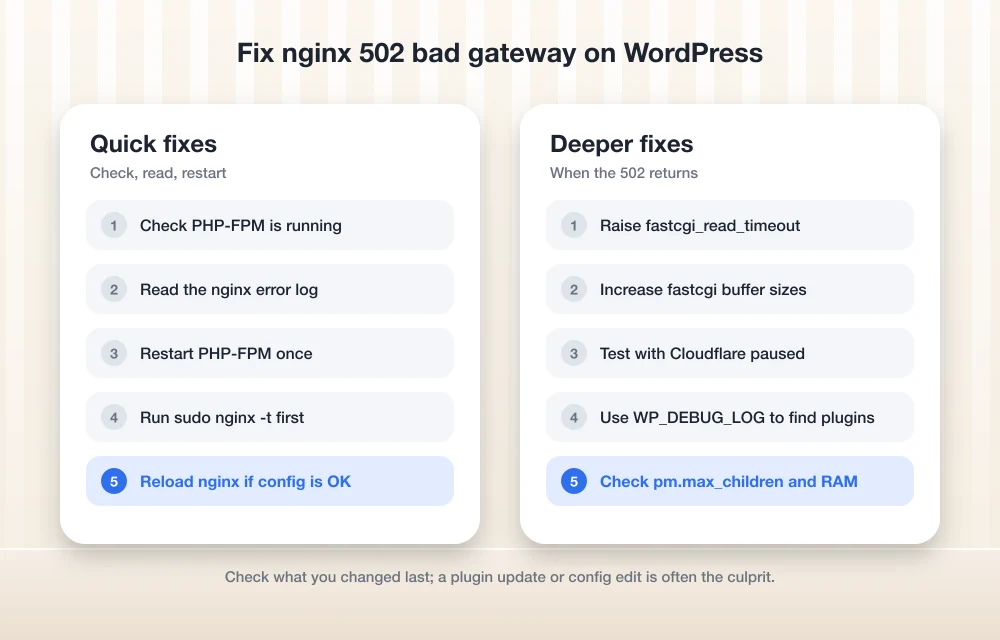
I’ve ordered the fixes cheapest first: status checks and restarts, then the error log, then timeouts and buffer sizes, Cloudflare, plugins and, last, server resources.
Quick answer: A 502 on Nginx and WordPress means nginx couldn’t get a valid response from PHP-FPM or another backend. Check that PHP-FPM is running with sudo systemctl status, read the nginx error log (look for it at /var/log/nginx/error.log), restart PHP-FPM, then run sudo nginx -t and reload nginx. If the error keeps coming back, look at timeouts, header buffer sizes, a broken plugin, or PHP-FPM running out of workers or memory.
What a 502 Bad Gateway actually means
On a typical WordPress server, nginx is the front door. It takes the visitor’s request, and whenever that request needs PHP (and nearly every WordPress page does), it passes it to PHP-FPM, the process manager that actually runs WordPress’s PHP code. In proxy terms PHP-FPM is the “upstream”, or backend. Nginx is the gateway in front of it.
So a 502 tells you nginx did its job, but the backend sent back a bad response or nothing at all. The official nginx proxy module docs cover how nginx talks to these backends, and honestly that relationship is the whole story.
Don’t start by editing nginx, then. Start with two questions. Is PHP-FPM alive? And what did it log?
Read the error page and recent changes first
Before you SSH in, give the error page ten seconds.
Cloudflare-branded? Then Cloudflare sits in front of your server, and you’ll want the Cloudflare section below. A plain white page with “nginx” at the bottom came straight from your own server.
Then ask what changed. A plugin update, a PHP version switch or an nginx config edit right before the 502s started is a strong lead, and the most recent change is very often the one that broke things.
The main fix: check, read, restart, reload
These steps assume you’ve got SSH access to a Linux server running nginx and PHP-FPM. The PHP-FPM service name depends on your distro and PHP version, so swap php8.x-fpm for whatever you’re actually running. Not sure? Run systemctl list-units | grep fpm.
Check whether PHP-FPM is running
Run sudo systemctl status php8.x-fpm. If it reports inactive or failed, that is most likely your problem.
Check nginx too
Run sudo systemctl status nginx to confirm nginx is active. If a 502 page is being served at all, it usually is.
Read the nginx error log
The log is normally at /var/log/nginx/error.log (the path can vary depending on the package). Run sudo tail -n 50 on it. The newest lines show why nginx gave up.
Restart PHP-FPM
Run sudo systemctl restart php8.x-fpm and reload the site. If it comes back, keep going anyway so you find out why it failed.
Test the nginx config, then reload
Run sudo nginx -t first. Only when it reports the config is OK should you run sudo systemctl reload nginx.
If a restart clears the error, that’s a workaround. Not a diagnosis. A 502 that comes back tomorrow has a cause, so read the log even when the site looks healthy again.
What the nginx error log is telling you
The error log is where nginx explains why the request failed. These are the messages you’ll run into most with WordPress and PHP-FPM, and what each one usually points to.
| Log message contains | What it usually means | What to try |
|---|---|---|
| connect() to unix:/run/php/… failed (2: No such file or directory) | Nginx is looking for a PHP-FPM socket that doesn’t exist. Often the PHP version changed and the socket name changed with it. | Compare the socket path in your nginx config with the listen setting in your PHP-FPM pool file. |
| (111: Connection refused) | PHP-FPM isn’t running or isn’t listening where nginx expects. | Start or restart PHP-FPM and check its status for errors. |
| (13: Permission denied) | The socket exists, but nginx’s user isn’t allowed to use it. | Check the socket owner, group and mode settings in the PHP-FPM pool file. |
| upstream sent too big header while reading response header from upstream | WordPress sent back headers (often big cookies) larger than nginx’s buffer. | Raise the FastCGI buffer sizes (see below). |
| upstream timed out | PHP took too long between replies. | Look at timeouts and at what’s making the page slow. |
The exact wording shifts a little between versions, so grep the log for the key fragment, not the full line.
Fix timeouts on slow pages
Some WordPress jobs are just slow: large imports, backups, WooCommerce reports, page builder saves. If a request runs longer than nginx or PHP-FPM is willing to wait, one side gives up. The visitor gets an error.
The directive behaviour below comes from the nginx documentation. In a standard WordPress setup nginx talks to PHP-FPM over FastCGI, so the setting you care about is fastcgi_read_timeout. If nginx proxies to an HTTP backend instead (another server or a Node app, say), the equivalent is proxy_read_timeout.
People misread this one a lot. According to the nginx docs, proxy_read_timeout doesn’t cap the whole response, it limits the gap between two successive reads from the backend, so a long response that keeps sending data won’t trip it but one that goes quiet will. You can set it in the http, server or location block. The docs’ own example uses 60s.
Raise the timeout only where you need it, like the admin area, and leave the rest of the site alone. For example, fastcgi_read_timeout 120s; inside the relevant location block. That value’s an example. It isn’t a recommendation.
On the PHP-FPM side, check request_terminate_timeout in the pool config. When PHP-FPM kills a long request, nginx often logs it as a 502, because the backend hung up mid-response. So your nginx and PHP-FPM limits have to agree with each other.
Fix “upstream sent too big header”
You’ll see this a lot on WordPress sites with heavy login flows, membership plugins or WooCommerce, because they set plenty of cookies. Those cookies ride in the response headers, and nginx keeps the first part of the response (headers included) in a single buffer.
For HTTP proxying, the nginx docs say proxy_buffer_size defaults to 4k or 8k, one memory page, and that buffer holds the first part of the response. With buffering on, the rest goes into the buffers set by proxy_buffers. The FastCGI versions work the same way: fastcgi_buffer_size and fastcgi_buffers.
Seeing “too big header” in the log? Raise these inside the PHP location block of your site’s config, for example:
fastcgi_buffer_size 16k;
fastcgi_buffers 16 16k;
Treat those as starting points. Go up in small steps, run sudo nginx -t, reload, and watch whether the message stops.
When Cloudflare shows the 502
With Cloudflare in front, a 502 can look like Cloudflare’s fault when it isn’t. Behind Cloudflare, a 502 usually starts at the origin server (your actual hosting server), and a Cloudflare-branded 502 page isn’t the same thing as a plain page passed through from your origin.
To narrow it down:
- Look at the error page. Plain nginx page? Your server sent it. A Cloudflare-branded one means Cloudflare couldn’t reach your server or couldn’t get a valid answer from it.
- Check your nginx error log at the exact time of the error. If there are matching entries, fix those first with the steps above.
- For a quick test, pause Cloudflare for the site from your Cloudflare dashboard, or set the DNS record to “DNS only”. If the site works without Cloudflare, the problem’s in how Cloudflare connects to your server.
Find a plugin or theme conflict
A plugin that crashes PHP, loops forever or eats all the memory can cause 502s, especially right after an update. WordPress has a built-in way to log what PHP is complaining about.
Open wp-config.php and add these lines above the “stop editing” comment:
define( ‘WP_DEBUG’, true );
define( ‘WP_DEBUG_LOG’, true );
define( ‘WP_DEBUG_DISPLAY’, false );
Per the official WordPress debugging guide, WP_DEBUG is off by default, and WP_DEBUG_LOG writes errors to a debug.log file (usually inside wp-content), but only when WP_DEBUG is true. You can point it at a custom path too, such as ‘/tmp/wp-errors.log’. WP_DEBUG_DISPLAY decides whether errors get printed on the page, and WordPress’s function reference says it defaults to true. Which is why it’s set to false here for a live site.
Reproduce the 502 and open debug.log. A fatal error naming a plugin folder is about as direct a pointer as you’ll get.
If you can still get into wp-admin, deactivate plugins one at a time, starting with whatever updated most recently. Locked out? You’ve got two common options. Over SFTP, rename the wp-content/plugins folder (to plugins-off, for example) so WordPress loads no plugins at all, then rename it back and disable them one by one. Or, if WP-CLI is installed, wp plugin deactivate –all does the same thing from the command line. Switching to a default theme rules out your theme the same way.
Check whether the server is running out of resources
Sometimes nothing’s broken. The server’s just full. PHP-FPM only runs as many workers as pm.max_children allows, and once they’re all busy new requests queue up, and if they wait too long, visitors get errors.
Check the PHP-FPM log for a warning that the pool has hit its pm.max_children setting. If that shows up during busy periods, you’ve got more traffic than workers.
Pool settings live in a pool config file. On Debian and Ubuntu that’s usually /etc/php/(version)/fpm/pool.d/www.conf; other systems put it elsewhere. Raising pm.max_children only helps if you have the RAM, since every worker uses memory. Set it too high and the system may start killing processes when memory runs out, and you’re back to 502s. Not ideal. Run free -h for a quick look at available memory.
The cheaper fix is often to make WordPress do less work per request. With page caching, a lot of visitors get a pre-built page and never touch PHP. I covered one popular option in my WP Rocket review, but any solid caching setup takes load off PHP-FPM. Still maxed out after that? Then it’s time for a bigger server or plan.
On shared or managed hosting with no SSH
Plenty of WordPress sites run on hosting without shell access, so systemctl is off the table. Look in your hosting control panel for a “restart PHP” option, a PHP version selector or an error log viewer. Names and menus vary a lot between hosts.
If there’s nothing like that, contact support with the exact time of the 502 and the URL so they can find it in the server logs fast. You can still do the WP_DEBUG and plugin steps yourself through the file manager or SFTP.
Inherited a site and no idea how it was built? Our AI Website Detector can tell you whether it came from an AI site builder. If it did, you probably don’t have server access at all, and the builder’s support team is your route to a fix.
Frequently Asked Questions
What causes a 502 Bad Gateway error on Nginx?
Nginx, acting as a proxy, got an invalid response or no response at all from the backend behind it. On WordPress that backend’s usually PHP-FPM, so the usual suspects are PHP-FPM being stopped, a wrong socket path, permission problems, a crashing plugin or too few PHP workers.
How do I restart PHP-FPM?
On most systemd-based Linux servers, run sudo systemctl restart php8.x-fpm, swapping 8.x for your PHP version. The exact service name depends on your distro and PHP version, and systemctl list-units | grep fpm will help you find it.
Is a Cloudflare 502 error Cloudflare’s fault?
Usually not. Behind Cloudflare, a 502 usually comes from the origin server. A plain nginx error page means your server produced it, while a Cloudflare-branded page means Cloudflare had trouble getting a valid answer from your server.
Can a WordPress plugin cause a 502 Bad Gateway?
Yes. A plugin that throws a fatal error, runs too long or uses too much memory can stop PHP-FPM from answering nginx properly. Turn on WP_DEBUG and WP_DEBUG_LOG in wp-config.php, reproduce the error, and check debug.log for the plugin name.
Should I just increase the nginx timeout to fix a 502?
Only for pages that really need more time, like big imports in the admin area. Raising timeouts site-wide can hide a slow plugin or an overloaded server, and long requests tie up PHP workers, which can cause more errors.
Nginx 502 fixes in order of likelihood
Most nginx 502s on WordPress come down to PHP-FPM being down, misconfigured, too slow or too busy. Check the services, read the error log, restart PHP-FPM, then test and reload nginx, and you’ve handled the majority of cases. Past that point, the log message tells you whether to look at sockets, timeouts, buffers, plugins or resources.
Once the site’s stable, work through my technical SEO checklist for non-developers to catch other server-side problems before your visitors do.
Featured image: Arnold Francisca on Unsplash.
Disclosure: TheTechHacker has no paid relationship with the companies in this article.
You might also like

How to Fix Node.js Errors After Upgrading to Node 24 or Node 26
You bump Node, run npm start, and the terminal fills with red because a native module “was compiled against a different Node.js version.” On top of that, a dependency can’t find _stream_readable and a flag that’s been sitting in your scripts for months is suddenly a “bad option,” which isn’t exactly the morning you had…

How to Install WordPress on Digital Ocean with Apache (LAMP)
WordPress on Digital Ocean, the dreams come true. One of the best cloud hosting providers hosting the CMS powering almost 40% of the entire internet known to mankind. What could be better than that? Today we are going to unveil the secrets of combining them both. Whether it’s a blog or a professional website, if…

Reasons To Leave A Poor WordPress Web Hosting Service
Are you a WordPress user with a poor web hosting service? When you search online for a good hosting provider you will get a number of results. After selecting your desired hosting service matching with your WordPress site traffic in some cases, you’ll feel hiccups. A poor web hosting can cause errors, site down issues…
The week in tech, minus the noise.
New reviews, fixes and the stories that matter — once a week, straight to your inbox.
We only use your email to send the newsletter. Unsubscribe any time. See our privacy policy.
Comments