

How to Access Windows 10 Startup Folder?
Windows is a convenient operating system; you can access to any file or folder without running commands. Are you want to open Windows 10 Startup folder? Searching start menu for the folder? The startup folder option is removed from Windows operating system from Windows 8 version.


Windows is a convenient operating system; you can access to any file or folder without running commands. Are you want to open Windows 10 Startup folder? Searching start menu for the folder? The startup folder option is removed from Windows operating system from Windows 8 version.
The startup folder contains all startup programs list; these programs load automatically when you turn on the computer. If you are planning to add or remove a program from the list accessing startup menu is a must.
How to Access Windows 10 Startup Folder?
Accessing startup folder in Windows 10 isn’t a tough task. You can access the startup folder in two methods. Follow the below steps.
Accessing Startup Folder in Windows 10 – Easy Method
This step is pretty easy and simple; even a novice user can access startup folder using this method.
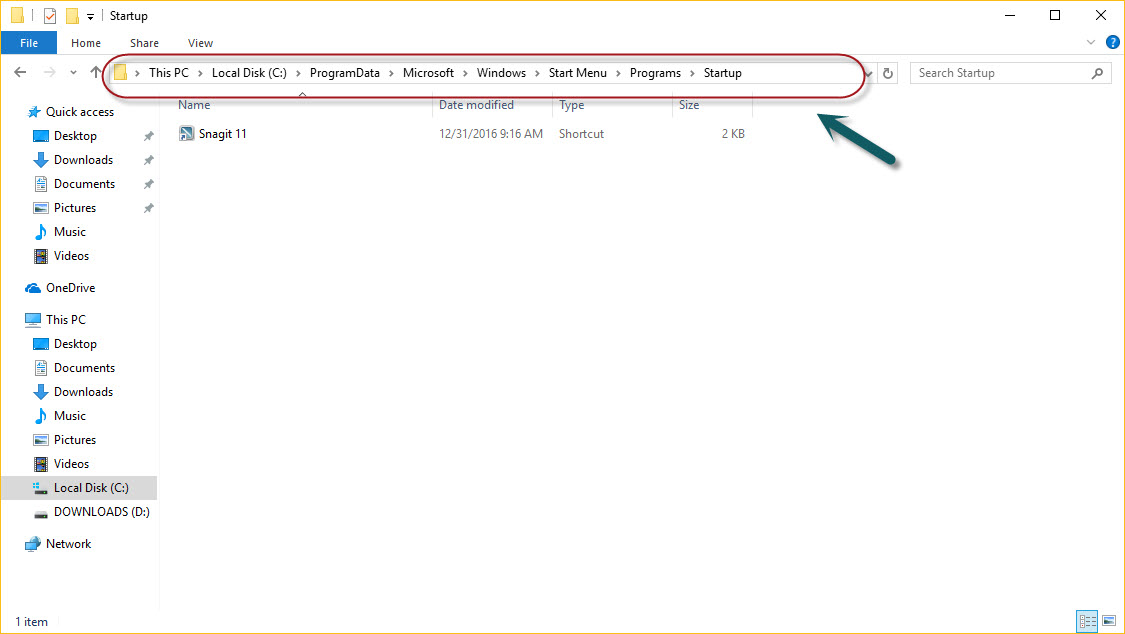
First, open the File Explorer. Here you can see the address bar which is same like browser address bar. When you open any folder in File Explorer, you will see the path of the directory in the address bar. To access the Startup folder in Windows 10, type this path in File Explorer address bar.
C:\ProgramData\Microsoft\Windows\Start Menu\Programs\StartUp
You can also use the following path to access the startup folder in Windows 10 for a specific user without disturbing the Settings.
C:\Users\Username\AppData\Roaming\Microsoft\Windows\Start Menu\Programs\Startup
Above replace the username with your PC username to work. To know the username go to C://Users to find the username.
Method 2
This method is command based, and you don’t need to open file explorer.
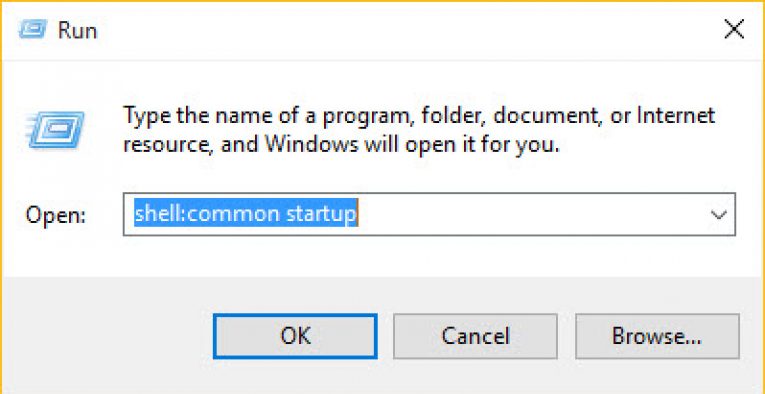
- Open the run command box with administrator rights.
- Now enter the below command in the run box.
shell:common startup
Like in the above method 1, you can access the startup folder using specific user. For a specific user access open the run command and enter the following code.
shell:startup
That’s it; now you can access Windows 10 startup folder using two easy methods. Do you have any doubt or query regarding this topic or any related query, please use the comment box.
More in Windows

How to free up RAM on Windows 10
No one likes a slow-performing computer. As we are moving towards the future with the latest apps and games, the computing power also must meet software requirements. RAM (Random Access Memory) plays a crucial role in the performance of the computer. Sufficient RAM is required to handle the tasks. For example, if you are using…

How to Encrypt a Folder in Windows 10
You might have very important data residing on your computer. Even though there are several security mechanisms in place to protect unauthorized access to computers such as passwords, an extra layer of security won’t hurt. Especially if the data is extremely important and you do not want to let anyone access it even when they…
How to fix “Working on it” message in Windows 10 File Explorer?
If you get the “working on it” message in the File Explorer of Windows 10, it could be the problem caused by Quick Access cache. “Quick Access” is a virtual location, where the updated recent files and folders are listed. Sometimes, the File Explorer may slow down because of an overloaded or corrupted cache of…

The week in tech, minus the noise.
New reviews, fixes and the stories that matter — once a week, straight to your inbox.
We only use your email to send the newsletter. Unsubscribe any time. See our privacy policy.
Comments