

How to fix “Working on it” message in Windows 10 File Explorer?
If you get the “working on it” message in the File Explorer of Windows 10, it could be the problem caused by Quick Access cache. “Quick Access” is a virtual location, where the updated recent files and folders are listed. Sometimes, the File Explorer may slow down because of an overloaded or corrupted cache of…

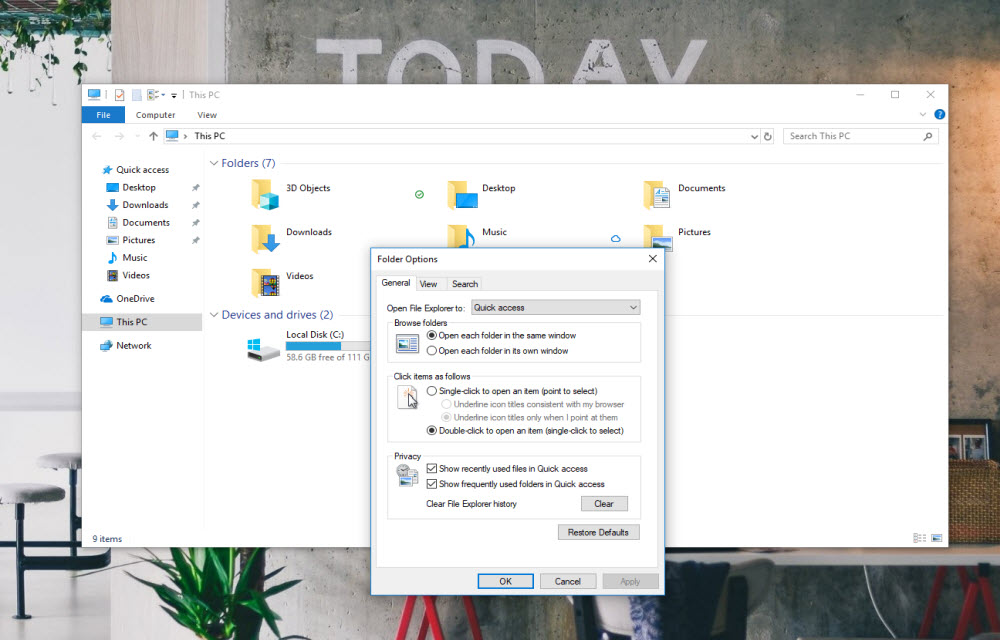
How to fix “Working on it” message in Windows 10 File Explorer
If you get the “working on it” message in the File Explorer of Windows 10, it could be the problem caused by Quick Access cache.
“Quick Access” is a virtual location, where the updated recent files and folders are listed. Sometimes, the File Explorer may slow down because of an overloaded or corrupted cache of File Explorer’s Quick Access function.
The “Working on it” message may last few seconds in the beginning, but it may grow more over the increase in the use of File Explorer. So, it is good to clear the cache to get a temporary solution.
Here, we have to do two things. First, is to clear the File Explorer History. Second, is to delete the File Explorer cache.
How to clear the File Explorer History?
First, open the file explorer. In the “View” tab on the top of the screen, you can see “Options” with a downwards arrow. Click it. Now, you will see Folder Options window. In the General tab, set the “Open File Explorer to” to “This PC”.
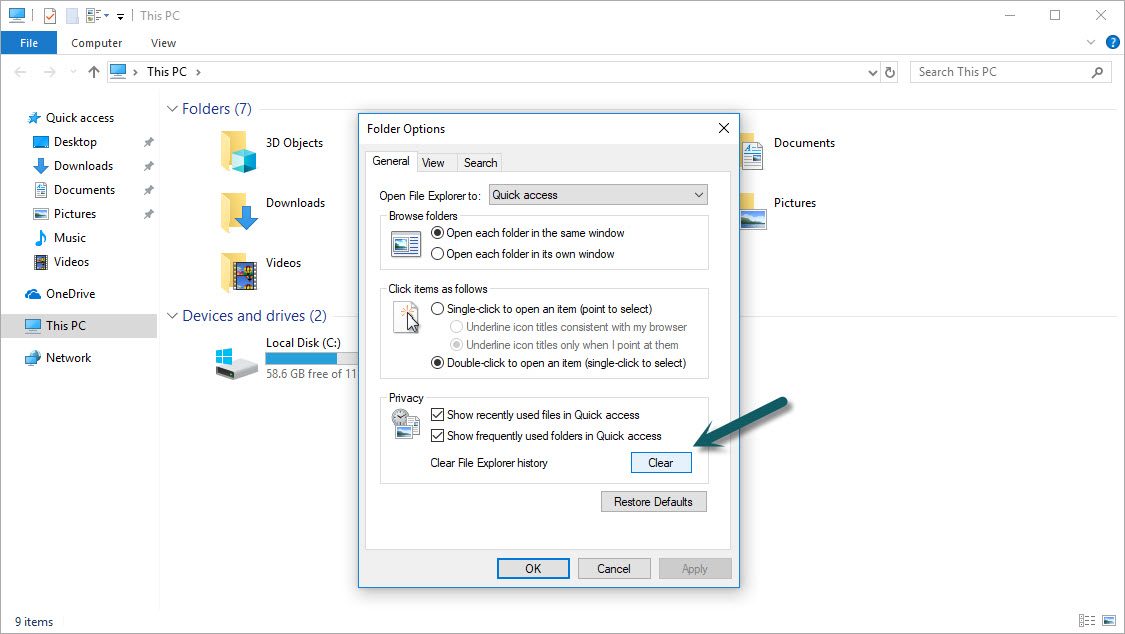
This setting will help you to open “This PC” instead of Quick Access in Windows 10. (This is just a temporary solution. Sometimes, this setting alone may solve the issue. Please continue to the next steps to clear the File Explorer History)
Under the Privacy section on the bottom of the same window, you can see “Clear” button. Click on this “Clear” button to delete all the history of recent files and folders stored by File Explorer. After this step, We have to delete the File Explorer cache.
How to delete the File Explorer cache?
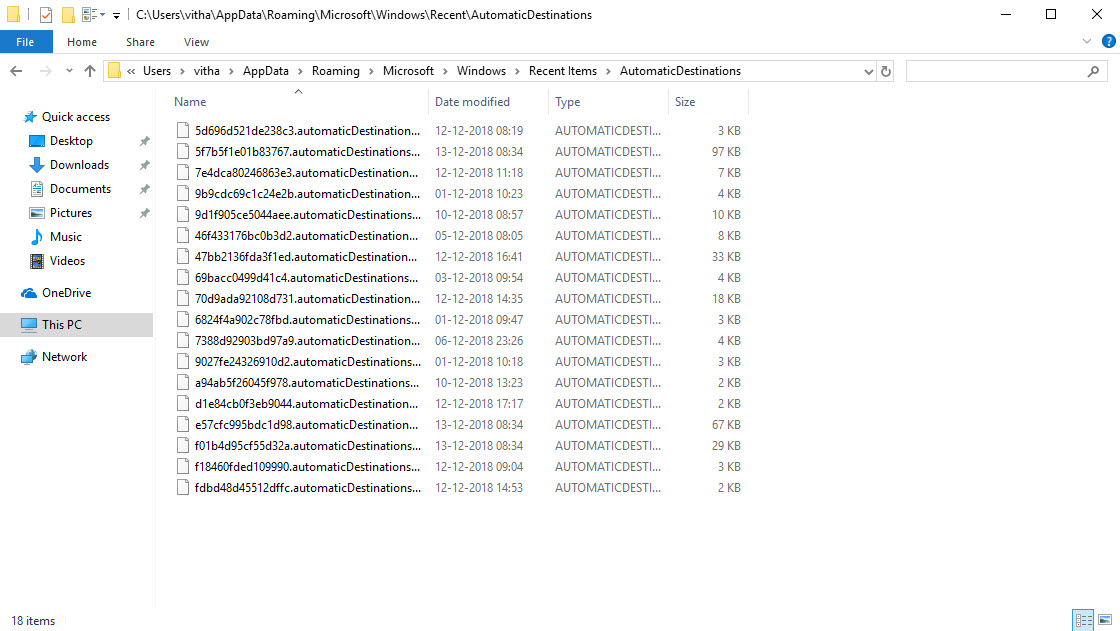
Open the below location in the File Explorer.
%AppData%\Microsoft\Windows\Recent\AutomaticDestinations
In the “AutomaticDestinations” folder, delete all the files. This will clear all the File Explorer cache and thus solve the “Working on it” issue. If you wish, you can change the settings in “Open File Explorer to” to “Quick access” instead of “This PC”.
Related Article: How to Restart Explorer.exe in Windows 10?
More in Windows
How to Fix Windows 11 Widgets Not Working
Windows 11’s Widgets panel gives quick glances at weather, news, stocks, and more right from your taskbar. But if clicking the icon does nothing, shows a blank screen, or fails to load, it’s a common technical glitch. Often tied to missing components like Edge WebView2 or the Windows Web Experience Pack, these fixes get most…
How to fix autorun.dll Error in Windows 10
A very annoying thing that happens with computer users is the occurring of the message- ‘autorun.dll file not found‘. This is encountered when users try to install or update an application or programme. This error prevents the proper launching of a programme. There are many kinds of autorun.dll error that occur while installing a programme.…
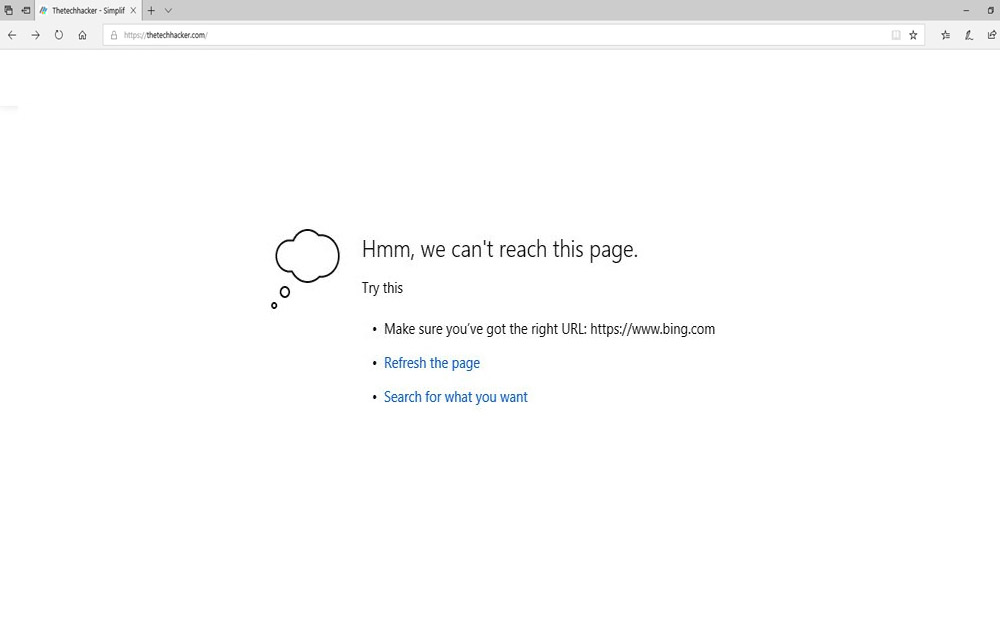
How to fix the “We can’t reach this page” error on Microsoft Edge
There are Windows users out there who have been using Microsoft Edge browser. If you are unaware, Microsoft Edge is a refreshed version of the Internet Explorer by Microsoft. The Internet Explorer is a standalone browser developed by Microsoft and bundled along with Windows 10. For users who have privacy concerns, Google Chrome is not…
The week in tech, minus the noise.
New reviews, fixes and the stories that matter — once a week, straight to your inbox.
We only use your email to send the newsletter. Unsubscribe any time. See our privacy policy.
Comments