

How To Flush DNS In Windows?
You work with your computer every day for performing a wide range of work. It includes browsing Internet, emails, video streaming and much more. Each time you access a particular website, the relevant DNS resolutions are fetched from the web and stored on the computer. The DNS resolutions are stored in the cache on your…


DNS
You work with your computer every day for performing a wide range of work. It includes browsing Internet, emails, video streaming and much more. Each time you access a particular website, the relevant DNS resolutions are fetched from the web and stored on the computer.
The DNS resolutions are stored in the cache on your computer and will be accumulated over the period of time. If you are not flushing out the DNS cache, the speed of your web browsing activity will be slowed down. It will impact the way you navigate the web. Hence, it is vital for you to clear the DNS cache on Windows. In this article, we will show you how to flush the DNS cache.
To flush your DNS, open the Windows command prompt by entering “cmd” in the “Ask me anything” search box if you are using Windows 10. As soon as you type cmd, Windows 10 will display the details as shown below.
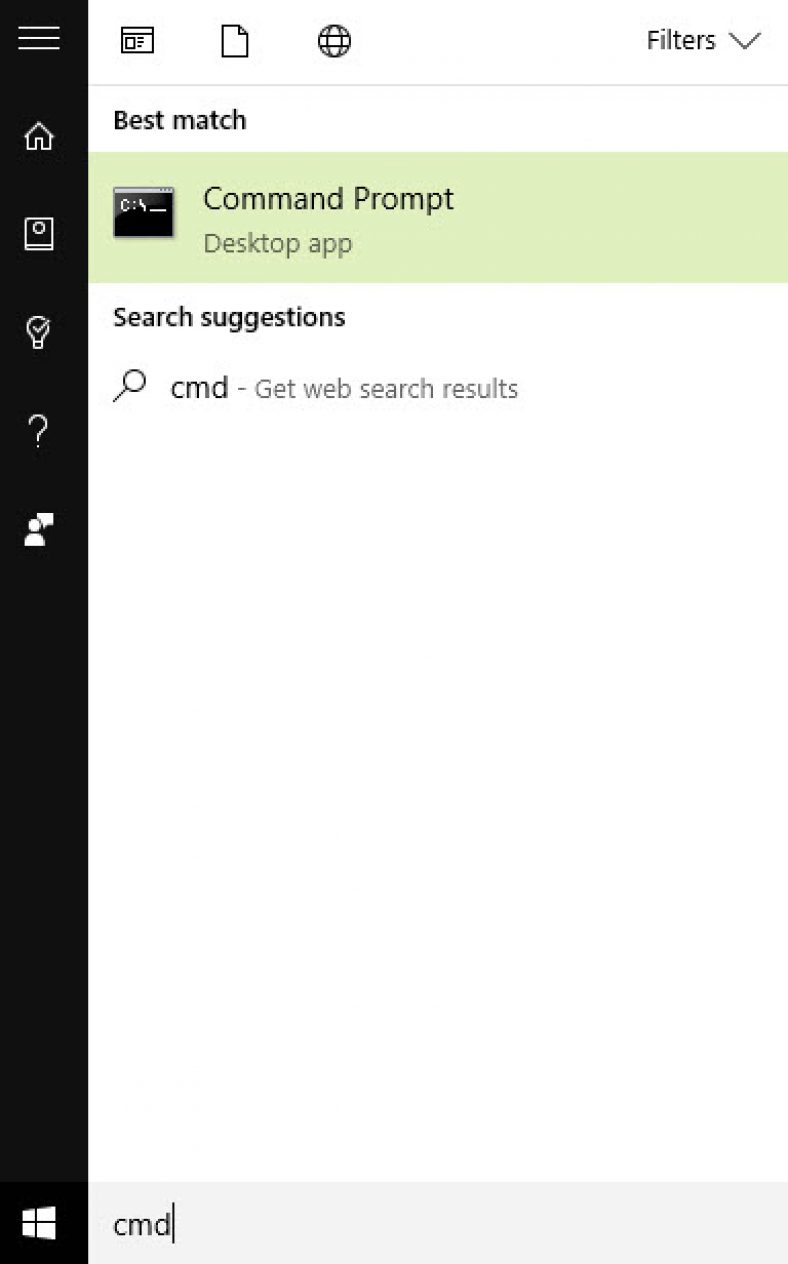
If you select the “Command Prompt” option, you will view DOS prompt, where you need to type the command ipconfig /flushdns on the command prompt. You should not activate Cortana in Windows 10 because it will display the search results instead of opening the command prompt.
You need to select Start, Run and type “cmd” in the text box if you are using Windows XP. If you are using Windows Vista, Windows 7 and Windows 8, you need to select “Start” button and provide the word “Command” in the search field.
You need to right-click on the command prompt icon and select “Run as Administrator” option. You just need to provide ipconfig /flushdns if you are using any one of the Windows platforms. After running the command, you will view a confirmation message when the DNS cache is successfully cleared.
If you perform DNS cache flushing activity, all the data stored in the cache will be erased. Your computer will look for fresh DNS information. You need to perform DND cache flushing once in every three months for a smooth Web experience.
You might also like

How to Fix DNS Error- DNS_Probe_Finished_no_Internet in your PC
We have all known that Windows is the preferred Operating System around the World when it comes to OS of choice. Now, some of you may argue that MacOS is better than Windows. However, we will reserve that debate for some other day. If you are an avid Windows user, you might have known that there…
How to Fix Wi-Fi Connected but No Internet on Windows 11
Your Windows 11 PC shows Wi-Fi as connected, but nothing loads. Here’s the order I’d work through the fixes, from a quick router restart to a full network reset.

How To Configure OpenDNS On Your Router, PC, Tablet And Smartphone
OpenDNS is a simple way to establish connectivity with the Internet when the original DNS server provided by your provider is down. It is possible to make use of OpenDNS on your router, PC, tablet and smartphone. You can configure the devices in such a way that it makes use of the relevant OpenDNS servers.
The week in tech, minus the noise.
New reviews, fixes and the stories that matter — once a week, straight to your inbox.
We only use your email to send the newsletter. Unsubscribe any time. See our privacy policy.
Comments