

Steps Required To Configure Custom Email Address With Gmail
Gmail is a web-based mail system, which enables you to easily send and manage emails. Gmail provides excellent features than the competing web email providers such as Yahoo. Gmail has a huge fan base because of its light interface. Moreover, you can navigate emails not only with PC but also using mobile apps in smartphones…


Gmail
Gmail is a web-based mail system, which enables you to easily send and manage emails. Gmail provides excellent features than the competing web email providers such as Yahoo. Gmail has a huge fan base because of its light interface. Moreover, you can navigate emails not only with PC but also using mobile apps in smartphones and tablets. Nowadays, Android smartphones ships with Gmail app. Hence, you just need to configure the app to download emails.
In addition to normal email messages, you can also send mail using a custom email address using Gmail. You can configure Gmail in such a way to send email messages using any of your addresses. For example, you can set up email of your domain (@thetechhacker.com) and download messages directly to your Gmail. This system is helpful if your hosting provider has supplied bad user interface for webmail.
To configure any email address using Gmail, you need to select the Settings gear icon located on the top right side of the Gmail interface.
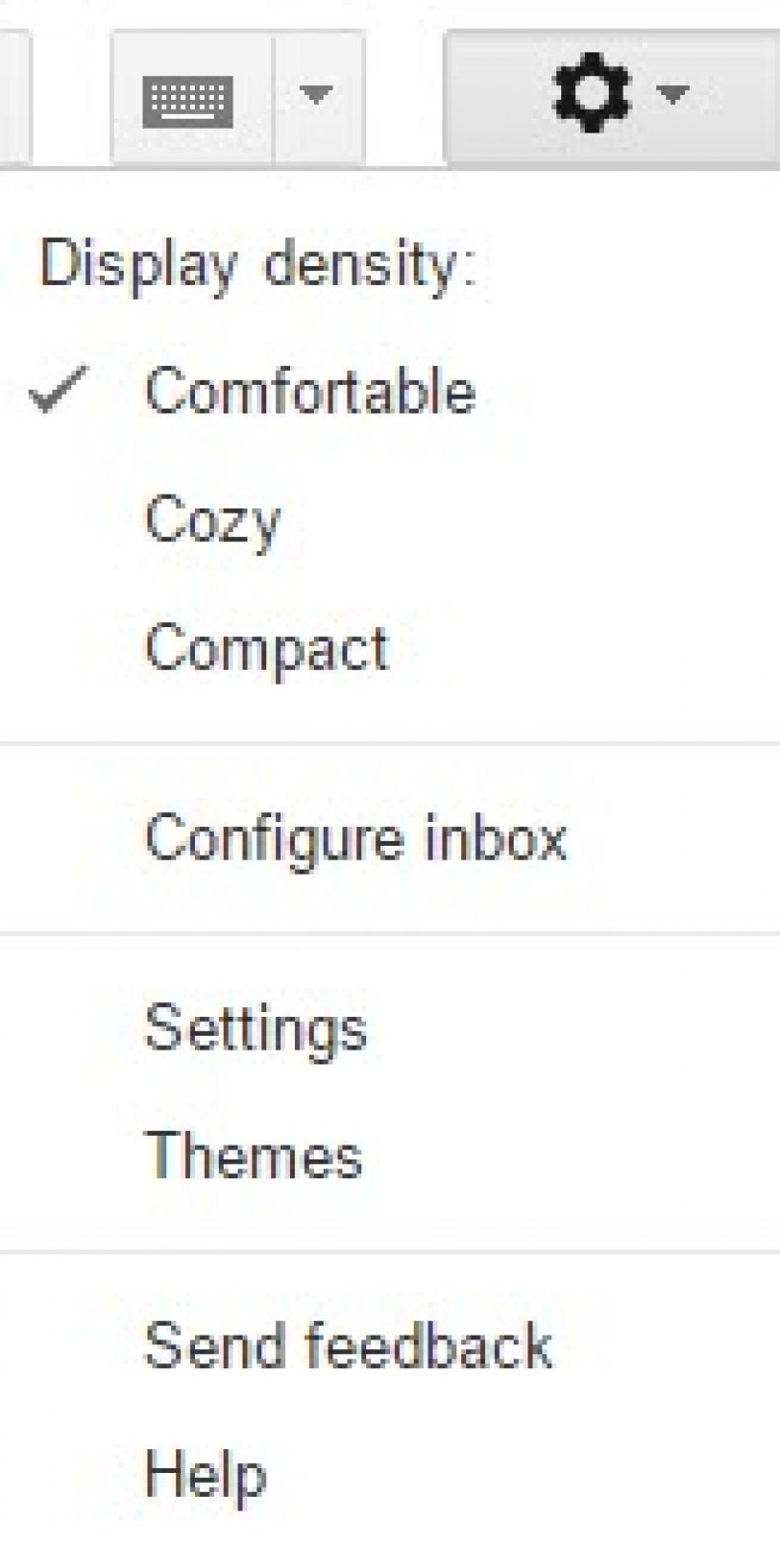
You need to select Settings from the displayed menu and select Accounts and Import option. You need to select “Add another email address” option.

You should login and enter the desired email address under Email address tab. You can also specify a different “reply-to” address and input the email address again. If you are not setting the Reply-To address, the replies will originate from your Gmail address.
Gmail also provides a facility to make use of an SMTP server for the email address. You need to select ‘sure Send through example.com SMTP servers’ option and provide the SMTP server name under SMTP Server option. You then need to enter username and password. If the SMTP server provides support for secure connections, you need to select Always use a secure connection (SSL) option when sending mail.
If the SSL is enabled, you need to make use of 465 as SMTP port. Otherwise, the port number should be 587. You then need to select Add Account. You will have SMTP server address if you have self-hosted your domain with any provider. You can select Make sure Send through Gmail if you don’t have access to an SMTP server.
Gmail will also provide an ability to verify connectivity. You can do so by selecting Send Verification option. You need to close Gmail-Add another email address window. You can control email from within Gmail by adding SPF entries. Gmail has integrated techniques for detecting spam and fraud detection systems.
As you can see, it is easy for you to configure external emails from within Gmail. If you configure emails, then you only need to access the Gmail to read all your emails not only from @gmail but also from any domain.
The main benefit of configuring external emails with Gmail is that you can navigate the emails anywhere within a single interface. However, you should be careful because if you lost the phone, then all your emails can be accessed. Hence, it is advisable to access Gmail only via PC or laptop while on the go. However, you can access Gmail on mobile when you are at home.
You might also like

How To Combine All Your Email Addresses Into One Gmail Inbox
Gmail is a complete web-based email system that provides an ability to consolidate all email addresses under one single umbrella. You can receive all emails in a single Gmail inbox including the capability to send emails from any address. You can also configure all your other email address such as Yahoo, custom domains using Gmail.…
How to Customize Gmail for More Productivity
How to Customize Gmail for more productivity: Gmail is the best Email provider around. You can customize Gmail for more productivity. You can tweak Gmail very easily with simple steps. Follow these steps to grab more from Gmail. Want to set up a signature to your Gmail? hmm line up with your name, website, company,…
How to Create a Group in Gmail?
How to create a group in Gmail: Gmail is a very popular email service from the house of Google. It has fantastic features in emailing as no one has in the competition. A user can send attachments, enable alerts, create folders, scheduling emails, labelling and sending group emails. In this article, we will learn how…
The week in tech, minus the noise.
New reviews, fixes and the stories that matter — once a week, straight to your inbox.
We only use your email to send the newsletter. Unsubscribe any time. See our privacy policy.
Comments