

How to Fix Emails Bouncing When You Send to Outlook.com and Hotmail Addresses
Disclosure: TheTechHacker has no paid relationship with Microsoft or any email provider mentioned here. You send an invoice and it bounces back, then a quote bounces too, and when you look closer the customers involved all have @outlook.com, @hotmail.com or @live.com addresses. Meanwhile your Gmail and company-domain contacts are getting your mail without any trouble.…

Photo by Glenn Carstens-Peters on Unsplash
Disclosure: TheTechHacker has no paid relationship with Microsoft or any email provider mentioned here.
You send an invoice and it bounces back, then a quote bounces too, and when you look closer the customers involved all have @outlook.com, @hotmail.com or @live.com addresses. Meanwhile your Gmail and company-domain contacts are getting your mail without any trouble.
If this started around early November 2026, the timing isn’t a coincidence, because since about November 5 senders on Microsoft 365, Zoho and other providers have reported that some messages to Outlook.com and Hotmail addresses are being rejected with authentication errors. In some cases that included senders whose records looked correct, and as of November 9 Microsoft hadn’t publicly explained the cause.
For a small business this is a real problem rather than just an IT annoyance, since a bounced invoice turns into a late payment and a bounced quote can easily become a lost job. The rest of this guide walks through how to work out which problem you have and how to fix the parts that are actually in your control.
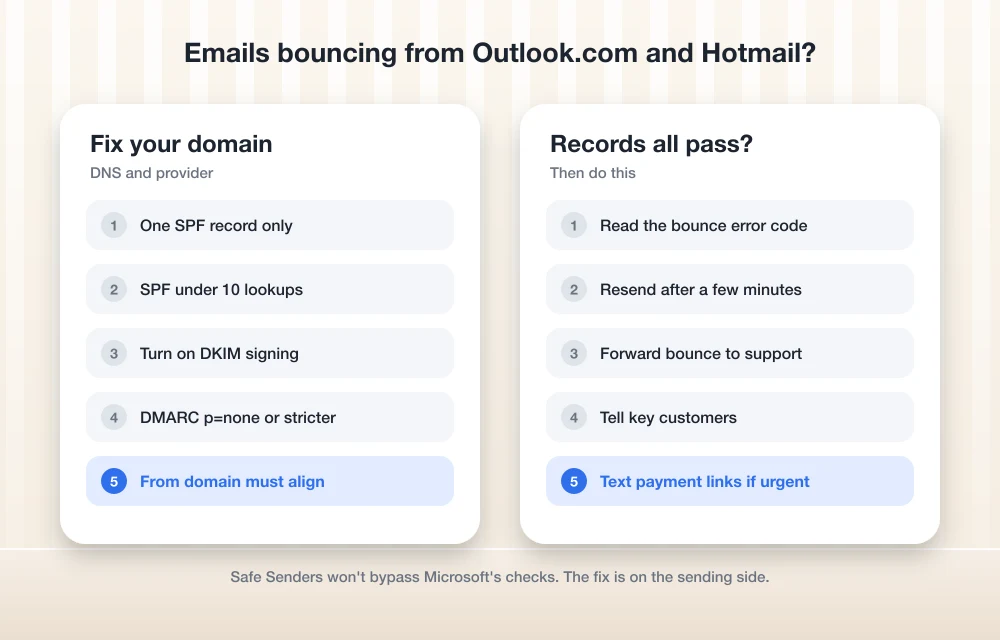
Quick answer: Open the bounce message and find the error code, then make sure your domain has exactly one valid SPF record, DKIM signing turned on in your email provider, and a DMARC record (at least p=none) that aligns with SPF or DKIM. Microsoft has required all three for bulk senders since May 2025. If your records check out but some messages still bounce, resend a little later and forward the full bounce to your email provider’s support team.
Step One: Read the Bounce Message
I know the instinct is to delete bounce emails without reading them, but it’s worth resisting, because the error code tells you whether the fault sits in your own setup or on Microsoft’s side. The table below lists the codes senders have been seeing in these bounces and what each one usually points to.
| Error in the bounce | What it points to |
|---|---|
550 5.7.515 Access denied, sending domain ... does not meet the required authentication level |
Your domain is missing or failing SPF, DKIM or DMARC |
550 5.7.23 (mentions SPF) |
Your SPF record doesn’t authorize the server that sent the mail |
550 5.7.1 ... lacks SPF/DKIM/DMARC Auth Records |
Authentication records missing or not found |
| Bounce on some messages only, records all pass | Possibly on Microsoft’s side; retry and report it |
Microsoft keeps a reference list of these codes on its Outlook.com Postmaster site, along with guidance on what to do when mail is being blocked or sent to junk.
How to Fix Outlook.com and Hotmail Bounces
1. Check your SPF record
SPF is a DNS record that lists who’s allowed to send email for your domain, and the two mistakes small businesses make most often are having two SPF records (only one is allowed, so both end up failing) or forgetting to include a tool that sends on your behalf.
It helps to list every service that sends email “from” your domain, which means your mailbox provider (Google Workspace, Microsoft 365, Zoho Mail) and also your invoicing app, CRM, help desk or newsletter tool. Each of them gives an include value in its setup docs, and they all belong in one TXT record at your domain root, something like this:
v=spf1 include:_spf.google.com include:sendgrid.net ~allYour values will differ, so copy them from each provider’s own help page rather than from this example. You also need to keep the record under 10 DNS lookups, because every include: counts toward that limit and going over it makes SPF fail.
2. Turn on DKIM in your email provider
DKIM adds a digital signature to your outgoing mail, and plenty of businesses have it switched off without realising, because some providers don’t turn it on by default for custom domains. In Google Workspace you’ll find it in the Admin console under Gmail authentication, while Microsoft 365 puts it under the email authentication settings in the Defender portal and Zoho Mail keeps it in its domain settings. Each one gives you a DNS record to publish, after which you click to start signing. It’s worth doing the same in any marketing or invoicing tool that sends from your domain, since most of them have a “domain authentication” step that adds DKIM for you.
3. Publish a DMARC record
DMARC ties SPF and DKIM together and tells receiving servers what to do when a check fails, so if you don’t have one yet I’d start with a monitoring-only record by adding a TXT record at _dmarc.yourdomain.com:
v=DMARC1; p=none; rua=mailto:[email protected]A policy of p=none doesn’t block anything, but it meets the minimum requirement and sends you reports. Once you’re confident every legitimate sender passes, you can tighten it to quarantine and later to reject, which is the gradual path Microsoft recommends.
4. Make sure it all “aligns”
This is the part that tends to trip people up, because Microsoft’s rules say DMARC has to align with SPF or DKIM, and preferably with both. In plain terms, the domain in your From address has to match the domain that SPF or DKIM actually authenticated, so if your invoicing app sends as [email protected] but signs with its own domain, DMARC can fail even though SPF and DKIM technically “pass.” Setting up custom domain authentication inside that app is what fixes it.
5. Test before you blame Microsoft
Send a test email to a free Outlook.com address you control, then open the message and view its source (in Outlook on the web, that’s the three-dot menu, then View > View message source). In the Authentication-Results header you’re looking for spf=pass, dkim=pass and dmarc=pass, and if any of them says fail, you know exactly which record needs attention.
6. If everything passes and mail still bounces
At that point the problem may not be yours, since the November reports include senders with valid records, so the sensible approach is to work around the bounces while the issue gets escalated.
- Resend after a few minutes. Some senders have reported that a simple retry went through.
- Forward the full bounce, headers included, to your email provider’s support team, because they can escalate it to Microsoft with the real error details in hand.
- Tell important customers. A short text or call saying “I’ve sent your invoice, let me know if it’s not in your inbox” saves you from chasing a payment on an invoice they never actually received.
- Keep a backup channel for anything time-sensitive, such as a payment link texted from your invoicing tool, so that a bounce doesn’t hold things up.
Do the High-Volume Sender Rules Apply to You?
Microsoft’s formal requirements are aimed at domains that send more than 5,000 emails a day to Outlook.com, Hotmail and Live addresses, which is spelled out in its announcement of the high-volume sender requirements. Non-compliant mail started going to junk on May 5, 2025, and Microsoft said outright rejection would follow at a later stage.
Most small businesses send nowhere near 5,000 a day, but I’d still set up SPF, DKIM and DMARC, because it costs nothing beyond an hour of DNS work and Google and Yahoo have similar rules. It’s also the first thing anyone will ask you to check when mail goes missing. Microsoft notes as well that being on a recipient’s Safe Senders list won’t get you around these checks, which means you can’t ask customers to fix it from their end.
If your team’s Outlook is also refusing to sync, our guide to fixing Outlook not syncing in Microsoft 365 covers that separately. If you send newsletters as well, our comparison of email marketing software for small businesses points out which tools make domain authentication easy, and if you’re thinking about changing providers altogether, have a look at our piece on enterprise email solutions for secure communication.
FAQs
Why are my emails to Hotmail and Outlook.com addresses bouncing?
Usually it’s because your domain is missing SPF, DKIM or DMARC, or one of them is failing. Since about November 5, 2026, some senders with valid records have reported bounces too, so it’s worth checking the error code before you change anything.
What does error 550 5.7.515 mean?
It means your sending domain doesn’t meet the authentication level Microsoft requires, and the fix is to set up SPF, DKIM and a DMARC record that aligns with at least one of them.
Can my customer fix this by adding me to Safe Senders?
No, because Microsoft says Safe Senders doesn’t bypass its authentication requirements, so the fix has to happen on the sending domain rather than in your customer’s mailbox.
Is DMARC p=none enough?
For Microsoft’s current requirements it is, as long as it aligns with SPF or DKIM. You can move to quarantine or reject later, once you’ve checked every service that sends mail on your behalf.
Bottom line: An hour of DNS work fixes most of these bounces for good, and for the rest, a short message to your customers keeps invoices from slipping through the cracks while Microsoft sorts out its side.
You might also like
How to Send PDF in Email
PDF, or Portable Document Format, is a familiar document format to most of us. PDFs look the same on every device and are hard to edit by accident, which is why they are used everywhere for forms, invoices, resumes and reports. If you are new to email services like Gmail, it is common to have…

How to Fix Outlook Not Syncing Email in Microsoft 365 (Windows, Mac, iPhone and Android)
Outlook stuck on old mail? Here’s how I’d fix Microsoft 365 sync problems in new and classic Outlook on Windows, Outlook for Mac, and the Outlook app on iPhone and Android.
How to Customize Gmail for More Productivity
How to Customize Gmail for more productivity: Gmail is the best Email provider around. You can customize Gmail for more productivity. You can tweak Gmail very easily with simple steps. Follow these steps to grab more from Gmail. Want to set up a signature to your Gmail? hmm line up with your name, website, company,…
The week in tech, minus the noise.
New reviews, fixes and the stories that matter — once a week, straight to your inbox.
We only use your email to send the newsletter. Unsubscribe any time. See our privacy policy.
Comments