

How to Get your Data Back from a Broken Android Device
Android devices are very common these days. Like that, the damages to those Android devices are also plenty. The careless usage, or accidental drops either make few scratches and in the worst cases, can even break your screen which makes it completely unusable. In such situations, any operations can’t proceed on the device because even…

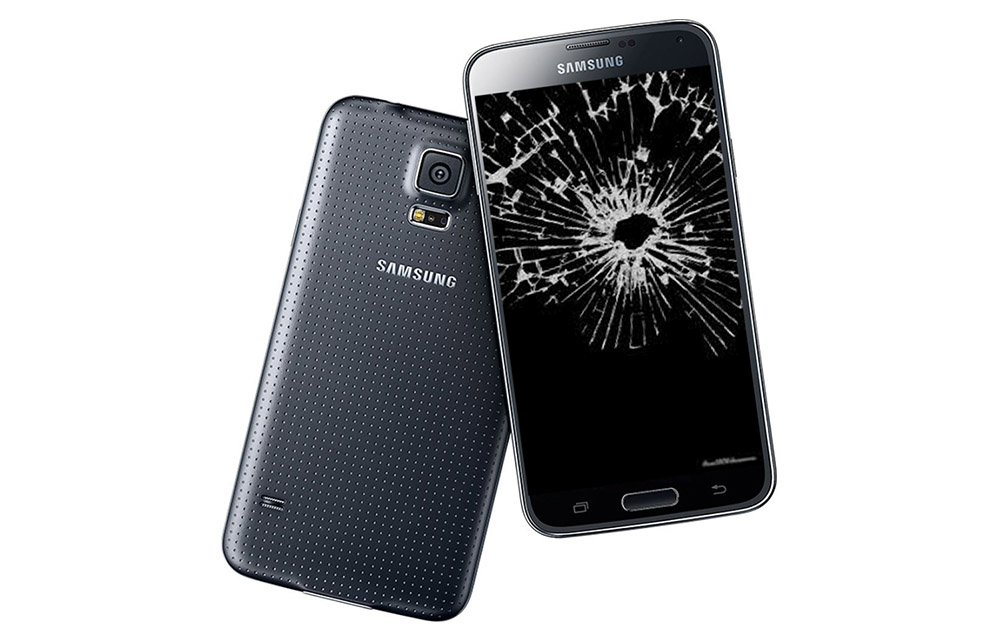
Android devices are very common these days. Like that, the damages to those Android devices are also plenty. The careless usage, or accidental drops either make few scratches and in the worst cases, can even break your screen which makes it completely unusable. In such situations, any operations can’t proceed on the device because even the screen in not accessible. But how could you retrieve all your important data on this broken Android device? Is there any solution to fix this issue?
Yes, there is. The dr.fone toolkit is a complete solution for many of the well-know Android problems including the broken screen data extraction. It allows you to easily extract the data such as contacts, messages and more that have been stored in the phone memory. So you will never have to visit a professional to extract the important data on your smartphone. The process is very simple using the software and requires no technical knowledge at all. Any Android user can proceed with this.
Retrieve Data from a Broken Android Device using the dr.fone toolkit
The dr.fone toolkit is not only a data extractor for the Android devices, but it also comes with a number of useful features such as backup and restore, data eraser, lock screen removal, sim unlock, etc. But now, we are going to discuss the data extraction feature of the software. Here are the steps to extract data from a broken Android device using dr.fone toolkit.
- Download the dr.fone toolkit for Android software from their website and launch the program
- Click on the Android Data Extraction (Damaged Device) option on the main interface
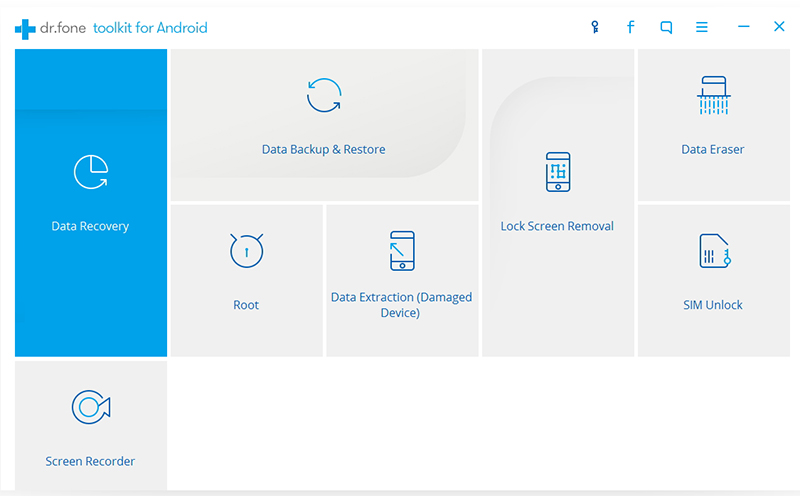
- Now, select the types of data that you want to recover. You can recover almost any kind of data including messages, contacts, call history, Whatsapp messages, images, videos, documents, etc. and click Next.
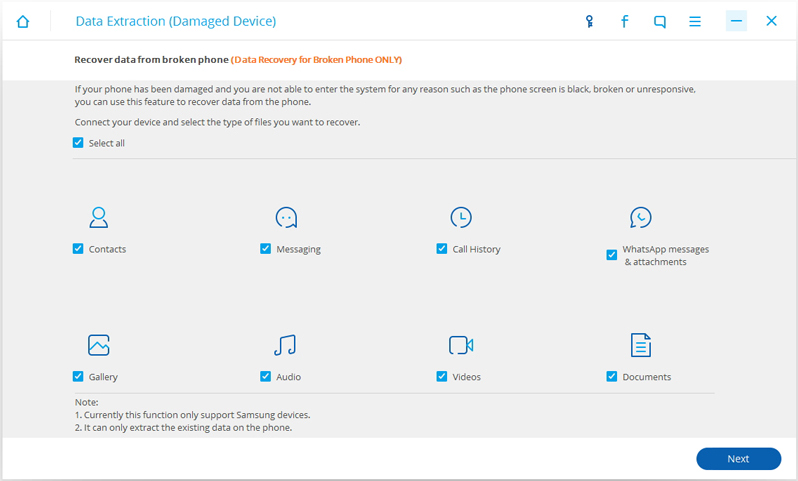
- Now, select your exact problem. If your screen is broken, select the “Black/Broken Screen” option. If just the touch doesn’t work, select the first option and proceed.
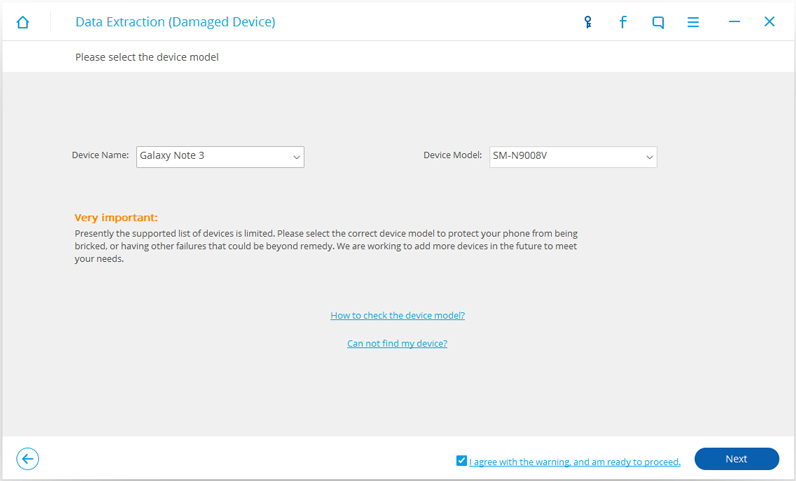
- You should be very careful in this step. Make sure to select the exact smartphone model from the drop down. Any incorrect selection may result in a completely unusable device. So be careful. If you are unsure about the device model, follow the links given on the same interface.
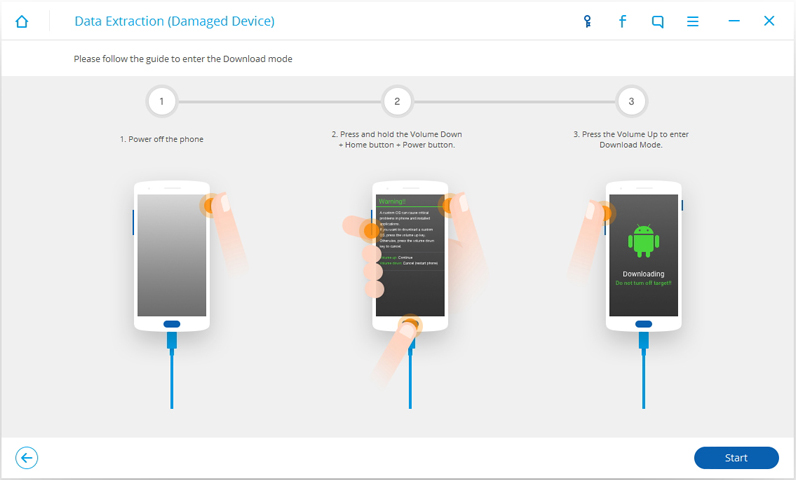
- Now, you have to enter the “Download Mode” of your device. The instructions will be clearly mentioned in this window. Just follow it.
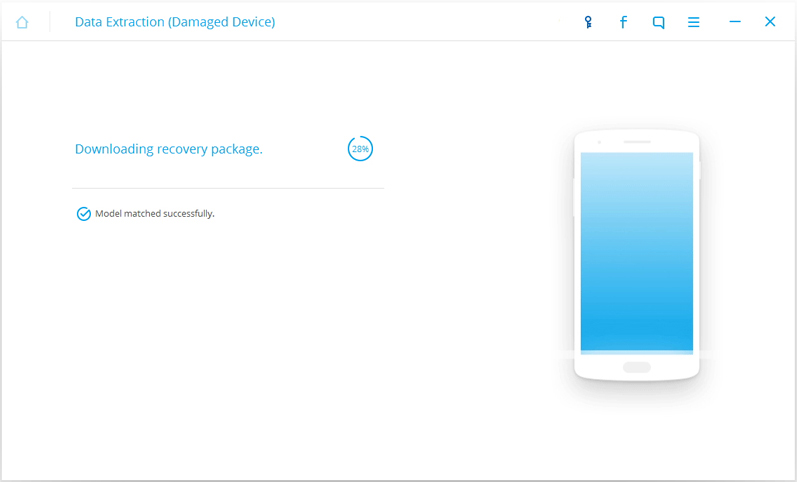
- Now, simply connect the Android device to PC. The dr.fone toolkit will analyse the device and then scan it for all your files.
- After the scanning of the files completed, you will be given with a window where all the available files and data are listed. Select the files that you want to recover and simply click the “Recover” button.
That’s it, you have successfully recovered your important data from your broken Android smartphone. You can use the same recovered data to add it to another smartphone using the same software.
For a better understanding of the steps, you can have a look at their official article on dr.fone toolkit – Android Data Extraction.
More in Android
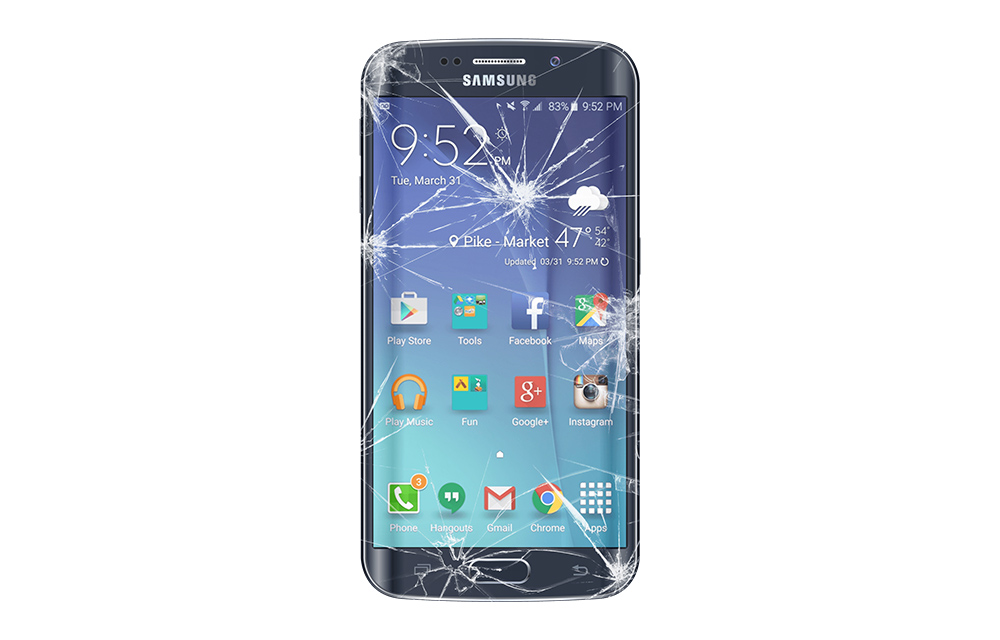
How to Retrieve Data From an Android Phone With A Broken Screen
No matter how careful you are, your mobile phones are prone to falling to the floor, and the chances of the screen getting cracked are dependent upon factors like the height from which it fell, and if it landed face down.
How To Backup An Android Device – Ultimate Guide
Let’s face it. We have always argued upon which mobile operating system dominates, and it turned out as – Android. It may not be the best one expects but the variety of smartphones powered by Android OS simply dominates over the other factors. While we know that there is a wide range of devices but…
Must Have Apps For Rooted Android Devices
Rooting your Android means you are unleashing its hidden superpowers. If you want to know what the benefits of rooting Android are, it is clear: you can access unavailable features of Android like WiFi and Bluetooth Tethering, performance updates, a better keyboard, etc. But before starting, you must be aware of the disadvantage of rooting…
The week in tech, minus the noise.
New reviews, fixes and the stories that matter — once a week, straight to your inbox.
We only use your email to send the newsletter. Unsubscribe any time. See our privacy policy.
Comments