

PdaNet+ App Review – A Best Tethering Solution
We are now in this day and age where we need to stay connected not only to our home or office but even on the go as well. For this reason, we set up WiFi at places we frequently travel whenever possible. Now, one of those scenarios where being connected to WiFi is not possible…

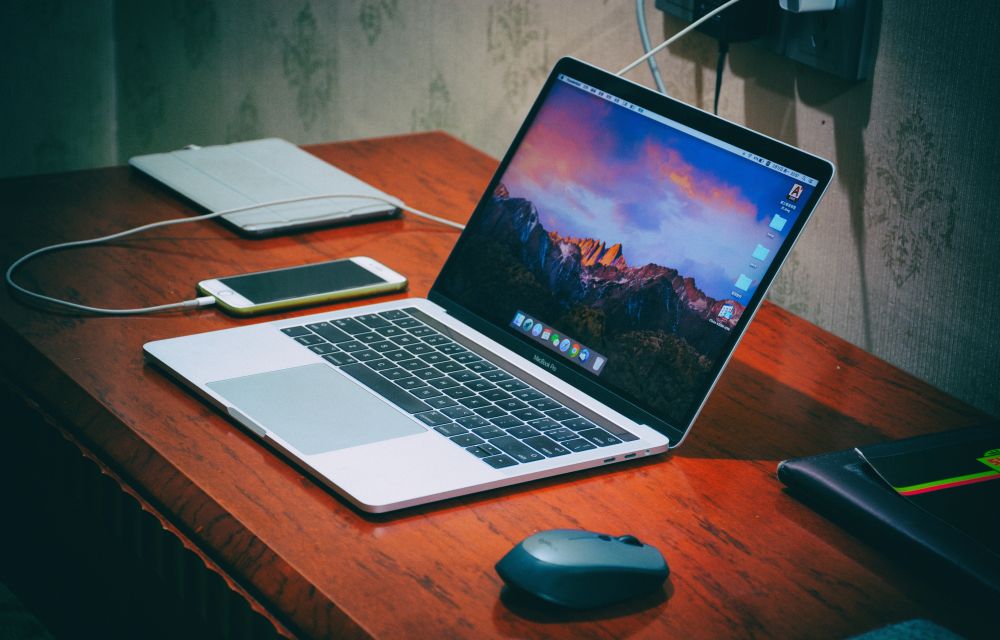
PdaNet+ App Review – A Best Tethering Solution
We are now in this day and age where we need to stay connected not only to our home or office but even on the go as well. For this reason, we set up WiFi at places we frequently travel whenever possible. Now, one of those scenarios where being connected to WiFi is not possible is during travels. Therefore, the best option to get internet access in this situation is to transform our smartphone into a modem so that we can connect our laptop or computer to it. This process is also termed as tethering and it is widely used nowadays. Meet PdaNet+, a simple solution for tethering.
What is PdaNet+?
One of the best applications available for tethering is the PdaNet+ application available for Android, Mac, and Windows. PdaNet+ application supports connections using Wi-Fi, a USB cable connection, and even Bluetooth dial-up internet connections. As far as pricing is concerned, the app is free for usage but it is available on a trial basis. The full version of the app is available as a paid purchase.
Coming to the aspect of how to use the PdaNet+ app in order to turn our smartphone into a modem, it is actually very simple. First of all, you need to download the application on your Laptop or Computer running either Windows or MacOS. Now, you will be prompted to install the PdaNet+ application on your smartphone as well. If not, you need to download the application on your own from the Google Play Store.

Now, you just need to setup the application both on your PC and smartphone. That’s it, you will now be able to tether your smartphone’s internet connection to your Laptop or Computer. Note that you can only tether internet connection on your smartphone from your cellular provider. For this, you need to activate a data plan prior to the tethering as well. For iPhone users, Apple does not allow PdaNet+ in the App Store so you cannot officially get this application on your device.
How to Use PdaNet+?
- First, download and install the PdaNet+ on your PC or Mac.
- During the installation, you have to connect your iPhone/Android device to the PC/Mac using the data cable.
- During the software installation, it also installs the corresponding app on your mobile device.
- When PdaNet+ is installed on both PC/Mac and smartphone, you click on the app on your computer and/or smartphone.
- After starting both the apps, you can use your mobile internet on laptop/desktop.
That’s all for now. Please do share your views and feedback in the comment box below.
More in Android
What is Tethering? Advantages and Disadvantages
It is known that Android has been the operating system of choice for most of the smartphone users around the world. In fact, it is known that almost 90% of the smartphones around the world are running Android. Now, this is because the iOS devices are too costly for the mid-range segment. Also, Android has…
Must Have Apps For Rooted Android Devices
Rooting your Android means you are unleashing its hidden superpowers. If you want to know what the benefits of rooting Android are, it is clear: you can access unavailable features of Android like WiFi and Bluetooth Tethering, performance updates, a better keyboard, etc. But before starting, you must be aware of the disadvantage of rooting…
How to Reset App Preferences in Android Smartphones
There are several situations when you need to reset app preferences in your Android smartphone. If you got an error like the “process com.google.process.gapps has stopped”, or any other android errors when trying to access particular applications, the app preference reset is a good solution which is suggested by many pros. So, in this article, I…
The week in tech, minus the noise.
New reviews, fixes and the stories that matter — once a week, straight to your inbox.
We only use your email to send the newsletter. Unsubscribe any time. See our privacy policy.
Comments