

How to delete messages on Facebook Messenger
Earlier, we could chat with our Facebook friends and also post and share Facebook posts, all in one app. This app was the Facebook app for Android and iOS. However, the company later decided to separate the Facebook app and the messaging app. This messaging app from Facebook is called Facebook Messenger. We have gotten…


Facebook Messenger
Earlier, we could chat with our Facebook friends and also post and share Facebook posts, all in one app. This app was the Facebook app for Android and iOS. However, the company later decided to separate the Facebook app and the messaging app.
This messaging app from Facebook is called Facebook Messenger. We have gotten used to Messenger as it has been around for many years. However, some people find it hard to remove their sent messages on Facebook Messenger. So, we are here to tell you how to delete your messages on Facebook Messenger.
Deleting messages on any platform can be done for various reasons. Sometimes a message is sent by mistake: we intend to send it to one person, and someone else receives it.
A message could also have a typo that we only notice after sending it. Or we simply sent a message and later want to delete it for some reason. That is why it is very useful to know how to delete messages on Facebook Messenger.
Unsend vs Remove for you: what is the difference?
Messenger gives you two different ways to delete a message, and it is important to know which one you are choosing:
- Unsend (also shown as Unsend for everyone or Remove for everyone): The message is removed from the chat for you and for everyone else in the conversation. It is only available for messages you sent.
- Remove for you: The message is removed only from your side of the chat. The other person will still see it.
When you unsend a message, the other people in the chat will see a small note saying that a message was unsent, so they will know you removed something, but not what it said. Also keep in mind that if someone already read the message, took a screenshot or saw it in a notification, unsending it cannot undo that.
The exact wording of these options can change slightly between app versions, but the two choices work the same way.
How to unsend or remove a message in the Messenger app (Android and iPhone)
- Open the Messenger app and go to the conversation.
- Touch and hold the message you want to delete.
- Tap Unsend (on some versions, tap More first, or tap Remove).
- Choose Unsend for everyone to delete it for everyone, or Remove for you to delete it only from your side.
- Confirm your choice.
How to unsend a message on a computer
On a computer, open Facebook in your web browser and click the Messenger (chat bubble) icon at the top to open your chats.
- Open the conversation and hover your mouse over the message you want to delete.
- Click the three-dot More icon that appears next to it.
- Click Unsend or Remove.
- Choose Unsend for everyone or Remove for you, then click Remove to confirm.
How to delete an entire conversation
Deleting a whole chat removes it only from your account. The other person keeps their copy of the conversation.
On Android: Touch and hold the conversation in your chat list and tap Delete, then confirm.
On iPhone: Swipe left on the conversation, tap the More (three lines or three dots) option, then tap Delete and confirm.
On a computer: Hover over the conversation in the chat list, click the three-dot icon and select Delete chat.
Deleting a conversation cannot be undone, so make sure you really do not need it.
Archive instead of delete
If you just want to tidy up your chat list, you can archive a conversation instead of deleting it. Archived chats are hidden from your main chat list but are not deleted, and they come back if the person messages you again. You will find the Archive option in the same menu as Delete.
What about end-to-end encrypted chats?
Meta has been rolling out end-to-end encryption for personal chats on Messenger. You can still unsend and remove messages in encrypted chats the same way. Encrypted chats may also offer disappearing messages, which delete themselves automatically after a set time. You can turn this on from the chat settings if you want messages to clean themselves up.
Tips before you hit send
- Edit instead of delete: Messenger lets you edit a message for a short time after sending it. Touch and hold the message and look for Edit. This is handy for fixing a typo.
- Check the recipient: Look at the name at the top of the chat before you send anything important.
- Unsend quickly: The sooner you unsend, the less chance the other person has already read the message.
Frequently asked questions
Does the other person know if I unsend a message?
Yes. They will not see the message, but a note in the chat will show that a message was unsent.
Can I unsend a message the other person has already seen?
Yes, you can still unsend it and it will be removed from the chat. However, they may already have read it or saved it.
Why don’t I see the Unsend option?
Unsend is only available for messages you sent. For messages someone else sent you, you can only remove them for yourself. Also make sure your Messenger app is updated to the latest version.
We hope this guide helped you delete your messages on Facebook Messenger. Let us know in the comment section below if you have any questions.
More in Internet

How To Access Facebook Chat Without Opening Facebook Site
For example, you can access Facebook chat without opening the Facebook website. The easiest way to communicate with your friends on Facebook is through this method. On the internet, there are only a few alternatives to Facebook chat that are available. You will be able to rapidly share your thoughts, photographs, and videos with others…
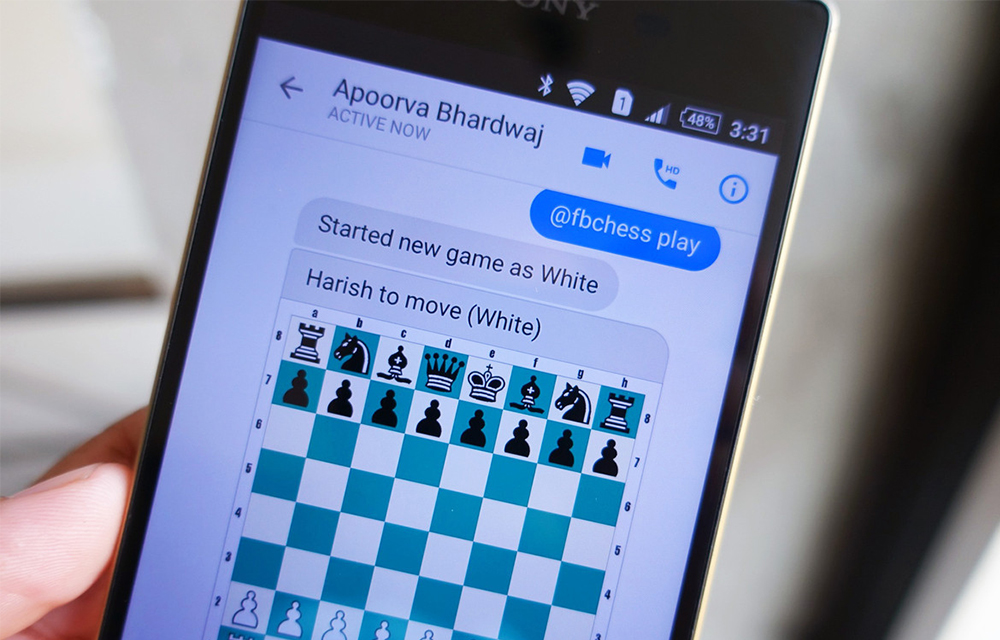
Play Chess with your Friends in Facebook Messenger
If you are a regular user of facebook messenger and has been using it only for chatting with your friends, it is the time to try something different. Apart from those long chatting sessions, you could do something more than that. How would it be if you can play a chess game right from the…
How To Use Facebook Messenger Without Extensions
Facebook messenger doesn’t need any introduction, millions of Facebook users use the chat feature to communicate with their colleagues, friends, family members easily. Recently Facebook crossed 1.8 Billion monthly users mark and created history. Most of the users use Facebook messenger on their smartphones, for desktop users they usually install extension or add-ons with compatible…
The week in tech, minus the noise.
New reviews, fixes and the stories that matter — once a week, straight to your inbox.
We only use your email to send the newsletter. Unsubscribe any time. See our privacy policy.
Comments