

How to install Google Camera v7.0 on any Android device
There has been a lot of talk about how Google’s Pixel series is the best in smartphone photography. Initially, Google’s Pixel series was seen as the best camera phone among all other Android devices. However, we have seen that Apple’s iPhone camera is also beaten hands-down by the Google Pixel 3 camera. That being said,…

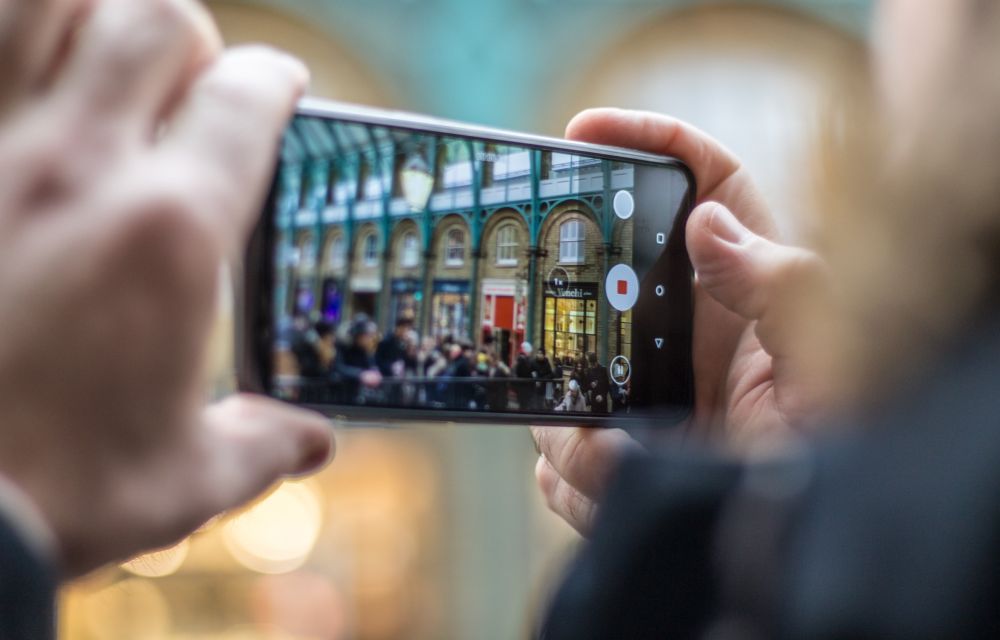
How to install Google Camera v7.0 on any Android device
There has been a lot of talk about how Google’s Pixel series is the best in smartphone photography. Initially, Google’s Pixel series was seen as the best camera phone among all other Android devices.
However, we have seen that Apple’s iPhone camera is also beaten hands-down by the Google Pixel 3 camera. That being said, we know that the Apple iPhone 11 Pro is a serious challenge for the upcoming Pixel 4 from Google.
Now, it is also being said that Google is doing some sort of magic (tweaks) to achieve the photos that we get as output. Because we see that Google Camera takes time to process photos which means that there are tweaks being done after the photo is taken. Also, this has been proven as we see a drastic improvement in image quality on other phones once the Google Camera is used to take photos.
Therefore, the Android community is aware of it and everyone wants to have Google Camera or GCam installed on their device. Since the latest version of GCam v7.0 is found and ported for other Android devices, we are here to tell you how to install the apk on your device:
Download Google Camera for your Android device
Download Google Camera v7.0 from here.
Install Google Camera v7.0 on your Android device:
- First of all, make sure to download one of the supported Gcam apk ports for your device from the Downloads section above.
- Then, click on the downloaded apk file and install it on your device. Note that you will need to enable installation from third-party sources which is disabled by default in the latest versions of Android.
- Once your apk file is installed, you can search for Google Camera from your list of installed applications and start using it to capture photos.
Note that Google Camera might not work on your device as expected and it is a known issue. Since Google Camera is not available officially, we should expect to have that issue as well.
More in How-to
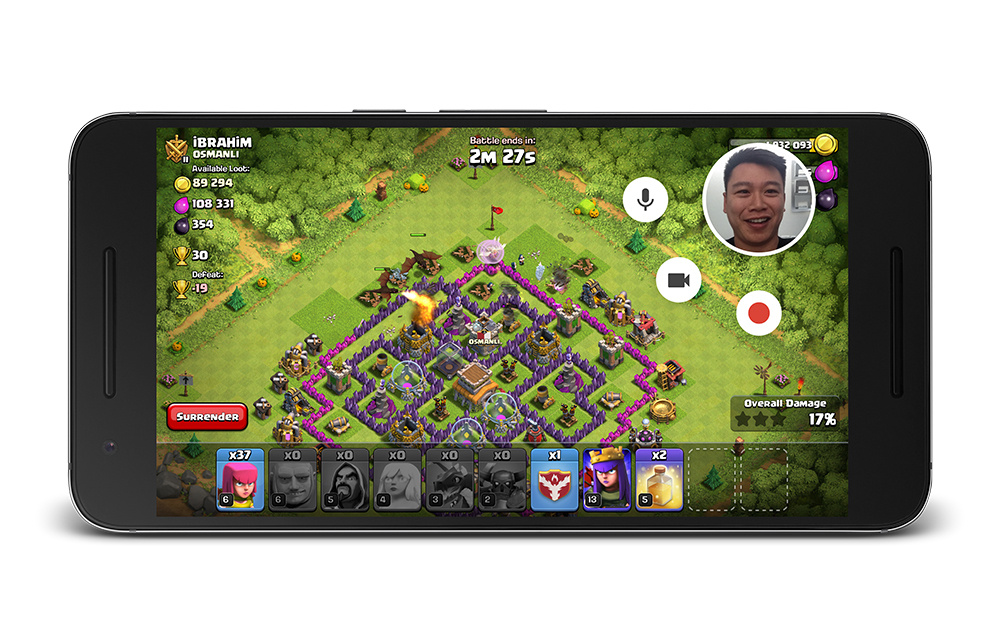
How to Record Android Gameplay
Android devices dominating the tech market for the past years. Gamers are all having a good time on the high-end devices which perform very well on the modern day games. All of you like games and you also like to share your skills on the games to the outer world. The best way is to record…
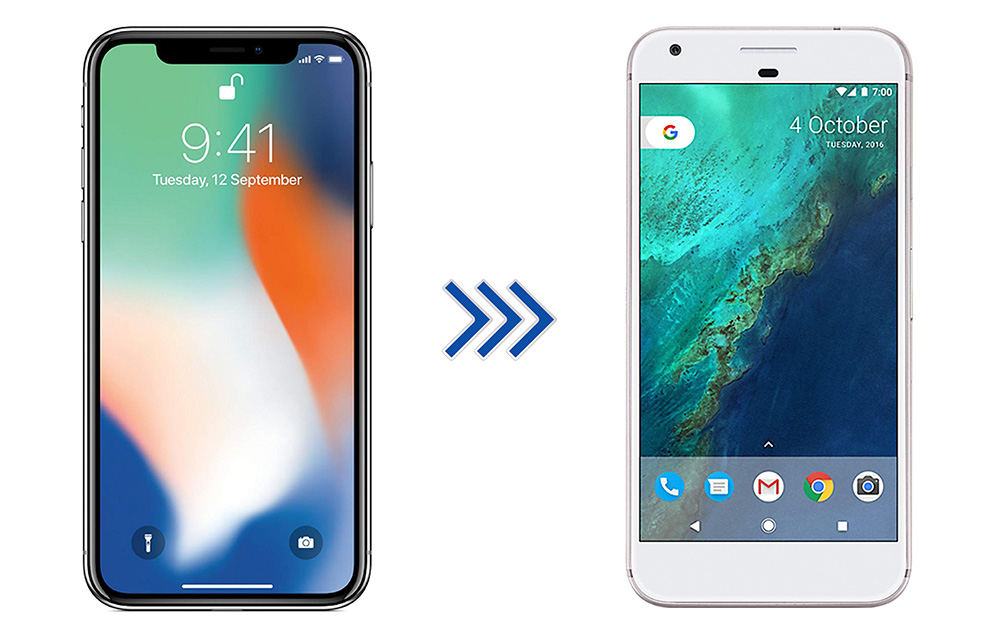
How to Switch from iPhone to Android Smartphone
iPhone is great, it is one of the best devices in terms of quality, it has some unique functions, and everything is perfect. But, then there is Android, which has more features, extremely flexible, various brands to choose from, and a ton of apps to accomplish almost anything that you can do with a smartphone.…
How to get back the Google Search Bar on Android screen?
Google Search bar on the home screen allows you to search for queries on the go. This feature is available on the almost all Android smartphones whether it is a OnePlus or Samsung smartphone. It is a pretty useful search widget whoever use Google for finding information on the Internet. There are plenty of reasons…
The week in tech, minus the noise.
New reviews, fixes and the stories that matter — once a week, straight to your inbox.
We only use your email to send the newsletter. Unsubscribe any time. See our privacy policy.
Comments