

How to make Google Doc available offline
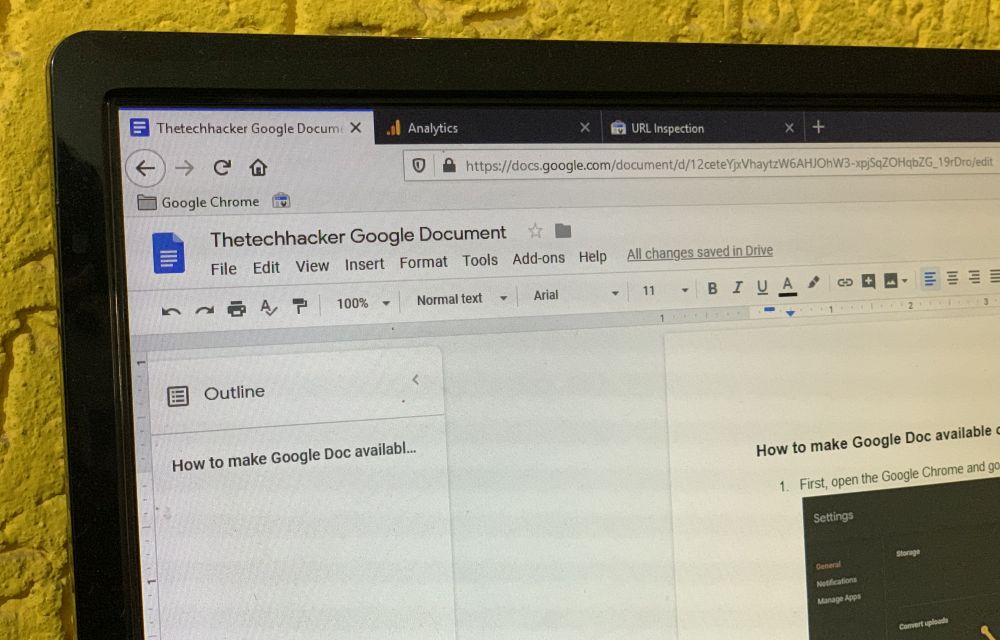
How to make google doc available offline: This article is about making online Google doc to offline access. Google doc is a document creating service which works under the Google Drive cloud service. This service lets you create documents online and it saves automatically in the cloud. Google Docs has three types of document support…

How to make Google Doc available offline
How to make google doc available offline: This article is about making online Google doc to offline access.
Google doc is a document creating service which works under the Google Drive cloud service. This service lets you create documents online and it saves automatically in the cloud. Google Docs has three types of document support which are a document, spreadsheet, presentation, form, and drawing.
The doc is just like Microsoft Word and you can create and edit documents online. The best part of the service is online sharing. You can share the doc with anyone online with a simple link.
The best part of Google Doc is offline viewing and editing. This feature lets you view and edit documents like a regular Microsoft Office type viewing and editing. In this article, we will learn how to access Google Docs in offline mode. This tutorial is a step-by-step guide with detailed screenshots to understand the process better.
How to make Google Doc available offline (Desktop)
- First, open the Google Chrome and go to this URL: drive.google.com/drive/settings
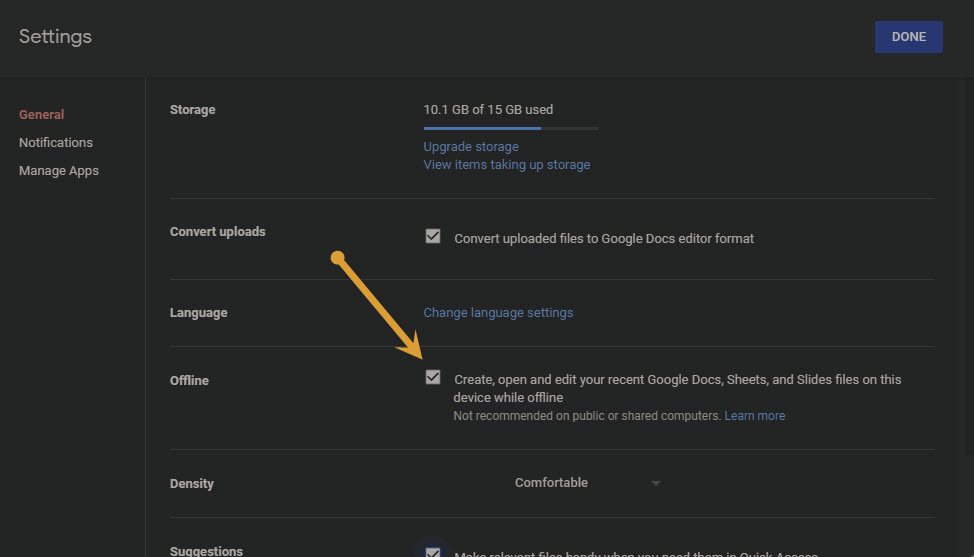
- It opens the Google Drive Settings directly and here you will see a checkbox unchecked saying “Create, open and edit your recent Google Docs, Sheets, and Slides files on this device while offline“.
- Now tick the checkbox to activate the option.
- Once you activate the option, Google Drive lets you edit the Documents in the offline mode.
- After finishing the above steps, now reload each document in Google Drive that you want to edit offline.
- Once you do this step, you will see the documents stored in the local Google Drive folder.
- You can edit the documents as many as times you want in offline mode.
If you are editing the documents in offline mode, you can’t see the latest edits in the other device which is connected to the same Google account. Once you connect the device to the Internet, all the offline editings will upload to Google Drive and you can access them on all connected devices.
The above steps are work for making Google Docs offline for Desktop. The below steps are for the mobile version which is works in both Android and iOS.
How to make Google Doc available offline (Mobile)
- Open your Google Drive app on your Android or iOS device.
- Open the document you want to edit offline and here you will see a “More” option at the hamburger menu available at the top of the screen.
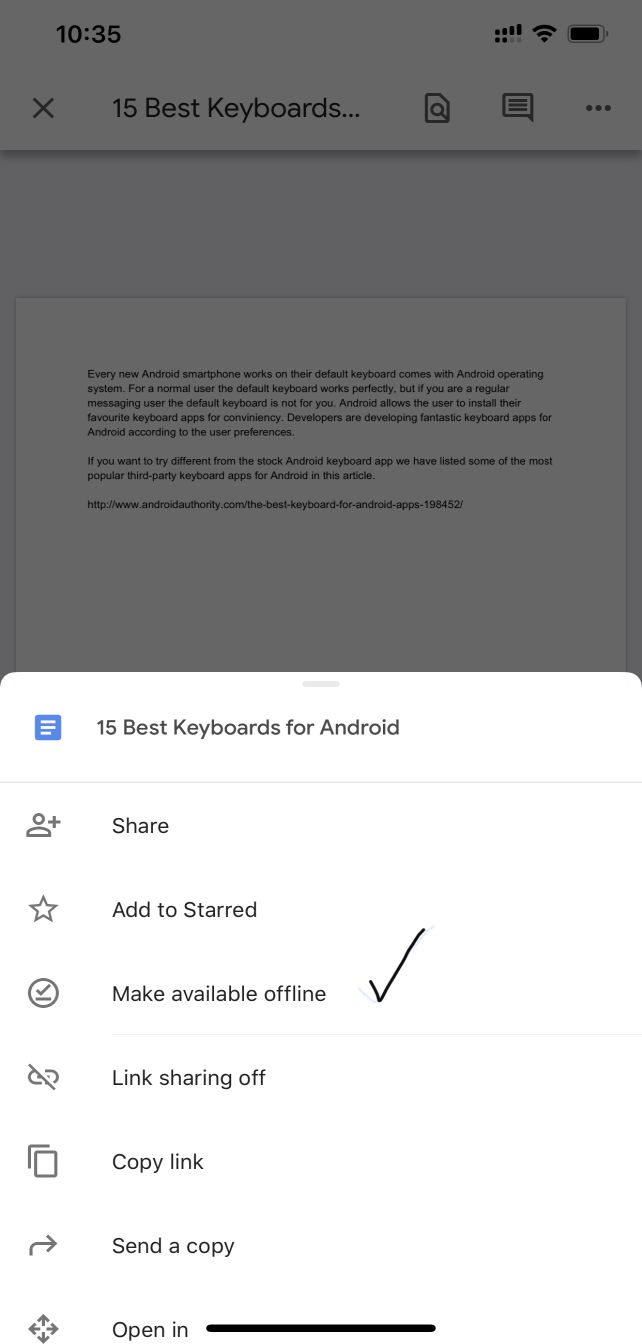
- Here, tap on the “Make Available Offline” option.
- Once your device is offline, you can open the doc from the Google Drive app and edit in the offline mode.
In this way, you can access Google docs offline on mobile devices. Let us know your valuable feedback in the comment box below.
More in How-to
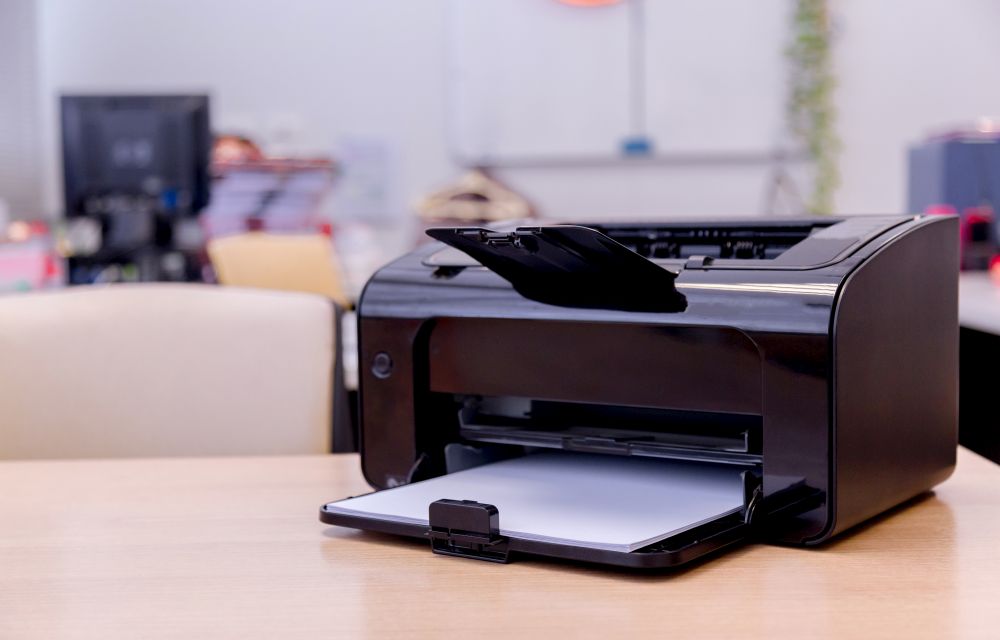
How to fix Google Cloud Printer offline error
If you are having an issue while printing a document with Google Cloud Print then you are in the right place. There are several types of Google Cloud Printer errors come as normal printers do. These are the possible Google Cloud Printer offline error messages you may encounter. When you are trying to connect a…

How To Use Google Maps Offline On Android Device
When I travel to distinct places my perfect companion is my Android device. Most of us use Google Maps to explore new routes, finding a place and live traffic status.

Best Google Reader Alternatives For Android And iOS
Best Google Reader Alternatives for Android and iOS: Google Reader is shutting down in July. People are searching for best alternative feed reader for the mobile platform.
The week in tech, minus the noise.
New reviews, fixes and the stories that matter — once a week, straight to your inbox.
We only use your email to send the newsletter. Unsubscribe any time. See our privacy policy.
Comments