

How to fix Google Cloud Printer offline error
If you are having an issue while printing a document with Google Cloud Print then you are in the right place. There are several types of Google Cloud Printer errors come as normal printers do. These are the possible Google Cloud Printer offline error messages you may encounter. When you are trying to connect a…

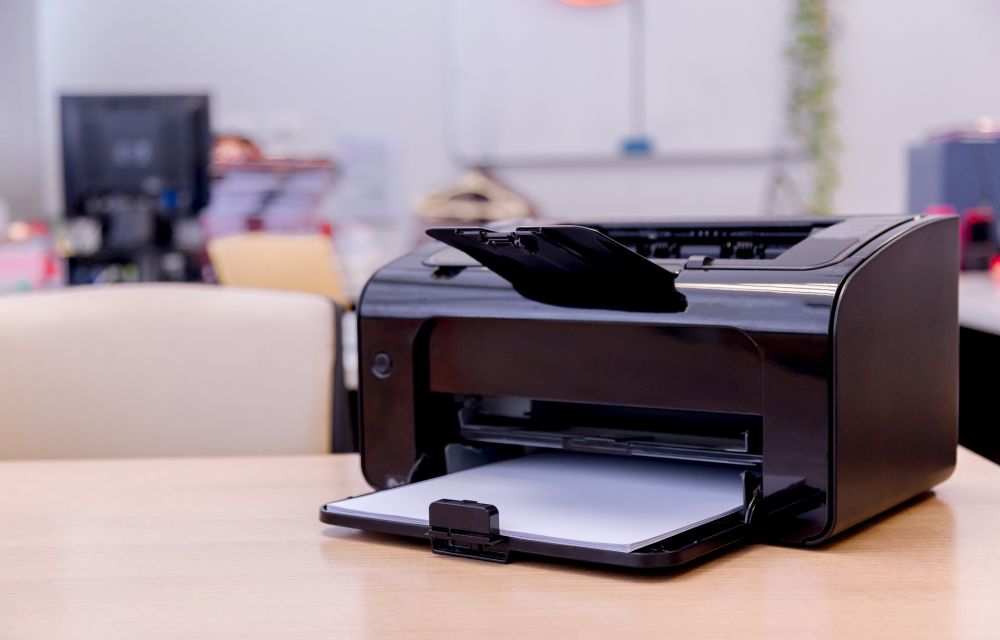
How to fix Google Cloud Printer offline error
If you are having an issue while printing a document with Google Cloud Print then you are in the right place. There are several types of Google Cloud Printer errors come as normal printers do. These are the possible Google Cloud Printer offline error messages you may encounter.
- When you are trying to connect a printer, the printer status is “Offline”
- The document is shown as in the print queue and waiting for the printer.
- Unable to select a printer, because the status is “looking for printer”.
Why does Printer say offline?
Technically there are many reasons for a printer offline issue on a computer. In simple words, it is a communication error between a printer and the device. If the Internet is down or the printer power source disconnected, this type of error comes.
First steps to fix Google Cloud Printer offline error
When you are experiencing this error, first double-check the physical connection between the printer and power source. Also, check your Internet connection and make sure both the device and printer connected in the same network connection. (If the printer is connected to a computer.)
How to fix Google Cloud Printer offline error
These are the possible fixes of Google Cloud Printing error. Make sure to try these methods step by step and check the issue resolved or not.
- Active Internet Connection: For Google Cloud Print, an active Internet connection is a basic thing to connect the device and printer. If the Internet is down the printer will become offline and the command won’t work.
- Google Account: Make sure that both your device and printer are signed under the same Google account. If not, the printer offline will appear on the screen.
- Check connected Printer: Make sure to verify the documents you are sending to the correct printer. To check, use path File > Print > Choose Printer.
- Firmware Update: In some cases, outdated firmware will cause the offline issue. Firmware of printers available on the printer’s official websites. Download and install them whenever they are available to keep the printer up to date.
- Update Chrome: Google Chrome regularly gets updated. Update the latest version of Google Chrome to avoid compatibility issues which are preventing the printing job.
- Refresh Printer: Refreshing the printer from the Google devices page can help you to recognize the device correctly.
- Delete Printer: Delete your Google Cloud printer and connect it again. It is like connecting from scratch. Adding a printer to Google Cloud services is a pretty simple job. You can use either a normal printer or a Cloud-ready printer to connect.
Is your printer still offline? Follow the Google Cloud Print Help pages for more details. Let us know your issue is fixed or not. If the issue is fixed, tell us which method is worked for you in the comment section below.
More in How-to
How To Fix Canon B200 Error
Printer errors are most common in Windows OS. It is quite frustrating when you need a print out in important or emergency situations suddenly an error code appears on the screen. Recently, our readers asked how to fix printer offline problem and we have given a quite simple guide to fix the issue. In today’s…
How to fix error 0x00000709 unable to set default printer in Windows 10
There are plenty of Printer errors that are common in Windows 10. Many people complain printer is offline in Windows and some are facing unable to update the printer drivers. Windows 10 error 0x00000709 is most common among multiple printers users. If you are using a single printer this problem never comes. It is a…
How to Fix Printer “Port in Use” Error on Windows 10
Usually, the traditional way of connecting a printer to the computer is by the means of a USB port. The latest printers are coming in various connectivity options, however, still many people are using the USB port to connect their printer to the computer. Technical issues are most common in computers. One of the most…
The week in tech, minus the noise.
New reviews, fixes and the stories that matter — once a week, straight to your inbox.
We only use your email to send the newsletter. Unsubscribe any time. See our privacy policy.
1 comment
Thank you so much for it, its truly working tips!