

Set up Gmail account with these Google IMAP Settings
Set up Gmail account with these Google IMAP Settings: Everyone uses emails extensively for work and business as well as personal reasons too. Now, when we talk about emails then we instantly have Gmail in our head. This is because there are other email providers too but Gmail is by far miles ahead than the…

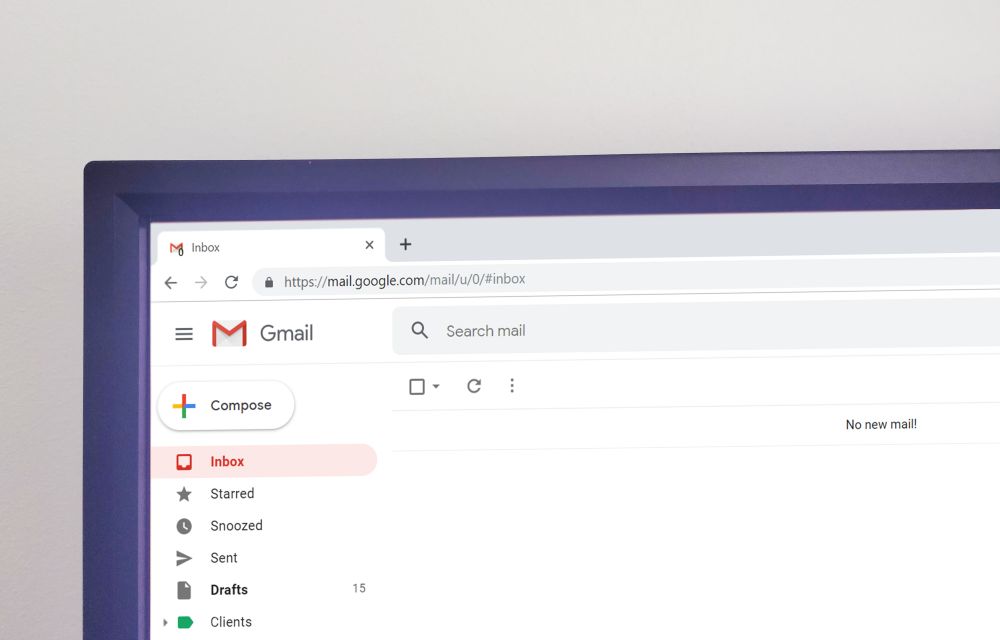
Here are the Google IMAP settings to setup Gmail account
Set up Gmail account with these Google IMAP Settings: Everyone uses emails extensively for work and business as well as personal reasons too. Now, when we talk about emails then we instantly have Gmail in our head. This is because there are other email providers too but Gmail is by far miles ahead than the rest.
Gmail is a fantastic emailing service from the house of Google. If you want to receive Gmail through an email client, you need to set up your Gmail account settings. Every email account comes with a set of settings which lets you access email from third-party clients. Here are the Google IMAP settings to setup Gmail account on an email client software and apps.
There are two types of settings available for incoming and outgoing emails. You need to enter these settings when you are connecting Gmail in a third-party email client. Many popular email client services offering automatic fetch of Gmail settings for user convenience.
Google IMAP Settings for Incoming Gmail
Google is a very user-friendly service and they let you the setup of email client smoothly with the help of incoming and outgoing settings. These are the IMAP settings for receiving Gmail emails on the mail client.
- Gmail IMAP server address: imap.gmail.com
- Username: Gmail address ([email protected])
- Password: Gmail password (Gmail password if you enabled 2-step authentication for Gmail)
- Port: 993
- TLS/SSL required: Yes
After entering the IMAP settings for incoming mail, in the next step enter the IMAP settings for outgoing mail given below.
Google IMAP Settings for Outgoing Gmail
- Gmail SMTP server address: smtp.gmail.com
- Username: Gmail address ([email protected])
- Password: Gmail password
- Port (TLS): 587
- Port (SSL): 465
- TLS/SSL required: Yes
That’s it. Once you enter these settings on your email client app, it will fetch your Gmail account emails after some time. The process of setting Gmail settings is very easy and just takes 3 minutes of your time. Let us know your valuable feedback in the comment section below.
More in Internet
How to Forward AOL Mail to Gmail
AOL is not more the dominator on the mailing industry. So people keep switching from AOL Mail to other popular services like Gmail and Yahoo mail. So, for those who don’t want to leave all their business contacts, forwarding AOL mail is the best option. Around 80%+ users choose Gmail as their AOL alternative. So,…
Change Gmail Password Easily
Change Gmail password for better security of your Google account. This is what Google and many security experts recommend whenever you think your password may have been exposed. Not only if you forget your Gmail password, but changing the Google account password can also help you secure your email account from hackers and spammers. New…
How to Forward AOL Mail
With the rise of popular email services all around the internet, many people have moved away from their old AOL Mail accounts. But friends, businesses and other contacts may still be sending messages to your AOL address. Forwarding AOL Mail to your other email account helps you stay connected with them, so you don’t have…
The week in tech, minus the noise.
New reviews, fixes and the stories that matter — once a week, straight to your inbox.
We only use your email to send the newsletter. Unsubscribe any time. See our privacy policy.
1 comment
innovate