

How To Turn on Google Two Factor Authentication
Staying safe online is not an easy task. Every year we are seeing the increase in hack attacks on individual and business accounts. Luckily, 2-factor authentication came into the limelight by making our online accounts more secured. As you know Google is offering more number of IoT services than any company to the normal users.…


How To Turn on Google Two Factor Authentication
Staying safe online is not an easy task. Every year we are seeing the increase in hack attacks on individual and business accounts. Luckily, 2-factor authentication came into the limelight by making our online accounts more secured.
As you know Google is offering more number of IoT services than any company to the normal users. It was one of the first companies to introduce 2-factor authentication to its services. The service requires a secondary device to help when you log-in into a Google service. The secondary device can be a smartphone or authentication key etc.
2-Factor Authentication is a process which creates an extra set of authentication required when you are accessing a service. In this article, you will know how to turn on Google two factor authentication.
How to Turn on Google Two Factor Authentication
- Open the browser on your computer and go to https://www.google.com/landing/2step/
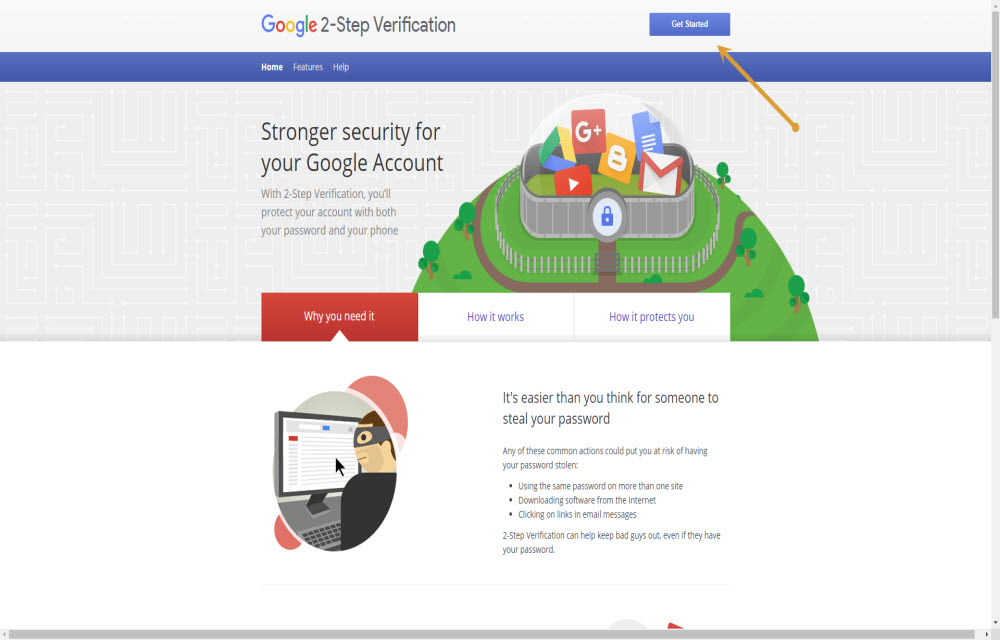
- Select Get Started.
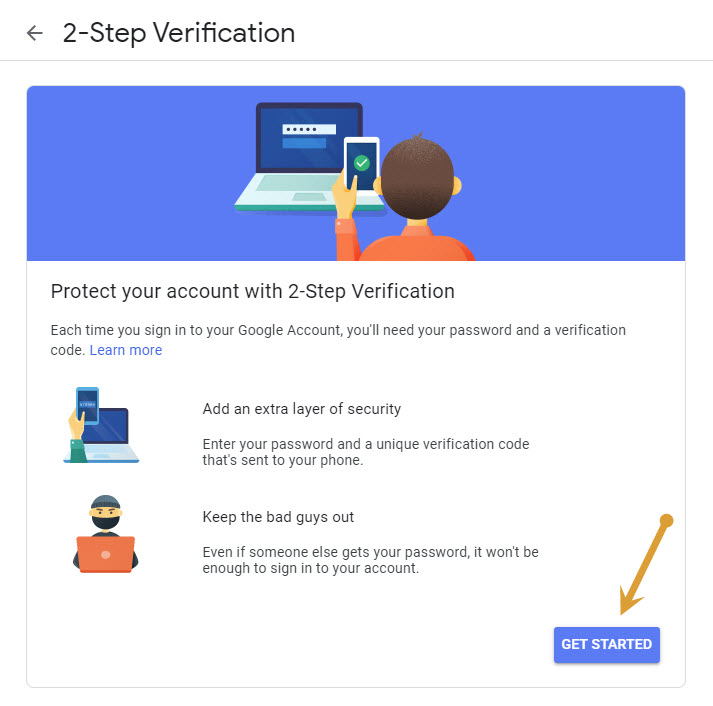
- A new page opens and here, click on Get Started again.
- Now log in to your Google account.
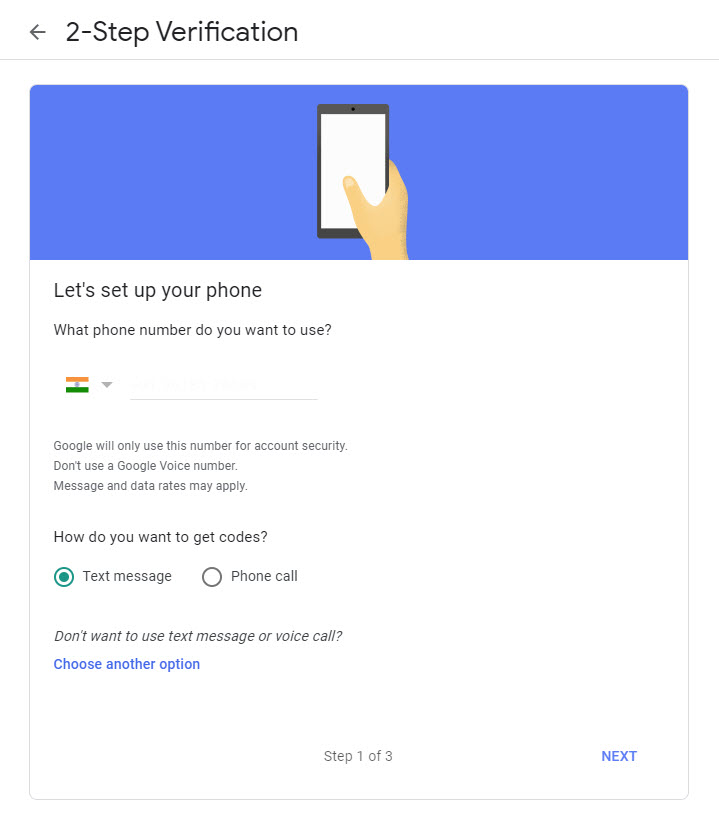
- Here, enter your phone number.
- Choose whether to receive codes via text messages or phone call, then select Next.
- It will take some time to arrive text message or phone call on your smartphone.
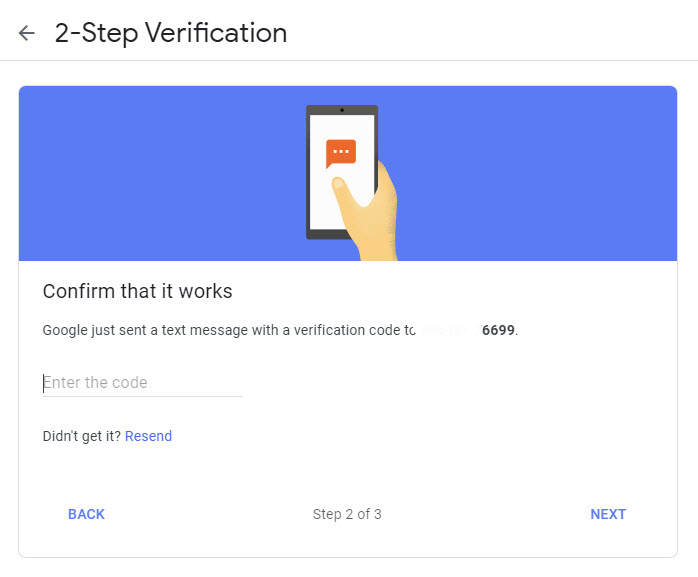
- After receiving the code, enter it into the browser.
- Select Turn On to activate 2-step verification across your Google Account.
How to Turn off Google Two Factor Authentication
We don’t recommend turning off 2-Factor Authentication to our audience. If you feel it is unnecessary for your accounts, you can remove or turn off two-factor authentication using the below steps.
- Open your browser and go to https://myaccount.google.com
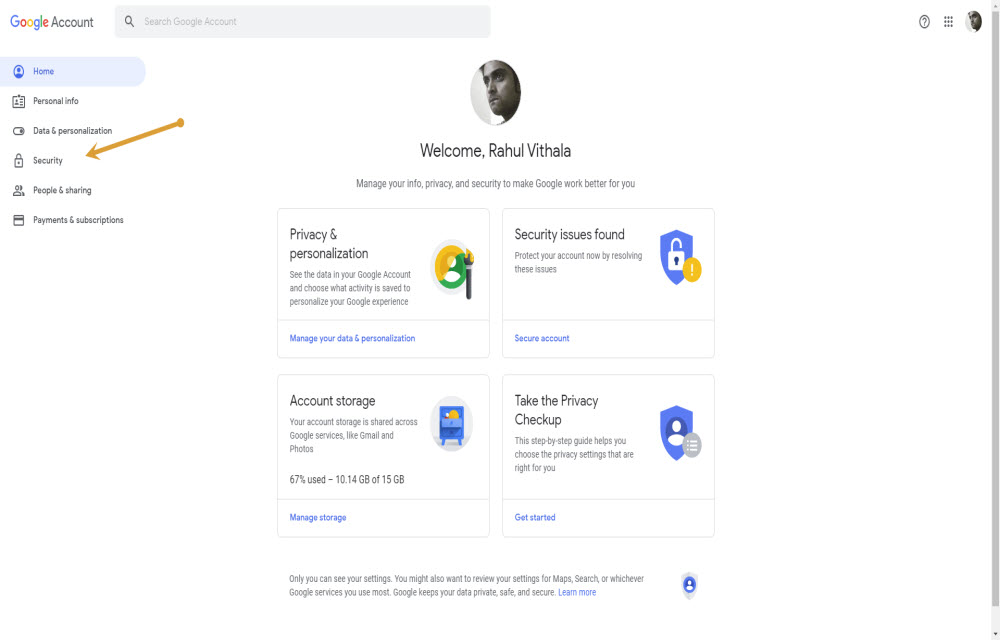
- Here, select Security.
- Now, scroll down to 2-Step Verification, then select On.
- Log into your account.
- Select Turn Off.
- Select Turn Off to disable Google 2-step verification on your account.
That’s it. Now you can successfully enable and disable 2-Factor authentication on Google using the above tutorial. What do you think about the secondary security to your Google account? Let us know your opinions in the comment section below.
More in How-to
How To Turn Off Two-Factor Authentication On Apple Devices
We have heard a lot of times people say that Apple devices are the best in terms of security while Android is nowhere near them. Not only people but the company also says that they are the best in terms of privacy and security and have often mocked Google for their Android security and other…

How To Use 2 Factor Authentication On Facebook Without A Phone Number
A two-factor authentication is a great option for many online security problems with passwords. It’s a great way to add an additional level of security to your accounts. 2 Factor Authentication offers an extra layer of security to online user accounts. This can be done by adding a phone number as an additional measure and…

How to enable Two-Factor authentication on Facebook, Twitter, and Instagram
Maintaining online security is not an easy thing. There are many eyes spy on us to collect data and even some hackers are trying to hack our financial information. According to a study, the rate of online thefts and information collection has increased enormously. Luckily, there are few measures we can take to secure our…
The week in tech, minus the noise.
New reviews, fixes and the stories that matter — once a week, straight to your inbox.
We only use your email to send the newsletter. Unsubscribe any time. See our privacy policy.
Comments