

How To Rename Printer Name In Windows 10
When you install a printer in Windows 10 computer, it will install with a default name of the printer. The default name of the printers is somehow confusing to the users. If you have more than one printer connected to your computer it is more confusing to recognize the printer you want to use. To…

How To Rename Printer Name In Windows 10
When you install a printer in Windows 10 computer, it will install with a default name of the printer. The default name of the printers is somehow confusing to the users. If you have more than one printer connected to your computer it is more confusing to recognize the printer you want to use. To clear up the issue, renaming the printer is a good option.
How To Rename Printer Name In Windows 10
In this article, we are suggestions two best methods to rename printer name in Windows 10 with detailed steps. You can follow any one of these methods to get the result.
Method 1: Change printer name in windows 10 using Settings
In this method, you will use “Settings” in Windows 10 to rename the printer.
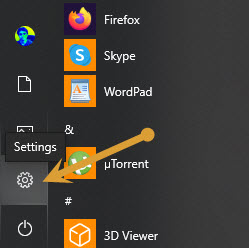
- Search “Settings” in the Windows Start Menu and open it.
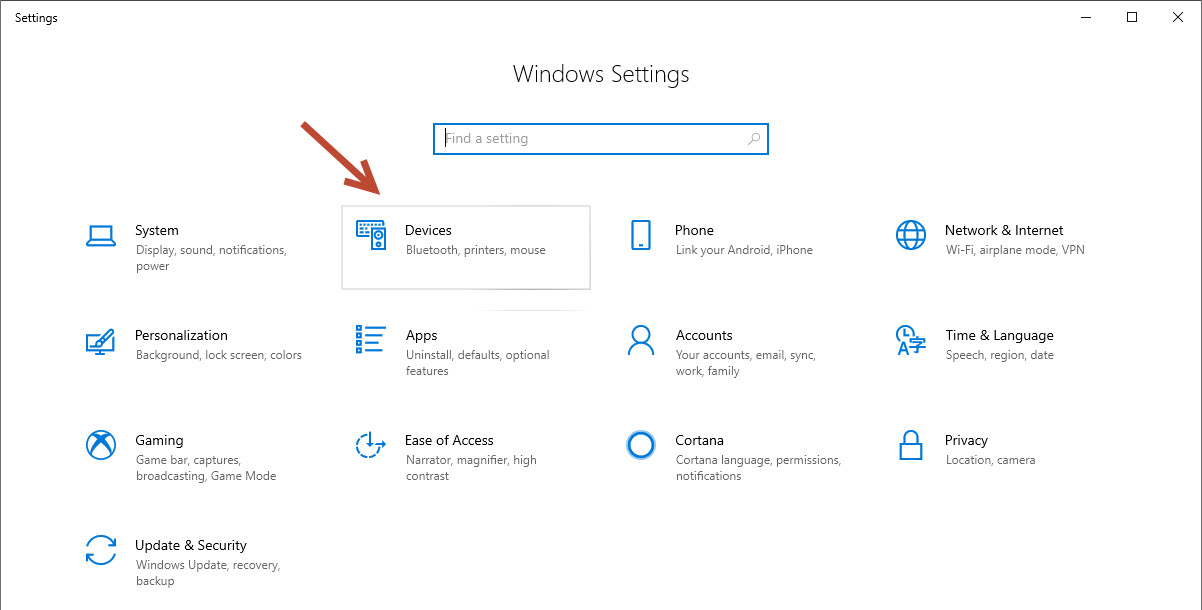
- Choose, Devices.
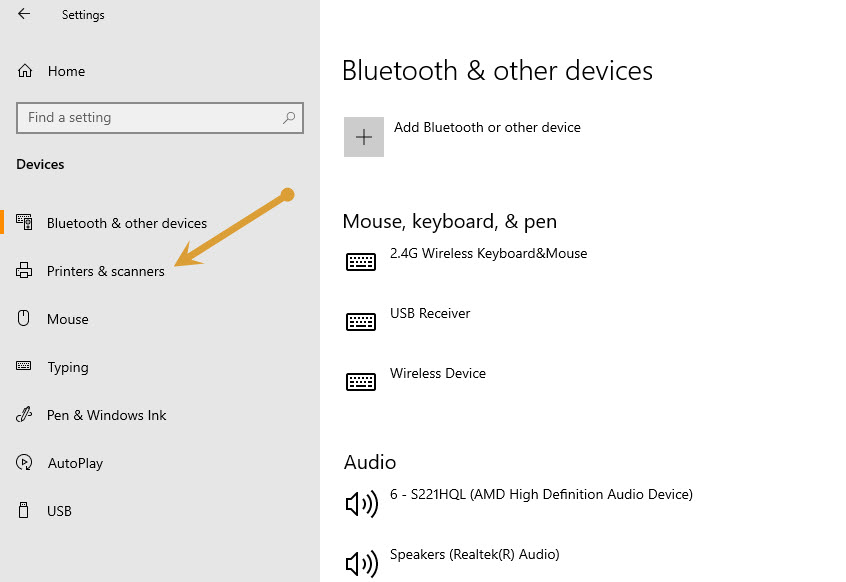
- Choose Printers & Scanners from the left side Menu.
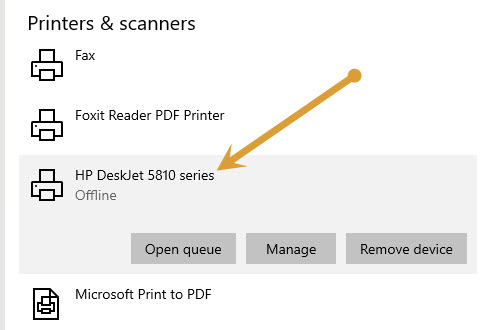
- Click On your Printer to expand it.
- Here, click on Manage.
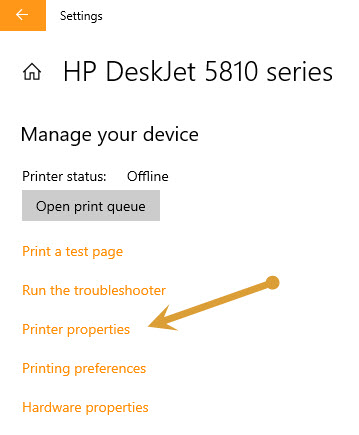
- Now click on Printer Properties.
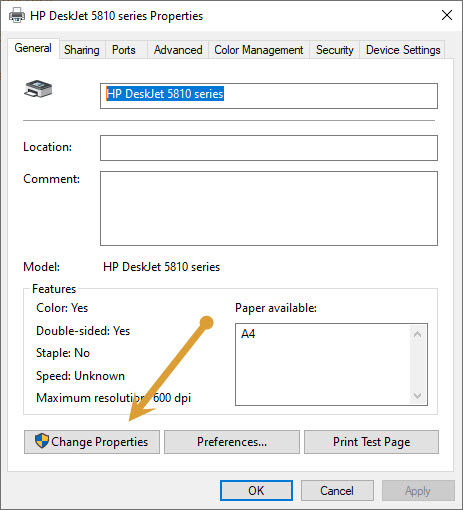
- Now click on “Change Properties”
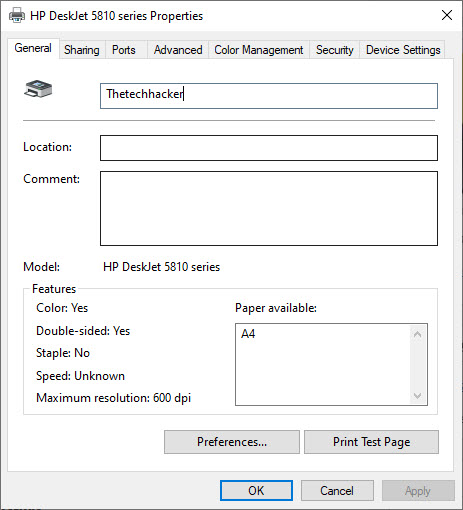
- Here, change the name of the printer with your desired name.
- Press Ok to finish the process.
Method 2: Change printer name in windows 10 Using Control Panel
In this method, we will use the Control Panel to rename the printer name in Windows 10.
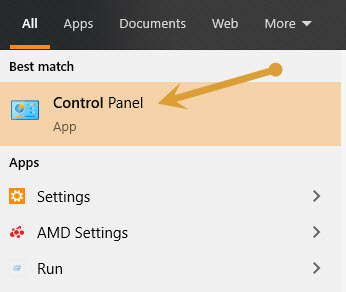
- Type “Control Panel” in the Windows Start Menu.
- Now click on the Control Panel to open it.
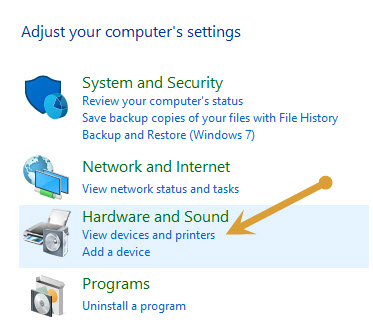
- Click on view devices and printers under Hardware & Sound section.
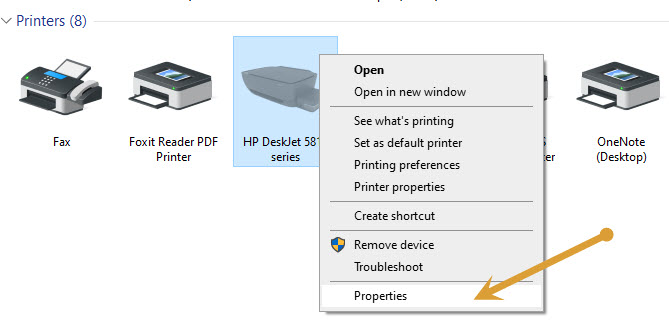
- Now, right-click on the printer which you want to rename and click on printer properties.
- Here, it opens a window containing your printer name visible in the box. Now, click on the “Change Properties” button as shown in the picture.
- Now, in the next window, you can remove the old name and rename the printer in the given text input field.
That’s it. You changed the printer name in Windows 10. Both are the working methods in Windows 10 installed computer. For your convenience, I have given two working methods for renaming printer name in Windows.
Which method did you use? How is your experience? Let us know your experience in the comment section below.
More in How-to

How to Fix Microsoft Edge Crashing When Printing on Windows
If Microsoft Edge crashes, freezes or stops responding when you try to print, the quickest fix is to press Ctrl + Shift + P to print with the Windows system dialog instead of Edge’s own print preview. If that works, the problem is Edge’s print preview, and the fixes below will sort it out for…
How to share your Mac connected printer with Windows
Are you trying to share your Mac connected printer with Windows? Sharing a Mac connected printer is a pretty easy process. Many feel that the process is complicated and Mac settings are a bit tough to configure. In real, sharing a Mac connected printer with Windows is very easy and saves money. You don’t need…
How to fix error 0x00000709 unable to set default printer in Windows 10
There are plenty of Printer errors that are common in Windows 10. Many people complain printer is offline in Windows and some are facing unable to update the printer drivers. Windows 10 error 0x00000709 is most common among multiple printers users. If you are using a single printer this problem never comes. It is a…
The week in tech, minus the noise.
New reviews, fixes and the stories that matter — once a week, straight to your inbox.
We only use your email to send the newsletter. Unsubscribe any time. See our privacy policy.
Comments