

How To Create A Zoom Account
With the rise in work from home all over the world, the demand for video conferencing tools enormously increased. Zoom is one such popular audio and video conferencing app available to fulfil all the needs. It is a modern both personal and enterprise video conferencing solution. Currently, many people around the world are using Zoom…


How To Create A Zoom Account
With the rise in work from home all over the world, the demand for video conferencing tools enormously increased. Zoom is one such popular audio and video conferencing app available to fulfil all the needs.
It is a modern both personal and enterprise video conferencing solution. Currently, many people around the world are using Zoom as their default video conferencing app ahead of very popular Skype and Google Hangouts.
How To Create A Zoom Account On Desktop And Mobile Platforms
In this article, I will show you how to create a Zoom account from scratch on Desktop, and mobile platforms.
1. Creating Zoom account on Desktop
Zoom is a versatile conferencing app. It works with or without creating an account. But to avail full features and making a call you need to signup to their service. Follow the below steps to create a Zoom account.
- Open Zoom website on your browser.

- On the top right corner of the screen, click on “Sign-up, It’s free button”

- Here, you will be asked to enter your date of birth details.
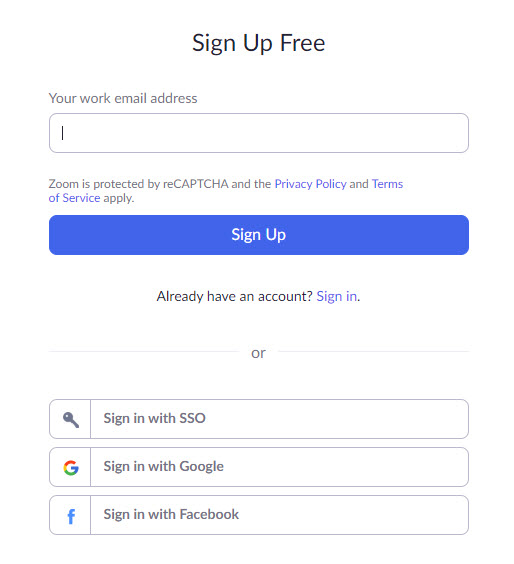
- On the next screen, you will have to sign-up using your email address. Or you can complete the sign-up process by using SSO, Google, or Facebook credentials.
- Once you choose the sign-in method, choose “Create Account“.
- That’s it. Now you will have a fresh Zoom account to use.
2. Creating Zoom account on mobile devices
The Zoom sign-up process is also available on mobile devices such as Android and iOS. The Zoom apps are available to download for free on respective platforms Google Play Store and Apple App Store.
Here I’m using iOS to demonstrate the sign-up process on Zoom app for iPhone. The process is similar in Android devices as well.
- Download and install the Zoom app on your iOS device.
- Open the app by tapping on the icon.
- Here, you will see three options on the screen, Join a Meeting, Sign-up, and Sign-in.
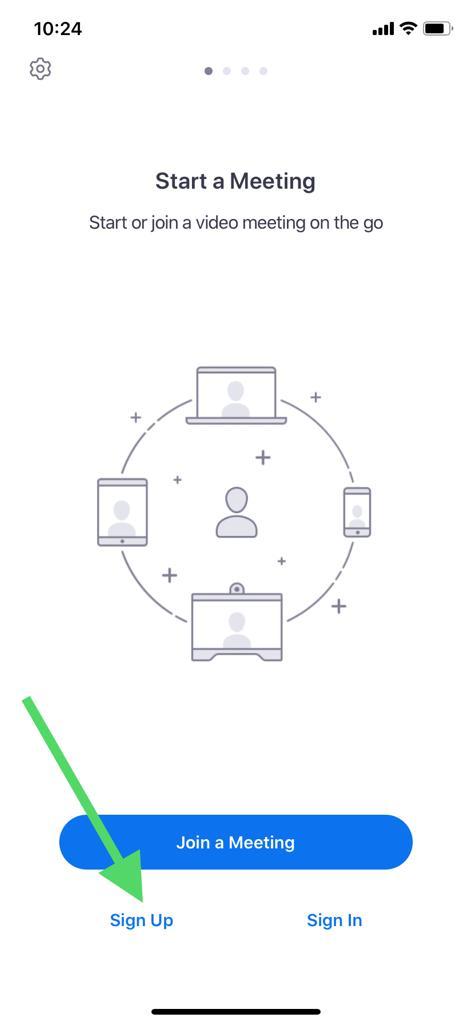
- Click on the “Sign-up” option.
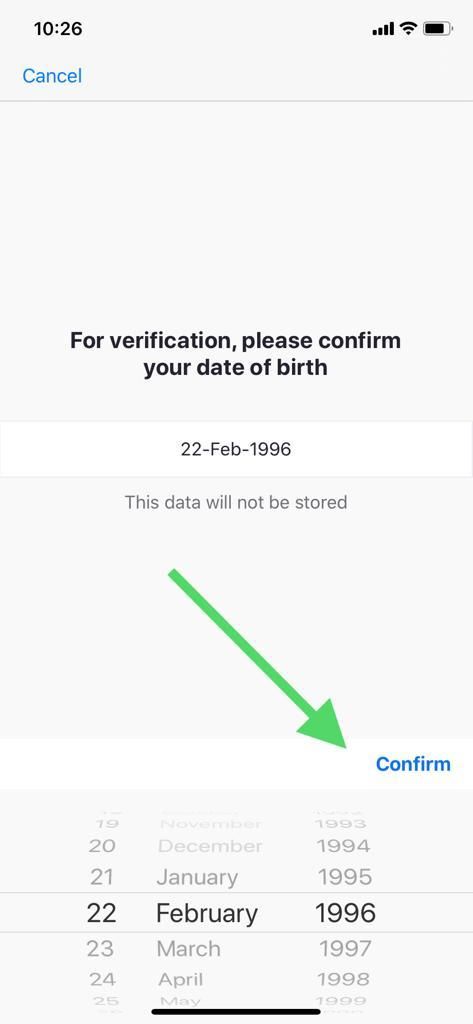
- Now, enter your date of birth details and click on confirm to proceed to next step.
- On the next screen, you need to enter email, first name, and last name.

- After entering the above details, click on the “Sign-up” button to finish the process.
- You will receive an email from Zoom and click on the link to complete the verification process.
- Once you verify the link, the Zoom will activate your account and you can start using instantly.
That’s it. These are the steps for creating a Zoom account on both desktop and mobile devices. If you have any questions, feedback, use the comment section below.
More in How-to

How To Use Zoom To Make Video Calls
Zoom is the best video calling app amongst the other alternatives such as Skype, Google Hangouts, etc. It became very popular in a short span of time due to its impressive performance and reliability. In our previous article, we discussed how to create a Zoom account on desktop and mobile platforms. Now, in this article,…

How to Change Zoom Background in Windows, Mac and iOS
Knowing how to change your Zoom background is quintessential to make your virtual meetings more productive. Additionally, while you work from home, there’s always a chance of your bedroom or home office being messy or cluttered. But that won’t be a problem if you change your Zoom background to something pleasant so that it feels…

How To Host A Webinar In Zoom 2020
Video conferencing platforms like Zoom lets you host a webinar which is slightly different from regular Zoom meeting. Everyone is starting to host virtual seminars via Zoom. But many of us are doing it in the wrong way. Basically, the premise is the same, and it’s just that the host has more control over attendees.…
The week in tech, minus the noise.
New reviews, fixes and the stories that matter — once a week, straight to your inbox.
We only use your email to send the newsletter. Unsubscribe any time. See our privacy policy.
Comments