

How to Create a System Image in Windows 10
A Windows system image is the best way to backup your entire device without worrying about losing your data due to an accident or any similar problems. We all make mistakes, so backing up your computer is very important especially if you keep a lot of important stuff in there. Whether it is a memorable…

How to Create a System Image in Windows 10
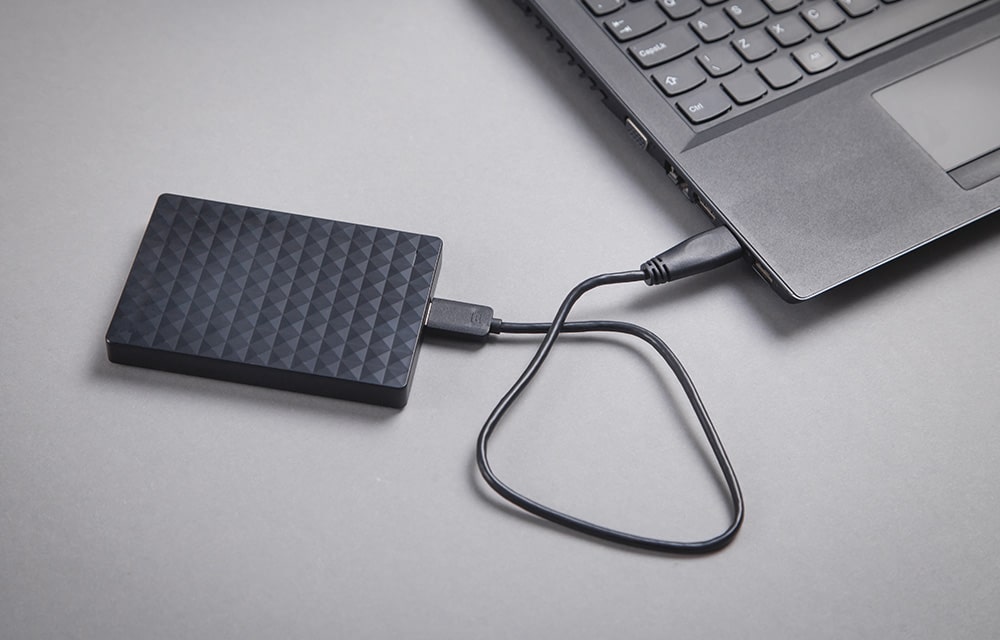
A Windows system image is the best way to backup your entire device without worrying about losing your data due to an accident or any similar problems. We all make mistakes, so backing up your computer is very important especially if you keep a lot of important stuff in there. Whether it is a memorable photo or an important business document, a backup is always recommended. Luckily, Windows comes with an inbuilt mechanism known as the system image that allows you to take a complete backup of all of your files, configuration, customizations, etc. in a single go. So in this article, we are going to look at how we can make use of this feature.
Steps to Create a System Image in Windows 10
- Click on the Start button.
- Then on the Gear icon which will take you to the settings screen.
- Click on the Update & Security option.
- On the left side, navigate to Backup.
- Click on the Go to Backup and Restore (Windows 7) option given under the Looking for an older backup? section.
- On the left sidebar, click on the Create a system image option. This will open the system image creation window.
- Now, choose your preferred backup device. For a faster backup, it is better to use a hard drive instead of multiple DVDs.
- Now click on the Next button.
- In this step, if you want any other drives to be included in the backup, choose them as well. Their respective sizes will be provided next to them. Keep in mind that, choosing them will make the system image larger and it might take a lot of time restoring them once you decide so. So, only choose the ones that you need to be backed up.
- Then again click the Next button.
- Now, to start the backup process, just click on the Start Backup button.
- Windows may also prompt you to make a system repair disc, you can choose No if you do not want it.
- Now, Windows will start backing up the files and you may Close the screen. The process will run in the background.
DO NOT disconnect the connected device until the backup is completed. You may continue working on the device. But disconnecting the storage media will cause the backup process to be interrupted resulting in a broken system image.
After the process has been completed, verify that the new system image is stored on the storage media. You can use it anytime you want to restore your files.
More in Windows
How To Create A Recovery Drive In Windows 10
Windows 10 is the latest operating system from Microsoft. The new Windows 10 is built with a lot of new changes and features along with compatibility with Mobiles and PC. Many PC’s and Laptops are started receiving Windows 10 update. As a new OS in some cases, it faces hiccups while loading and booting. In…

Steps to Create A Virtual Hard Disk On Windows 10
We all have physical hard disk installed on our machines. But what is a Virtual Hard Disk (VHD)? And for what purpose it is useful? It is the most common question for a normal PC user. A virtual hard disk is nothing but an imaginary hard disk which purposely designed for virtual machines. A virtual…

Solution to Repair Damaged, Missing, and Inaccessible JPEG File
Images are one of the most important parts of our memories, and we have a secure attachment to them. Any corruption can lead our memories away from us, but do not worry we have some very efficient tools that can help us to repair all those damaged Images.
The week in tech, minus the noise.
New reviews, fixes and the stories that matter — once a week, straight to your inbox.
We only use your email to send the newsletter. Unsubscribe any time. See our privacy policy.
Comments