

How to Calibrate your Monitor in Windows 10
Calibrating your monitor every once in a while will make sure that it is output in the best picture quality possible. If you are experiencing some issues with the quality of the pictures on your screen while using Windows 10, you should make sure that the screen is calibrated properly. In this article, we are…

Calibrate-Monitor-in-Windows-10
Calibrating your monitor every once in a while will make sure that it is output in the best picture quality possible. If you are experiencing some issues with the quality of the pictures on your screen while using Windows 10, you should make sure that the screen is calibrated properly. In this article, we are going to take a look at the steps required to run a color calibration of your monitor. Why waste a possible opportunity to fine-tune the color grading of your monitor which might benefit you while gaming and other tasks such as watching your favorite movies?
Steps to Calibrate Monitor in Windows 10
- Right-click anywhere on the Windows 10 desktop.
- Click on the Display Settings option from the right-click menu.
- From the display settings window, click on the Advanced Display Settings at the bottom.
- The first thing you have to do here is verifying that the resolution is set to the recommended value. This is very important unless you have some custom setup where you cannot use the recommended values.
- Then click on the Color Calibration option (If the option is not displayed on this screen, simply type “Color Calibration” in the windows search bar and click on the option displayed.
- In the Display Color Calibration screen, click on the Next button.
From here, it is a series of steps that Windows will clearly instruct you to do. For example, it will tell you to adjust your monitor settings to proper brightness and contrast so that you will be able to see the provided images clearly. Just follow the on-screen instructions as told. Be sure to read everything properly and adjust the levels to meet the requirements set by them. This will ensure that you get the best results from your screen with the best possible color-grading.
After the color calibration is over, Windows will also open another window to optimize the text on the screen in order to ensure that no blurry text or other issues occur. So, do not uncheck the box for that. It is recommended to complete that process as well.
Few monitors may not have the ability to control certain features. In those cases, you can skip any step you want in the calibration wizard. By the end of the wizard, as soon as you click the Finish button. Your new calibration will be applied. You will be able to compare the previous calibration and the current calibration results to see the changes you made.
More in Windows
How to Extend Monitors in Windows 10
An extra monitor will be extremely useful for several usage cases. Especially if you are working on a big project that requires you to go through several files at the same time, or if you are a programmer who wants to examine several code blocks to construct a new one, the usage cases are limitless.…
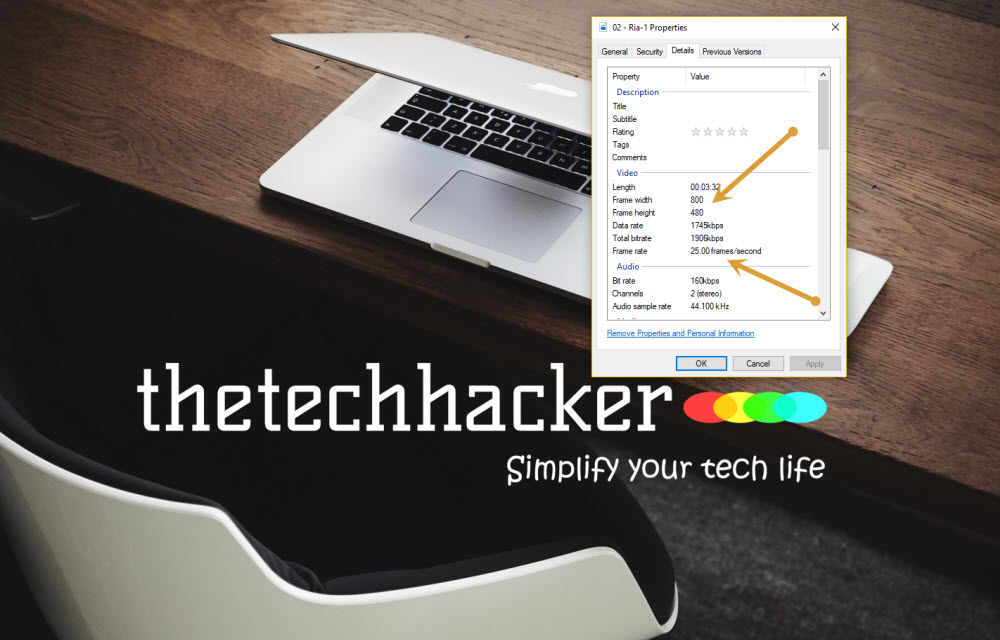
How to check Video Resolution and Frame Rate on Windows 10
We have seen so much improvement in the video resolutions over the past few years. SD, HD, now 4K is the latest resolution types. Most of the monitors are coming with HD ready format and if you invest some good amount there are plenty of high-end computer monitors available with higher video resolutions. In order…
How To Set Automatically Change Wallpapers Option On Windows 10
Are you a frequent Wallpaper changer like me? I like wallpaper if I have time I daily change them. Bing Desktop App is a Microsoft product, which regularly and automatically changes wallpapers for you. Microsoft started rolling out its brand new version of most popular OS Windows 10. The update is available from Windows 7…
The week in tech, minus the noise.
New reviews, fixes and the stories that matter — once a week, straight to your inbox.
We only use your email to send the newsletter. Unsubscribe any time. See our privacy policy.
Comments