

How to Speed Up Pokémon GO’s Refresh Rate on Your Phone
Everyone who has played Pokémon GO for more than a day has noticed that the game can be very unresponsive at times. Most of the game is about hunting for Pokemon in the real world. Although it is less about graphics, the speed of the game has always lagged behind our phones. Movement, in particular,…

How to Speed Up Pokémon GO’s Refresh Rate on Your Phone
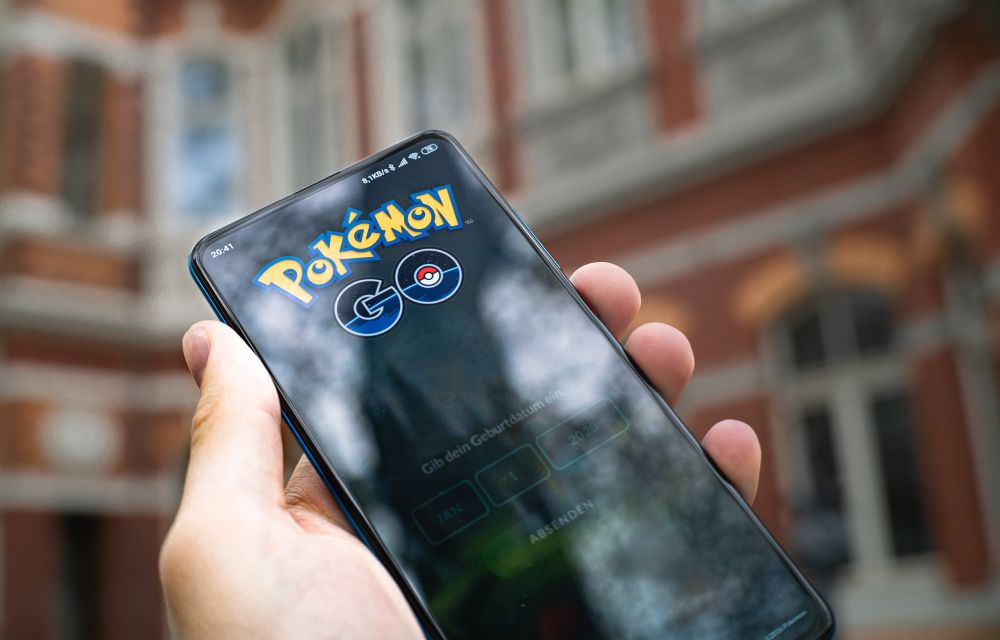
Everyone who has played Pokémon GO for more than a day has noticed that the game can be very unresponsive at times.
Most of the game is about hunting for Pokemon in the real world. Although it is less about graphics, the speed of the game has always lagged behind our phones.
Movement, in particular, seems to be hampered by stuttering and slowdowns, making catching Pokémon harder than it should be. While Niantic might not improve this any time soon, there is an easy way to fix this on your own phone.
How to increase Pokémon GO’s refresh rate
First thing first, check that your app is updated to at least version 1.191.0. Go to your play store and check for updates on the app from the Play Store on Android or the app store on iOS.
- After you have completely updated the app, tap the Pokéball along the bottom of the screen.
- Go to the Settings.
- Go down and select the Advanced setting.
- Click on the Native Refresh Rate option.
- Select the circle next to the option to enable it.
Once you have completed all the above steps, come back to the app and play the game. You will notice that it runs much smoother than before. If you are playing on your iPhone, or an Android device you can feel the difference. In these devices, the speed is around 90 Hz or 120 Hz.
Wrapping it up:
Playing the game at higher FPS might not be the most important thing about Pokémon GO, but if you are having trouble finding pokémon around your area, getting more stardust for power-ups or evolution is definitely better than struggling to catch them. Niantic’s new update added some nice changes to the game, but it still feels frustrating when your speed lags behind so much that catching pokemon becomes almost impossible.
With this fix in place however you can let loose and increase your chances of spotting more rare Pokémon with high combat points.
More in How-to
How To Change Your Monitor’s Refresh Rate Settings In Windows 10
For the most part, you like the default refresh rate of your monitor on Windows 10. However, if there’s a need to change or tweak the refresh rate of your monitor, I’ll show you how to do it. Before we move on to modify the refresh rate settings in Windows 10, it’s worth noting that…

How to stream Netflix in 4K Ultra HD?
The availability of Netflix 4K Ultra HD content increased from the past few months. Also, the 4K supported Televisions are getting good discounts in the offline and as well as online markets. Streaming of Netflix in 4k content is an enjoyable thing now. The details are perfect and you can watch every frame in perfect…
How to Download Pokemon Go APK
From the Niantic’s Real World Gaming Platform, Pokemon Go is already made a flood in the gaming world. The completely different game is said to be a real-world gaming experience where the real world will be the setting. Apart from just sitting on your bed for having a gaming session, the Pokemon Go brings a…
The week in tech, minus the noise.
New reviews, fixes and the stories that matter — once a week, straight to your inbox.
We only use your email to send the newsletter. Unsubscribe any time. See our privacy policy.
Comments