

How To Set Different Wallpapers On Dual Monitors In Windows
These days it has become a trend to use more than one monitor, earlier it was only used by Animators, stock market traders, and a few others to enhance their productivity and better multitasking while working. And later on, the trend has been followed by Gamers. Now, a lot of guys still have no idea…
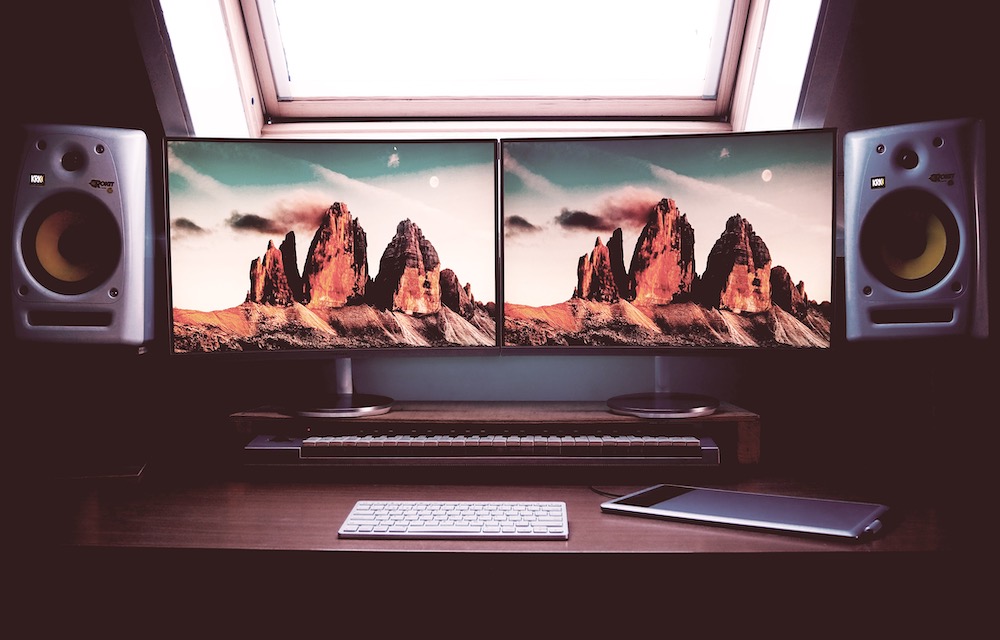
How To Set Different Wallpapers On Dual Monitors In Windows
These days it has become a trend to use more than one monitor, earlier it was only used by Animators, stock market traders, and a few others to enhance their productivity and better multitasking while working. And later on, the trend has been followed by Gamers.
Now, a lot of guys still have no idea about how to set multiple wallpapers on multiple screens. By the end of this article, you are going to learn how to set different wallpapers on different screens on Windows 11.
How to set different wallpapers on multiple monitors of the same PC, Windows 11
- Go to the desktop of your Windows 11 PC.
- On the Taskbar, you’ll see a magnifying glass. That’s the Windows 11 Search app. Click on it and search for Settings.
- Under the Best match heading, you’ll see a cogwheel icon. That’s the Settings app. Click on it.
- Inside the Windows 11 Settings menu, you’ll see various options like System, Device, Phone, Personalization, etc.
- Click on Personalization.
- On the left navigation pane of Personalization, you’ll see Background. Select it.
- Now, look at the right side, and you’ll find the Choose your picture menu.
- Right-click any of the pictures and you’ll see a context menu asking you to choose between Set for monitor 1 and Set for monitor 2.
- If you’ve got more than two monitors, you’ll see the options accordingly.
- Set different wallpapers for each of the monitors.
- You can also click on Browse to import desktop backgrounds from your other folders.
- On the Choose a fit section, select the Fill option to cover the entire desktop with the image irrespective of the image resolution.
Having dual monitors make collaboration between employees easier than ever. You can communicate with team members on one screen while working on a project on the other one. Having a second monitor gives you a lot of additional space to collaborate with the rest of the organization.
So now that you have learned how to put different wallpapers on dual monitors on Windows 11, You can customize your monitors the way you want.
More in How-to
How to Set Video as Desktop Wallpaper using VLC Media Player
Are you still using those static desktop backgrounds in your computer? Want a difference from the usual look and feel of your desktop? How it would be if you got your favorite videos playing on your desktop background? Instead of those statically stuck backgrounds which don’t make you comfy on your computer, set those moving…
How to Split Screen on Mac in Seconds: Complete Guide
Learn how to split screen on Mac to view two apps side by side. This guide walks you through Split View setup, keyboard shortcuts, and troubleshooting tips.
How To Change Your Monitor’s Refresh Rate Settings In Windows 10
For the most part, you like the default refresh rate of your monitor on Windows 10. However, if there’s a need to change or tweak the refresh rate of your monitor, I’ll show you how to do it. Before we move on to modify the refresh rate settings in Windows 10, it’s worth noting that…
The week in tech, minus the noise.
New reviews, fixes and the stories that matter — once a week, straight to your inbox.
We only use your email to send the newsletter. Unsubscribe any time. See our privacy policy.
Comments