

How to Extend Monitors in Windows 10
An extra monitor will be extremely useful for several usage cases. Especially if you are working on a big project that requires you to go through several files at the same time, or if you are a programmer who wants to examine several code blocks to construct a new one, the usage cases are limitless.…

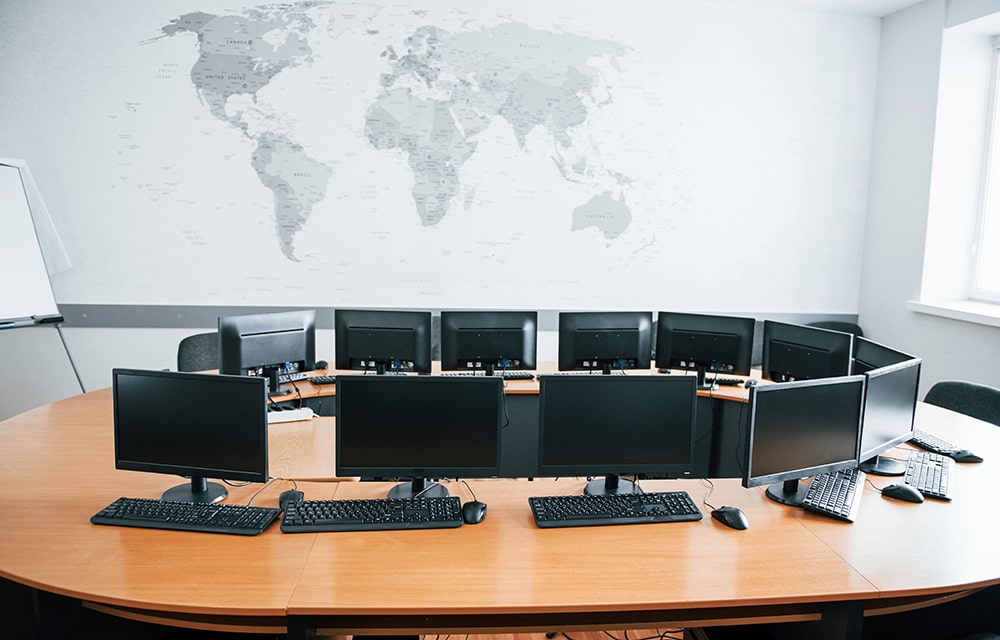
How to Extend Monitors in Windows 10
An extra monitor will be extremely useful for several usage cases. Especially if you are working on a big project that requires you to go through several files at the same time, or if you are a programmer who wants to examine several code blocks to construct a new one, the usage cases are limitless. Even if you do not work on a professional environment, just having a couple of monitors can be very useful while gaming as well. If you are not a fan of those wide, curvy monitors, but you still want to get some extra screen space, the next best choice you have is extending your monitor.
Luckily, extending monitors to whatever number you need is extremely easy on Windows 10. You do not need any extra software to be installed on your OS. All you have to do is following the instructions provided below. So let’s dive into it.
Steps to Extend Monitors in Windows 10
Before following the steps mentioned below, you should make sure that you’re properly connected to all the monitors that you want to be connected to your computer with the appropriate cables and connections. It doesn’t matter whether it is an HDMI or a VGA connection. You should just make sure that everything is connected properly so that it gets recognized by the operating system.
- Click on the Start button.
- Choose Settings (the gear icon).
- Then go to the System option.
- On the left sidebar, navigate to Display.
- In most cases, Windows will automatically recognize the monitors and will add them in this section. If you cannot see the monitors, just make sure that you’re properly connected to them once again and click on the Detect button.
- In the Multiple Displays section at the bottom, you can choose how the monitors behave and interact with each other.
- Duplicate these displays: As the description itself says, this option will simply duplicate the current display so that the same content is displayed on all the screens. For example, if you have a Google Chrome window open on one monitor, it will display the exact same thing on the other monitors as well.
- Extend these displays: This option is most probably what you are looking for. It will simply extend the connected monitors to the current screen so that you can drag and drop Windows and files across the screen. As soon as the monitor is disconnected, everything will go back to place. It is simply like having a widescreen monitor, but, separated with borderlines.
- Show only on … : you will also have a number of options that start with “Show only on …”. This means, if you have multiple monitors connected to the computer, you can decide which one you want the pictures to be shown in. This option allows to easily switch between displays without having to manually disconnect the cable.
- You might also want to adjust the size of the text, resolution, etc. to match the extra monitors connected.
That’s it. As soon as you select these options, Windows will start using the extra displays based on your preferences. You are free to change the screen orientation, display resolution, text size, etc. on individual displays by choosing the appropriate option from the display settings by selecting the monitor. So good luck with whatever you are planning to do with the help of the extra monitors.
More in Windows
How to Increase C Drive Space in Windows 10
C drive is the place where most people install their operating system. Unless you are an expert in computer systems or a curious person who tries out different things, your Windows 10 might be also installed in the C drive of your hard disk. By default, Windows chooses the C drive to install its files…
How to Calibrate your Monitor in Windows 10
Calibrating your monitor every once in a while will make sure that it is output in the best picture quality possible. If you are experiencing some issues with the quality of the pictures on your screen while using Windows 10, you should make sure that the screen is calibrated properly. In this article, we are…
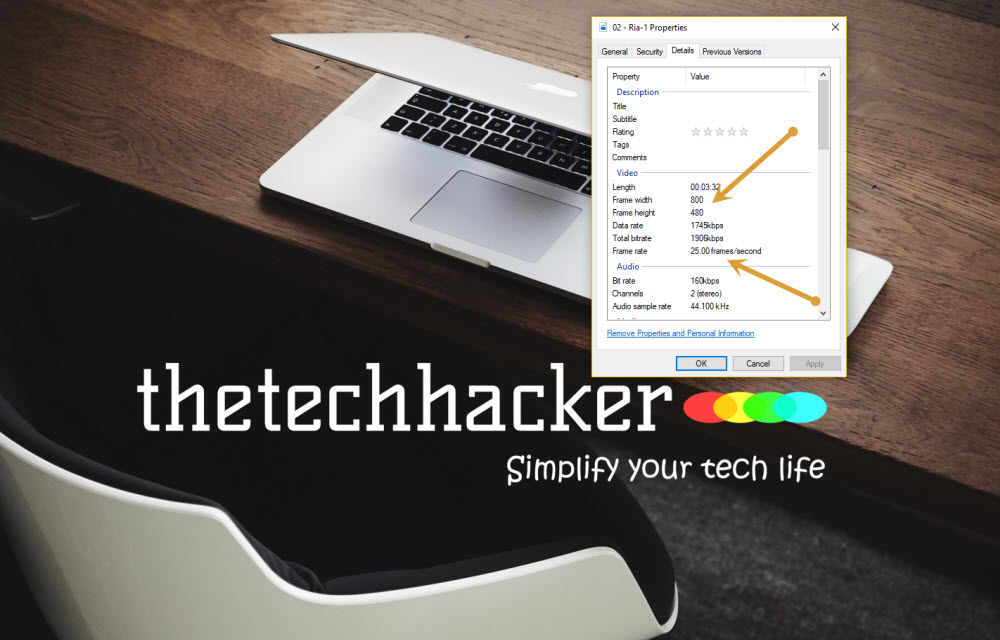
How to check Video Resolution and Frame Rate on Windows 10
We have seen so much improvement in the video resolutions over the past few years. SD, HD, now 4K is the latest resolution types. Most of the monitors are coming with HD ready format and if you invest some good amount there are plenty of high-end computer monitors available with higher video resolutions. In order…
The week in tech, minus the noise.
New reviews, fixes and the stories that matter — once a week, straight to your inbox.
We only use your email to send the newsletter. Unsubscribe any time. See our privacy policy.
Comments