

How to Block Spam Emails in Gmail: A simple guide
Who doesn’t use Email? It is an evergreen tool used for communication both personally and in a professional way. It is a worldwide popular platform used for better communications. One of the major advantages of using email is that you can easily and quickly send electronic files such as Photos, PDFs, documents, etc. Everyone who…
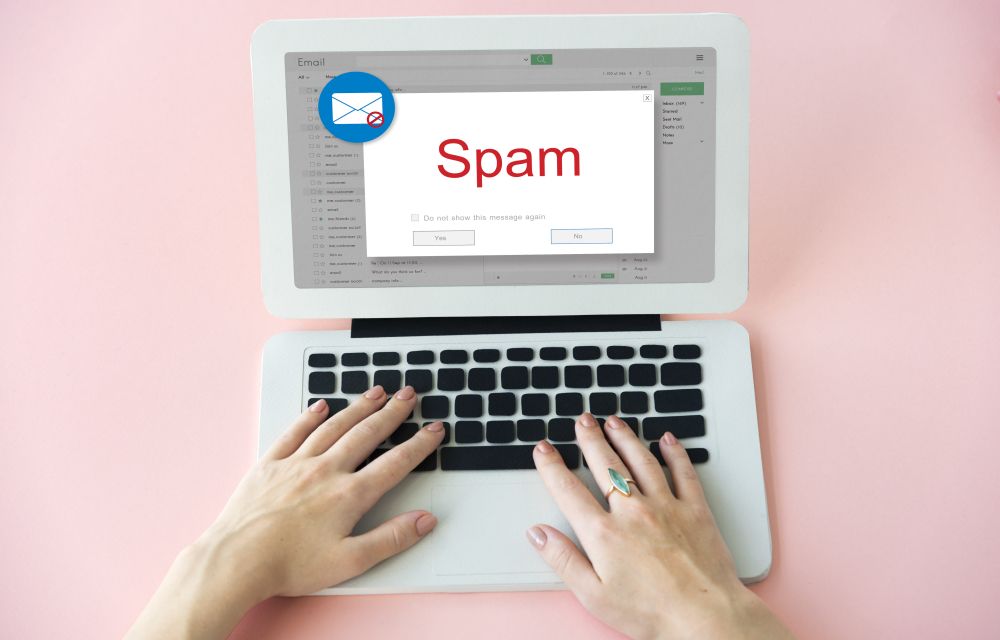
E-mail Popup Warning Window Concept
Who doesn’t use Email? It is an evergreen tool used for communication both personally and in a professional way. It is a worldwide popular platform used for better communications. One of the major advantages of using email is that you can easily and quickly send electronic files such as Photos, PDFs, documents, etc.
Everyone who uses Gmail on the daily basis will know the real pain of getting spammed by emails. It is uncontrollable sometimes when we leave our mail on a certain website it gets passed on to different hands which we don’t want. And then the rain of spam mail gets started. But there is an option of stopping these spam emails. We will know these simple steps in the article below so please keep reading to put an end to that.
How to block spam emails in your Gmail:
After we block a certain sender you will stop getting emails from the certain sender but you will still get those spam mails from the others. First, we will learn how to block emails from an individual sender by following these simple steps given below
- To get started open your Gmail account on your computer
- Take an email sent from a random person which you want to block
- In the top right corner, click on the more options icon (Three dots)
- Click on the option, that says Block [sender name]
- That’s you’re done! you will never get an email from the same person in your inbox anymore.
Note: If you have blocked a person unknowingly in the past or if you want to unblock a sender now, you can use the same procedure to do so.
How to block Promotional emails in your Gmail:
When you’re reading an article or some digital news they often offer you to click on their subscription to receive daily updates and we do it. But later we find out that they are sending way too many updates and it might get a bit annoying. Here’s how to unsubscribe from such newsletters or promotional emails.
- To begin with, start opening your Gmail account
- Now, open an email from a such website which you want to unsubscribe
- Click on the option that says Unsubscribe with underlined and placed beside the sender’s name above the email
- Sometimes this option may not be available at the top of the mail then you have to search for the unsubscribe option at the bottom of the mail.
- Just in case, if there are no other options available both at the bottom and top you can use the above method of blocking the sender.
So this is how you can stop getting spammed by unwanted emails every day. Use these simple steps to make your Gmail usage flawless.
More in Guides
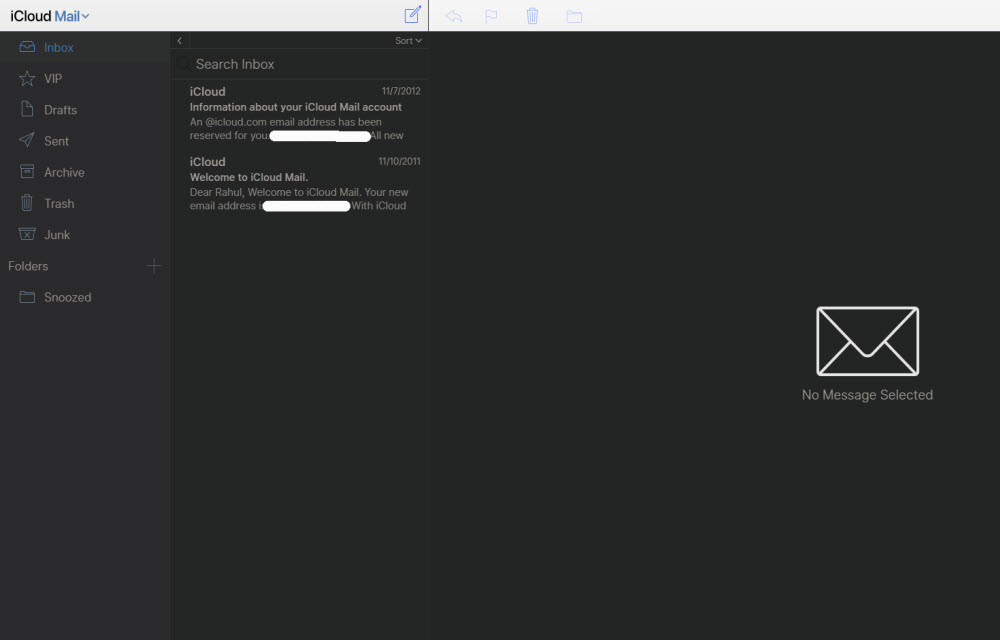
How to block emails on iCloud mail?
iCloud mail is a good emailing service from the very popular Apple. iCloud mail is one of the services comes with every Apple user. An Apple ID is essential for every Apple device user including Mac, iPhone, and iPad. The iCloud email is a feature-rich email service with a decent user-interface. No matter whether it…
How to stop Email tracking activity- Detailed guide
The use of email tracking is increased in recent years. Companies and spammers want to know when you are exactly opening the email. Many people, corporates, marketers and even spammers using a tracking code inside the email which intimates when the receiver opens it. It is a quite annoying technique used by senders and not…
Change Gmail Password Easily
Change Gmail password for better security of your Google account. This is what Google and many security experts recommend whenever you think your password may have been exposed. Not only if you forget your Gmail password, but changing the Google account password can also help you secure your email account from hackers and spammers. New…
The week in tech, minus the noise.
New reviews, fixes and the stories that matter — once a week, straight to your inbox.
We only use your email to send the newsletter. Unsubscribe any time. See our privacy policy.
Comments