

How to Disable Windows Startup Programs with Ease
As a Windows 10 user, you might have noticed that your computer can take a while to start up, especially if you have several programs launching automatically. Some of these programs are essential, while others can be safely disabled to speed up your computer’s startup time and free up system resources. In this guide, we’ll…

Windows 11
As a Windows 10 user, you might have noticed that your computer can take a while to start up, especially if you have several programs launching automatically. Some of these programs are essential, while others can be safely disabled to speed up your computer’s startup time and free up system resources. In this guide, we’ll explore three easy methods to disable startup programs in Windows 10 and give your PC a performance boost.
1: Task Manager
- To begin, simply right-click on the Taskbar and choose Task Manager from the context menu that appears.
- Next, click on the Startup tab to display a list of programs that automatically start when you log in to your computer.
- To disable a program, right-click on it and select Disable from the context menu.
- Repeat this process for all the programs you wish to disable.
2: Streamlining Your Startup with the Settings App
- Open the Settings app by clicking on the Start menu and selecting the gear icon.
- Click on Apps to reveal more options.
- Now, click on Startup to display a list of programs that launch automatically when you log in.
- To disable a program, toggle the switch next to it to the Off position.
- Repeat this process for all the programs you want to disable.
3: Optimizing Your System with the System Configuration Tool
- Press the Windows key + R to open the Run dialog box.
- Type “msconfig” (without quotes) and press Enter to launch the System Configuration tool.
- Click on the Startup tab to view a list of programs that start automatically when you log in to your computer.
- To disable a program, uncheck the box next to it.
- Repeat this process for all the programs you want to disable.
- Click OK to save your changes and exit System Configuration.
Note: Disabling programs from starting up doesn’t uninstall the program. You can still run the program manually by opening it from the Start menu or desktop shortcut.
By following these three easy methods, you can disable unnecessary startup programs in Windows 10 and give your computer a performance boost. Remember, though, that some programs are necessary for your system’s smooth operation, so exercise caution when disabling them. With a faster startup time and improved system resources, you can now enjoy a more efficient and productive Windows 10 experience!
More in How-to
Speed up Lenovo Laptop Running Slow in Windows 10
Your Windows 10 laptop may go slower and slower over time. There are several reasons why your Lenovo laptop is acting up and gone painfully slow over time. Run through the checklist given below to fix this issue permanently.

How To Fix FPS Drop While Gaming In Windows 10
Gaming on Windows is a blissful experience. Windows 10 is a favourite operating system for millions of users around the world. It lets you play any kind of game without giving any troubles. However, sometimes the FPS rate will drop suddenly during the game. It is a small error, and we can easily fix in…
How To Remove or Disable Login Password From Windows 8
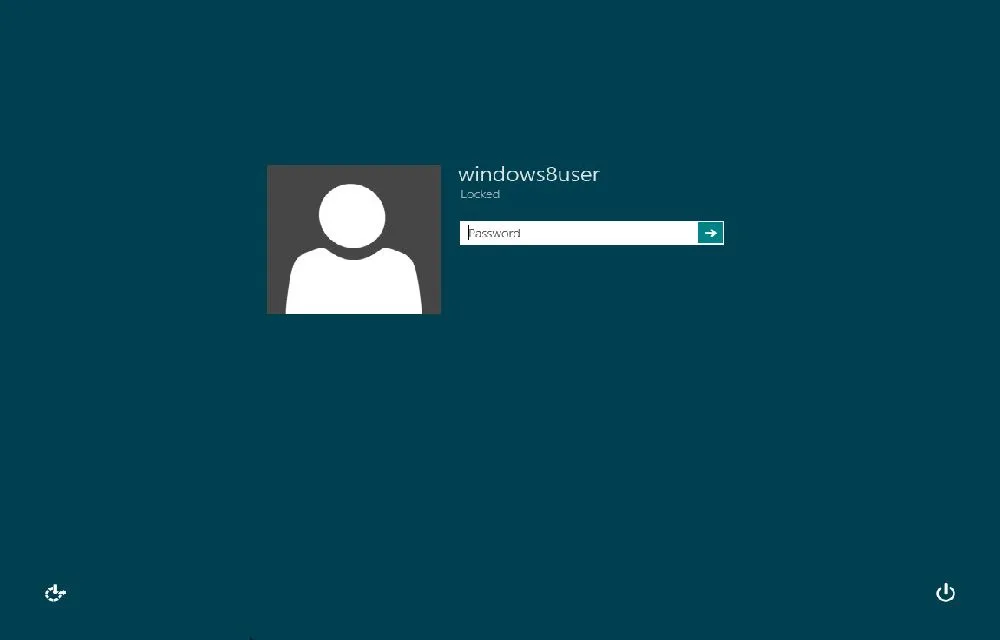
Windows 8 is a current-trending operating system from Microsoft. For security and multi-user purposes, Microsoft set password security for Windows 8. The user needs to enter a password whenever he wants to log into the system; practically, it is good for security. Let’s see the easy enable and disable options of this feature. In the…
The week in tech, minus the noise.
New reviews, fixes and the stories that matter — once a week, straight to your inbox.
We only use your email to send the newsletter. Unsubscribe any time. See our privacy policy.
Comments