

How to Deactivate Facebook on Android
Are you becoming consumed by your Facebook use and considering a break? Deactivating your Facebook account on your Android device could be the answer. In this blog article, we’ll explain why you might wish to cancel your account and walk you through the process. Let’s get started! There are plenty of reasons for this decision.…

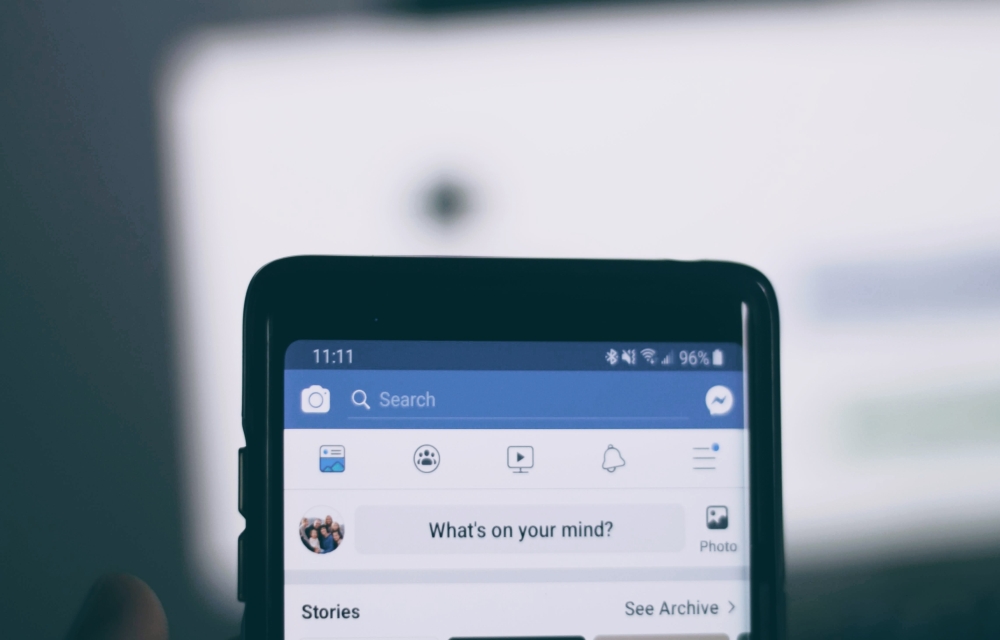
How to Deactivate Facebook on Android
Are you becoming consumed by your Facebook use and considering a break? Deactivating your Facebook account on your Android device could be the answer. In this blog article, we’ll explain why you might wish to cancel your account and walk you through the process. Let’s get started!
There are plenty of reasons for this decision. I listed a few below.
Why Deactivate Your Facebook Account?
- Privacy Concerns: With growing concerns about personal data privacy and security, deactivating your account can provide peace of mind by limiting your digital footprint.
- Mental Health: Studies have shown that excessive social media usage can have a negative impact on mental health. Deactivating your account can help you take a break from the constant pressure to stay connected.
- Productivity: Social media can be distracting, and removing yourself from the platform can help you focus on more important tasks.
How to Deactivate Your Facebook Account on Android: Before we start, remember that deactivating your account is temporary – you can reactivate it whenever you want. Your profile, friends, and posts will be hidden until you reactivate, but your Messenger will still be active.
Steps to deactivate Facebook on Android.
1: Open the Facebook App
- Launch the Facebook app on your Android device.
2: Access the Menu
- Tap the three horizontal lines (the “hamburger” icon) in the top-right corner of the screen.
3: Navigate to Settings & Privacy
- Scroll down and tap on “Settings & Privacy.”
4: Open Account Settings
- In the expanded menu, tap “Settings.”
5: Locate the Account Management Section
- Scroll down to the “Account Management” section.
6: Tap on “Account Ownership and Control”
- In the Account Management section, tap “Account Ownership and Control.”
7: Choose “Deactivation and Deletion”
- Tap on “Deactivation and Deletion.”
8: Select “Deactivate Account”
- Choose “Deactivate Account” and tap “Continue to Account Deactivation.”
9: Enter Your Password
- You’ll be prompted to enter your password for security purposes. Enter it and tap “Submit.”
10: Provide a Reason (Optional)
- You’ll be asked to provide a reason for deactivating your account. Choose one from the list or select “Other” to enter your own reason. This step is optional, and you can skip it if you want.
11: Deactivate Your Account
- Tap “Deactivate” at the bottom of the screen. Your Facebook account will now be deactivated.
Conclusion
Finally, deactivating your Facebook account on Android is an easy operation that might give you a much-needed break from social media. Remember that you can reactivate your account at any time, and all of your information will be available when you return. Take some time for yourself and enjoy a life free of Facebook for a bit!
More in How-to

How To Delete Facebook Account
Facebook had a special long term relationship with our lives. With people addicting to social networking sites, Facebook is their first choice to join. Facebook became part of our life, features like photo, location, music, links including our emotional feelings as the latest update. We already discussed Facebook addiction and the best ways to avoid…

How to Delete Instagram Account
Instagram is slowly becoming popular among people. Nowadays, every tech-savvy person or tech blog has an Instagram account. The idea is to select an image or video and comment about it. You can add hashtags to generate more leads. When it comes to social media, security and privacy is an important factor. Nowadays, the actions…

How To Enable Dark Mode On Facebook?
Dark mode is a favourite option for many users. The easy to read and soothing effect to the eye is the main reason for people adoption of dark mode in almost all apps. Mail, news reading and even few browsers are the early adopters of the dark mode in both Android and iOS platforms. Now…
The week in tech, minus the noise.
New reviews, fixes and the stories that matter — once a week, straight to your inbox.
We only use your email to send the newsletter. Unsubscribe any time. See our privacy policy.
Comments