

How to Turn Off Facebook Camera Roll Suggestions on iPhone and Android
Facebook’s camera roll suggestions look at the photos and videos on your phone and suggest ones you might want to share as a post or story. Some people like the nudge. Many don’t want a social app looking through their gallery at all, and the feature got fresh attention on November 14 when Italy’s privacy…


Image: Meta
Facebook’s camera roll suggestions look at the photos and videos on your phone and suggest ones you might want to share as a post or story. Some people like the nudge. Many don’t want a social app looking through their gallery at all, and the feature got fresh attention on November 14 when Italy’s privacy regulator fined Meta €805 million (about $887 million) over a Facebook for Android feature that suggested gallery photos without what the regulator considered proper consent. Meta called the fine disproportionate. Whatever happens with that case, turning the feature off on your own phone takes less than a minute.
Quick answer: In the Facebook app, tap the menu, then Settings & privacy, then Settings. Under Preferences, tap Camera roll sharing suggestions and turn off Get camera roll suggestions when you’re browsing Facebook. For extra protection, also limit Facebook’s photo permission in your phone’s settings: on iPhone, Settings, Apps, Facebook, Photos, then None or Limited Access; on Android, Settings, Apps, Facebook, Permissions, Photos and videos, then Don’t allow.
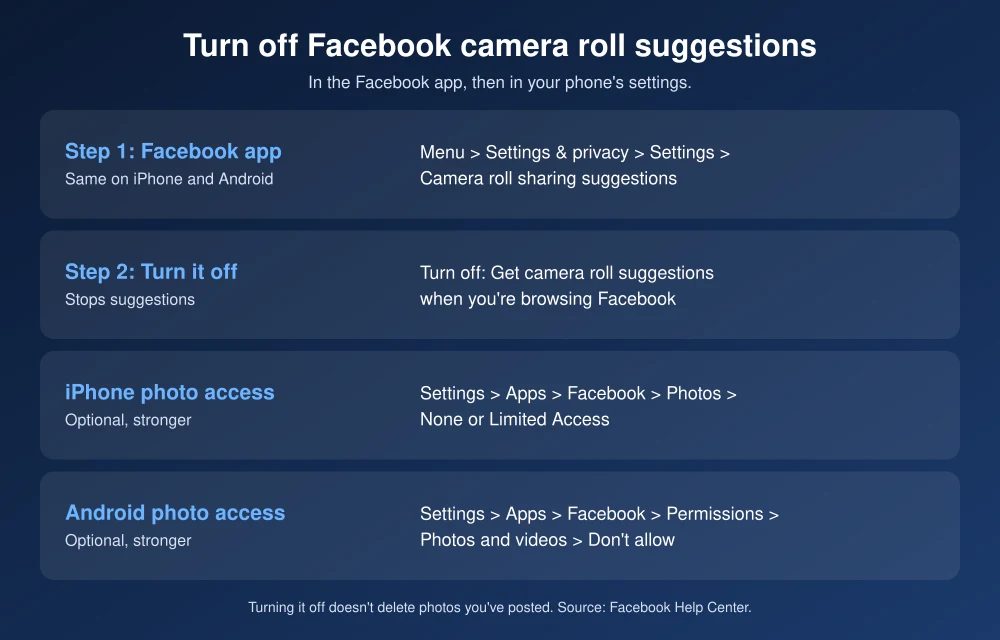
What camera roll suggestions actually do
According to Facebook’s Help Center, camera roll suggestions use the metadata of photos and videos on your device, such as how recently they were taken, which ones you’ve favorited and the type of shot (panorama, time-lapse or front-facing). You can also allow Facebook to use additional camera roll data for more personalized suggestions. To work at all, the feature needs Facebook to have access to your camera roll.
In an April 2026 announcement, Meta described the feature as opt-in, said suggestions are shown only to you, and said it doesn’t use camera roll photos for ad targeting or to improve AI at Meta unless you choose to share them. That post covered the rollout in the EU and UK, later expanded to several Latin American countries. Meta hasn’t said when or whether it’s coming to everyone in the US, so you may or may not see the setting yet. If you do, the steps below work the same way.
Turn off camera roll suggestions on iPhone
- Open the Facebook app and tap the menu icon.
- Tap Settings & privacy, then Settings.
- Under Preferences, tap Camera roll sharing suggestions.
- Turn off Get camera roll suggestions when you’re browsing Facebook.
Turn off camera roll suggestions on Android
- Open the Facebook app and tap the menu icon at the top.
- Tap Settings & privacy, then Settings.
- Scroll to Preferences and tap Camera roll sharing suggestions.
- Turn off Get camera roll suggestions when you’re browsing Facebook.
You can reach the same switch from the story or post screen too. When you create a story, or tap What’s on your mind? and then Gallery, tap the Settings icon in the top right and turn the same toggle off.
Limit Facebook’s access to your photos
Turning off the suggestions stops the feature. Removing or limiting the photo permission goes further, because Facebook then can’t read your gallery at all unless you pick specific photos to share.
On iPhone
- Open Settings, tap Apps, then Facebook.
- Tap Photos.
- Choose None to block access, or Limited Access to allow only photos you select.
You can also go to Settings, Privacy & Security, Photos, and change Facebook there.
On Android
- Open Settings and tap Apps, then Facebook.
- Tap Permissions, then Photos and videos.
- Choose Don’t allow. On Android 14 and later you can instead allow access to selected photos only.
Menu names vary a little between Samsung, Pixel and other phones, but Google’s app permissions guide follows the same path.
What changes after you turn it off
- Facebook stops suggesting gallery photos and videos for posts and stories.
- You can still post any photo. With Limited Access or selected photos, Facebook simply asks you to choose them when you share.
- Photos you’ve already posted stay on Facebook. Turning this off doesn’t delete anything you shared.
If you’re tightening your Facebook account more broadly, set up two-factor authentication, move your albums out with our guide to transfer Facebook photos to Google Photos, or step away entirely and deactivate Facebook on Android.
FAQs
Does Facebook look at my camera roll?
Only if you’ve given the Facebook app access to your photos. With camera roll suggestions on, Facebook uses photo and video metadata on your device to suggest posts. Turning the feature off and limiting the photo permission stops that.
Why can’t I find Camera roll sharing suggestions in my settings?
Meta has rolled the feature out by region, starting with the EU and UK. If the setting isn’t in your app, the feature probably isn’t active on your account. You can still limit Facebook’s photo permission in your phone’s settings.
Will turning off camera roll suggestions delete my photos?
No. It only stops the suggestions. Photos on your phone and posts already on Facebook aren’t affected.
Why did Italy fine Meta?
Italy’s data protection authority fined Meta €805 million over a Facebook for Android feature that suggested photos and videos from users’ galleries, saying consent and notice weren’t adequate. Meta disagreed with the decision.
Featured image: Meta.
Disclosure: TheTechHacker has no paid relationship with Meta or any company mentioned here.
More in How-to
How to Fix Android Auto Not Connecting After the One UI 9 Update
Android Auto stopped working after your Galaxy phone got One UI 9? Here’s what Google said about its fix, how to make sure you get it, and the wired and wireless workarounds worth trying while you wait.

How to Fix Gemini Not Showing on Apple CarPlay: 8 Fixes That Work
Google started rolling out the Gemini app to Apple CarPlay on November 11, and plenty of iPhone owners got into their cars this week expecting a new icon that simply wasn’t there. If that’s you, the fix is usually quick. Google’s setup has a couple of steps that are easy to miss, and CarPlay itself…
How to Fix Apps Crashing While Multitasking After iOS 26 Update
The latest iPhones are powerful enough to handle heavy multitasking without breaking a sweat. So when your device starts crashing, freezing, or stalling while switching apps after the iOS 26 update, it feels especially frustrating. This issue can stem from several sources: a bug in the iOS build, misconfigured background refresh settings, insufficient storage, or…
The week in tech, minus the noise.
New reviews, fixes and the stories that matter — once a week, straight to your inbox.
We only use your email to send the newsletter. Unsubscribe any time. See our privacy policy.
Comments