

How to Use a Google Home as an External Bluetooth Speaker?
Technology is becoming more and more user-friendly. You don’t need to buy on an expensive Bluetooth speaker just to boost your iPhone or iPad audio. If you already own a Google Home or Nest Mini, you’re sitting on a perfectly capable external speaker that can be paired with your device in minutes. Google Home wasn’t…

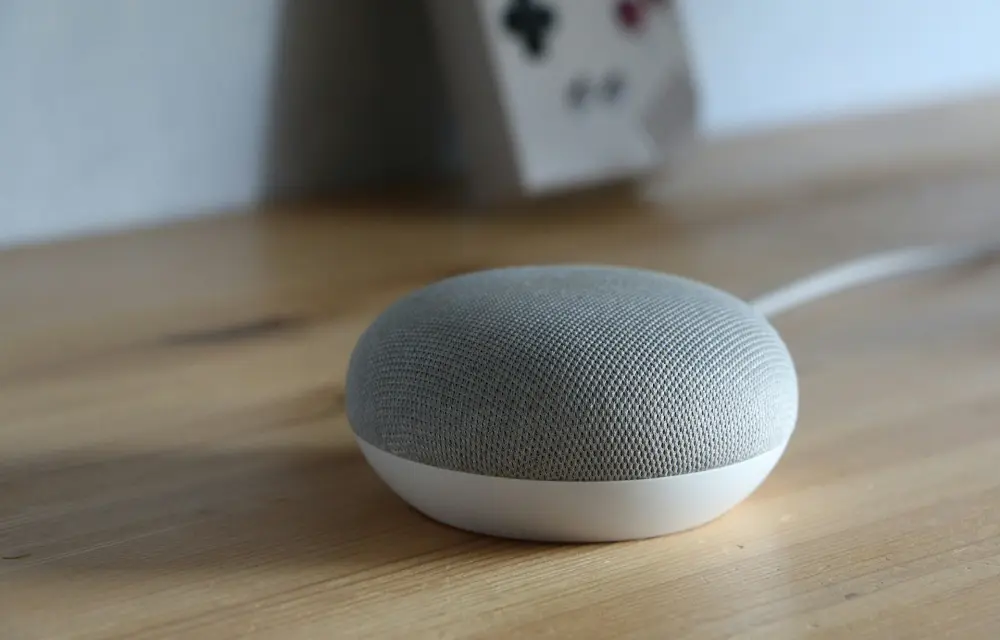
How to Use a Google Home as an External Bluetooth Speaker
Technology is becoming more and more user-friendly. You don’t need to buy on an expensive Bluetooth speaker just to boost your iPhone or iPad audio. If you already own a Google Home or Nest Mini, you’re sitting on a perfectly capable external speaker that can be paired with your device in minutes. Google Home wasn’t initially marketed as a traditional Bluetooth speaker, but a simple setup tweak allows you to turn it into one.
Here’s how to turn your Google Home into a Bluetooth speaker for iOS devices:
Step 1: Enable Pairing Mode on Google Home
Open the Google Home app on your iPhone or iPad.
-
Tap the device you want to use (e.g., “Living Room Speaker”).
-
Tap the Settings icon (gear symbol).
-
Scroll to “Audio” > “Paired Bluetooth Devices.”
-
Tap “Enable Pairing Mode.”
Once pairing mode is active, the speaker is discoverable.
Step 2: Connect via iPhone or iPad
-
On your iPhone or iPad, go to Settings > Bluetooth.
-
Under “Other Devices,” you’ll see your Google Home or Nest Mini listed.
-
Tap it to connect.
That’s it. Your iOS device is now using Google Home as a Bluetooth speaker. It is pretty simple to connect Google Home Mini as a Bluetooth speaker with your smartphone, iPad or iPhone.
Use Case: Better Sound Without More Gadgets
Whether you’re watching YouTube, listening to music, or attending video calls, this setup is a simple upgrade without buying another speaker. You’ll notice a fuller sound, especially on Google Nest Mini, which offers a decent bass response for its size.
While you won’t get high-fidelity output like in premium audio speakers, using your Google Home as a Bluetooth speaker is a smart and efficient way to enhance your iOS audio experience without spending another dime. The output quality is pretty good when compared to the built-in speakers of an iPad or smartphone.
More in How-to
How to Fix “Headphones Not Recognized” on iPhone After iOS 26 Update
After the iOS 26 update, a small but noticeable group of iPhone users started reporting a strange issue: wired headphones are no longer being recognized properly. Some are stuck in speaker-only mode, while others see their headphones connect and disconnect randomly. Although most complaints are about wired headphones, a few Bluetooth users are facing similar…
Zoom Troubleshooting Guide 2020 | Easy Fix To All Zoom issues (Webcam, Audio, Video, Controls, Security, Connectivity)
Remote work culture is on the rise due to COVID 19 lockdowns. Everyone is resorting to best video conferencing apps such as Zoom, Google Meets, Microsoft Teams, etc. While some of us tech-savvy folks always find a way around but it’s not the same story for other people who are in a transition state. It…
How to Set up Guest Mode on Chromecast
Chromecast guest mode allows users to cast their favourite media to the Chromecast without any complicated setup. During a gathering, you or your friends can show off their favourite videos to all of the people in the room. All you have to do is setting up the guest mode on the Chromecast as a host…
The week in tech, minus the noise.
New reviews, fixes and the stories that matter — once a week, straight to your inbox.
We only use your email to send the newsletter. Unsubscribe any time. See our privacy policy.
Comments