

How to Back Up Android Photos to a Windows PC Automatically with Quick Share
Google’s November 2026 system update adds automatic photo and video backup from Android to Windows through Quick Share. Here’s what’s confirmed, what you need, how setup reportedly works, and what to use until it reaches you.

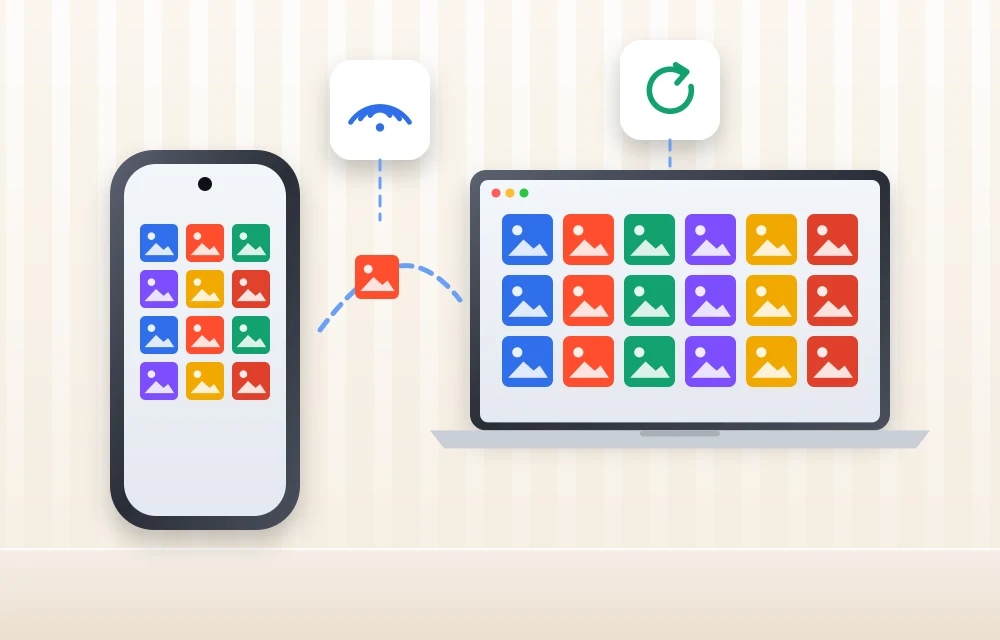
Android phone backing up photos to a Windows laptop with Quick Share
If you’ve ever plugged your Android phone into a laptop just to copy a few months of photos, you know how boring it gets. You find the cable, wait for the phone to show up in File Explorer, dig through the DCIM folder and drag everything across. Then you forget to do it again for six months.
Google is finally making this easier. Its November 2026 Google System Updates, which 9to5Google rounded up on November 2, include automatic backup of photos and videos from an Android phone to a Windows PC using Quick Share. Your pictures go from the phone to the computer over your home network, with no cable and no cloud subscription.
There’s a catch, though. Google has said very little about how the feature works. So in this guide I’ve kept what Google has officially confirmed separate from what has only been reported from code teardowns (when people dig through an app’s code to find features before they’re announced). That way you know which parts to trust and which parts might change.
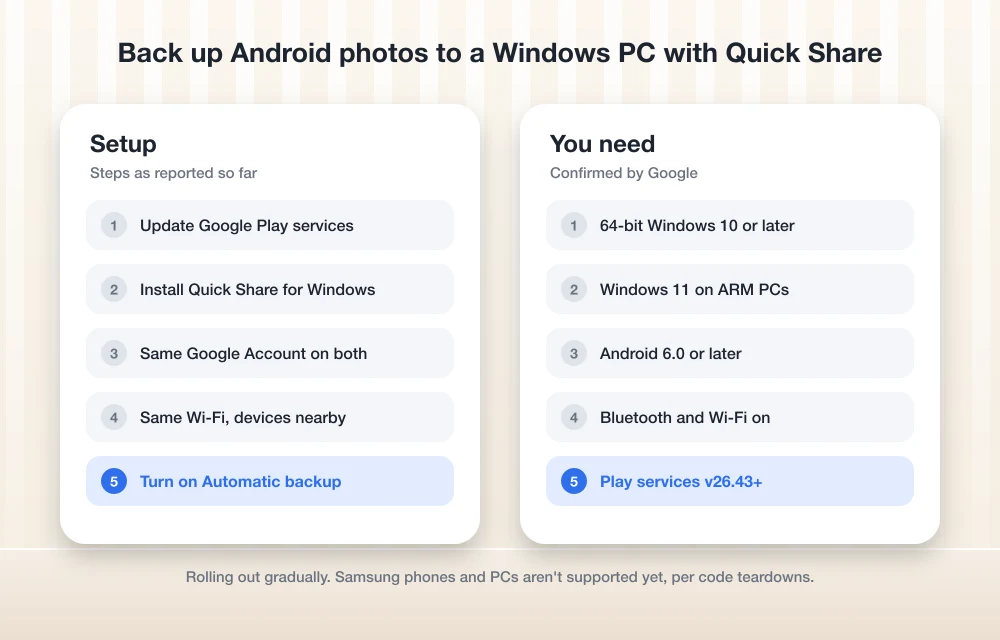
Quick answer: Quick Share automatic backup is a new feature listed in Google Play services v26.43 (November 2, 2026) that saves photos and videos from your Android phone to your Windows PC. You need the Quick Share for Windows app on a 64-bit Windows 10 or later PC (ARM PCs need Windows 11), and a phone running Android 6.0 or later. According to reports, you set it up from the Windows app, sign both devices in to the same Google Account, pick what to back up, and backups then run daily when both devices are on and connected to the same Wi-Fi. If you don’t see it yet, keep everything updated and use manual Quick Share, Google Photos or a USB import in the meantime.
What is Quick Share automatic backup?
Quick Share is Google’s built-in tool for sending files between nearby devices. Most people use it to send a photo or a PDF from a phone to another phone or to a PC, one transfer at a time.
The new feature turns that into something hands-off. Google’s official Google System Updates release notes list it under Google Play services v26.43, in the Device Connectivity section, with a single line: “[PC, Phone] Automatic backing up photos/videos from an Android to Windows using Quick Share feature.”
That one line is all Google has published. I couldn’t find a dedicated support page or blog post for the backup feature, although I’ll admit my search wasn’t exhaustive, so one may exist or appear soon.
Reports from Android Authority, which found the feature in the app’s code, describe it in the app’s own words: “Keep your memories safe with automatic backup. Once set up, Quick Share automatically saves your photos and videos to your PC. No cables or cloud subscriptions needed.” TechRepublic also reports that files go straight to your PC and don’t pass through Google’s cloud. That’s the big appeal for me. Your photos stay on hardware you own.
What Google has confirmed and what it hasn’t
Because so much of the detail comes from teardowns, here’s a quick table to keep things clear.
| Detail | Status |
|---|---|
| Feature listed in Google Play services v26.43 (Nov 2, 2026) | Confirmed by Google |
| Quick Share PC needs 64-bit Windows 10 or later (Windows 11 for ARM) | Confirmed by Google |
| Phone needs Android 6.0 or later | Confirmed by Google (for Quick Share in general) |
| Which phones get the backup feature | Not stated by Google |
| Samsung phones and PCs not supported | Reported from code, not mentioned by Google |
| Daily backups over the same Wi-Fi network | Reported, not confirmed |
| “Back up now” button for manual backups | Reported, not confirmed |
| Phone must be charging | No source mentions this |
| Where backups are saved on the PC | Unknown |
| Rollout timing | Not stated; likely gradual, but unconfirmed |
What you need before you start
Windows PC requirements
Google’s Quick Share for Windows help page lists these requirements:
- A 64-bit PC running Windows 10 or later.
- ARM-based PCs (like many newer thin-and-light laptops) need Windows 11 or later.
- Bluetooth turned on, and Wi-Fi or Ethernet turned on.
Google also notes that if your PC doesn’t support Bluetooth Low Energy (BLE) Extended Advertising, other people can’t find it on certain networks. BLE is the low-power version of Bluetooth that devices use to spot each other nearby. Most people won’t need to worry about this, but it’s worth knowing if Quick Share behaves oddly on an older PC.
If you’re still on Windows 10, keep in mind that general support for it ended on October 14, 2025, according to third-party reports. Quick Share still lists Windows 10 as supported, but a Windows 11 PC is the safer long-term choice.
Samsung PC owners should note that Google says Samsung PCs should use Samsung’s own Quick Share app from the Microsoft Store, not Google’s version. And according to code teardowns, the backup feature itself doesn’t currently support Samsung PCs at all.
Android phone requirements
On the phone side, Google says Quick Share works on Android 6.0 or later and comes built in, so there’s nothing extra to install. For the backup feature, you’ll also need the Google Play services update that includes it (v26.43 or newer).
Google hasn’t said which phones get automatic backup. Teardown code says “Samsung phones and PCs aren’t currently supported,” so Galaxy owners may have to wait. TechSpot has speculated that it may start on Pixel phones only, but that’s a guess, not something Google has said.
How to set up automatic photo backup
Google hasn’t published official setup steps for this feature yet. The steps below combine Google’s confirmed Quick Share setup with what has been reported from the code. Menu names that aren’t confirmed by Google are marked as reported, and what you see on your own devices may look different.
Step 1: Update Google Play services on your phone
The feature arrives through Google Play services v26.43. According to APKMirror (a third-party site that tracks app versions), build 26.43.30 appeared on November 2, 2026 and 26.43.61 on November 4, 2026.
Google Play services updates usually install on their own in the background. If you want to check manually, tbreak reports this path: Settings > Google services (on a Pixel, tap your name instead) > All services > Privacy & security > System services. This path comes from tbreak, not Google, so the wording may vary on your phone.
Step 2: Install Quick Share on your Windows PC
Google offers Quick Share for Windows as a download from android.com (search for “Quick Share with Windows PC” on the site). Then:
- Download and install Quick Share for Windows on your PC.
- Open the app and sign in with your Google Account.
- Turn on Bluetooth and Wi-Fi on the PC, and make sure it’s on the same network as your phone.
If you already use Quick Share for Windows, make sure the app is up to date, since the backup option will likely need a newer version.
Step 3: Turn on automatic backup (reported)
According to Android Authority, setup starts inside the Quick Share for Windows app, not on the phone. Here’s what the reports describe:
- Keep your phone close to your PC. For regular Quick Share transfers, Google says both devices should be within about 16 feet (5 metres).
- Make sure both devices are signed in to the same Google Account.
- Look for an Automatic backup option in Quick Share settings (reported name, not confirmed by Google).
- Choose which photos and videos you want to back up.
Step 4: Run your first backup
TechSpot reports a Back up now button that starts a backup by hand. If it’s there, I’d use it right after setup so your first big batch of photos copies across while you’re watching, rather than waiting for the daily run. A first backup of a full camera roll could take a while, so leave both devices on and nearby.
How automatic backup behaves
Here’s what’s been reported about how backups run day to day, along with the gaps.
Wi-Fi and timing
Android Authority reports that backups run daily while both devices are switched on, near each other and connected to the same Wi-Fi network. In practice, that means your laptop needs to be awake at home for backups to happen. If it lives in a bag most of the week, backups will only catch up when it’s back on your desk.
Whether backup works when your PC is connected by Ethernet instead of Wi-Fi hasn’t been confirmed. Regular Quick Share supports Wi-Fi or Ethernet, but the backup reports only mention the same Wi-Fi network.
Charging
A lot of backup tools only run while your phone is charging to save battery. I couldn’t find any source saying whether Quick Share backup does this, so don’t count on either behaviour until Google explains it.
Folders
This is the biggest unknown. Nobody has confirmed where backups are saved on the PC, whether you can choose a different folder, or which phone folders are included beyond your main camera photos. Screenshots, WhatsApp images and downloads may or may not be covered. When the feature reaches you, check the backup folder after the first run to see what actually copied.
Deleting photos on your phone
How-To Geek reports that deleting a file on your phone doesn’t delete it from the PC backup. That’s good news if you want to free up space on your phone, since the copy on your PC stays put. Just double-check a few files on the PC before you clear anything from the phone.
One more detail: when an “Automatic backup” option first showed up in Quick Share settings in April 2026, it was described as covering photos, videos and audio over the home network. Google’s release note only mentions photos and videos, so treat audio as unconfirmed.
Limits and things to watch
Even if it works perfectly, a few limits are worth knowing:
- Samsung devices: Code teardowns say Samsung phones and PCs aren’t currently supported. Phones were excluded in a July teardown and PCs were added to that list in October.
- Gradual rollout: Most Play services features roll out slowly. Google hasn’t said so here, but don’t be surprised if you have the update and still don’t see the option.
- Unknown limits: File-type limits, size limits and whether you can back up to more than one PC haven’t been confirmed.
- One copy isn’t a full backup: Your photos end up on a single PC. If that PC’s drive fails or the laptop gets stolen, the backup goes with it.
That last point matters most to me. I like that this keeps photos off the cloud, but I’d still keep a second copy somewhere, either an external drive or a cloud service. If you’re weighing cloud options, I’ve explained why Dropbox is still a good choice for cloud storage.
Alternatives if it isn’t available yet
If the backup option hasn’t reached you, or you have a Samsung phone or PC, you still have good ways to get photos onto your computer. I haven’t rechecked the exact steps for these in this guide, so follow each company’s own instructions.
Send photos manually with Quick Share. Regular Quick Share already works between Android and Windows. It isn’t automatic, but you can select a batch of photos in your gallery and send them to your PC in a few taps.
Google Photos backup. Google Photos can back up your camera roll to the cloud automatically, and you can then download photos on your PC through a browser. The difference is that your photos live on Google’s servers and count toward your storage.
OneDrive and Phone Link. Microsoft’s OneDrive app has a camera upload option that sends photos to OneDrive, which you can sync to your PC. Microsoft’s Phone Link app also lets you see recent phone photos on Windows.
USB cable and the Windows Photos app. The old-school method still works. Connect your phone with a cable, allow file access on the phone, and import photos with the Windows Photos app or copy them in File Explorer.
Private sync apps. If you like the idea of skipping the cloud entirely, third-party tools can do something similar today. I covered one in my TonfotosSync review, which looks at backing up phone photos without the cloud.
Samsung Smart Switch for PC. Galaxy owners can use Smart Switch for full phone backups, but according to a teardown report it doesn’t do automatic backups, so you’ll need to run it yourself.
And if you’re moving to a new phone rather than just backing up, my guide on transferring everything, including WhatsApp messages and contacts, to a new phone covers the bigger picture.
Should you use Quick Share backup?
For most Android users with a Windows PC at home, I think this will be one of the most useful things Google has added to Quick Share. Free, automatic, no cable and no cloud subscription is a great combination, especially if you’re tired of paying for storage just to hold years of family photos.
Right now, though, it’s early. Google has confirmed the feature exists, but not which phones get it, where files land or how it handles charging and folders. My advice is simple: install Quick Share for Windows, keep Google Play services updated, and try the backup option as soon as it shows up. Until then, use one of the alternatives above, and once it’s running, keep a second copy of anything you can’t afford to lose.
Frequently Asked Questions
Is Quick Share automatic photo backup free?
Reports say yes. The in-app description found in the code says no cables or cloud subscriptions are needed, because photos and videos go straight from your phone to your PC. Google hasn’t published pricing details, but Quick Share itself is free.
Do my photos get uploaded to Google’s cloud?
According to reports, no. Files are copied directly from your Android phone to your Windows PC over your local network rather than through Google’s cloud.
Does Quick Share backup work on Samsung Galaxy phones?
Not at the moment, based on code teardowns. The code says Samsung phones and PCs aren’t currently supported. Google’s release notes don’t mention this, so it could change.
Why don’t I see the automatic backup option yet?
Google listed the feature in Google Play services v26.43 on November 2, 2026, but features like this often roll out gradually. Keep Google Play services and Quick Share for Windows updated, and check again later. Samsung devices are reportedly not supported yet.
If I delete a photo on my phone, is it removed from my PC?
According to How-To Geek, no. Deleting a file on your phone doesn’t delete it from the PC backup. Still, check that your photos are on the PC before clearing them from your phone.
You might also like

How To Enable USB Storage On Android Devices
Android devices are well known for their features. The popularity of Android has surged over the past few years, and its dead simple interface makes every task quite user-friendly. Android phones come with all the latest sharing technologies like Bluetooth, Wi-Fi and NFC. Along with these, you can also connect your Android device to a…
How To Backup An Android Device – Ultimate Guide
Let’s face it. We have always argued upon which mobile operating system dominates, and it turned out as – Android. It may not be the best one expects but the variety of smartphones powered by Android OS simply dominates over the other factors. While we know that there is a wide range of devices but…
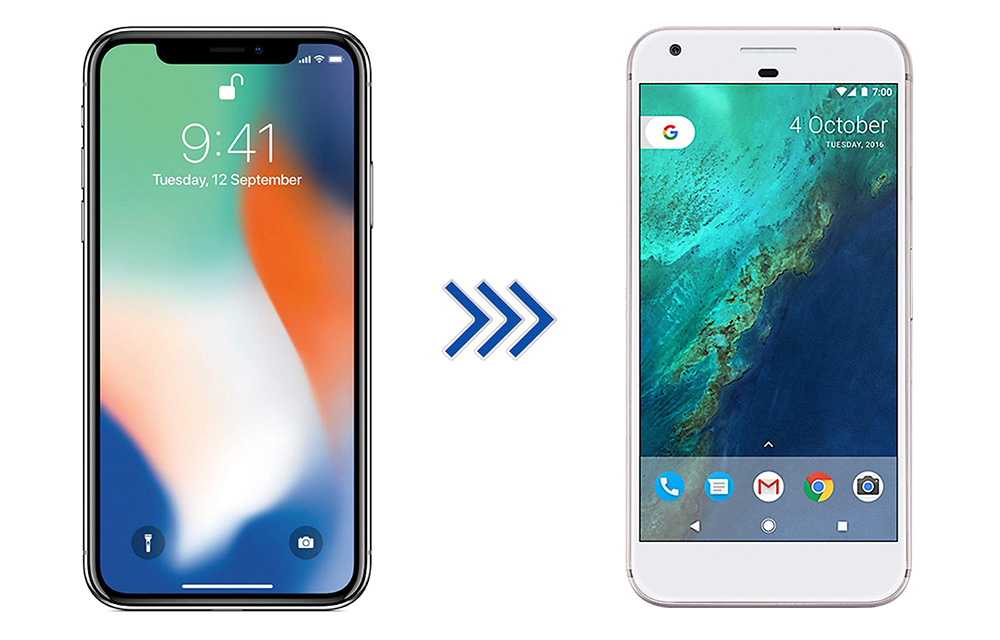
How to Switch from iPhone to Android Smartphone
iPhone is great, it is one of the best devices in terms of quality, it has some unique functions, and everything is perfect. But, then there is Android, which has more features, extremely flexible, various brands to choose from, and a ton of apps to accomplish almost anything that you can do with a smartphone.…
The week in tech, minus the noise.
New reviews, fixes and the stories that matter — once a week, straight to your inbox.
We only use your email to send the newsletter. Unsubscribe any time. See our privacy policy.
Comments