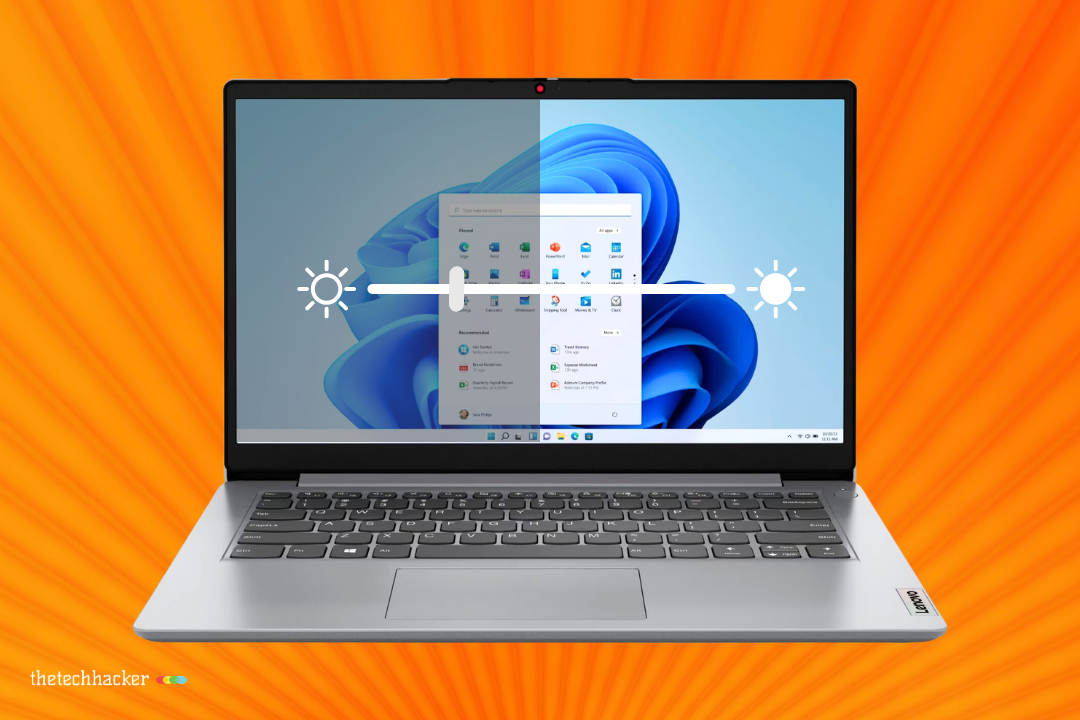
It is a very common problem among the laptop users. If your screen keeps dimming on its own, the problem is usually tied to a power setting, adaptive brightness, display driver behavior, or a device-specific sensor. The good news is that most of these issues are fixable with a few quick checks, and you do not need to be highly technical to troubleshoot them.
Why it happens
Screen dimming can be caused by automatic brightness controls, battery-saving features, outdated graphics drivers, ambient light sensors, or even software bugs after an update. On laptops and phones, the system may try to save power by lowering brightness when it thinks the device is idle, on battery, or in a bright/dark environment.
Sometimes the issue is not the operating system itself but the hardware or vendor software layered on top of it. That means Dell, HP, Samsung, Intel, or other manufacturer tools can also be responsible for unwanted brightness changes.
Quick checks first
Start with the simplest fixes before digging deeper. Check whether auto-brightness or adaptive brightness is enabled, and turn it off temporarily to see whether the dimming stops.
If you are on a laptop, check your power plan settings and battery-saving modes. In many cases, the screen dims because Windows is trying to conserve power or because adaptive brightness is enabled in advanced power settings.
Also inspect any device-specific display utility installed by the laptop maker. These apps sometimes override Windows settings and silently adjust brightness based on battery or performance mode.
Common fixes
1. Turn off adaptive brightness
Open your display or power settings and disable adaptive brightness or auto brightness. This is one of the most common causes of random dimming on both laptops and phones.
2. Adjust screen timeout
If the screen dims before sleeping, increase the timeout duration. On phones, a very short timeout can make it seem like the display is dimming too aggressively.
3. Update the graphics driver
A buggy or outdated GPU driver can cause brightness shifts or flickering. Updating the display driver often fixes the issue when power settings alone do not.
4. Check ambient light and sensors
On some laptops, an ambient light sensor changes brightness depending on surrounding light. If the sensor is misreading the environment or being blocked, the screen may dim unexpectedly.
5. Disable power-saving features
Battery saver, energy-efficient display modes, and vendor-specific power tools can all trigger auto dimming. Turn them off temporarily and test whether the brightness remains stable.
When it is hardware
If the screen still dims after all the software checks, the issue may be hardware-related. Faulty sensors, loose display connections, failing backlights, or monitor eco modes can all cause brightness changes that look like software problems.
For external monitors, open the monitor’s own menu and disable features like Eco Mode, Dynamic Contrast, or Auto Brightness. If you are using a laptop, test with and without the charger to see whether the behavior changes.
TheTechHacker Solution
For TheTechHacker readers, this kind of problem usually fits into a practical troubleshooting flow: identify the trigger, test the simplest setting first, then move to drivers, sensors, and hardware checks. That approach saves time and prevents random trial-and-error.
If this issue keeps coming back across your devices or your clients’ systems, TheTechHacker can help with:
-
Digital services: troubleshooting content, device support guides, SEO content around common tech problems, and knowledge-base creation.
-
Labs services: automation workflows, diagnostic tools, support bots, and AI-assisted helpdesk systems.
Those services can turn one-off fixes into a repeatable support system for your audience or business.
FAQ
Why does my screen keep dimming even when auto-brightness is off?
A power-saving setting, vendor utility, graphics driver, or ambient light sensor may still be controlling brightness.
Can a bad graphics driver cause screen dimming?
Yes. Outdated or buggy display drivers can trigger brightness changes and flickering.
Why does my phone screen dim while I am using it?
Your phone may be using adaptive brightness, a short screen timeout, battery saver, or attention-aware features.
Is screen dimming a hardware problem?
Sometimes. If settings and drivers do not solve it, the issue could be sensor-related, cable-related, or tied to the display hardware itself.
What is the fastest fix to try first?
Turn off adaptive brightness or auto brightness, then restart the device and test again.
Leave a Reply