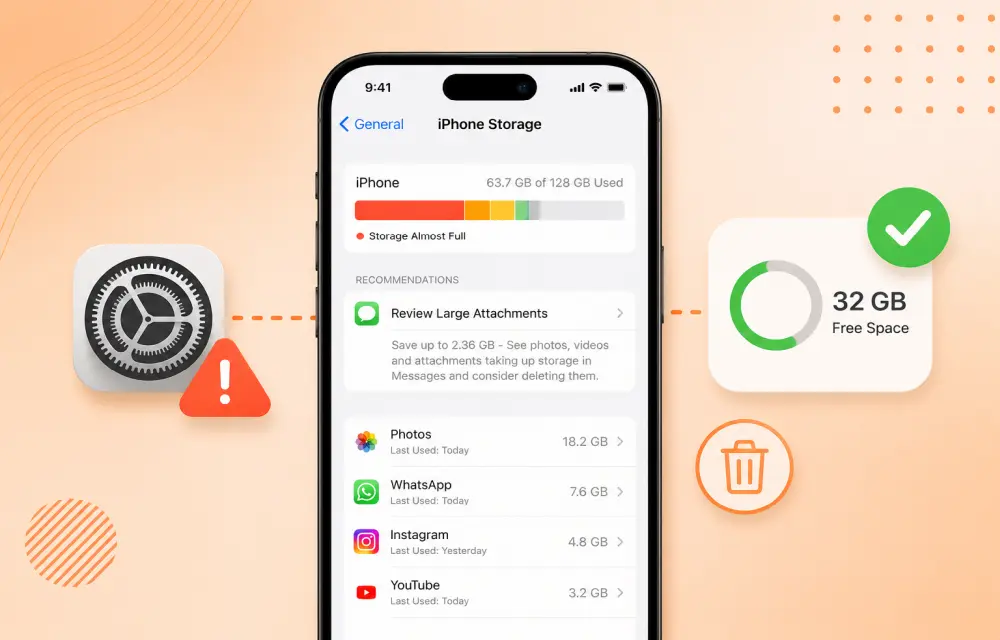
If your iPhone keeps showing a Low Storage Space warning even though you clearly have enough free space, the issue is usually caused by an iOS storage indexing glitch, cached files, or a software bug rather than a real storage shortage. In many cases, the warning appears while the phone is still calculating storage or misreading how much space is actually available.
The good news is that this problem is usually fixable without needing a full reset. Below are the most effective methods to clear the false storage warning and get your iPhone back to normal.
Why this happens
iPhone storage is not always updated instantly. After a large update, file cleanup, app installs, or system indexing, iOS may temporarily misreport storage status. That can trigger warning messages even if you still have gigabytes of free space.
In some cases, hidden cache files, Safari data, large downloads, or unused apps may also fill storage in the background. So the right fix depends on whether the issue is a false warning or an actual storage buildup.
Fix 1: Update using Finder or iTunes
One of the most reliable fixes is updating the iPhone through Finder on Mac or iTunes on Windows. This often repairs update-related storage bugs that do not resolve through an over-the-air update.
Here is what to do:
-
Connect your iPhone to a Mac or Windows PC using a data cable.
-
On Mac, open Finder.
-
On Windows, install and open iTunes if it is not already installed.
-
Trust the computer when the prompt appears on your iPhone.
-
Select your iPhone from the left panel in Finder or iTunes.
-
Go to General and click Check for Update.
-
Install the pending iOS update.
This method can solve the issue if the low storage warning is caused by a buggy update path.
Fix 2: Check storage indexing and review the Other category
Sometimes iPhone shows the warning while it is still calculating storage. If the storage bar says Calculating, that means iOS is indexing files in the background.
Do this:
-
Open Settings.
-
Go to General.
-
Tap iPhone Storage.
-
Wait 10 to 20 seconds for the bar to load.
If it is still calculating, leave the iPhone locked and connected to power for 15 to 30 minutes. In many cases, the warning disappears once indexing finishes.
Fix 3: Clear Safari cache and website data
Safari cache can quietly take up a lot of space over time, especially if you browse often.
Try this:
-
Open Settings.
-
Go to Apps.
-
Open Safari.
-
Tap Clear History and Website Data.
-
Choose All and confirm.
After that, check the Files app:
-
Open Files.
-
Go to Downloads.
-
Delete large files you no longer need.
Then open Photos and check the Duplicates folder. Removing duplicate photos can free up a surprising amount of space.
Fix 4: Offload large unused apps
Large apps are one of the easiest ways to free up storage quickly. If the phone is warning about storage, this step is worth doing even if the warning turns out to be false.
Follow these steps:
-
Open Settings.
-
Go to General.
-
Tap iPhone Storage.
-
Sort apps by Size.
-
Look for large apps you rarely use.
-
Offload or remove them.
Offloading removes the app itself but keeps important app data, which makes it a useful middle-ground option.
Fix 5: Update to the latest iOS patch
If this problem started after upgrading to iOS 26, the warning may simply be a software bug in that build. Apple often fixes these kinds of issues in later patches.
Here is what to do:
-
Open Settings.
-
Go to General.
-
Tap Software Update.
-
Install the latest available update.
Once the update finishes and the iPhone restarts, check whether the warning is still appearing.
Best fix order
If you want to troubleshoot quickly, try these in this order:
-
Let iPhone Storage finish indexing.
-
Clear Safari cache and remove large downloads.
-
Offload large unused apps.
-
Update through Finder or iTunes.
-
Install the latest iOS patch.
Starting with the least disruptive checks usually helps you find whether the problem is real storage usage or just a misreporting bug.
Final thoughts
A false low storage warning on iPhone is frustrating, but it is usually not a serious problem. In most cases, the issue is tied to storage indexing, cached data, or a software bug introduced during an update. Once the phone finishes recalculating storage or receives a fresh system update, the warning often disappears.
If the message still remains after clearing files, offloading apps, and updating the device, the problem may be deeper than a simple iOS glitch. In that case, backing up the phone and having it checked by Apple Support is the safest next step.
FAQ
Why does my iPhone say low storage when I still have space?
It is usually a storage indexing glitch, cached data issue, or an iOS bug.
Will updating through Finder or iTunes help?
Yes, it often fixes update-related storage problems better than wireless updates.
What is the Other category in iPhone storage?
It includes system files, caches, temporary data, and unknown file types.
Does clearing Safari data really help?
Yes, Safari cache and website data can use more space than many people realize.
Should I reset my iPhone if nothing works?
Usually not right away. Try the fixes above first, and contact Apple Support if the warning continues.
Leave a Reply