

How to Resolve Touchpad Right Click Issues in Windows 11
Learn to fix issues with touchpad right-click acting as left-click in Windows 11. Follow these steps for a quick solution.
How to Resolve Touchpad Right Click Issues in Windows 11
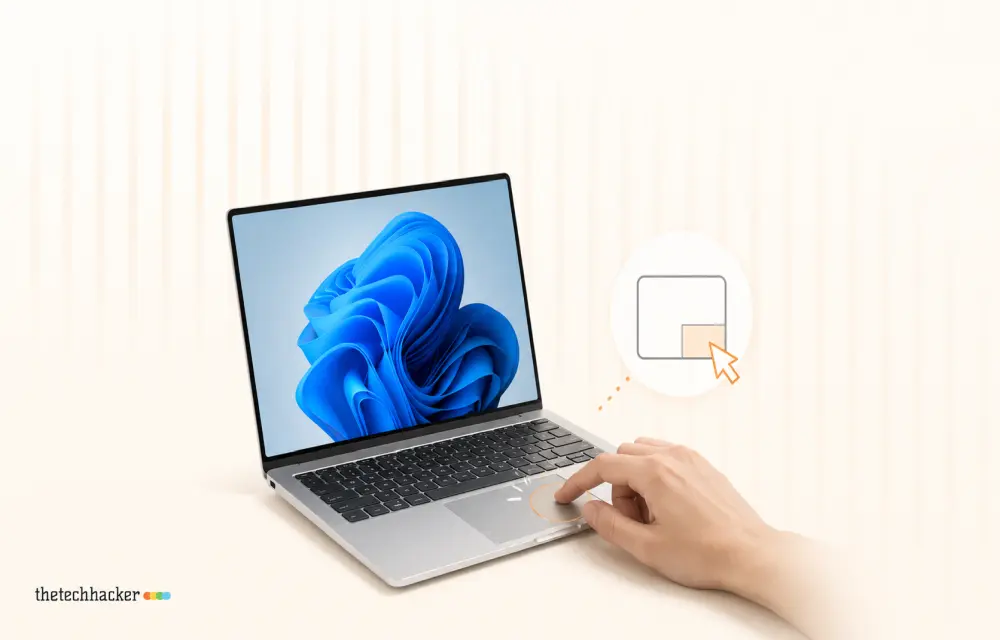
I faced this issue recently. When I tried to save settings, it suddenly malfunctioned. If your touchpad’s bottom-right corner behaves like a left-click instead of a right-click, you may find files opening unexpectedly or links activating rather than copying. This can be frustrating but is often easily fixable.
Prerequisites
You will need access to Windows 11 settings and possibly the ability to download drivers from your laptop manufacturer’s website.
Step-by-Step Fixes
Fix 1: Enable Corner Right-Click
- Press Windows + I to open Settings.
- Select Bluetooth & devices from the left menu.
- Click on Touchpad.
- Expand the Taps section.
- Check Press the lower right corner of the touchpad to right-click.
Test the touchpad to see if the issue is resolved.
Fix 2: Resize the Right-Click Zone
- In the same Touchpad settings from Fix 1, locate the Right-Click Zone dropdown.
- Change the setting from Default or Small to Large.
If there’s no option for Right-click zone, proceed to Fix 4.
Fix 3: Use Two-Finger Tap
You can right-click with a two-finger tap anywhere on the touchpad, an efficient workaround during troubleshooting.
- If needed, enable this by going to Settings > Bluetooth & devices > Touchpad > Taps and checking Tap with two fingers to right-click.
Fix 4: Modify Zone Size in the Registry
- Press Windows + R, type
regedit, and press Enter. - Navigate to:
HKEY_CURRENT_USERSoftwareMicrosoftWindowsCurrentVersionPrecisionTouchPad - Find or create RightClickZoneWidth and RightClickZoneHeight.
- Set Base to Decimal and Value data to 50.
- Repeat for both keys.
- Restart your PC.
Fix 5: Reinstall Touchpad Drivers
- Plug in a USB mouse.
- Right-click the Start button and choose Device Manager.
- Expand Human Interface Devices.
- Find and uninstall I2C HID Device or HID-compliant touch pad.
- Click Action > Scan for hardware changes.
- Restart your PC and redo Fixes 1 and 2.
Fix 6: Use Manufacturer’s Drivers
Download and install the touchpad driver specific to your laptop from the manufacturer’s support website.
Troubleshooting
Check your touchpad settings following large Windows updates, and consider using the manufacturer’s drivers, as they often restore full settings.
Conclusion
By following these steps, you should resolve the touchpad right-click issue. Establish large right-click zones and learn two-finger tapping for better usability.
Frequently asked questions
How do I fix a touchpad not responding?
Ensure the touchpad is not disabled by checking Fn keys. Reload drivers from Device Manager under Human Interface Devices with a USB mouse connected.
Where is the touchpad right-click zone?
It’s in the invisible bottom-right corner of your touchpad. Set its size in Settings > Bluetooth & devices > Touchpad.
Why does my touchpad right-click act like a left-click?
The right-click zone may be too small, or driver settings may be incorrect. Adjust settings or reinstall drivers as described in the guide.
What if my touchpad settings are missing?
Install drivers from your laptop manufacturer, as generic Windows drivers may lack complete settings.
How can I prevent touchpad issues after updates?
Regularly check your touchpad settings post-update, and prefer drivers from your laptop maker over Windows Update.
More in Windows
How To Uninstall A Microsoft Windows OS Update
After installing updates sometimes, we face unexpected system crashing problems, errors and blue screen of death problems. It is always advisable to maintain your system up to date, but after updates if issues are raised you can uninstall Windows update manually.

How to Turn Windows 10 Airplane Mode ON/OFF
You might be familiar with the Airplane mode on your smartphone. It is no different on Windows as well. It simply prevents any wireless communication such as connecting to the internet, turning on Bluetooth, GPS, NFC, etc. If you want to turn on the Airplane mode while traveling, or just want to turn it off,…
How to Fix WiFi Connected But No Internet on Windows 10
Microsoft has developed the leading operating system in the world which is named as Windows. The latest version of Windows was released a few years ago named as the Windows 10. Microsoft also announced that Windows 10 will be the last version of Windows. This means that the company will release updates but under the name…
The week in tech, minus the noise.
New reviews, fixes and the stories that matter — once a week, straight to your inbox.
We only use your email to send the newsletter. Unsubscribe any time. See our privacy policy.
Comments