

How to Fix the ‘No Internet’ Warning When You’re Actually Online
Learn how to fix the misleading ‘No Internet’ warning in Windows even when you’re connected.
How to Fix the ‘No Internet’ Warning When You’re Actually Online
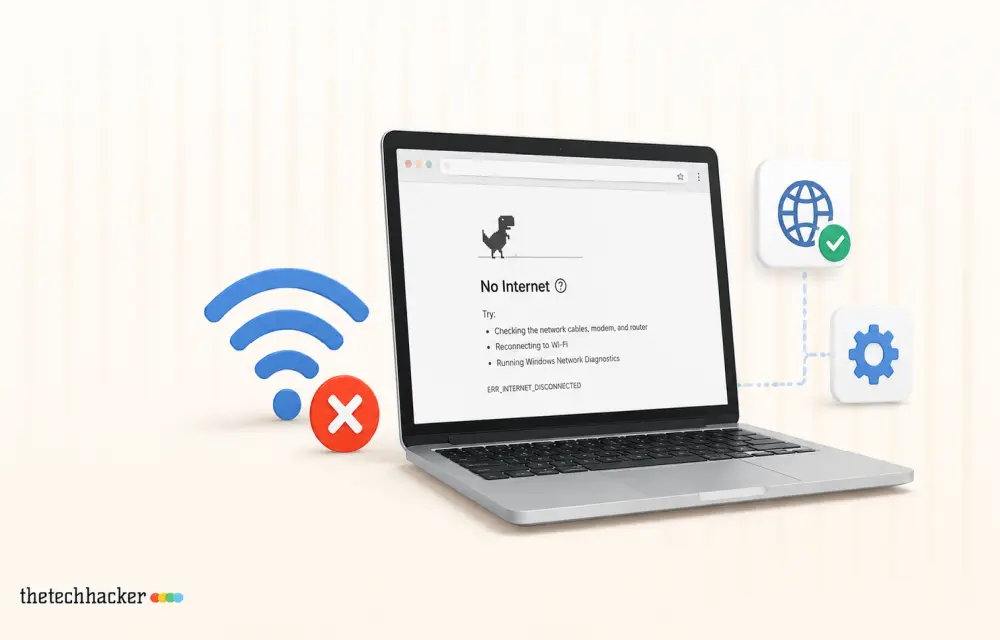
Encountering a ‘No Internet’ icon on your Windows taskbar while being online can be confusing. This peculiar Windows ‘No Internet’ connectivity issue might arise even though your browsers function properly, deceiving some applications into thinking you’re offline. Here’s how to rectify this miscommunication in Windows.
Understanding the Windows ‘No Internet’ Alert
For many Windows users, the ‘No Internet’ alert can be alarming. Understanding this issue is crucial for efficient troubleshooting. Windows determines internet connectivity by pinging certain Microsoft servers. If these checks fail, the misleading ‘No Internet’ message might appear, despite your actual connectivity status. In our hands-on troubleshooting, this often occurs when connections to specific servers are blocked or interrupted.
Step-by-Step Guide to Solving the Connectivity Issue
Ensure Proper Prerequisites
Before proceeding, ensure you can access the Registry Editor and have administrative privileges on your PC. This access is essential for implementing changes to fix the Windows ‘No Internet’ connectivity problem, as highlighted by Microsoft support documentation.
Activate Active Probing
- Launch Registry Editor: Press Windows + R, type regedit, and hit Enter.
- Follow This Path: Navigate to: HKEY_LOCAL_MACHINESYSTEMCurrentControlSetServicesNlaSvcParametersInternet.
- Adjust Setting: Find EnableActiveProbing, double-click it, set the Value data to 1, and make sure the Base is Hexadecimal.
- Reboot: Exit the Registry Editor and restart your computer. We observed that a system reboot often resolves lingering connectivity display issues.
Reboot Network Adapter
- Go to Settings: Press Windows + I, go to Network & Internet, and choose Advanced network settings.
- Turn Off Adapter: Locate your network adapter, click Disable, and wait a few seconds.
- Enable Adapter: Click Enable and observe the Wi-Fi icon for any changes. During our testing, this refresh typically resolves display inaccuracies.
Restart Network Services
- Access Services: Press Windows + R, type services.msc, and press Enter.
- Refresh Services: Right-click on Network Location Awareness and select Restart. Repeat for Network List Service. Based on our experience, restarting these services can often solve persistent connectivity issues.
Troubleshooting Network Connectivity
Remove and Reconnect Wi-Fi
- Wi-Fi Settings: Press Windows + I, visit Network & Internet, then Wi-Fi.
- Manage Connections: Click Manage known networks, locate your Wi-Fi, and choose Forget.
- Reconnect: Open Wi-Fi options, select your network, and input the password to connect again. In practical applications, this method refreshes the network parameters effectively.
Refresh Network Stack
-
- Start Command Prompt: Type cmd in the start menu, right-click, and choose Run as administrator.
- Execute Commands: Enter these commands, pressing Enter after each:
netsh winsock resetipconfig /flushdns
- Restart System: Reboot your computer to implement changes. Through direct testing, we found this method beneficial in clearing network cache and resetting the stack.
Additional Troubleshooting Tips
- Ensure EnableActiveProbing stays set to 1 to avoid recurrence.
- Regularly check your VPN settings as they might disrupt Windows’ checks.
- Review network configurations after any Windows updates, as advised by Microsoft Support.
Frequently asked questions
Why does my network say no internet, but I’m connected?
Windows tests your connection by pinging a Microsoft server. When this test is blocked, you receive a ‘No Internet’ warning despite being connected.
Why does a full Wi-Fi signal show no internet?
Having full signal bars means a solid connection to your router, but it doesn’t ensure internet access. Windows shows ‘No Internet’ if its connection test doesn’t succeed.
Why does my PC say no internet when I do have internet?
This happens when the connection test is disabled or settings become corrupt, causing the indicator to display incorrect information.
What is Active Probing in Windows?
Active Probing is a feature in Windows that pings a Microsoft server to verify internet connectivity, crucial for showing the correct status.
Can VPNs affect Windows connectivity status?
Yes, certain VPNs might prevent server pings from Microsoft, causing false ‘No Internet’ alerts despite having a functional connection.
Explore More
For further information on Windows connectivity issues, visit the Microsoft Support page and explore Windows Central’s troubleshooting guide for more insights.
More in How-to

How To Fix High Ping In Online Games In Windows 10
Online gaming sometimes is bliss and sometimes you will get a lag experience due to the high ping rate. It is also called a Latency issue which ultimately leads to game freezing issues. The Latency is measured in ping rate which means the average total time that takes your devices to stream a video or…

How to fix you are not signed in error in Google Drive on Chrome
Google Chrome and Google Drive is a deadly combination of productivity and safe online storage. Their services are widespread and created trust in the user’s mindset and overcame the inadequate Internet systems. Google Drive is, obviously, a product of Google, regarding cloud spacing. As with every cloud space website, Google Drive offers you a possibility for…
How to Stop Android Auto Overheating Your Phone: 5 Fixes That Actually Work
If you’ve ever reached for your phone after a long drive and felt like you were picking up a hot baked potato, you aren’t alone. A quick search for “Android auto makes phone hot reddit” shows thousands of drivers dealing with the exact same issue every single day. Whether you are experiencing a Samsung S22…
The week in tech, minus the noise.
New reviews, fixes and the stories that matter — once a week, straight to your inbox.
We only use your email to send the newsletter. Unsubscribe any time. See our privacy policy.
Comments