

How to Fix ‘Your Computer Has Been Locked’ Scam Pop-Ups on Windows and Mac
A fake Microsoft or Apple warning took over your screen and wants you to call a number? Here’s how to close it safely on Windows and Mac, clean up your browser, and recover if you already called or paid.

Tech-Support-Scam-Featured
You’re reading something online, you click a link, and suddenly your whole screen turns red or blue. A message says “Your computer has been locked.” Maybe a robotic voice starts talking, the speakers beep, and there’s a toll-free number for “Microsoft Support” or “Apple Support.” The window won’t close, and the mouse barely responds.
Take a breath. In most cases, nothing is actually wrong with your computer. What you’re looking at is a web page dressed up as a system warning, and it’s designed to scare you into picking up the phone. The FTC describes this exact trick: scammers try to make you believe something is wrong with your computer so you’ll call them.
Below I’ll show you how to close it on Windows and Mac, clean your browser so it doesn’t keep coming back, and what to do if you already called, let someone into your computer, or paid.
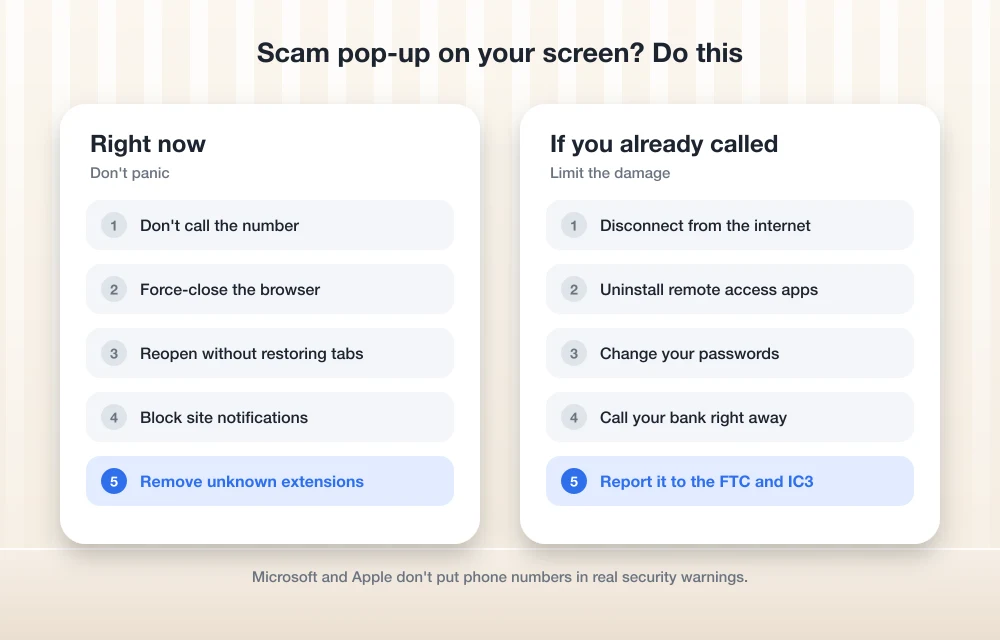
Quick answer: Don’t call the number. Force-close your browser (Ctrl+Shift+Esc on Windows, Option+Command+Esc on Mac), reopen it without restoring your old tabs, and remove any sites allowed to send notifications plus any extensions you don’t recognize. Run a Microsoft Defender scan on Windows. If you already gave the scammers access or money, disconnect from the internet, uninstall their remote access tool, change your passwords, call your bank or gift card issuer, and report it to the FTC and the FBI’s IC3.
How to tell it’s a tech support scam
The FTC says these scams usually start in one of a few ways. You get a call or message from a fake technician, a pop-up shows a phone number, or you search for tech support and find a number that leads straight to the scammers. The person on the other end claims to work for Microsoft or Apple, says your computer is full of viruses, and then asks for remote access or tells you to buy software.
Here’s the giveaway. Microsoft and Apple both say their real warnings don’t come with a phone number for you to call, and neither company makes surprise support calls. A real Windows or macOS alert won’t tell you to dial a toll-free number. If a warning in your browser does, it’s fake.
Be careful with search results too. The FTC says scammers buy ads and try to push their sites to the top when people search for “tech support,” and the FBI’s IC3 warned about the same tactic back in 2018. So even a number you found yourself on a search engine isn’t automatically safe. Go to the company’s official website instead.
This isn’t a small problem, either. The FBI has said in its yearly IC3 Elder Fraud Reports that tech support fraud is one of the most reported scams among people over 60. If you have older parents or grandparents, it’s worth sharing this guide with them.
Step 1: Don’t call the number
I know the beeping is stressful, and that’s the point. The page wants you panicking. But the pop-up can’t do anything to you on its own. The real damage happens when you call, give someone remote access, or hand over payment details.
If someone calls you out of the blue about a computer problem, the FTC’s advice is simple: hang up. It’s a scam. And if you’re unsure, the FTC suggests stopping and talking to someone you trust before you click anything in a pop-up or call the number in it.
Step 2: Force-close the browser
These pages often go full screen and block the normal close button. You don’t need the close button. You can shut the whole browser down from outside.
On Windows
- Press Ctrl+Shift+Esc to open Task Manager.
- In the Processes tab, click your browser (Chrome, Edge, Firefox or whichever you use).
- Click End task.
On Mac
- Press Option+Command+Esc to open the Force Quit window.
- Select your browser, such as Safari or Chrome.
- Click Force Quit.
If the screen is so frozen that even this doesn’t respond, restarting the computer will also close the page. It’s a bit blunt, but it works.
Step 3: Reopen the browser without restoring tabs
This is where a lot of people get caught twice. You reopen the browser, it helpfully says “Restore pages?”, you click yes, and the scam page loads right back up with all the beeping.
When the browser asks to restore your previous session, ignore it or close that prompt. Start with a fresh, empty window.
On a Mac with Safari, Apple’s advice is to hold down the Shift key while you reopen Safari. That stops your old windows from coming back.
Step 4: Clear site notification permissions
Some scam pages trick you into clicking “Allow” on a notification prompt. Once you do, that site can keep pushing fake virus alerts to your screen even after you’ve closed the tab. If you keep seeing pop-ups in the corner of your screen, this is very likely why.
Go into your browser’s notification settings and remove or block any site you don’t recognize. Honestly, if you don’t remember allowing a site, remove it. The worst case is a legitimate site asks you again later.
Step 5: Remove extensions you don’t recognize
A shady extension can redirect you to scam pages or inject ads. Open your browser’s extensions page and look through the list. Anything you didn’t install on purpose, or don’t recognize, should go.
Here’s where to find everything in the major browsers. Menu names can shift a little between versions, so if something looks slightly different, look for the closest match.
| Browser | Notification permissions | Extensions | Reset |
|---|---|---|---|
| Chrome | Settings > Privacy and security > Site settings > Notifications (remove bad sites from “Allowed to send notifications”) | Type chrome://extensions in the address bar, then click Remove | Settings > Reset settings > Restore settings to their original defaults > Reset settings |
| Edge | Settings > Cookies and site permissions > Notifications | Type edge://extensions in the address bar | Settings > Reset settings > Restore settings to their default values > Reset |
| Safari | Safari > Settings > Websites > Notifications (choose Deny or Remove) | Safari > Settings > Extensions | No single reset button; clear history and website data instead |
| Firefox | Settings > Privacy & Security > Permissions > Notifications > Settings | Refresh Firefox removes add-ons (see reset) | Help > More troubleshooting information > Refresh Firefox |
Step 6: Scan your computer
Most of the time a scam pop-up is just a web page and hasn’t installed anything. Still, a scan is cheap peace of mind, and it’s a must if you clicked a download or let anyone connect to your computer.
On Windows 11
- Open Windows Security from the Start menu.
- Go to Virus & threat protection.
- Click Scan options.
- Choose Full scan, or Microsoft Defender Antivirus (offline scan) for a deeper check.
- Click Scan now.
Save your work first if you pick the offline scan, because it restarts your PC to run. If the scan finds anything, let Defender remove it. If you’re wondering whether Defender is enough or you’d like a second opinion, I’ve covered what you actually need from your antivirus software.
On Mac
Here’s something that surprises people: macOS doesn’t have a manual “scan now” button. Its built-in protection, which includes XProtect and Gatekeeper, runs on its own in the background and gets updated through system and security updates. So the best thing you can do is make sure your Mac is fully up to date.
Then do a quick manual check yourself:
- Open Finder > Applications and look for apps you don’t recognize or didn’t install.
- Check System Settings > General > Login Items & Extensions for anything unfamiliar that starts when you log in.
- Look at System Settings > General > Device Management (called Profiles on some macOS versions). Unless your Mac is managed by your work or school, you usually shouldn’t see a profile you didn’t add.
Step 7: Reset the browser if the pop-ups keep coming back
If you’ve closed everything, removed notifications and extensions, and the scam pages still keep showing up, reset the browser using the paths in the table above. A reset turns off extensions and puts settings like your homepage and search engine back to normal. Your bookmarks and saved passwords are generally kept, but it’s worth checking your browser’s own help page if you’re worried.
On Safari, since there’s no reset button, clearing your history and website data is the closest equivalent.
What to do if you already called, gave remote access or paid
Don’t beat yourself up. These scammers are practiced at sounding official, and they’re good at creating panic. What matters now is moving quickly. According to the FTC, these scammers sell useless services, steal card numbers, or get into your computer to install malware that can expose your passwords. So let’s close every door.
Disconnect and remove remote access tools
If you let them connect to your computer, turn off Wi-Fi or unplug the network cable first. That cuts their connection.
Then remove whatever remote access app they had you install. Common ones include AnyDesk, TeamViewer, ConnectWise ScreenConnect and UltraViewer, though scammers use different tools and these are also legitimate apps used by real IT teams. If you didn’t install it for a reason you trust, remove it.
- Windows: Go to Settings > Apps > Installed apps, find the tool and uninstall it.
- Mac: Drag the app to the Trash, then go to System Settings > Privacy & Security and remove it from both Screen Recording and Accessibility.
The FTC also says that if you gave a scammer remote access, you should update your security software, run a scan and delete anything it flags. So go back to Step 6 and do that now.
Change your passwords
If you gave them a username and password, the FTC says to change that password right away. I’d go further if they had access to your computer, because they may have seen saved passwords. Change your email password first (it’s the key to resetting everything else), then banking, then anything else important. Do this from a different device you trust if you can.
Coming up with a dozen new strong passwords is miserable without help. A password manager makes it much easier, and I’ve rounded up the best password managers for families and small businesses if you need one.
Call your bank or card company
If you paid with a credit or debit card, the FTC says to call your card company or bank right away and ask them to reverse the charges. While you’re at it, look through your statements for any other tech support charges you didn’t authorize. The FTC also warns about fake “automatic renewal” notices for tech support subscriptions, so be suspicious of any renewal email from a company you never signed up with.
If you paid with a gift card
Contact the company that issued the gift card immediately. The FTC says to tell them it was a scam, ask if the money is still on the card and can be frozen, and ask for a refund. Keep the card itself and the store receipt. The FTC says to report it to the card company no matter how long ago it happened, because some companies may give the money back. The FTC’s gift card scam page lists contact details for each card company.
One rule worth remembering forever: the FTC says anyone who tells you to pay by gift card, wire transfer or cryptocurrency is a scammer. Real companies don’t ask for payment that way. If you paid by wire or crypto, contact the service you used as fast as you can and report it (more on that below).
If they got your personal information
If you shared your Social Security number or other sensitive details, the FTC’s official recovery site is IdentityTheft.gov. My guide on what to do after a data breach also walks through freezing your credit and protecting your accounts, and the same steps apply here.
Watch out for the “refund” call
This one stings. A few weeks later, someone may call offering to get your money back, sometimes claiming to be from the FTC or another agency. It’s the same scam, round two. The FTC says not to give your bank, card or payment details to anyone offering to recover your money, and its ReportFraud site says anyone asking you to pay to get a refund from the FTC or another agency is running a scam.
Report the scam
Reporting won’t always get your money back, but it helps. The FTC says it uses these reports to build cases against scammers. Report it at ReportFraud.ftc.gov, and read the FTC’s full guide on how to spot, avoid and report tech support scams.
You can also file a complaint with the FBI’s Internet Crime Complaint Center at ic3.gov. This is especially worth doing if you lost money.
My advice going forward
If a pop-up ever tells you your computer is locked and gives you a number to call, the answer is always the same. Don’t call. Close the browser from Task Manager or Force Quit, reopen it fresh, and move on with your day.
Spend five minutes now checking your browser’s notification list and extensions, even if you never clicked anything. And if you have a parent or grandparent who’s online a lot, tell them about this. A quick “if your screen ever starts beeping and shows a phone number, call me first” can save them a lot of money and stress.
Frequently Asked Questions
Is my computer really locked when I see this pop-up?
Usually not. It’s typically a web page made to look like a system warning. Force-closing the browser with Task Manager on Windows or Force Quit on Mac and reopening it without restoring tabs normally gets rid of it.
Do Microsoft or Apple ever show warnings with a phone number to call?
No. Both companies say their real warnings don’t include a phone number to call about a virus, and they don’t make unsolicited support calls. A browser warning with a support number is a scam.
I let a scammer connect to my computer. What should I do first?
Disconnect from the internet, uninstall the remote access app they had you install, then run a security scan and delete anything it flags. After that, change your passwords from a trusted device and call your bank if you shared payment details.
Can I get my money back if I paid with a gift card?
Maybe. The FTC says to contact the card issuer right away, tell them it was a scam, ask if the money can be frozen, and request a refund. Keep the card and receipt, and report it even if it happened a while ago.
Where do I report a tech support scam in the US?
Report it to the FTC at ReportFraud.ftc.gov and to the FBI’s Internet Crime Complaint Center at ic3.gov. Reporting helps authorities build cases against scammers.
You might also like

How To Enable USB Storage On Android Devices
Android devices are well known for their features. The popularity of Android has surged over the past few years, and its dead simple interface makes every task quite user-friendly. Android phones come with all the latest sharing technologies like Bluetooth, Wi-Fi and NFC. Along with these, you can also connect your Android device to a…
Microsoft Ended Vending Support For Windows XP: Have You Switched?
Windows XP, undoubtedly, has been serving the users globally for so many years. In fact, people across the globe still use this obsolete version of Windows, as it has been incredibly faster, user-friendly, and most importantly, occupying lesser drive space, but offering high performance when it comes to install and run large applications. If we…

How To Install .DLL File Manually In Windows
Every user of the popular Microsoft Windows Operating System on their computer may have at one point or another, especially during the installation of games, been faced with the problem of having to fix missing DLL files which are essential for smooth running of computer programs. DLL is a computer acronym for “Dynamic Link Library”…
The week in tech, minus the noise.
New reviews, fixes and the stories that matter — once a week, straight to your inbox.
We only use your email to send the newsletter. Unsubscribe any time. See our privacy policy.
Comments