

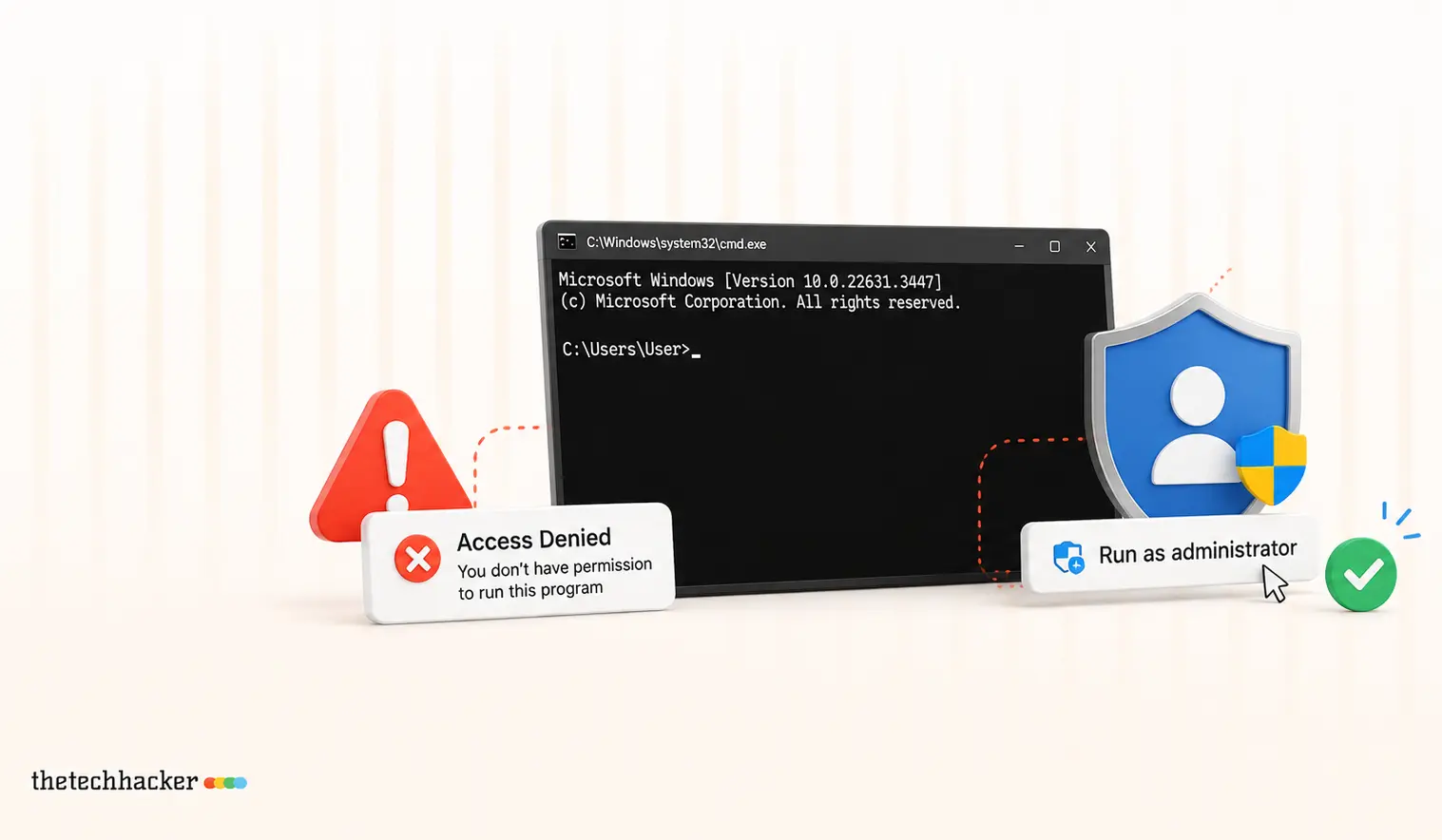
How To Fix ‘Run as Administrator’ Access Denied in CMD
Learn how to resolve the ‘Run as Administrator’ access denied issue in Command Prompt.

How To Fix ‘Run as Administrator’ Access Denied in CMD
If you often find yourself staring at a ‘Run as Administrator’ access denied error in Command Prompt, relax—you’re definitely not the only one. We’re here to help you sort it out on Windows, thanks to some effective methods we’ve tested ourselves. We looked into common culprits and rounded up solutions that work. We also leaned on Microsoft Support for extra reliability, so you’re in good hands.
Understanding the Problem
First up, make sure your account really has admin privileges. That’s big. Tinker around your Windows settings a bit because a lot of tasks need that level of access (Source: Microsoft Support).
A Quick Fix: Restart the Application Information Service
Here’s something simple that we found works wonders:
- Hit Windows + R, type services.msc, and tap Enter.
- Look for Application Information.
- If it’s not running, right-click it and click Start. Otherwise, go with Restart.
- Do a right-click again, head to Properties, and set Startup type to Automatic.
- Hit OK and you’re set.
Using Task Manager as a Workaround
This one’s a bit more hands-on, but worth it:
- Open Task Manager by hitting Ctrl + Shift + Esc.
- Click on Run new task.
- Type cmd, tick Create this task with administrative privileges, and click OK.
Check If You’re Really an Admin
Let’s confirm you’ve got admin status in just a few steps:
- Press Windows + R, type netplwiz, and hit Enter.
- Pick your username, click Properties.
- In the Group Membership tab, make sure Administrator is selected, then hit OK.
Change Group Policy Settings for Admin Access
- Hit Windows + R, type gpedit.msc, and press Enter.
- Find your way to Computer Configuration > Windows Settings > Security Settings > Local Policies > Security Options.
- Check out User Account Control: Behavior of the elevation prompt for administrators.
- Set it to Prompt for consent or Prompt for credentials and apply the changes.
Make Sure Antivirus Isn’t the Culprit
- Tweak your antivirus folder protection to whitelist the folders you need; consult the antivirus guide if you’re unsure.
- In File Explorer, go to C:WindowsSystem32, find cmd.exe, right-click it, and pick Run as administrator.
Keep Things Running Smoothly
- Ensure Application Information is set to Automatic.
- Whitelist the folders you work in with your antivirus.
- Be cautious with group policy changes unless necessary.
- Always have at least one admin account handy.
Got Questions?
What to do if Command Prompt isn’t running as admin?
Use Task Manager to kickstart the terminal with admin privileges and dodge those pesky shortcuts. Find more at Microsoft Support.
Why isn’t ‘Run as Administrator’ doing its job?
Could be anything from group policy settings and stopped services to admin permissions off-track. Reach out to IT support if you need more help.
What if my account’s not an admin?
Head over to netplwiz and change the group membership to Administrator.
Could my antivirus be blocking CMD?
Yes, antivirus measures might lock files or flag admin actions as risky. Check your antivirus guide for more clarity.
How can I steer clear of these issues going forward?
Make sure key services are on auto, whitelist necessary folders in your antivirus, and ensure group settings are just right.
Edited by Rahul Vithala, Editor-in-Chief
Last updated: July 21, 2026
More in How-to

How to fix Access denied error on Windows 10 administrator account
Windows 10 is a security-oriented operating system. It has an administrator account facility that controls entire OS permissions and controls. When you create an account for the first time on Windows 10, it will be set as the administrator account and it rules the complete system. If you want you can create a new user…

How to Fix the ‘No Internet’ Warning When You’re Actually Online
Learn how to fix the misleading ‘No Internet’ warning in Windows even when you’re connected.
How to fix Wuauserv high CPU usage error in Windows 10
Wuauserv error has encountered for many Windows 10 users. It drastically slows down the performance of the Windows 10 PC or laptop while it is running in the background. Usually, many services like svchost.exe and Windows update runs in the background and consumes a very low amount of system resources. But in the case of…
The week in tech, minus the noise.
New reviews, fixes and the stories that matter — once a week, straight to your inbox.
We only use your email to send the newsletter. Unsubscribe any time. See our privacy policy.
Comments