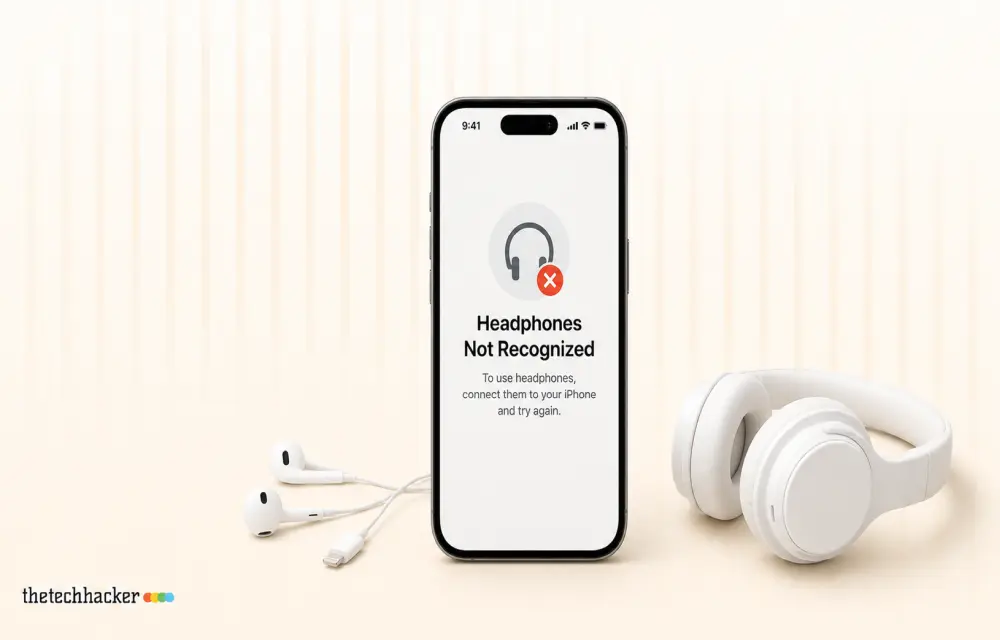
After the iOS 26 update, a small but noticeable group of iPhone users started reporting a strange issue: wired headphones are no longer being recognized properly. Some are stuck in speaker-only mode, while others see their headphones connect and disconnect randomly. Although most complaints are about wired headphones, a few Bluetooth users are facing similar problems.
If your iPhone suddenly stopped routing audio to your headphones after updating, you are not alone. The good news: in most cases, this can be fixed with a few targeted tweaks.
Here is a step-by-step guide in TheTechHacker style to help you get your headphones working again.
Fix 1: Adjust AirPlay & Continuity Settings
iOS 26 introduced a new behavior that tries to prevent new audio connections from overriding your current output settings. In some cases, this ends up blocking headphones from being recognised at all.
Steps:
-
Open Settings on your iPhone.
-
Tap General.
-
Go to AirPlay & Continuity.
-
Look for Keep Audio in Headphones.
-
Toggle it Off, wait a few seconds, then toggle it On again.
This simple refresh often re-establishes the audio link and makes the iPhone recognize your headphones properly.
Fix 2: Force-Restart the iPhone with Headphones Plugged In
Some users have reported that a force restart while the headphones are connected forces iOS to re-detect the audio accessory.
Steps:
-
Keep your headphones plugged in (or connected via Bluetooth).
-
Press and quickly release the Volume Up button.
-
Press and quickly release the Volume Down button.
-
Press and hold the Side (Power) button until you see the Apple logo.
-
As soon as the Apple logo appears, unplug the headphones.
-
Let the iPhone finish booting to the lock screen.
-
Now plug the headphones back in (or reconnect via Bluetooth).
In many cases, the iPhone will now detect the headphones and route audio correctly.
Fix 3: Close Apps Using the Microphone and Retry
On iOS, only one app can actively use the microphone at a time. If another app is holding the mic, your headphones (especially those with a built-in mic) may not work as expected in the app you actually want to use.
Steps:
-
Swipe up from the bottom of the screen (or double-press the Home button on older iPhones) to open the App Switcher.
-
Look for apps that might be using the microphone, such as:
-
Voice Memos
-
Zoom / Teams / Meet
-
Camera (if recording video)
-
Any call or recording app
-
-
Swipe each of these apps up to force-close them.
-
Wait about 5 seconds.
-
Open the app where you want to use your headphones and mic.
Check if audio now routes to your headphones and the mic works inside that app.
Fix 4: Forget the Bluetooth Device and Reconnect
If you are facing this issue with Bluetooth headphones, the pairing data may have gotten corrupted after the iOS 26 update. Removing and re-pairing the device often resolves it.
Steps:
-
Open Settings on your iPhone.
-
Tap Bluetooth.
-
Find your headphones in the device list.
-
Tap the ℹ (info) button next to the device.
-
Tap Forget This Device, then confirm.
-
Put your headphones back into pairing mode.
-
Reconnect them from the Bluetooth settings.
Once re-paired, test audio playback and calls. For most users, this clears the glitch introduced by the update.
(Note: If your iPhone has Security Delay enabled and you are in an unfamiliar location, some security-related changes may be delayed. In that case, perform these steps from your usual location to avoid extra waiting.)
Fix 5: Remove the “Link to Windows” App
Several user reports point to the Link to Windows app as a possible trigger for audio routing issues after iOS 26. If you have this app installed and started facing headphone problems right after the update, try removing it.
Steps:
-
Find the Link to Windows app on your home screen.
-
Long-press the icon.
-
Tap Remove App → Delete App.
-
Restart your iPhone once.
-
Reconnect your headphones and test.
Many users have found that deleting this app immediately resolves the “headphones not recognised” behaviour.
Extra checks if the problem persists
If none of the above fixes work, run through these quick checks:
-
Update iOS again: Apple may have released a minor update (e.g., iOS 26.0.1) addressing audio bugs. Go to Settings → General → Software Update.
-
Try another pair of headphones: This helps confirm whether the issue is with the iPhone or the specific headphone unit.
-
Clean the Lightning/USB‑C port: Dust or debris can block proper connection. Use a soft, dry brush or compressed air gently.
-
Reset All Settings (last resort):
-
Settings → General → Transfer or Reset iPhone → Reset → Reset All Settings.
-
This won’t delete your data, but it will reset network, Bluetooth, and system settings.
-
When to contact Apple Support
Consider reaching out to Apple Support or visiting an authorised service centre if:
-
No headphones (wired or Bluetooth) are detected after trying all fixes.
-
The issue started after a physical drop or liquid exposure.
-
You see error messages related to audio accessories.
-
The problem persists across multiple iOS updates.
There could be a hardware fault with the audio controller or port that needs professional diagnosis.
Stay updated with TheTechHacker
iOS updates will keep evolving, and so will the quirks that come with them. For more detailed how-to guides, troubleshooting tips, and the latest technology news, subscribe to TheTechHacker.
We break down complex issues into simple, step-by-step fixes so you can get back to using your devices without the hassle.
For more updates, tutorials, and tech insights, subscribe to TheTechHacker for how-to guides and news in technology.
Leave a Reply