

How to Fix Chrome Asking to Confirm Before Opening HTTP (Not Secure) Websites
Chrome 154 now asks before you open websites that don’t support HTTPS. Here’s what that warning means, when it’s fine to click through, and how to change the setting or fix your own site.


Image by magnific on Magnific
You click a link, and instead of the page you expected, Chrome stops you with a “Connection is not secure” screen and a “Continue to site” button. If this has started happening a lot, you’re not imagining it. Chrome changed how it treats old HTTP websites, and many people are running into the warning for the first time.
I’ve split this guide into two parts. If you just browse, I’ll explain what the warning means, when clicking through is fine, and where the setting lives. If you run a website and your visitors are suddenly seeing this screen, jump to the website owners section near the end.
One thing up front: I’m only sharing settings and steps that Google has documented. Where something isn’t confirmed, I’ll tell you.
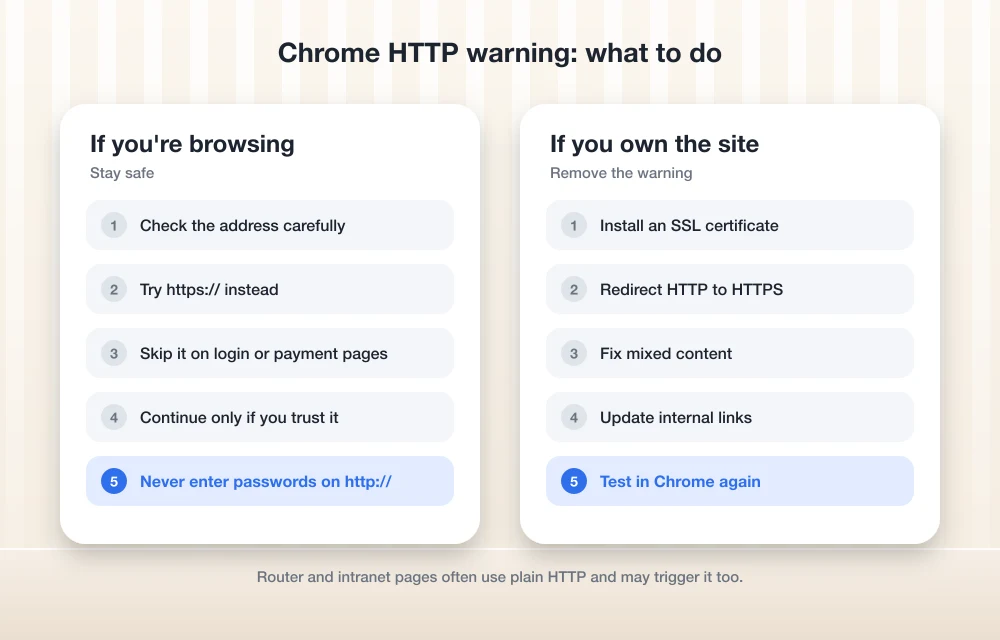
Quick answer: Starting with Chrome 154, the “Always use secure connections” setting is on by default, so Chrome asks before your first visit to a public site that doesn’t support HTTPS. If you trust the site and won’t type anything sensitive, click “Continue to site”. Chrome won’t keep warning you about HTTP sites you visit regularly. To stop the warnings completely, open chrome://settings/security and turn off Always use secure connections. If you own the site, the real fix is moving it to HTTPS.
What the Chrome HTTP warning actually means
Quick bit of jargon first. HTTPS is the secure version of HTTP, the system your browser uses to load web pages. With HTTPS, the connection between you and the website is encrypted, so other people on the same network can’t easily read or change what’s being sent. Plain HTTP has no such protection.
Chrome now tries every connection over HTTPS first. If the site doesn’t support it, Chrome shows a warning that you can click past. That’s the screen you’re seeing.
Google’s own Help page is pretty direct about “not secure” sites. It says the site isn’t using a private connection, only the site owner can fix that by setting up HTTPS, and you shouldn’t use the site if you can avoid it.
Don’t confuse this with the big red full-page warning, though. Google says that red screen means Safe Browsing has flagged the site as dangerous. That’s a completely different situation, and I wouldn’t click through it.
Why you’re suddenly seeing it: Chrome 154
The “Always use secure connections” setting isn’t new. It used to be something you had to switch on yourself. Google tested it as a default with Enhanced Safe Browsing users first, and with Chrome 154 it’s now on for everyone by default.
On timing, Google’s developer release notes list Chrome 154’s stable release as September 22, 2026, and the Android update was announced on October 1, 2026. So depending on your device, you probably got it in late September or early October.
Two details make this less annoying than it sounds. Chrome only warns for new sites or ones you haven’t visited recently, so your regular HTTP sites won’t nag you every day. And if you had already chosen a setting for this before, Chrome 154 keeps your choice.
Is it safe to click “Continue to site”?
Google’s official line is to avoid HTTP sites when you can. Beyond that, what follows is my own rule of thumb, not Google’s.
Reading is usually fine. An old blog post, a small local shop’s page, some product manual hosted on an ancient server. If all you’re doing is reading, the risk is low.
Typing is where I draw the line. I never enter passwords, card details, OTPs, Aadhaar or Social Security numbers, or anything personal on an HTTP page. On an unencrypted connection, someone on the same network could potentially see that information. If an HTTP page asks you to log in, I’d back out.
Also check the address for typos. A misspelled domain landing on an HTTP page is a classic sign of a fake site.
Public Wi-Fi is where HTTP matters most, since you’re sharing the network with strangers. If you use cafe, hotel or airport Wi-Fi often, a VPN adds an extra layer. I explained how to set one up in how to use a VPN in Chrome.
How to change the “Always use secure connections” setting
These paths come from Google’s Chrome Help page on secure connections.
On a computer
- Open Chrome and click More (⋮).
- Click Settings.
- Go to Privacy and security, then Security.
- Under “Secure connections,” turn Always use secure connections on or off.
- If you leave it on, pick which sites Chrome should warn you about.
Want the shortcut? Type chrome://settings/security into the address bar and press Enter. Turning the setting off stops the warnings.
On Android
- Open Chrome and tap More (⋮).
- Tap Settings, then Privacy and security.
- Under “Security,” find Always use secure connections and turn it on or off.
- If it’s on, choose an option.
On iPhone and iPad
I couldn’t confirm the exact path for Chrome on iOS or iPadOS from Google’s Help pages, so I’m not going to guess. If I can verify it, I’ll add it here.
What the options mean
Once the setting is on, you get two choices. “Warns you for insecure public sites” is the one most people will have. It skips private sites such as a company intranet. The other option warns for both public and private sites. On Android, it’s labelled “Warns you for insecure public & private sites.” I couldn’t confirm whether the wording is identical on desktop.
| Setting | What Chrome does | Who it suits |
|---|---|---|
| Off | No warning before HTTP sites | People who regularly need lots of old HTTP sites and understand the risk |
| On: insecure public sites | Warns before public HTTP sites, skips private ones like a company intranet | Most people |
| On: public & private sites | Warns before both public and private HTTP sites | Security-focused users; it’s forced on under Android Advanced Protection |
One catch. If you’re signed in to a Google Advanced Protection Program account, Chrome turns this setting on automatically. On Android, Advanced Protection locks it on with “public & private sites” selected, so you won’t be able to switch it off there.
How to allow a specific HTTP site
This is the bit everyone asks about, and I’ll be honest. I couldn’t find any Google Help page or Chromium document that shows a setting to allow one particular site for home users.
What Google does document is simple. Click “Continue to site” on the warning. After that, Chrome won’t keep warning you about an HTTP site you visit regularly. You’ll mostly see the warning again only if you haven’t been there in a while.
At work, things are different. IT admins can control this feature through a Chrome policy called HttpsOnlyMode. If an internal tool keeps throwing the warning, your IT team is the right place to ask.
If you want zero warnings everywhere, turning the setting off is the only documented switch. I’d still keep it on, though. Clicking once for the odd old site is a small price.
Why your router or intranet page shows the warning
Here’s something that surprises people: under the default “public sites” option, Chrome isn’t supposed to warn you for private sites. Google specifically gives a company intranet as an example.
Router admin pages usually sit at a local address like 192.168.0.1 or 192.168.1.1. Google’s Help page only names the intranet example directly, but local router addresses are the same kind of private page, so I wouldn’t expect the default setting to warn you there.
So if your router or intranet page is showing the warning, something has usually changed the default. The most common cause is that the “public & private sites” option got picked at some point, maybe by you, maybe by someone else who uses the computer. Google’s Advanced Protection can also do it, since it switches on the stricter setting. And if your work or school manages your browser, they may be using the HttpsOnlyMode policy to require warnings everywhere.
There’s one more possibility I can’t confirm. Some routers let you reach the login page through a normal-looking web address instead of a local IP. I don’t know for sure how Chrome classifies those, and it may treat them as public sites. If that’s your setup, try typing your router’s local IP address instead.
The fix is usually to switch back to the “public sites” option in chrome://settings/security, or just click “Continue to site.” If your browser is managed by your employer, talk to IT rather than fighting the setting.
If you own the website: how to make the warning go away
If your visitors are hitting this screen, Chrome is telling them your site doesn’t support HTTPS. According to Chromium’s guide, Adapting your website for Chrome’s Ask-before-HTTP warning, the warning shows up when Chrome can’t connect over HTTPS but thinks HTTP might work. Google’s Help page puts it plainly: the site owner has to secure the site with HTTPS.
The steps below are general web hosting practice. Google’s pages don’t spell out the details, so check your host’s documentation for the exact clicks.
1. Install an SSL certificate
An SSL certificate (technically TLS these days, but everyone still says SSL) is what lets your site load over HTTPS. Start by checking your hosting dashboard. Many hosts include a free certificate you can switch on in a few minutes. If yours doesn’t, contact their support.
2. Redirect HTTP to HTTPS
Having a certificate isn’t enough if people can still land on the http:// version. Set up a permanent (301) redirect so every http:// address sends visitors to the matching https:// page. That way old bookmarks, backlinks and search results all end up on the secure version. Also update your site address in your CMS settings so new links use https://.
3. Fix mixed content
Mixed content is when a page loads over HTTPS but still pulls images, scripts, fonts or embeds over plain HTTP. Browsers may block those files or flag the page, which can break your layout or features. Look for hardcoded http:// links in your posts, theme files, plugins and database, and change them to https://. Your browser’s developer tools console usually lists mixed content warnings, which makes them easier to track down.
4. Test your site the way Google suggests
Google’s tip for site owners is smart and simple. Turn on Always use secure connections for public sites at chrome://settings/security, then browse your own site normally. Anywhere the warning pops up, something is still on HTTP. Think old subdomains, forgotten landing pages, or links inside menus.
HTTPS is also part of basic site health. If you want a broader list of things to check, my technical SEO checklist for non-developers covers it in plain English.
Should you just turn it off?
My honest take: leave it on. For most people the warning is a one-time speed bump per site, and Chrome stops asking about the HTTP sites you use regularly. Most of the web already uses HTTPS, so you shouldn’t see it often.
Turn it off only if you constantly visit old HTTP sites and you’re careful about what you type on them. Whatever you choose, keep the basic habit: no passwords or payment details on a page without HTTPS. And if you spend a lot of time on public Wi-Fi, a good VPN is worth a look. I covered one option in my ExpressVPN review.
Frequently Asked Questions
Why does Chrome ask me to confirm before opening some websites?
From Chrome 154, the “Always use secure connections” setting is on by default. Chrome tries HTTPS first, and if a public site doesn’t support it, Chrome shows a “Connection is not secure” warning with a “Continue to site” button before your first visit.
Is it safe to click “Continue to site” in Chrome?
Google recommends avoiding HTTP sites when you can. My own rule is that reading an HTTP page is usually low risk, but you shouldn’t type passwords, card details or personal information on it. If you see a full-page red warning instead, Safe Browsing has flagged the site as dangerous, so don’t continue.
How do I turn off the HTTP warning in Chrome?
On a computer, go to chrome://settings/security (or More > Settings > Privacy and security > Security) and turn off Always use secure connections under “Secure connections.” On Android, go to More > Settings > Privacy and security and turn it off under “Security.” I couldn’t confirm the path for Chrome on iPhone or iPad.
Can I allow just one HTTP site in Chrome?
I couldn’t find a documented per-site allow option for home users. Google says Chrome only warns for new sites or ones you haven’t visited recently, so after you click “Continue to site,” HTTP sites you visit regularly shouldn’t keep showing the warning. At work, IT admins can manage the feature with the HttpsOnlyMode policy.
Why does my router login page show the Chrome warning?
By default, Chrome doesn’t warn for private sites such as a company intranet. If your router page warns you, the “public & private sites” option has probably been chosen, you’re using Google’s Advanced Protection, or your browser is managed by a work or school policy.
Featured image: magnific on Magnific.
You might also like
Change Gmail Password Easily
Change Gmail password for better security of your Google account. This is what Google and many security experts recommend whenever you think your password may have been exposed. Not only if you forget your Gmail password, but changing the Google account password can also help you secure your email account from hackers and spammers. New…
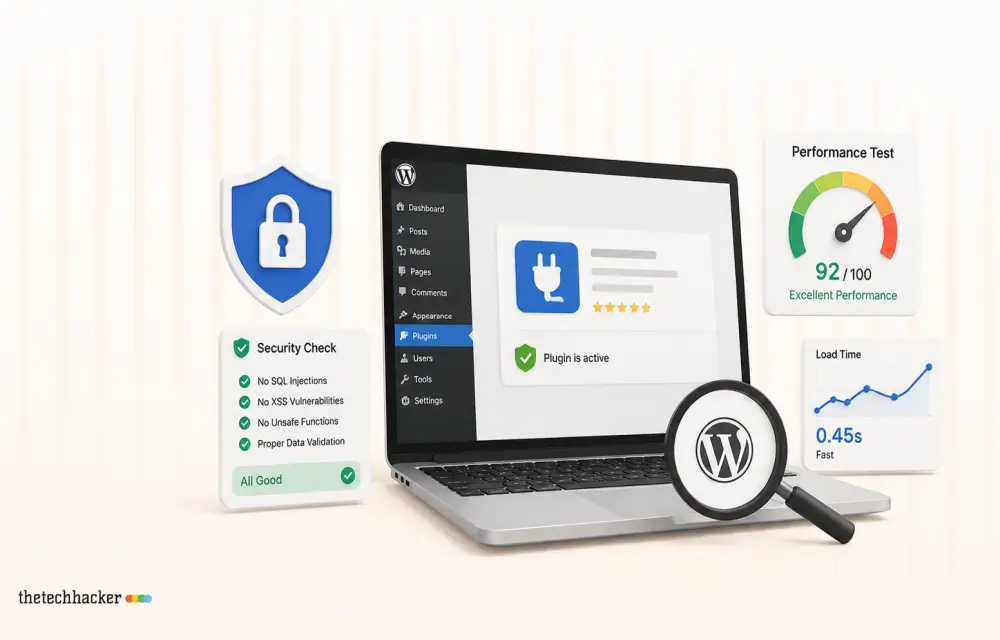
How To Test a WordPress Plugin Security and Performance
Ensure your WordPress plugins are secure and don’t slow down your site with this guide.
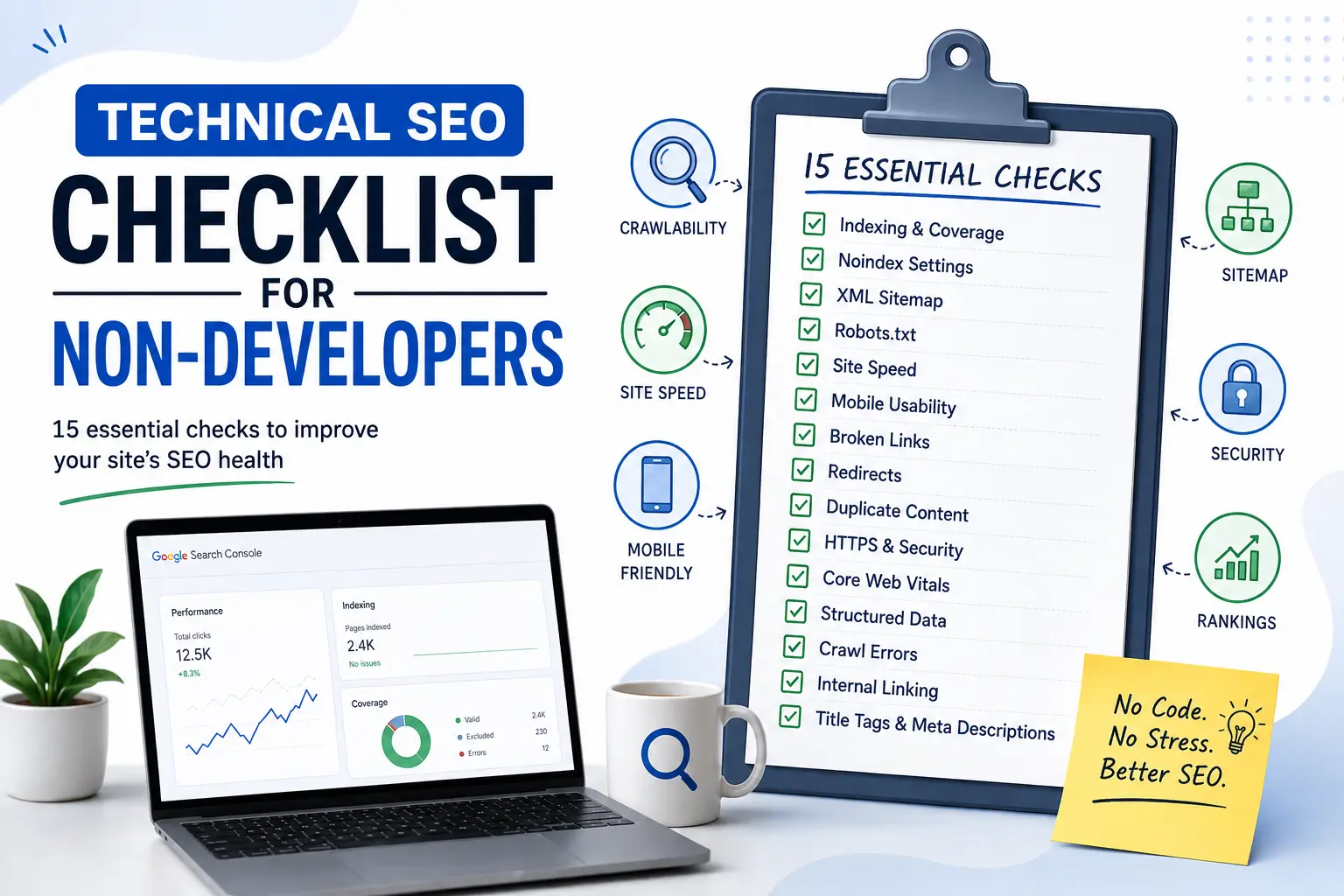
Technical SEO Checklist for Non-Developers
Technical SEO has a reputation problem. The name alone can make bloggers, marketers, and small-business owners think they need a developer, server access, and a working knowledge of HTML before they can even begin. In reality, a large part of technical SEO is much less intimidating. You don’t always need to write code or understand…
The week in tech, minus the noise.
New reviews, fixes and the stories that matter — once a week, straight to your inbox.
We only use your email to send the newsletter. Unsubscribe any time. See our privacy policy.
Comments