Technical SEO has a reputation problem.
The name alone can make bloggers, marketers, and small-business owners think they need a developer, server access, and a working knowledge of HTML before they can even begin.
In reality, a large part of technical SEO is much less intimidating.
You don’t always need to write code or understand how a server works. Often, the job is simply knowing what to check, where to find it, and when something looks wrong. Google Search Console can tell you which pages are indexed. PageSpeed Insights can show you where a page is slow. Your CMS can help you manage redirects, metadata, sitemaps, and visibility settings.
The difficult part isn’t necessarily making every technical fix yourself. It’s knowing enough to recognize a problem before it becomes a bigger one.
This checklist is designed for bloggers, marketers, creators, and small-business owners who want to take control of the technical side of SEO without becoming developers.
1. Make Sure Google Can Actually Find Your Pages
Before worrying about keywords or rankings, start with a much simpler question:
Can Google find and index the pages that matter?
Google Search Console’s Pages report under Indexing gives you a useful overview of indexed and excluded pages.
You’ll see reasons such as:
- Crawled – currently not indexed
- Discovered – currently not indexed
- Excluded by a noindex tag
- Duplicate content
- Redirected page
Not every excluded page is a problem. Some pages shouldn’t be indexed in the first place. The important thing is to identify whether important pages are being excluded accidentally.
If your best blog post, product page, or service page isn’t indexed, improving its content won’t help much until the indexing issue is understood.
2. Check for an Accidental Noindex Setting
A noindex instruction tells search engines not to include a page in search results. It has legitimate uses. You may not want search engines indexing login pages, internal search results, or certain utility pages.
The problem occurs when the setting is applied accidentally.
This can happen after:
- A website redesign
- Moving from staging to production
- Installing or changing an SEO plugin
- Migrating content
- Changing WordPress visibility settings
If you’re using WordPress, check your SEO plugin and page settings. Also make sure the site’s general search-engine visibility setting hasn’t been enabled accidentally.
It takes minutes to check, but overlooking it can create a much bigger SEO problem.
3. Make Sure Your XML Sitemap Exists
Think of an XML sitemap as a map you give search engines to help them discover important URLs. Most modern CMS platforms and SEO plugins can generate one automatically. For many websites, it will be available at something similar to:
yoursite.com/sitemap.xml
or through a sitemap index.
Open it in your browser and make sure it loads.
Then check Google Search Console’s Sitemaps section and confirm that your sitemap has been submitted.
A sitemap doesn’t guarantee rankings or indexing, but it gives search engines useful information about the URLs your site considers important.
4. Take a Quick Look at Robots.txt
Robots.txt sounds technical, but checking it is remarkably simple.
Visit:
yoursite.com/robots.txt
You don’t need server access just to view the file. Look for rules that could accidentally prevent important sections of the site from being crawled.
A particularly important one to understand is:
Disallow: /
A rule like this can block crawling across the site when configured incorrectly. You should also check whether important directories, such as blog or product sections, are accidentally being blocked.
Don’t edit robots.txt simply because you see a rule you don’t understand. The objective at this stage is to identify anything suspicious, then investigate before changing it.
5. Test Your Site Speed
A slow website creates two problems at the same time. Visitors become frustrated, and search performance can suffer when page experience is poor. Google’s PageSpeed Insights makes the first check easy. Enter a URL and review the report.
You may discover problems involving:
- Large images
- Slow-loading resources
- Excessive JavaScript
- Caching
- Render-blocking resources
- Third-party scripts
Some improvements require developer involvement, but plenty don’t. Compressing images, enabling caching, reviewing plugins, and removing unnecessary scripts can often be addressed through your CMS or hosting tools.
Don’t try to achieve a perfect score just because the number looks satisfying. Focus first on problems that materially affect real users and important pages.
6. Check How Your Website Works on Mobile
Open your website on your own phone. This sounds almost too simple, but it catches problems automated reports sometimes make easier to overlook.
- Can you read the text without zooming?
- Are buttons easy to tap?
- Does the page fit within the screen?
- Are images or tables spilling outside the layout?
- Does the menu work properly?
Most website traffic today comes through a mixture of devices, so mobile usability is not something to check once and forget. If your site looks great on your laptop but frustrating on a phone, you’ve got a user-experience problem even before SEO enters the conversation.
7. Find Broken Links
Websites accumulate broken links quietly. A page gets deleted. A product URL changes. An old blog post links to something that no longer exists. Six months later, nobody remembers what happened.
Broken links can create a frustrating experience for visitors and make site maintenance harder.
Tools such as Screaming Frog can scan websites and identify broken URLs. The free version is useful for smaller sites.
Once you have the list, the fix is often straightforward:
- Update the link
- Remove it
- Replace it with a relevant page
- Redirect the old destination when appropriate
Don’t treat every external 404 as an emergency. Prioritize broken links that affect important pages and user journeys.
8. Redirect Pages When URLs Change
Changing a URL without considering the old address can create unnecessary problems.
Imagine you have a page at:
example.com/old-product
and move it to:
example.com/new-product
Anyone following the old link could end up at a 404 page. A proper redirect can send visitors and search engines to the new location.
Most WordPress SEO plugins and redirect plugins provide a form where you can enter:
Old URL → New URL
You don’t need to understand server configuration to understand the principle. Whenever you delete or rename an important page, ask:
Does the old URL need to point somewhere useful?
That simple question prevents many avoidable problems.
9. Look for Duplicate and Canonical Issues
Sometimes the same or very similar content can be accessible through multiple URLs.
This can happen with:
- Ecommerce filters
- Sorting parameters
- Duplicate product URLs
- Printer-friendly versions
- Multiple URL variations
- HTTP and HTTPS versions
Google Search Console can surface some duplicate and canonical-related issues in the Pages report. Your SEO plugin may also provide canonical URL settings. The important thing for a non-developer is understanding the basic concept:
If several URLs represent essentially the same page, search engines need to understand which version should be treated as the primary one.
Don’t start changing canonical tags randomly. First understand why multiple versions exist.
10. Confirm HTTPS Works Properly
HTTPS should be considered a basic requirement for a modern website. Open your site using https:// and check that the important pages load correctly.
Look for:
- Security warnings
- Pages redirecting unexpectedly
- Resources loading through insecure HTTP
- Broken images or scripts
- Mixed-content warnings
Most modern hosting providers offer SSL certificates, often at no additional cost. You don’t need to understand how certificates work to recognize when something is wrong. If visitors see security warnings, that’s a problem that deserves immediate attention.
11. Review Core Web Vitals
Core Web Vitals focus on real-world aspects of page experience, including:
- Largest Contentful Paint (LCP) — loading performance
- Interaction to Next Paint (INP) — responsiveness
- Cumulative Layout Shift (CLS) — visual stability
Google Search Console provides a Core Web Vitals report that can help identify groups of pages experiencing problems.
Common causes include:
- Heavy images
- Slow servers
- Too many scripts
- Advertising scripts
- Poorly optimized plugins
- Layout elements shifting while the page loads
You don’t necessarily need to fix everything yourself. Your job is to identify the issue, understand its likely impact, and know when it needs developer or hosting support.
12. Check Your Structured Data
Structured data helps search engines understand what a page represents. Depending on the content, it can support eligible search features such as product information, recipes, events, or other structured results.
Many SEO plugins automatically generate structured data for common content types. Google’s Rich Results Test can help you check whether eligible structured data is detected and whether there are errors.
Don’t add schema simply because you think more schema means better rankings.
The markup should accurately describe the content that actually exists on the page.
13. Watch for Crawl and Server Errors
Google Search Console provides useful information about how Google interacts with your website. If you notice a sudden increase in server-related errors, don’t immediately assume there’s an SEO problem.
It could be:
- Hosting instability
- A plugin conflict
- A recent migration
- Server configuration changes
- Pages becoming unavailable
A sudden technical problem can affect search visibility even when the content itself hasn’t changed.
This is why checking technical reports periodically is worthwhile.
14. Review Your Internal Linking
Internal links are one of the easiest technical SEO improvements to understand.
Ask yourself:
Can visitors and search engines easily move from one important page to another?
A strong internal linking structure can connect:
Homepage → Category → Product → Supporting Content
For a blog, it might look like:
Article → Related Article → Detailed Guide → Product or Service
Also look for orphan pages — pages that have little or no internal links pointing toward them. Important pages shouldn’t be isolated.
You don’t need dozens of links on every page. You need useful links placed where they genuinely help the reader continue their journey.
15. Check Your Title Tags and Meta Descriptions
Finally, review the basics. Every important page should have a clear, descriptive title. Your meta description should accurately explain what the page offers and give searchers a reason to consider clicking.
Most CMS platforms and SEO plugins make these fields easy to edit.
Look for:
- Missing titles
- Duplicate titles
- Extremely long or vague titles
- Missing descriptions
- Duplicate descriptions
- Titles that don’t accurately represent the page
Don’t write metadata purely for search engines. Write it for the person deciding whether your result deserves a click.
Build Technical SEO Into a Routine
Technical SEO doesn’t need to become a daily obsession. For most small websites, a monthly health check is enough to catch many emerging issues.
Start with:
- Search Console’s Pages report
- Sitemaps
- Core Web Vitals
- Crawl/server issues
- Broken links
- Important redirects
- Mobile experience
- Site speed
- Internal linking
Then investigate anything unusual. The goal isn’t to become a developer. The goal is to become comfortable enough with your website that you can recognize when something doesn’t look right.
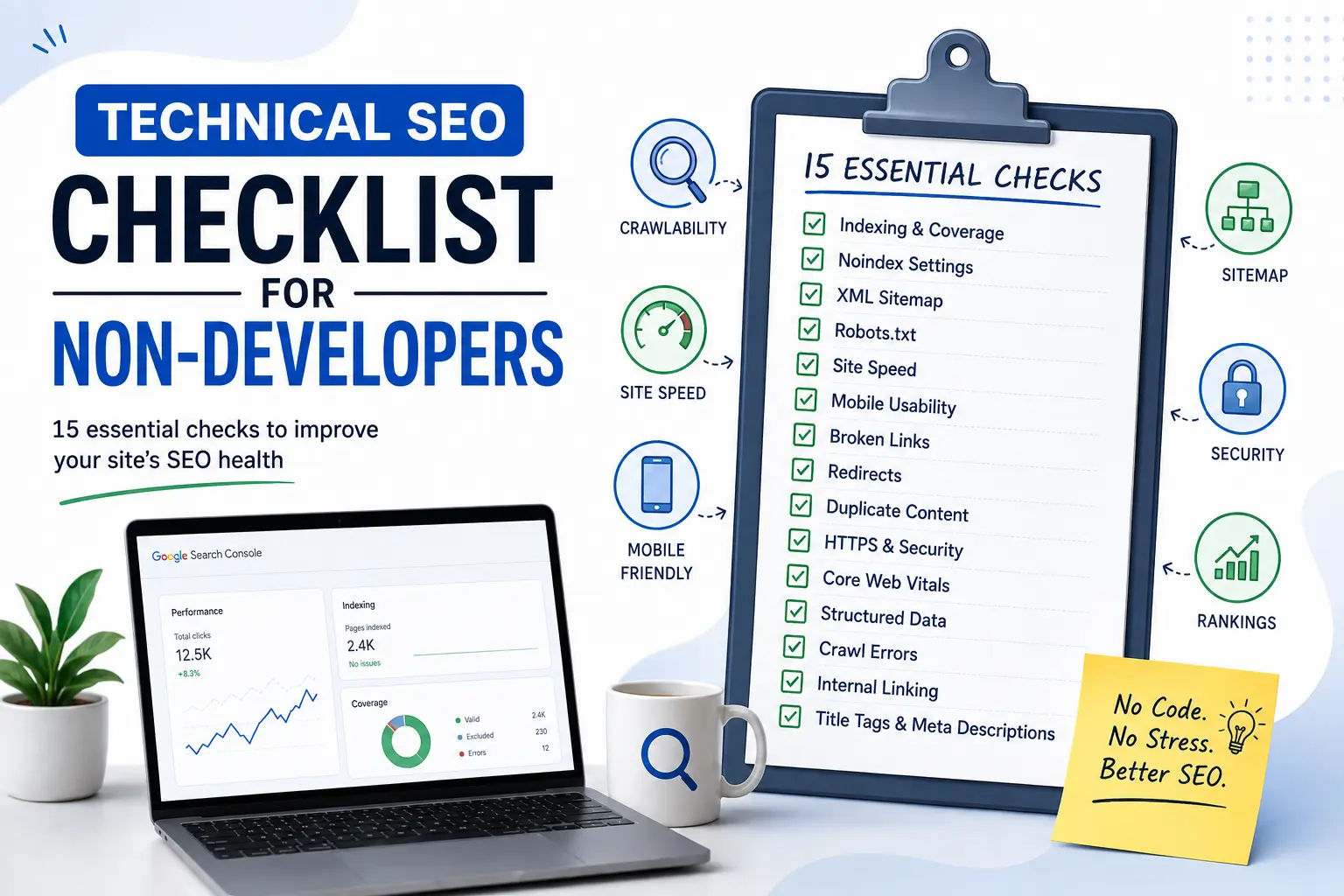
A Simple Technical SEO Checklist
Before you finish your monthly review, ask:
Are important pages indexed?
- Is anything important accidentally set to noindex?
- Is the XML sitemap working and submitted?
- Is robots.txt blocking anything important?
- Are important pages loading quickly?
- Does the site work properly on mobile?
- Are there broken internal links?
- Do changed URLs have appropriate redirects?
- Are duplicate or canonical issues appearing?
- Is HTTPS working consistently?
- Are Core Web Vitals showing problems?
- Is structured data valid where it’s being used?
- Are there unusual crawl or server errors?
- Are important pages connected through internal links?
- Do important pages have useful titles and descriptions?
Closing Thoughts
Technical SEO sounds intimidating largely because of its name.For many website owners, however, the first level of technical SEO isn’t about writing code. It’s about checking, noticing, understanding, and knowing when to ask for help.
Google Search Console, PageSpeed Insights, sitemap reports, broken-link crawlers, and structured-data testing tools already do much of the technical investigation for you. You don’t need to become a developer to take SEO seriously. You simply need to know where the important switches are, what the reports are telling you, and which problems deserve attention first.
Once you start treating technical SEO as a regular website health check rather than a mysterious developer-only discipline, it becomes much less intimidating — and much more manageable.
Leave a Reply