

How to Fix ‘Server IP Address Could Not Be Found’ in Chrome (DNS_PROBE_FINISHED_NXDOMAIN)
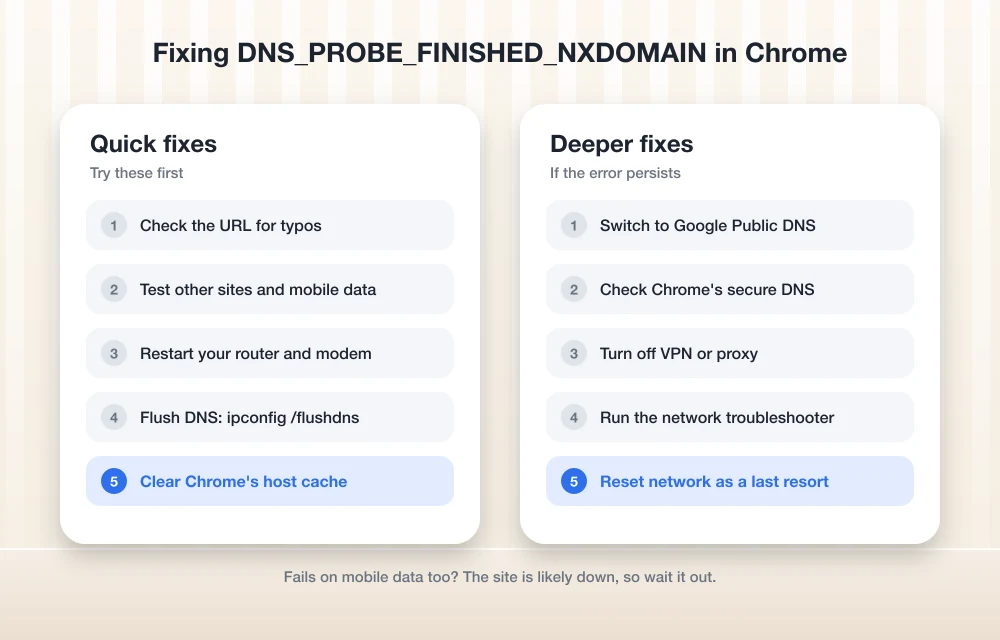
Chrome saying the server IP address could not be found? Here are the fixes I’d try, in order, from checking the URL to flushing DNS and switching to Google Public DNS.


Photo by David Pupăză on Unsplash
Chrome throws up a gray page with “This site can’t be reached” and “server IP address could not be found,” and underneath, in small capitals, the code DNS_PROBE_FINISHED_NXDOMAIN. Terse. But the cause is narrow, and it’s usually quick to fix.
Every website lives at a numeric address called an IP address. DNS (the Domain Name System, basically the directory that maps names to numbers) is what turns a name like thetechhacker.com into that number. So Chrome asks for the number, the answer comes back as “no such name,” and you get this error. NXDOMAIN is just DNS shorthand for “non-existent domain.”
Your computer’s almost never actually broken. It’s usually a typo, an old cached entry, a router that needs a restart, or a DNS server that’s misbehaving. The fixes start quick and get more invasive as you go.
Quick answer: Double-check the URL and see if other sites load. Then restart your router, flush your computer’s DNS cache (ipconfig /flushdns on Windows), and clear Chrome’s own host cache too. Still getting it? Switch your DNS servers to Google Public DNS, turn off any VPN or proxy, and if all else fails, run a Windows network reset.
What causes the “server IP address could not be found” error?
One thing happened: the DNS lookup failed. Finding out why is the actual work.
Sometimes the name really doesn’t exist, because you mistyped it or the site’s domain expired. Other times the name’s fine and the DNS server your provider hands you is slow or down. Then there’s caching, which is the sneaky one. Your PC and Chrome each keep a short-term record of recent lookups (the cache), and a stale entry in there can keep the error alive long after the real problem’s gone. VPNs and proxies can get in the way too, since a lot of them send DNS requests to their own servers.
Match your symptom to a row and jump to that fix.
| What you notice | Likely cause | Start with |
|---|---|---|
| One site fails, others load fine | Typo, site down, or stale cache | Check the URL, flush DNS |
| Every site fails | Router or provider DNS problem | Restart router, change DNS |
| Site works on phone data, not on Wi-Fi | Your home network’s DNS | Restart router, change DNS |
| Only fails when the VPN is on | VPN’s DNS settings | Disconnect the VPN |
| Only fails in Chrome | Chrome’s cache or secure DNS setting | Clear Chrome’s host cache |
Fix 1: Check the URL and your internet connection
Obvious, yes. But a lot of these errors come down to one wrong letter or a missing dot. Read the address bar carefully, or search the site’s name in Google and click the result instead of typing it.
Then open a couple of other big sites. Nothing loads? Then it’s your connection or your DNS, and you can skip straight to the router and DNS fixes. If everything else works, turn Wi-Fi off on your phone so it’s on mobile data, and try the problem site there. Fails on the phone too? The site’s probably down or its domain has lapsed, and there’s not much you can do except wait. Not ideal.
Fix 2: Restart your router and modem
Routers run for weeks without a break, and their built-in DNS forwarding (the bit that relays your lookups to the provider) can get stuck. A restart clears it.
The exact procedure depends on the brand, so check the manual or the label on the device if you’re not sure. Roughly: unplug power from both the modem and the router and wait a short while. Plug the modem back in first, let it come fully online, then power the router up. Restart your computer while you’re at it.
If you’re rebooting the router every few days just to stay online, the hardware’s struggling. I did a comparison of mesh Wi-Fi vs a traditional router that can help you pick a replacement.
Fix 3: Flush your computer’s DNS cache
Your operating system keeps recent DNS answers so it doesn’t have to repeat every lookup. Handy, until it stores a bad answer, because then it keeps handing that bad answer back. Flushing the cache forces a fresh lookup.
On Windows
Open Command Prompt
Click Start, type cmd, and open Command Prompt. If the next step gives you a permissions error, close it, right-click Command Prompt and pick Run as administrator.
Run the flush command
Type ipconfig /flushdns and hit Enter.
Reopen Chrome and test
Close Chrome completely, open it back up, and go to the site.
Microsoft describes the command as one that “Flushes and resets the contents of the DNS client resolver cache.” Your files, bookmarks and passwords aren’t touched. It only clears the list of saved lookups.
On a Mac
Apple’s support article gives this Terminal command for OS X 10.10.4 and later: sudo killall -HUP mDNSResponder. Open Terminal, paste it, press Return, and type your Mac password when it asks (nothing shows on screen while you type, and that’s normal).
One catch: Apple has archived that article and doesn’t update it anymore, so it doesn’t officially confirm the command on current macOS versions. Apple does say restarting your Mac also refreshes the cached information. So if you’d rather stay out of Terminal, just restart.
Fix 4: Clear Chrome’s own host cache
Chrome keeps its own DNS cache, separate from the one in Windows or macOS. So you can flush the system cache and still see the error in Chrome. That’s the annoying part.
Open Chrome’s internal network page
Type chrome://net-internals/#dns in the address bar and hit Enter.
Clear the cache
Find the button that says Clear host cache and click it.
Restart Chrome
Close every single Chrome window, reopen it, and give the site another go.
Fix 5: Switch to Google Public DNS
By default your computer uses whatever DNS server your provider assigns. If that server’s unreliable, no amount of cache flushing will stop the error. A public DNS service like Google’s takes the provider’s server out of the path entirely, and it’s the fix I’d lean on if the error keeps coming back.
The addresses below come from Google’s Google Public DNS setup page. Check them there before you type them in, since that page is the authoritative list.
| Google Public DNS addresses | |
|---|---|
| IPv4 preferred | 8.8.8.8 |
| IPv4 alternate | 8.8.4.4 |
| IPv6 preferred | 2001:4860:4860::8888 |
| IPv6 alternate | 2001:4860:4860::8844 |
On Windows 11
Open your connection’s settings
Go to Settings, then Network & internet, and pick Wi-Fi or Ethernet, whichever one you’re connected with.
Find the DNS option
Find DNS server assignment and click Edit next to it.
Switch to Manual
Change Automatic (DHCP) to Manual, and then turn on IPv4.
Enter the servers and save
Put 8.8.8.8 in Preferred DNS and 8.8.4.4 in Alternate DNS, then hit save.
Microsoft calls Automatic (DHCP) the recommended setting, so if anything acts up after the change, go back to the same screen and switch it back. You might also see a DNS over HTTPS option in that dialog, which encrypts your lookups. Microsoft says it isn’t available in Windows 10, though.
On Windows 10
Same DNS fields (Preferred and Alternate under IPv4), different screen layout. Open Settings, go to Network & internet, and open your connection’s properties or IP settings. The switch from automatic to manual DNS lives there.
On a Mac
Open System Settings and click Network. Pick Wi-Fi or Ethernet, click the Details button next to your connection, and open the DNS tab. Add the Google addresses with the plus button and click OK. Apple renames menus between macOS versions, so your labels might be slightly different.
Check Chrome’s secure DNS setting
Chrome has its own secure DNS option, and it can override your system settings. In Chrome’s settings, look for Use secure DNS, usually under Privacy and security, then Security. Is it set to a custom provider that’s having problems? Turn it off for a minute and reload the site. If the error clears, you’ve found the culprit.
Fix 6: Turn off your VPN or proxy
VPNs route your traffic through their own servers, and DNS requests usually go along for the ride. If the VPN’s DNS can’t resolve a site, you get this exact error. Disconnect the VPN fully (not just pause it, if the app gives you both options) and try again.
Proxies can break things the same way. On Windows, open Proxy under Network & internet settings and switch off any manual proxy you don’t recognize. On a Mac, check the Proxies section in your connection’s Details. On a work laptop, though, leave the proxy alone and talk to your IT team, because the company may require it.
Fix 7: Run the troubleshooter or reset your network (Windows)
Nothing’s worked so far? Time for the heavier tools, least invasive first. Microsoft’s built-in troubleshooter is at Start, then Settings, then Network and Internet, then Network troubleshooter. Run it and apply whatever it suggests.
If that doesn’t do it, Microsoft lists two commands for manually resetting the TCP/IP stack (the part of Windows that handles network connections). Open Command Prompt as administrator and run them one at a time:
- netsh winsock reset
- netsh int ip reset
Then restart your PC so the changes stick.
The last resort is a full network reset. On Windows 11 it’s Settings, then Network & internet, then Advanced network settings, then Network reset; choose Reset now, then Yes. On Windows 10 it’s Settings, then Network & internet, then Status, then Network reset. Microsoft’s guide to fixing connection problems in Windows covers both versions.
Still seeing the error?
If it’s one site, and it fails on your phone’s mobile data too, the problem’s on the site’s end: the server’s down or the domain expired. Wait it out, or contact the site owner if you know them.
If every site fails on every device in the house, even after a router restart and a DNS change, it’s most likely your internet service. Call your provider and ask about an outage. And if this keeps happening month after month, it’s worth comparing the other options available at your address. My breakdown of 5G home internet vs cable vs fiber covers the trade-offs.
A separate case: if the site loads but Chrome shows “Not secure” in the address bar, that’s not a DNS issue at all. It’s covered in my guide to fixing Chrome’s HTTP Not Secure warning.
Which NXDOMAIN fix to try first
DNS_PROBE_FINISHED_NXDOMAIN looks alarming. It isn’t, really; it’s one of the easier Chrome errors to clear. Check the address, restart the router, flush both caches, and most of the time the site’s back within a few minutes.
If it keeps returning, I’d switch to Google Public DNS for good, which takes your provider’s DNS out of the equation. Save the network reset for when you’ve run out of everything else.
Frequently Asked Questions
What does DNS_PROBE_FINISHED_NXDOMAIN mean?
Chrome asked a DNS server for a website’s IP address and got told the name doesn’t exist. NXDOMAIN stands for non-existent domain. A typo can cause it, and so can a site that’s down, a stale DNS cache, or a DNS server that isn’t responding properly.
Why does only one website show ‘server IP address could not be found’?
If other sites load fine, check the address for typos first. Then try the site on your phone using mobile data. Fails there too? The site’s probably down or its domain has expired. If it works on your phone, flush your computer’s DNS cache and clear Chrome’s host cache.
How do I undo a DNS change on Windows?
Go back to the DNS settings for your Wi-Fi or Ethernet connection and switch from Manual back to Automatic (DHCP). Microsoft lists Automatic (DHCP) as the recommended setting, so this puts you back on your internet provider’s default DNS.
Will a Windows network reset delete my files?
No. A network reset changes network settings, not your personal files. Microsoft does warn it might switch your saved networks to a public profile, which makes your PC undiscoverable to other devices, so you may need to set your home network back to private afterward.
Can a VPN cause the server IP address could not be found error?
Yes. Most VPNs send your DNS requests through their own servers, and if those servers can’t resolve a site, Chrome shows this error. Disconnect the VPN completely and reload the page to check.
Featured image: David Pupăză on Unsplash.
Disclosure: TheTechHacker has no paid relationship with the companies in this article.
More in How-to
How to Fix DNS Error- DNS_Probe_Finished_no_Internet in your PC
We have all known that Windows is the preferred Operating System around the World when it comes to OS of choice. Now, some of you may argue that MacOS is better than Windows. However, we will reserve that debate for some other day. If you are an avid Windows user, you might have known that there…

How to Fix Netflix Proxy or VPN Error M7111-5059
Netflix error M7111-5059 usually means it thinks you’re streaming through a VPN or proxy. Here’s what the error means and the fixes worth trying, from switching servers to plugging IPv6 and DNS leaks.
How to fix “This Site Can’t Be Reached” Chrome Error
This Site Can’t Be Reached is the common error in the Google Chrome browser. The error is caused by many reasons when your trying to open a website address in Google Chrome. If you are currently facing the error and trying to fix the issue, then you are in the right place. We are here…
The week in tech, minus the noise.
New reviews, fixes and the stories that matter — once a week, straight to your inbox.
We only use your email to send the newsletter. Unsubscribe any time. See our privacy policy.
Comments