

Compare Any Two Folders Easily With Compare Advance For Windows
Cleaning is a good habit, when it comes to the computer it is very tough. Sometimes we knowingly or unknowingly save the files on two different folders on the same computer, this will lead to unnecessary consumption of hard disk space. Keeping multiple copies is good, but for very low spaced hard drives it becomes…

Cleaning is a good habit, when it comes to the computer it is very tough. Sometimes we knowingly or unknowingly save the files on two different folders on the same computer, this will lead to unnecessary consumption of hard disk space. Keeping multiple copies is good, but for very low spaced hard drives it becomes a mess.

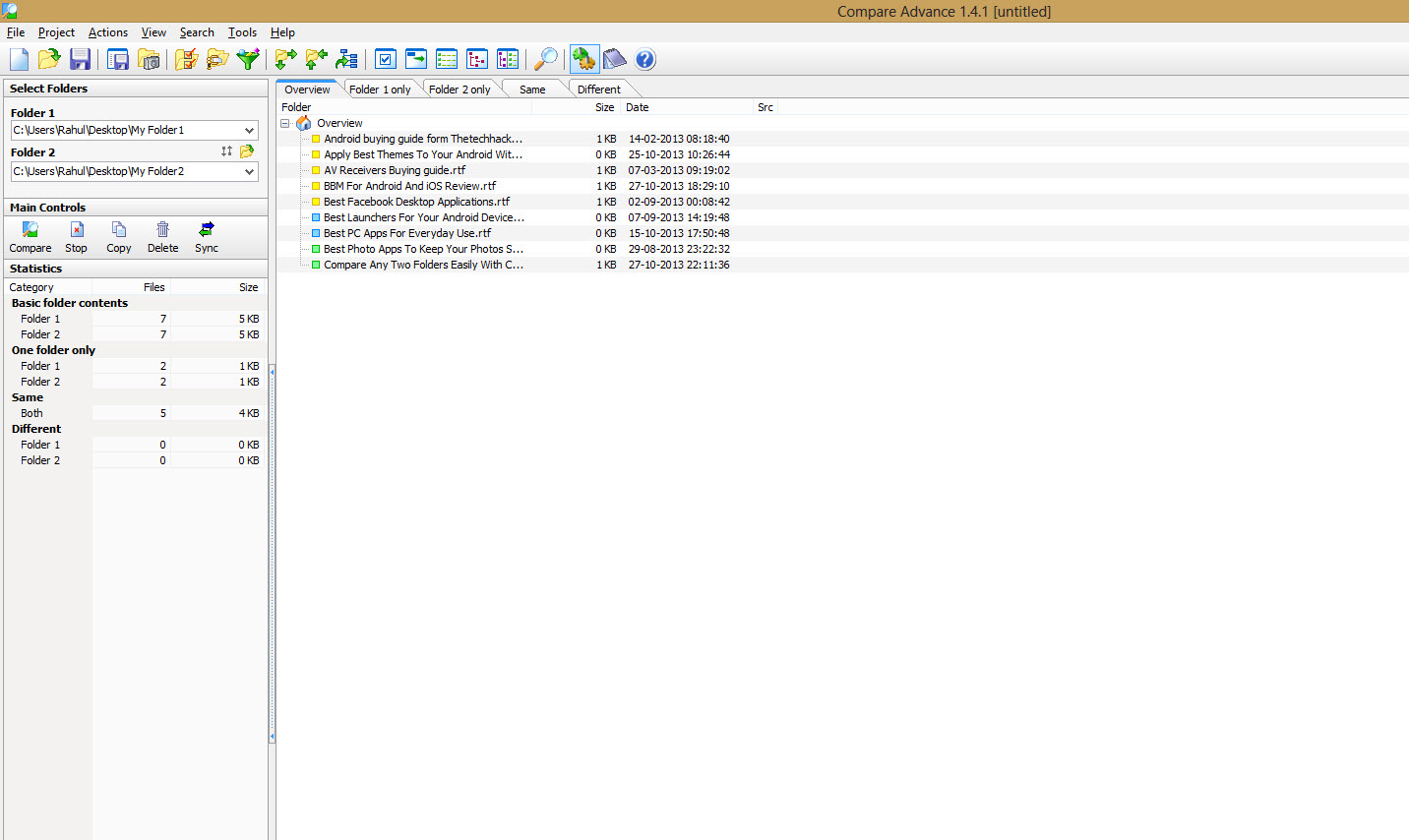
Compare Advance is a free tool available for Windows which easily compares two folders. Compare Advance sports an explorer style interface with customizable menus. The user interface is very easy to understand, start to compare folders just click the folder icon in between Folder 1 and Folder 2 and select the two folders on your hard drive.
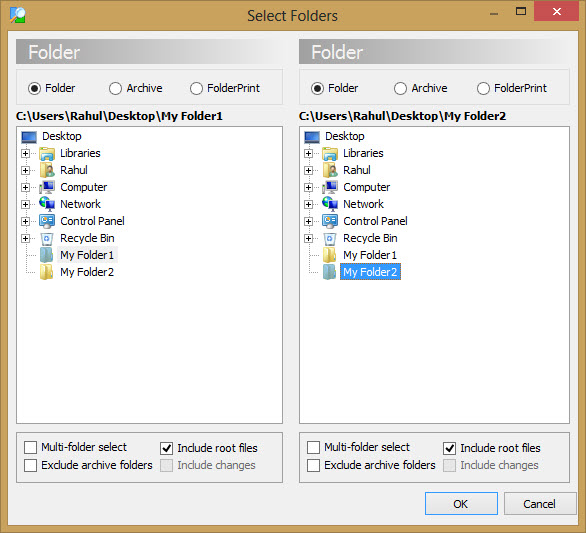
For testing purpose, we created two different folders on our Desktop with same and different files. After selecting two folders we also checked the boxes including sub-folders and root folders. Next click on compare icon to start comparing, the results displayed instantly. The results will be displayed in different categories like Folder 1 only, Folder 2 only, Same and Different. For easier identification, the files displayed on different color tags.
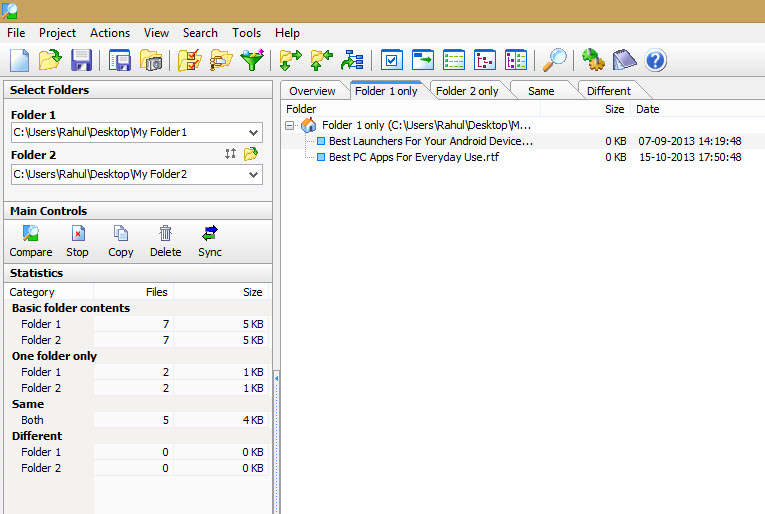
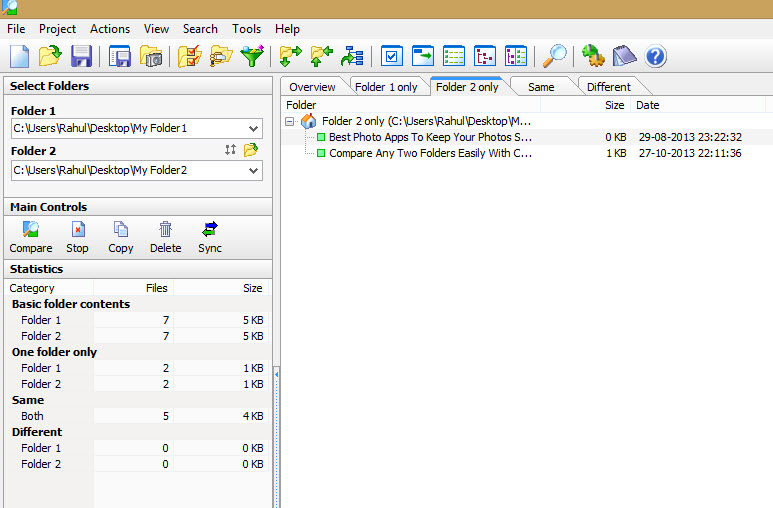

You can view the results List view, Tree view, and Explorer view. Right-clicking on any entry lets you open, copy, delete, Compare files, set source, hide show all and properties. You can customize the basic options of the software Tool–>Options in the main menu bar. The best part of the feature is, it lets you save the comparisons as a project file and you can Archive the folder pairs.
Overall Compare Advance is a very good utility tool for Windows users to compare folders easily. It is easily understandable and you don’t need to be a geek to use this tool.
That’s all for now. Please do share your views and feedback in the comment box below. Also, please don’t forget to share the article on your social media.
More in Windows

How to Encrypt a Folder in Windows 10
You might have very important data residing on your computer. Even though there are several security mechanisms in place to protect unauthorized access to computers such as passwords, an extra layer of security won’t hurt. Especially if the data is extremely important and you do not want to let anyone access it even when they…
How To Check & Remove Junk Files in Windows 10
Users often complain of a significant reduction in the free disk space on their PC, once they’ve upgraded to Windows 10. We’ve been looking for the reasons and decided to write down some corrective measures we suggest. While it is mainly due to some additional applications in Windows 10, it still doesn’t consume more than…
Make Windows 10 To Run Faster Finally
Windows has been existing for just over two decades in the consumer market, from entry level computers to high-end computers. The secret of Windows to be popular is being flexible, customizable and comprised with rich contents compared to other operating systems. In addition to the aforesaid traits, Windows is also quite good at performance with…
The week in tech, minus the noise.
New reviews, fixes and the stories that matter — once a week, straight to your inbox.
We only use your email to send the newsletter. Unsubscribe any time. See our privacy policy.
Comments