

How To Unlock Android Phone Pattern Lock Without Losing Data
Pattern unlock is one of the best security option available for Android users. The problem arises when you forgot pattern to unlock the Android device.

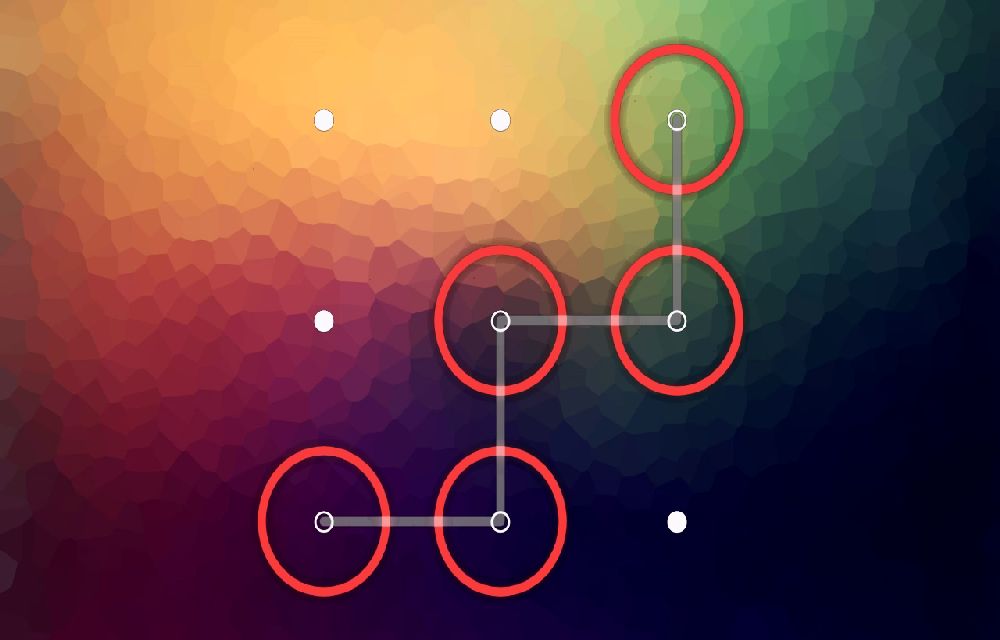
Pattern unlock is one of the best security option available for Android users. The problem arises when you forgot pattern to unlock the Android device. The problem is common for the most of the Android users when they accidentally set up a pattern lock and forgot after setting up. Sometimes after many wrong attempts, the device gets locked for permanently. This could be a headache to unlock the Android device, we are here to solve such kind of accidental situation without harming your device or without losing data.
Most of the people go for “Reset” option after they forgot how to unlock. But the Reset option leads to complete data loss, your apps, downloads, personal data and everything you are using in your device will be lost. Reset option is advisable only new mobile users, if they reset device they nothing have to lose in a new Android device.
Related Articles
- How To Block A Phone Number To Avoid Unwanted Calls
- What Is Bootloader On Android Device And Advantages & Disadvantages Of Unlocking Bootloader
- Block Annoying Ads On Your Android Device With These Apps
How To Unlock Android Phone Pattern Lock Without Losing Data

How to unlock Android pattern lock without factory reset
This guides helpful for those who don’t want to lose their data in the unlocking process. This process doesn’t require any internet connection or Gmail account to unlock Android phone pattern. Steps involve ADB tool requirement, and also, your device needs to be USB Debugging enabled. In most of the Android device USB, Debugging is enabled via Settings > Applications > Developer Options.
1.Now connect your locked Android device to your computer using original USB cable.
2.Open cmd (command prompt) and copy paste the code displayed below.
adb shell
cd /data/data/com.android.providers.settings/databases
sqlite3 settings.db
update system set value=0 where name='lock_pattern_autolock';
update system set value=0 where name='lockscreen.lockedoutpermanently';
.quit
Using Google account for unlocking Android Pattern Lock
After continuous five unsuccessful wrong pattern attempts the device pop ups a message with “next” and “try again” buttons.
1.Here click on “Next” button and you see two options for the unlocking phone. One answers the security question and the second option is to enter Google account details.
2.Security Question is rarely used by people if you have an answer for your security question the unlocking pattern is very simple. After answering security questions, the device successfully unlocks. If you don’t have any security question and answer go with Google Option and click on the “next” button.
3.Now enter your Google account username and password connected with your device and click on “Sign in”.
4.After entering Google Account credentials now, you can choose a new pattern.
Unlocking Android Phone Pattern Using Reset Option (It loses all your data)
For those who prefer factory reset option here is the process.
- Switch off your Android phone.
- Now press and hold “Volume up + Home Key + Power Button” until the phone boots. For some mobiles if they don’t have physical Home button use Volume Up+ Power Button
- After pressing the button, the bootloader screen appears. It looks like similar to DOS screen in computers.
- Use the volume key to move up and down then scroll down to “Restore Factory Defaults” option.
- After clicking on the settings, now scroll down to “Reboot System Now ” and wait for your phone to reboot.
Other Alternatives to the Android Pattern Lock
It is always advisable to remember the pattern before applying pattern lock to Android. Luckily we have great alternatives to the Android pattern lock to proved good security. Here are the some best apps to provide security to your Android device.
- iLockit Lock Screen
- LockerPro Lockscreen
- DIY Locker – Tattoo Locker
More in How-to

How To Apply Android Like Pattern Lock Screen To Windows PC
Everyone wants a secure method to protect their laptops and desktop PCs. We can secure a PC in so many ways, installing Antivirus to protect from viruses etc. How you physically protect your device from enemies, maybe one of your known ones want to steal your data. You can secure your system by applying Android…
How to Protect Smartphone from Being Hacked
Protection of the smartphones is very important in this insecure world. Everything is being hacked day by day. Nowadays, hackers are intelligent than the programmers who code the app or operating systems. A single fault in the security can be the open door to the hackers to our mobile phones. So, closing all of those…
How to Open Password Protected Android Apps
We always use some app locks to protect our apps from external access. It is good to lock the important apps like Whatsapp and Facebook where the important chat sessions and files exist. This prevention can protect your files thus, you can use your device without worrying about the anonymous usage of them. All set and…
The week in tech, minus the noise.
New reviews, fixes and the stories that matter — once a week, straight to your inbox.
We only use your email to send the newsletter. Unsubscribe any time. See our privacy policy.
2 comments
Thanks admin for this awesome and useful article. I tested it and I found it’s really working for me. I want more articles related to this to improve my skills. Really this is an awesome blog I found on google ever.
Best Regards.
Happy to hear that Jitender. 🙂