

How To Manual Update OnePlus One To Official OxygenOS
The Long wait is over for OnePlus One owner, now finally company released official Android Lollipop build custom Android Lollipop build OxygenOS. This tutorial involves all steps to install OxygenOS on your OnePlus One device. Disclaimer: Please follow this guide at your own risk. Thetechhacker will not be responsible if your device gets damaged or…

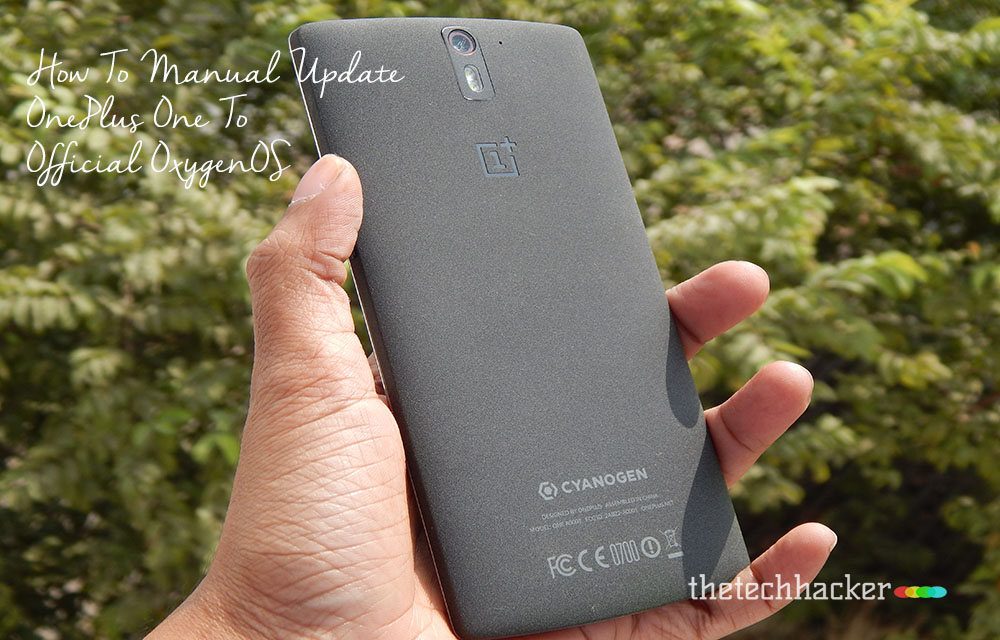
The Long wait is over for OnePlus One owner, now finally company released official Android Lollipop build custom Android Lollipop build OxygenOS. This tutorial involves all steps to install OxygenOS on your OnePlus One device.
Disclaimer: Please follow this guide at your own risk. Thetechhacker will not be responsible if your device gets damaged or bricked during the process.
Pre-Requisites
- This update requires full device wipe, make sure to backup all your data, contacts, call logs and SMS.
- Enable USB debugging mode from Settings > Applications > Development > USB debugging in your device.
- Make sure Fastboot and ADB installed on your PC.

Features of OxygenOS:
- Smart off-screen gestures
- Customizable lock screen
- Three fingers together to play music and much more.
How To Manual Update OnePlus One To Official OxygenOS – Detail Guide
- First, download OxygenOS from official OnePlus One website.
- Next, you need to flash a recovery onto your device, you can use TWRP and follow on-screen instructions to flash recovery.
- Turn off the device and get into the bootloader mode on your device by pressing and holding the Volume up+Power button.
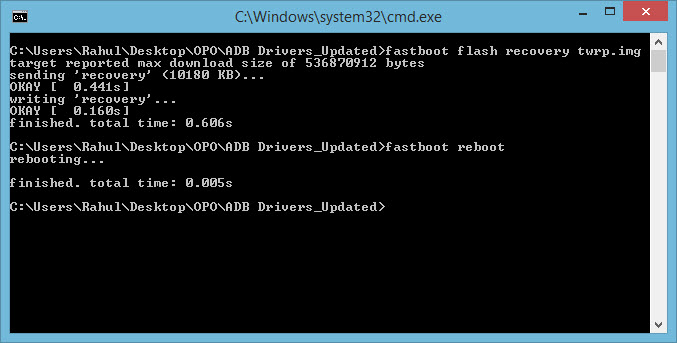
- Here from the Fastboot directory run the following commands.
fastbootoemunlockfastbootflash recoveryfastbootreboot Next, extract the downloaded OxygenOS to your phone.- Now, enter into recovery mode by pressing and holding Volume down+power buttons together.
- Here you need to factory reset your device, after resetting go to the main recovery screen and select “install zip from SD card” and select your firmware package.
- After the successful installation completes, go to “+++++Go Back+++++” and reboot the phone by selecting “reboot system now”.
Now the phones will take at least 5 minutes time for the first boot after the firmware update.
That’s it, now enjoy Android Lollipop flavor on your OnePlus One with OxygenOS.
Please do share your views in the comment box below.
More in How-to
How To Enter Into Bootloader Mode In OnePlus 2
OnePlus has recently and officially launched its successor OnePlus 2. Technically OnePlus 2 is a fantastic device with almost all high-end specifications.
How to fix printer driver update problem in Windows 10
An update is a process to bring fixes and compatible versions from the manufacturer to sync with your Windows machine. These updates are necessary to maintain functionality up to date. When Microsoft releases a major update, many printer manufacturers release their updates compatible with the Windows version. Updating drivers is a regular process and everyone…
How to fix Siri does not respond or answers correctly
Having trouble with Siri after an iOS update? Here’s how to fix it!
The week in tech, minus the noise.
New reviews, fixes and the stories that matter — once a week, straight to your inbox.
We only use your email to send the newsletter. Unsubscribe any time. See our privacy policy.
Comments