

How to Fix Windows 11 26H2 Black Screen After Sign-In
Seeing a black screen after signing in on Windows 11 26H2? Microsoft confirmed the issue, mainly on Azure Virtual Desktop with FSLogix, and fixed it in KB5127648. Here’s how to get your desktop back.

Fix-Windows-11-26H2-Black-Screen-After-Sign-In
You sign in, the spinning dots go away, and then nothing. No taskbar, no Start menu, no desktop. Just a black screen. If this started after your PC moved to Windows 11 version 26H2, you’re not imagining it. Microsoft has confirmed it as a known issue.
Windows 11 version 26H2, also called the Windows 11 2026 Update, was announced on September 29, 2026. Soon after, Microsoft listed a problem where some devices show a black screen or fail to load the desktop after sign-in. The good news is that Microsoft now marks it as resolved.
In this guide, I’ll explain what Microsoft has actually confirmed, who was affected, how to apply the official fix, and a few general troubleshooting steps you can try if your black screen has a different cause.
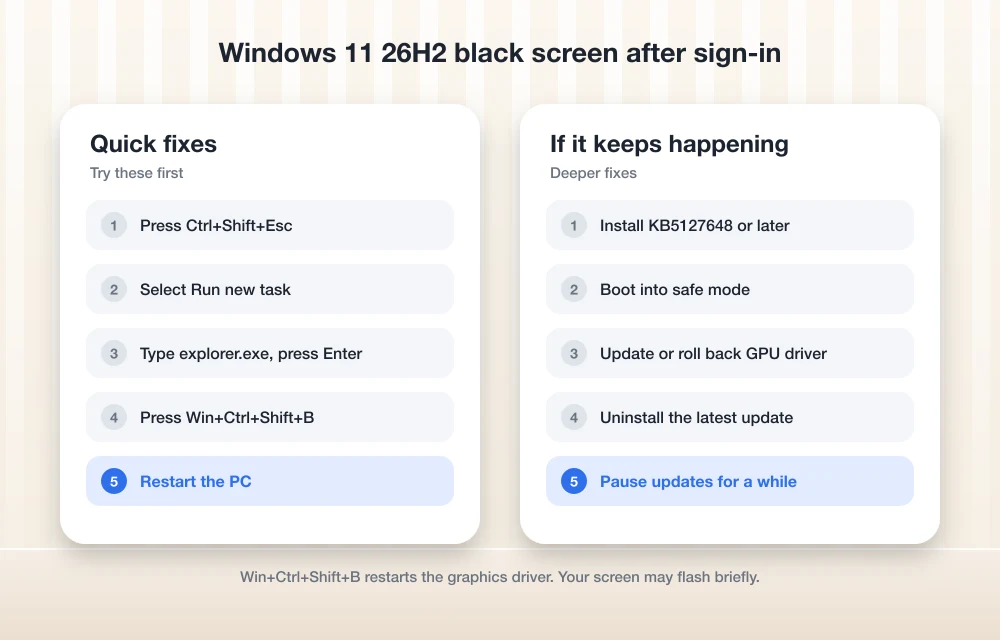
Quick answer: Microsoft fixed the Windows 11 26H2 black screen after sign-in with update KB5127648, released on October 13, 2026. Install KB5127648 or any later update through Windows Update. If you’re stuck on the black screen right now, press Ctrl+Shift+Esc to open Task Manager, select Run new task, type explorer.exe and select OK. The issue mainly affected virtual desktop setups like Azure Virtual Desktop with FSLogix.
What Microsoft Confirms About the 26H2 Black Screen
On its Windows 11 version 26H2 release health page, Microsoft lists the issue as “Devices might experience a black screen or desktop loading issues after sign-in.” Microsoft says it received reports of this happening in some virtual desktop environments.
Here’s what the symptoms look like, according to Microsoft:
- You see a black screen after signing in.
- The desktop doesn’t load on its own, so you may not reach it until it’s started manually.
- The application event log may show Windows Explorer crashes.
Windows Explorer (explorer.exe) is the program that draws your desktop, taskbar and Start menu. When it crashes or doesn’t start, Windows is still running underneath, but you have nothing to click on. That’s why the screen goes black.
Who is affected
Microsoft says the issue was seen mainly on Azure Virtual Desktop (AVD) hosts that use FSLogix. FSLogix is a Microsoft tool that stores user profiles separately so people get the same settings every time they sign in to a shared virtual machine. Microsoft also says the problem appears more often with some existing user profiles.
The trigger, per Microsoft, is installing Windows 11 version 26H2 and later updates. So if you’re on a regular home laptop and get a black screen, this specific bug is less likely to be the cause. The general fixes further down may help you more.
Current status
Microsoft lists the issue as Resolved. The fix came in KB5127648, dated October 13, 2026. I couldn’t confirm the exact date Microsoft first opened this issue, so I’m leaving that out.
Fix 1: Install KB5127648 or a Later Update
This is the real fix, and it’s where I’d start. KB5127648 is the October 13, 2026 security update for Windows 11 versions 24H2, 25H2 and 26H2. Any newer cumulative update should also include it.
If you can get to the desktop (use Fix 2 first if you can’t), do this:
- Open Settings.
- Go to Windows Update.
- Select Check for updates.
- Install KB5127648 or any later update that shows up, then restart.
If Windows Update won’t cooperate, Microsoft says KB5127648 can also be downloaded manually from the Microsoft Update Catalog. You can find the details on Microsoft’s KB5127648 support page.
To check whether you already have the fix, press Win+R, type winver and press Enter. Compare your build number with the table below.
| Windows 11 version | Build after KB5127648 |
|---|---|
| 26H2 | 26300.9711 |
| 25H2 | 26200.9711 |
| 24H2 | 26100.9711 |
If your build is the same or higher, you already have the fix.
A quick bit of background: 26H2 arrives as a small “enablement package” for PCs already on 24H2 or 25H2, because all three versions share the same underlying code. That’s why one update covers all three.
Fix 2: Start the Desktop Manually (Microsoft’s Workaround)
If you’re staring at a black screen right now, this is Microsoft’s own temporary workaround. It starts Windows Explorer by hand so your desktop appears.
- Press Ctrl+Shift+Esc to open Task Manager.
- Select Run new task.
- Type explorer.exe.
- Select OK.
Your taskbar and desktop should load. Once they do, go straight to Fix 1 and install the update so you don’t need to repeat this every time you sign in.
General alternative: Ctrl+Alt+Del and restart Explorer
This next part is general Windows troubleshooting, not Microsoft’s specific instruction for this issue. If Ctrl+Shift+Esc does nothing, press Ctrl+Alt+Del and choose Task Manager from the menu. Then:
- If you see Windows Explorer in the list, right-click it and choose Restart.
- If it isn’t in the list, use Run new task, type explorer.exe and select OK.
Explorer problems aren’t new, by the way. If you’ve ever seen Explorer hang on older Windows versions, my guide on fixing the “Working on it” message in Windows 10 File Explorer covers a related kind of slowdown.
General Fixes If Your Black Screen Has a Different Cause
Everything from here is general troubleshooting. Microsoft hasn’t listed these as fixes for the 26H2 known issue. They’re useful if you’re not on a virtual desktop, or if the update didn’t help. I wasn’t able to recheck every menu name against Microsoft’s latest instructions, so the exact wording on your PC may differ slightly.
Fix 3: Reset the graphics driver
Press Win+Ctrl+Shift+B together. On many PCs, the screen flickers and you may hear a beep as Windows resets the graphics driver. If the black screen was a display glitch, this can bring the picture back without a restart. It’s harmless to try.
Fix 4: Boot into safe mode
Safe mode starts Windows with only the basic drivers and services. If the desktop loads fine in safe mode, a driver or startup app is the likely culprit.
If you can reach Settings:
- Go to Settings > System > Recovery.
- Next to Advanced startup, select Restart now.
- Choose Troubleshoot > Advanced options > Startup Settings > Restart.
- Press 4 or F4 to start in safe mode.
If you can only reach the sign-in screen, hold Shift while you select Power > Restart. That takes you to the same recovery menu.
Fix 5: Roll back or update the graphics driver
A bad graphics driver can also leave you with a black screen. This is more common on laptops with two graphics chips. If other Windows 11 features stop loading after an update too, my guide on fixing Windows 11 widgets not working may help. In safe mode or on the desktop:
- Right-click the Start button and open Device Manager.
- Expand Display adapters.
- Right-click your graphics card and choose Properties.
- On the Driver tab, select Roll Back Driver if the problem began after a driver update, or Update driver if your driver is old.
If Roll Back Driver is greyed out, there’s no older driver saved to go back to. In that case, try updating instead.
Fix 6: Uninstall the latest update (with care)
If the black screen started right after a specific update, removing it can help. Go to Settings > Windows Update > Update history > Uninstall updates. If you can’t reach the desktop, use the recovery menu from Fix 4 and choose Troubleshoot > Advanced options > Uninstall Updates.
One big warning here. Don’t uninstall KB5127648 to fix this issue. That update is the fix, so removing it would bring the problem back. Only remove a different, newer update if you’re sure it caused your trouble.
Fix 7: Pause updates for a while
Once you have a working desktop, you may want breathing room before the next update arrives. Go to Settings > Windows Update and use Pause updates. On Windows 11 you can usually pause for between one and five weeks.
I’d only do this after you’ve installed KB5127648. Pausing before that just keeps the bug around longer. And remember that paused updates also mean paused security fixes, so don’t leave it paused forever.
A Note for IT Admins on Azure Virtual Desktop
If you manage AVD host pools with FSLogix, this one was squarely aimed at you. Push KB5127648 or later to your session hosts. Until that’s done, users can follow the Task Manager workaround in Fix 2, and Microsoft notes that some existing profiles hit the problem more often than others.
Microsoft’s 26H2 status page lists other issues too, and they’re separate from this one. For example, a Remote Desktop error 0xC000000D was resolved by KB5127936. If your users are stuck at a different point in a remote session, my guide on fixing Remote Desktop stuck on “Please Wait” in Windows 11 may help.
My Take
This is one of the easier Windows bugs to deal with, because Microsoft has already fixed it. If you’re on a virtual desktop and see a black screen after signing in to 26H2, start Explorer manually with Ctrl+Shift+Esc, then install KB5127648 or anything newer. Check your build with winver to be sure.
If you’re on a normal PC and the update doesn’t change anything, your black screen probably has another cause. Work through the general fixes in order, starting with the graphics driver reset, and you’ll usually find the problem without needing to reinstall Windows.
Frequently Asked Questions
Is the Windows 11 26H2 black screen after sign-in fixed?
Yes. Microsoft lists the issue as resolved. The fix is in update KB5127648, released on October 13, 2026. Installing KB5127648 or any later update should fix it.
Who was affected by the 26H2 black screen issue?
Microsoft says it was seen mainly on Azure Virtual Desktop hosts that use FSLogix, and it appeared more often with some existing user profiles. Regular home PCs were less likely to be affected.
How do I get my desktop back from a black screen right now?
Press Ctrl+Shift+Esc to open Task Manager, select Run new task, type explorer.exe and select OK. This is Microsoft’s temporary workaround. Then install KB5127648 or later.
How do I check if I have the KB5127648 fix?
Press Win+R, type winver and press Enter. On 26H2, build 26300.9711 or higher includes the fix. On 25H2 it’s 26200.9711, and on 24H2 it’s 26100.9711.
Should I uninstall KB5127648 if I get a black screen?
No. KB5127648 is the update that fixes this black screen issue. Removing it would bring the problem back. Only uninstall a different update if you’re sure it caused your trouble.
You might also like

How to Fix Remote Desktop Stuck on “Please Wait” in Windows 11
Is your Remote Desktop session stuck on “Please wait” or “Please wait for the Remote Desktop Configuration” in Windows 11? In most cases, the remote PC is hanging during sign-in, usually because of RDP’s network detection, a UDP transport problem, a stuck old session, or a user profile that won’t load. The quickest fixes are…
How to Fix Windows 11 Widgets Not Working
Windows 11’s Widgets panel gives quick glances at weather, news, stocks, and more right from your taskbar. But if clicking the icon does nothing, shows a blank screen, or fails to load, it’s a common technical glitch. Often tied to missing components like Edge WebView2 or the Windows Web Experience Pack, these fixes get most…
How to Fix Galaxy S26 Ultra Stuck at Samsung Account Sign-In on One UI 9
Is your Galaxy S26 Ultra frozen or looping at the Samsung Account sign-in screen during setup on One UI 9? Here are the workarounds Samsung and other owners have shared, and why you shouldn’t reach for a factory reset.
The week in tech, minus the noise.
New reviews, fixes and the stories that matter — once a week, straight to your inbox.
We only use your email to send the newsletter. Unsubscribe any time. See our privacy policy.
Comments